
Lex Imperialis Audio Issues on PC: How to Fix No Sound, Audio Stutter & Music Bugs
Tried and tested solutions


 10 min. read
  Published on
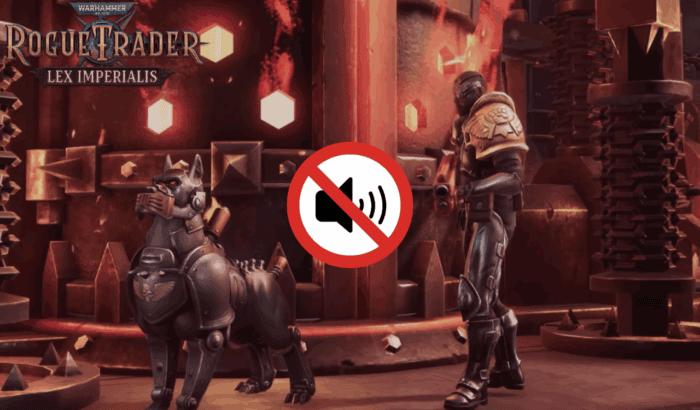
Players exploring the Lex Imperialis expansion of Warhammer 40,000: Rogue Trader have encountered various audio issues that interrupt gameplay. Common problems include audio cutting out completely, strange crackling or stuttering sounds, and sudden music shifts between combat and exploration.
These glitches can even kill all system audio (including YouTube or music apps) for several seconds. Some players report that in-game sound effects loop endlessly or cut off prematurely, while others hear the wrong music cue at the wrong time. Even worse, combat music may abruptly switch off, or an ambient track from exploration may keep playing long after the event ends.
Sudden volume jumps, muffled effects, and weapon fire sounds failing to play at all have also been reported. In all cases, the result is jarring audio synchronization and a lower-quality experience. Well, if you are facing any sort of audio issues while playing or triggered by the Lex Imperialis expansion of Warhammer 40,000: Rogue Trader, this fix guide is for you. Without further ado, let’s get going.
Step-by-Step Fixes for Lex Imperialis Audio Issues
Table of contents
1. Check In-Game Audio and Accessibility Sliders
- Open the Pause menu and go to Options > Audio.
- Make sure all volume sliders (Master, Music, SFX, etc.) are set above 0%.
- Also, check Options > Accessibility: ensure the Text Size and Scroll Speed sliders aren’t at 0.
- If any settings seem off, use the “Reset to Defaults” button and then manually adjust volumes back up.
- As one user noted, their “sound volume in the options turned to 0% – just turn the volume up again.”
2. Verify Game Files / Reinstall (if needed)
- In Steam: Right-click Rogue Trader > Properties > Installed Files > Verify integrity of game files.
- In GOG: Use the “Verify / Repair” option from the client.
Performing the above method checks for missing or corrupted audio files and reacquires them. If verification doesn’t work, uninstall and reinstall the game or DLC.
3. Use a Different Audio Output or Update Sound Drivers
- If you’re using USB headphones or speakers, try switching to a 3.5mm analog output.
- In Windows Sound settings (right-click speaker icon > Sound settings):
- Make sure the correct default playback device is selected.
- Disable any audio enhancements and exclusive mode options.
- Update your soundcard driver (e.g., Realtek) from the manufacturer’s official site.
4. Update Audio/GPU Drivers & Windows
- Make sure your GPU drivers (NVIDIA/AMD) and Windows updates are fully up to date.
- Turn off Hardware-accelerated GPU Scheduling:
- Go to Settings > System > Display > Graphics Settings
- Toggle it off and restart the PC.
Do note that this method has helped several players resolve audio glitches and stuttering.
5. Adjust USB Power Settings
- Open Device Manager, expand Universal Serial Bus controllers.
- Right-click each “USB Root Hub” or “Generic USB Hub”, choose Properties > Power Management.
- Uncheck “Allow the computer to turn off this device to save power”.
- In Power Options, disable USB selective suspend.
These changes prevent your USB audio devices from being unexpectedly disconnected mid-game.
6. Apply the Latest Game Patch
- Make sure your game is updated to Patch 1.4 or later, which includes major audio fixes.
- If you’re using mods like ToyBox or UnityModManager:
- Disable or remove them.
- Mods can interfere with audio playback and DLC content.
- If you suspect a DLC issue, try starting a new save with the DLC enabled or reinstalling it.
7. Delete the Rewired DLL to Stop Audio Dropouts
- Close the game completely.
- Go to the game installation folder. For example:
C:\Program Files (x86)\Steam\steamapps\common\Warhammer 40,000 Rogue Trader - Navigate to:
WH40KRT_Data > Plugins - Locate the file Rewired_DirectInput.dll, which is about 13KB.
- Delete or rename this file.
This stops the game from scanning for USB controllers and prevents repeated disconnect sounds and system-wide audio cutouts.
Common Audio Issues Faced or Triggered by Lex Imperialis
- Complete Audio Drop or Windows Error Beep: These happen when the game repeatedly checks for USB controllers, triggering a system-level disconnect sound. It kills all audio, including from other apps like YouTube. Players often hear a “device disconnected” beep every few seconds. This is linked to a faulty input plugin used by the game.
- Random Stuttering or Crackling: Audio may glitch or crackle, especially during effects-heavy combat scenes. It’s often related to USB conflicts or GPU scheduling settings in Windows. Disabling hardware-accelerated GPU scheduling has fixed this for some users. Poorly optimized Unity audio transitions also contribute to this.
- Desynced or Stuck Music Tracks: Combat or ambient music may play out of place or loop endlessly after the event is over. One common issue is battle music continuing long after enemies are defeated. Others hear environmental sounds like alarms that won’t stop until they leave the area. This is a bug in the game’s event triggers.
- No Sound or All Volumes at 0%: Sometimes the game launches with all volume sliders reset to 0%. Even tooltips and subtitles may vanish due to this bug. It’s usually fixed by manually restoring the audio and accessibility sliders. This bug was addressed in earlier patches, but it still appears occasionally.
- Missing or Muted Sound Effects: Gunfire, footsteps, or menu clicks may be missing due to broken or missing files. This often happens after an update or due to mod conflicts. Verifying game files via Steam or GOG usually restores the missing assets. Mods like ToyBox have also been known to interfere with DLC content.
- Settings Reset on Each Launch: After quitting the game, settings like audio volume or text size may reset to defaults. This includes zeroed-out sliders for Master Volume or UI effects. Owlcat patched this in update 1.1, but if you’re still seeing it, manually reset sliders after launch. The issue seems tied to saved files or leftover configs.
Conclusion
By systematically applying the fixes above, most players can eliminate Lex Imperialis audio errors. Start with the easy steps (raise volume sliders, verify files, update drivers) and then move to advanced ones (deleting the input DLL, changing power settings).
For related issues beyond audio, be aware of hardware and DLC problems. For example, if your GPU is running hot while playing Lex Imperialis, there are some tips to cool it down. You can cap the frame rates, turn off SSR, HBAO, and more.
Likewise, if the expansion’s content isn’t loading at all (error “DLC failed to start”), check out our guide on how to fix the Lex Imperialis DLC failed to start. These resources cover other troubleshooting angles so you can get back to playing with full sound restored. Moreover, if you are frustrated because you can’t get into the game, check out this guide that details fixes for Lex Imperialis Crashes on PC.
FAQs
This is caused by a known Unity bug in the Lex Imperialis DLC, where the game polls for USB controllers. When it doesn’t find one, Windows registers a device disconnect and plays the error sound. To fix it, delete the Rewired_DirectInput.dll file from the game’s Plugins folder. This stops the USB disconnection loop. After removing it, players found that the sudden audio dropouts and beeping stopped entirely.
Distorted or crackling audio is often a side effect of performance issues. First, try disabling Hardware-accelerated GPU Scheduling in Windows (Settings > System > Display > Graphics) and restarting the PC, as some players fixed stuttering this way. Ensure your GPU drivers are up-to-date and cap your FPS to reduce load. Also, check Windows Audio: go to Sound settings, select your output device, and disable any “Enhancements.” Finally, plug your audio gear into a different port (USB vs. analog) to see if a different audio driver behaves better.
This is a bug that was fixed in a post-launch patch, but if it occurs, simply open Options > Audio/Accessibility each time and reset the sliders to a comfortable level. Ensure the master volume and individual sliders (music, effects, UI) are not at 0%. One Redditor found that turning all sliders back up immediately restored sound. You can also use the “Reset to Defaults” button. After doing this once, save and quit, the settings should stick now that the patch is applied.
Silent SFX usually means those files are missing or not loaded. On Steam, verify the game files as described above. Many players report that verifying integrity fixed their missing SFX. If you’re using any mods, especially old ToyBox mod files, remove them – leftover mod content has been known to interfere with DLC assets. In severe cases, reinstall the game or DLC: first disable mods, then start a brand new save with the DLC enabled, or reinstall the DLC completely
This is likely a game logic bug in Lex Imperialis. Ensure your game is updated. In the meantime, you can mute background music in the audio options and lower other ambient sounds to mitigate jarring shifts. Some players found that triggering a new scene (like talking to a new NPC or traveling to another map) resets the audio state. If it’s a constant problem in a specific area, consider reloading a save from before entering that area.
Yes. Owlcat has been actively patching Rogue Trader, and the Lex Imperialis update 1.4 explicitly notes “many audio fixes.” Make sure your game is fully updated to the latest build. Check Owlcat’s forums and Steam discussions for hotfixes. Outside of patches, the solutions above cover all currently known workarounds. More importantly, always keep your graphics and audio drivers updated, as outdated drivers can create compatibility issues.
The short answer to this question is YES. Overheating GPUs can throttle performance, which in turn can cause stuttery audio or desync. If you notice extreme GPU load when playing Lex Imperialis, cap FPS, disable expensive effects like SSR/HBAO, and more, to keep the temperature down. Also, disable any unnecessary overlays (NVIDIA GeForce Experience, GOG Galaxy overlay) as they sometimes conflict with game sound. Finally, make sure USB devices are properly powered (see USB suspend settings above) so that audio devices don’t disconnect mid-game.

Read our disclosure page to find out how can you help Windows Report sustain the editorial team. Read more



Improve this guide



User forum
0 messages