
Uber App Not Working Today? Here's How to Fix It Fast


 6 min. read
  Updated on
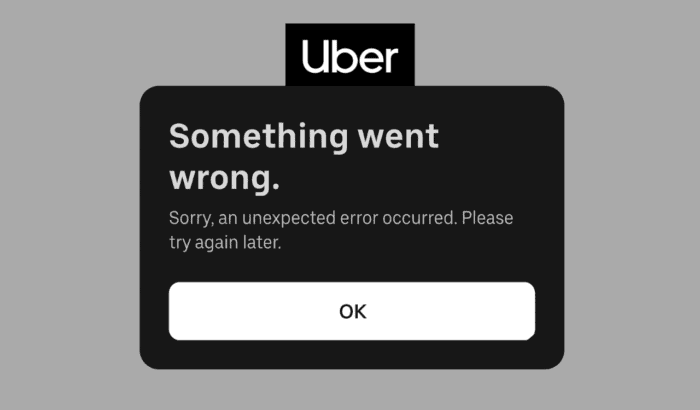
Trying to book a ride only to find that the Uber app won’t open, keeps crashing, or gets stuck on the loading screen can be incredibly frustrating, especially when you’re in a hurry. Sometimes the app won’t let you request a ride, while other times it may refuse to sign in or simply stop responding altogether. The good news is that these problems are usually caused by something simple, such as a temporary server outage, poor internet connection, incorrect location settings, or an outdated app. In this guide, we’ll explain why the Uber app isn’t working and walk you through the most effective ways to fix all the issues.
How to Fix Uber App Not Working on Android and iPhone
1. Check if Uber is down
Before changing any settings, make sure the issue isn’t on Uber’s end. Scheduled maintenance or an unexpected outage can temporarily affect the Uber app, ride requests, driver matching, payments, GPS services, and account logins. If Uber is down today, you may not be able to book a ride, log in, or access certain features until Uber restores its services.
If a widespread outage is confirmed, the only solution is to wait until Uber’s systems are back online.
- Check Uber’s official Help pages.
- Visit an outage tracker like Downdetector.
- Search social media for recent reports from other users.
- Try using the app again later.
2. Check your internet connection
A stable internet connection is essential for the Uber app to work properly. Whether you’re requesting a ride, tracking your driver, or making a payment, Uber needs a reliable connection to communicate with its servers. A weak or unstable network can cause the Uber app not to work, fail to load, or get stuck while searching for nearby drivers.
If you’re using Wi-Fi:
- Restart your router.
- Switch to mobile data.
- Test another app or website to confirm your internet is working.
If you’re using mobile data:
- Toggle Airplane Mode on and off.
- Make sure mobile data is enabled.
- Move to an area with better signal coverage.
3. Force close and reopen Uber
If the Uber app keeps freezing, won’t respond, or gets stuck on the loading screen, it could simply be a temporary software glitch. Force closing the app clears its current session and reconnects it to Uber’s servers, which often resolves minor performance issues.
Android:
- Open Settings > Apps > Uber.
- Tap Force Stop.
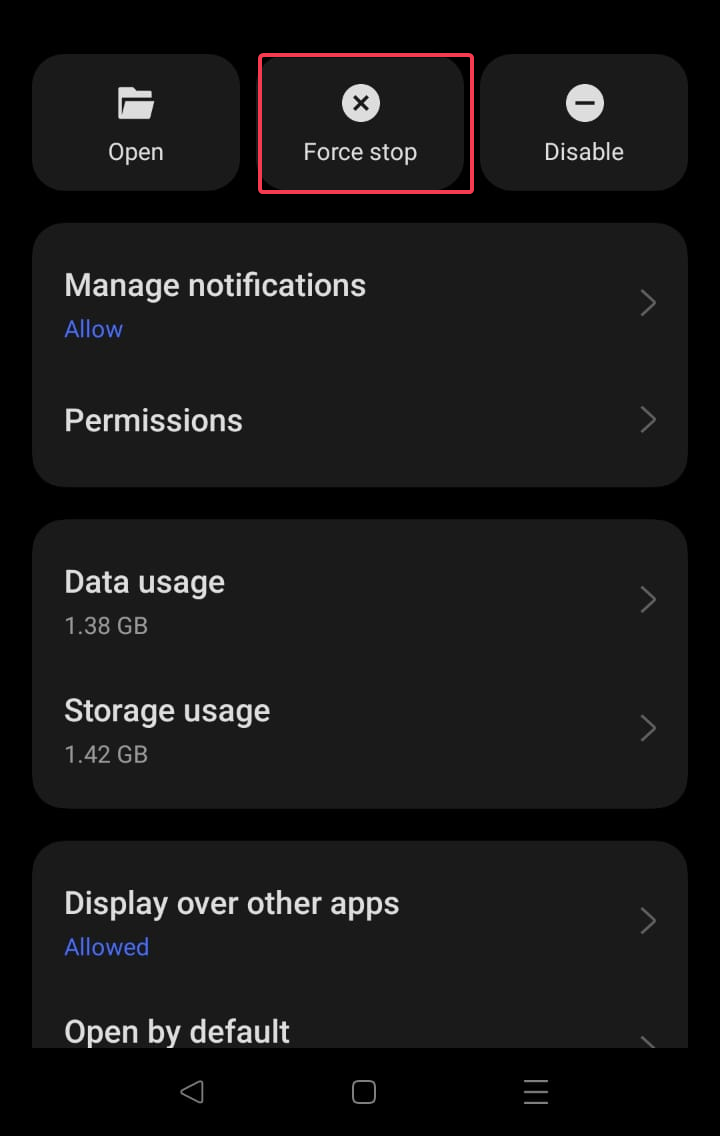
- Launch Uber again.
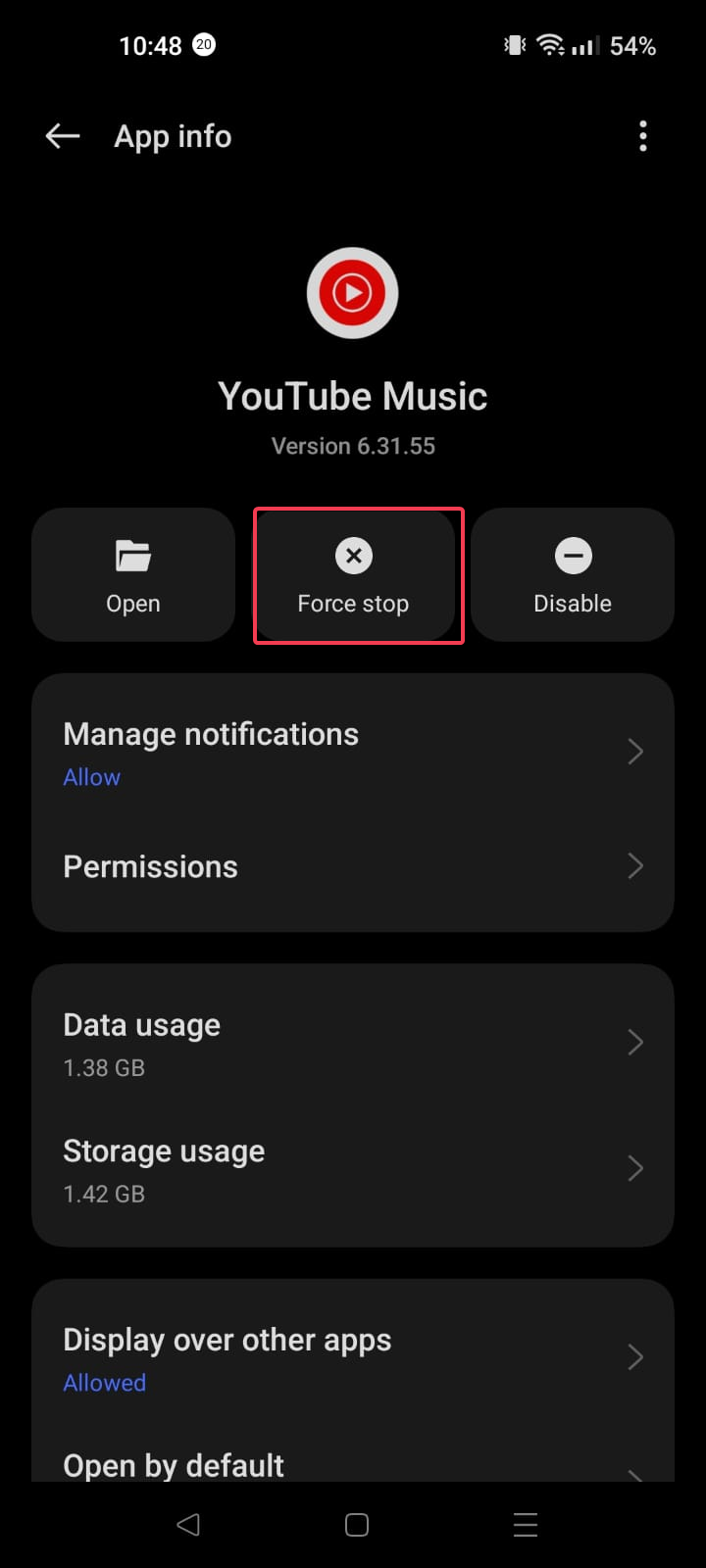
iPhone:
- Swipe up to open the App Switcher.
- Swipe Uber away.
- Open it again.
This can fix issues like the Uber app crashing, not responding, freezing, or loading forever.
4. Restart your phone
Sometimes the problem isn’t with Uber itself but with your device. Restarting your Android phone or iPhone refreshes GPS, network connections, background services, and system processes that the Uber app depends on to function correctly.
Restart your phone, wait for it to finish booting, then open Uber again and try requesting a ride.
5. Update the Uber app
Using an older version of the Uber app can lead to compatibility issues after Uber rolls out new features or backend updates. Installing the latest version ensures you receive the newest bug fixes, security improvements, and performance enhancements.
Visit the Google Play Store or Apple App Store and install the latest Uber update if one is available.
Updating often fixes:
- Uber app crashing
- Uber app won’t open
- Uber app loading forever
- Uber login issues
- Uber app not responding
6. Enable location permissions
Uber relies on accurate location access to find nearby drivers, estimate pickup times, calculate fares, and provide turn-by-turn navigation. If location permissions are disabled, the Uber GPS may not work, or the app may struggle to detect your pickup location correctly.
Android:
- Go to Settings > Apps > Uber > Permissions > Location
- Choose Allow all the time or Allow only while using the app.

iPhone
- Go to Settings > Privacy & Security > Location Services > Uber
- Enable location access and turn on Precise Location.
If the Uber app can’t detect your location, this is often the first setting you should check.
7. Clear the Uber app cache (Android)
Corrupted cache files can cause the Uber app to freeze, crash unexpectedly, or become slow to respond. Clearing the app cache removes temporary files without deleting your account, saved payment methods, or ride history.
- Open Settings.
- Tap Apps.
- Select Uber.
- Tap Storage.
- Choose Clear Cache.

Avoid clearing app data unless necessary, as you’ll need to sign in again.
8. Check your payment method
Sometimes the Uber app works normally but won’t let you request a ride because of a payment issue. An expired card, declined transaction, or incorrect billing information can prevent Uber from processing your booking.
Open Account > Wallet and verify:
- Your payment method hasn’t expired.
- Your bank isn’t declining transactions.
- Your billing information is correct.
If Uber payment isn’t working, try another card or payment method.
9. Disable VPN
VPN services can occasionally interfere with Uber’s servers or affect your device’s location accuracy. This may prevent the app from connecting properly or matching you with nearby drivers. Make sure to turn off your VPN temporarily, reopen Uber, and check whether the issue has been resolved.
10. Reinstall Uber
If the Uber app still isn’t working after trying every other fix, reinstalling it can replace corrupted files and install the latest version available. This often resolves persistent crashes, login problems, and loading issues.
Delete Uber from your phone, download it again from the Google Play Store or Apple App Store, and sign back into your account.
11. Contact Uber Support
If the Uber app is still not working after completing all the troubleshooting steps above, the issue may be specific to your account. Uber Support can help investigate account restrictions, payment problems, technical errors, or ride request failures.
Contact Uber Support if:
- You can’t log in.
- Your account has been restricted.
- Payments keep failing.
- The app crashes only on your account.
- Ride requests never go through.
FAQs related to Uber app issues
1. Why is my Uber app not opening?
The Uber app may not open because it’s outdated, corrupted, affected by a temporary outage, or experiencing a software bug. Restart your phone, update the app, and check your internet connection before trying again.
2. Why does Uber keep crashing?
The Uber app keeps crashing because of software bugs, corrupted cache files, an outdated app version, or compatibility issues with your device. Updating or reinstalling the app usually fixes the problem.
3. Why is Uber GPS not working?
If Uber GPS isn’t working, make sure Location Services and Precise Location are enabled on your phone. Also verify that Uber has permission to access your location while you’re using the app.
4. Why can’t I book an Uber?
If Uber won’t let you request a ride, the problem could be related to your payment method, poor internet connectivity, temporary server outages, or limited driver availability in your area.
5. Why is Uber not working on Android or iPhone?
Most Uber app issues on Android and iPhone are caused by outdated app versions, network problems, disabled permissions, or temporary server outages. Restarting the app, updating it, and checking your device settings usually resolves the issue.

Read our disclosure page to find out how can you help Windows Report sustain the editorial team. Read more



Improve this guide



User forum
0 messages