
How to Use BrandCrowd’s AI Logo Generator


 4 min. read
  Updated on
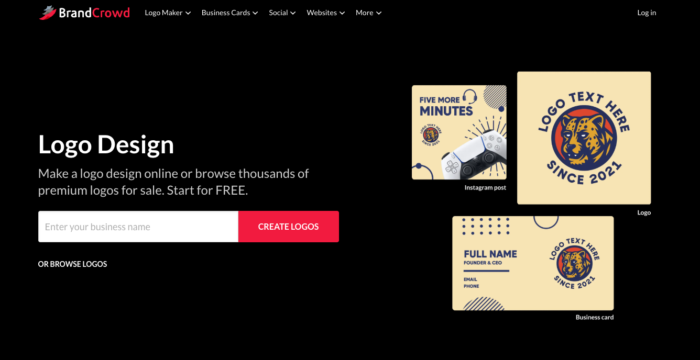
Creating a polished logo should not require a design degree or expensive software. With BrandCrowd’s AI logo generator, you can turn your brand name into professional logo concepts, refine them with intuitive tools, and export formats that work across websites, social media, and print. This beginner‑friendly guide breaks down the complete workflow so you can produce strong visual branding in minutes.
Step 1: Open BrandCrowd and Enter Your Brand Information
Start With the Right Inputs
Begin by navigating to BrandCrowd’s main site and selecting the logo creation area. The first prompt will ask for your brand name. Enter the exact spelling you want reflected in your logo. You may also include an optional tagline if you have one.
BrandCrowd’s logo generator uses this information to suggest logo concepts that align with your text and perceived industry category. It draws from a large library of professionally created templates to propose designs that are structurally sound and visually relevant to your brand.
At this point, the goal is to begin building your identity with suggestions that feel intentional rather than random.
Step 2: Review Initial Logo Suggestions
What to Look For
After submitting your brand name, you will see a range of logo concepts.
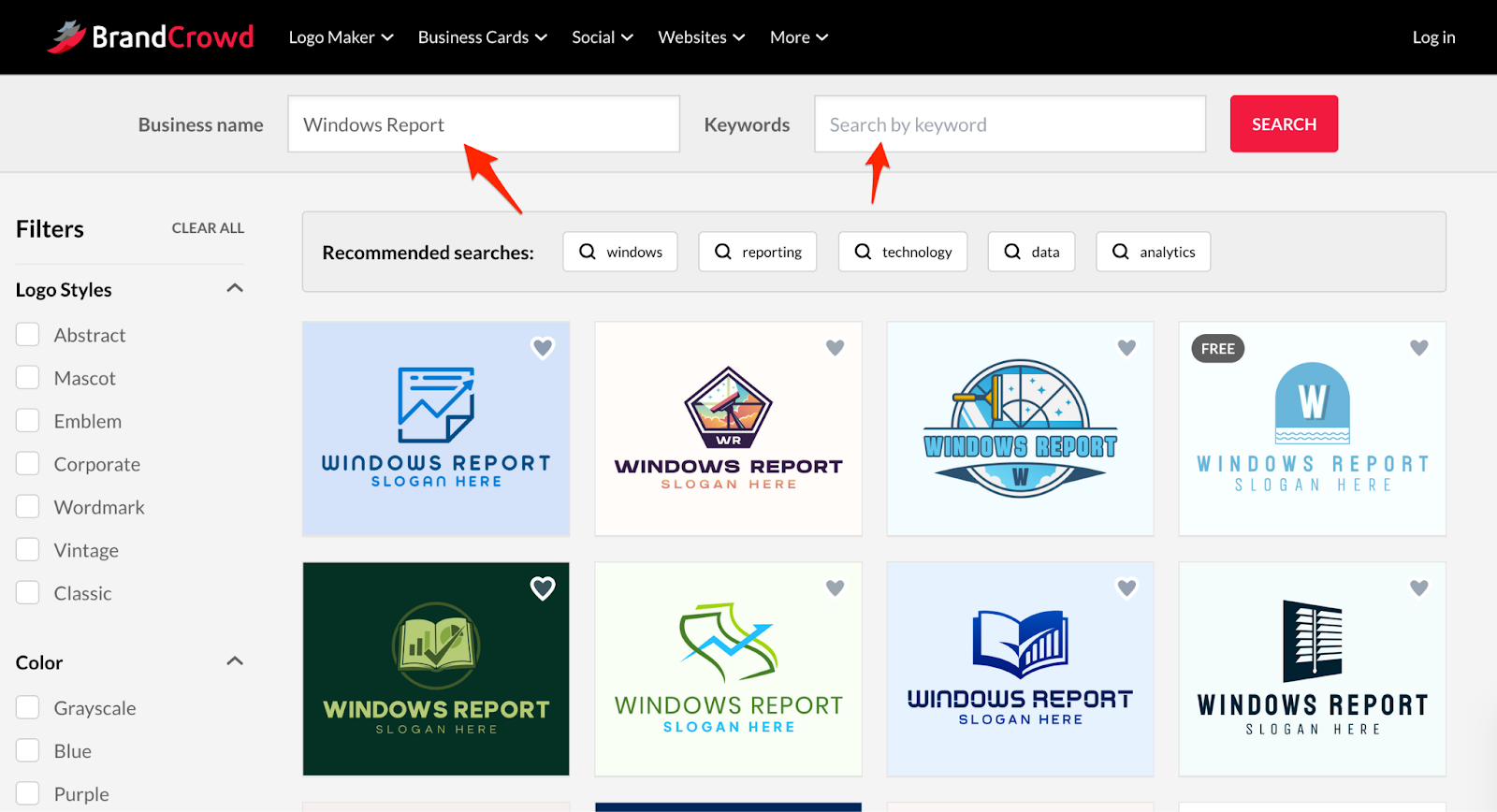
Scan through the first batch and pay attention to:
- How well the typography reads
- Whether the layout feels balanced
- If the style matches your brand personality (modern, classic, minimalist, playful, etc.)
Your first impressions matter. If a design struggles to read clearly at this stage, it could cause issues once you deploy the logo on business cards or as a social profile image.
Step 3: Narrow Options With Style and Color Filters
Refine Quickly With Filters
BrandCrowd offers filtering tools that help narrow down the initial results by design direction.
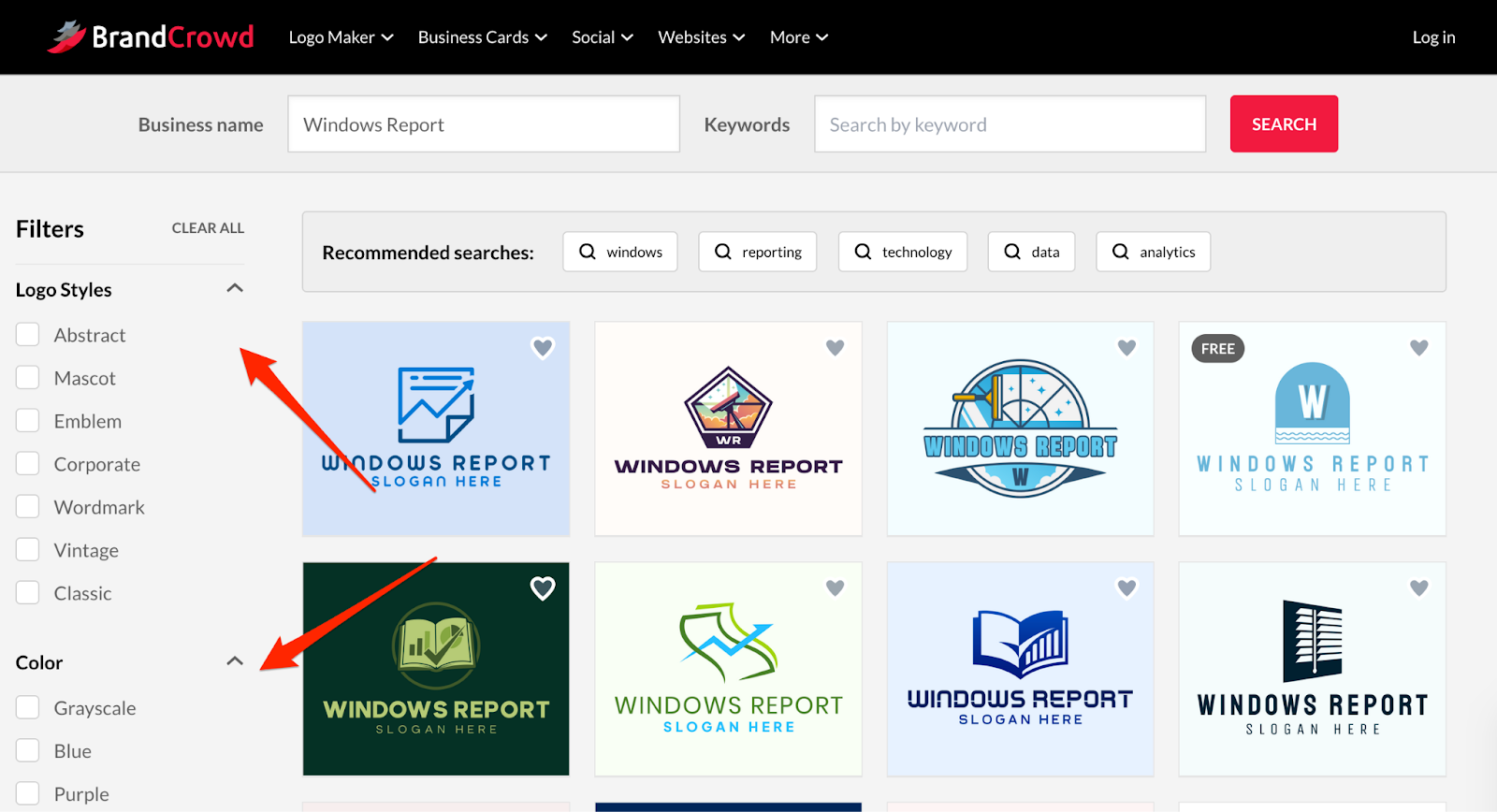
Filters include:
- Logo style (for example wordmark, emblem, classic, modern, minimalist)
- Color palette categories
Applying these filters helps you remove irrelevant directions and focus on concepts that match real usage scenarios. For instance, simple wordmark styles often perform better on letterheads and email signatures, while emblem or badge styles may read better on product packaging.
Using both style and color filters can quickly reduce the list to a handful of designs worth exploring in depth.
Step 4: Open the Logo in the BrandCrowd Logo Maker
Start Customizing
Once you find a concept that feels close to your goal, click it to open in BrandCrowd’s logo maker editor.
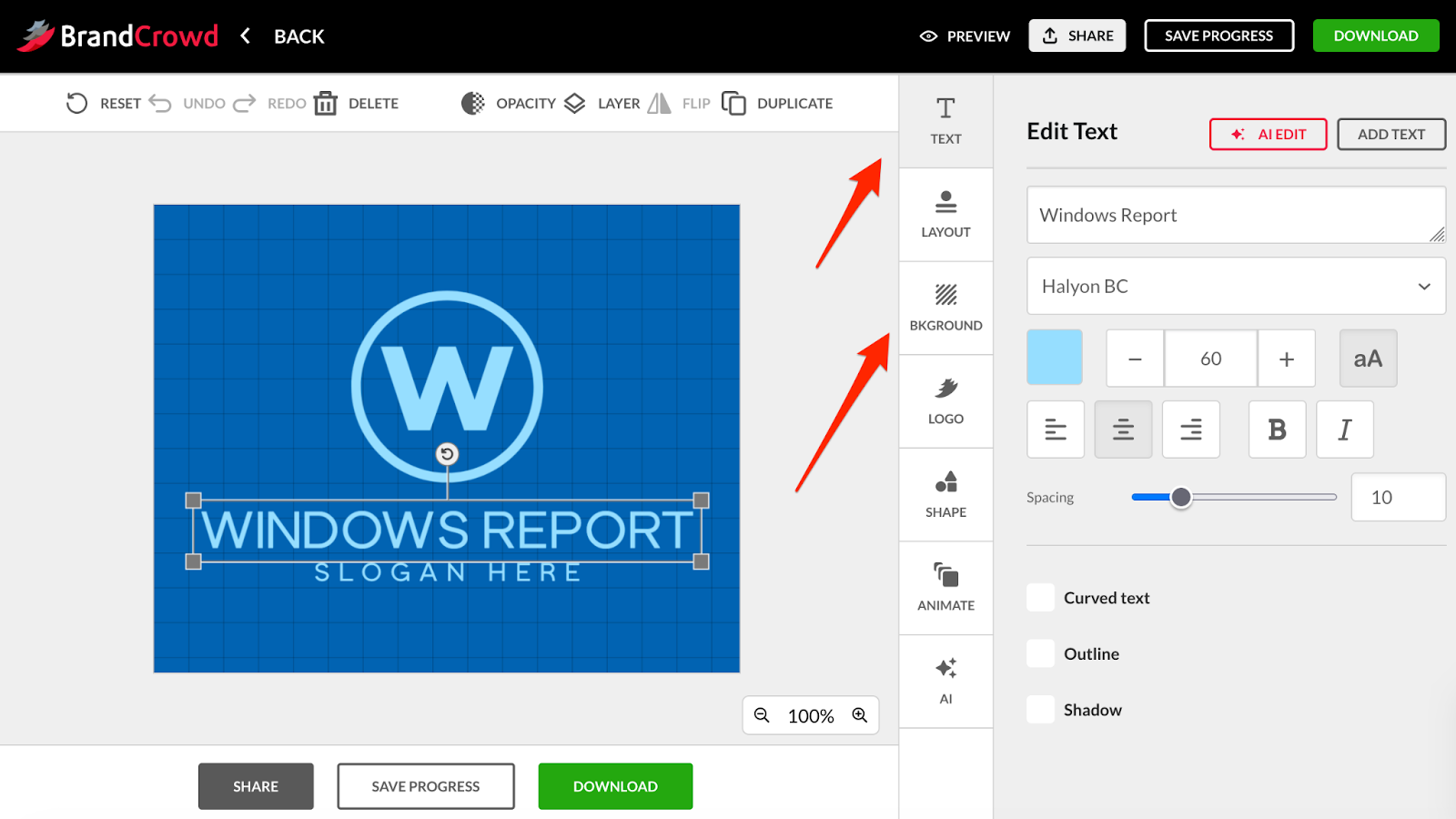
Here, you can:
- Update the brand name or tagline
- Swap between curated color palettes
- Adjust layout options (text above, beside, or integrated with the icon)
The editor keeps everything harmonized so that edits maintain balanced spacing and alignment. This approach makes it easy to explore variations without fear of breaking the design.
Step 5: Use the Advanced Tools for Fine‑Tuning
Go Deeper If You Want
For additional control, BrandCrowd provides more detailed editing options. These allow you to:
- Resize icons independently of text
- Experiment with alternative icons
- Adjust color tones more precisely
- Test multiple layouts side by side
This level of customization sits somewhere between template editing and full‑blown design software. It gives you more visual control without requiring Illustrator‑level expertise.
Step 6: Preview in Real‑World Contexts
Check How It Performs in Use
Before finalizing, it’s important to see how your logo looks in different placements. BrandCrowd will generate previews of your logo on:
- Business cards
- Social media graphics
- Website headers
- Letterheads
These previews show whether your logo maintains clarity and impact across different sizes and formats. Having this perspective prevents surprises after exporting.
Step 7: Choose a Pricing Plan and Export Your Logo
Understand the Costs
BrandCrowd offers logo downloads through affordable subscription tiers.


Read our disclosure page to find out how can you help Windows Report sustain the editorial team. Read more



Improve this guide
User forum
0 messages