
Is Microsoft Copilot Not Working Today? Here's Why & How to Fix
Disabling the VPN can help with this issue


 4 min. read
  Updated on
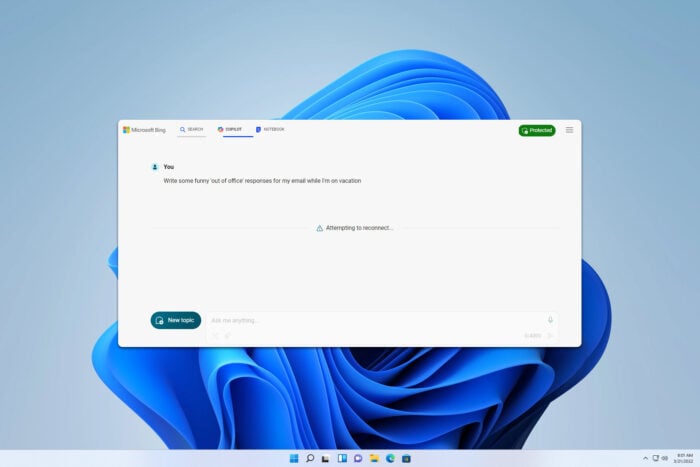
Copilot is a major part of all Microsoft services, but many reported that Microsoft Copilot is not working for them. This can cause problems, especially if you tend to use it frequently, but luckily, there are few solutions you can use.
Why is my Windows Copilot not working?
First off, it is very much possible that the issue is on Microsoft’s end. So, check Microsoft Service Health Status dashboard. Secondly, VPN is the likely cause of most Copilot issues. Sometimes a corrupted Edge profile or multiple Edge processes can interfere with the service. If there’s no issue at Microsoft end, make sure to try the following fixes.
What can I do if Microsoft Copilot is not working?
1. Disable VPN
- Look for a VPN icon in your system tray.
- If it’s available, right-click it and choose the Quit or Disable option.
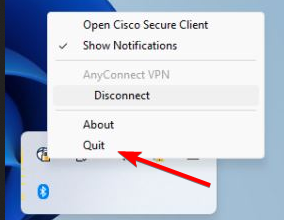
- Once the VPN is closed, check if the problem is still there.
If you have VPN configured in Settings, disable it by doing the following:
- Open Settings and go to Network and Internet.
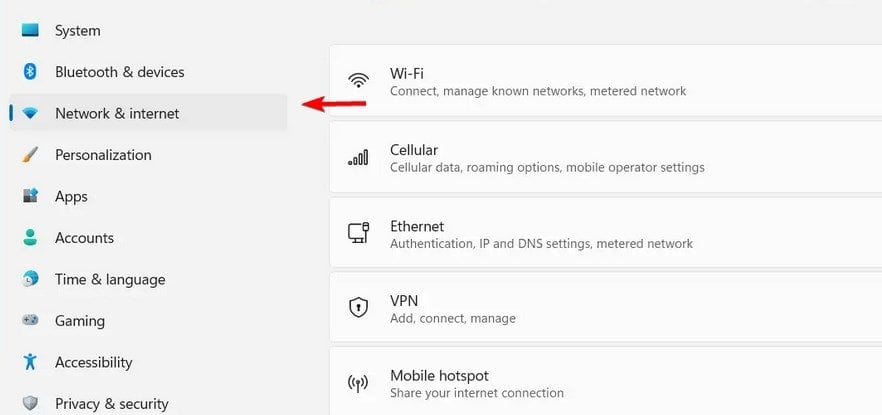
- Select VPN.
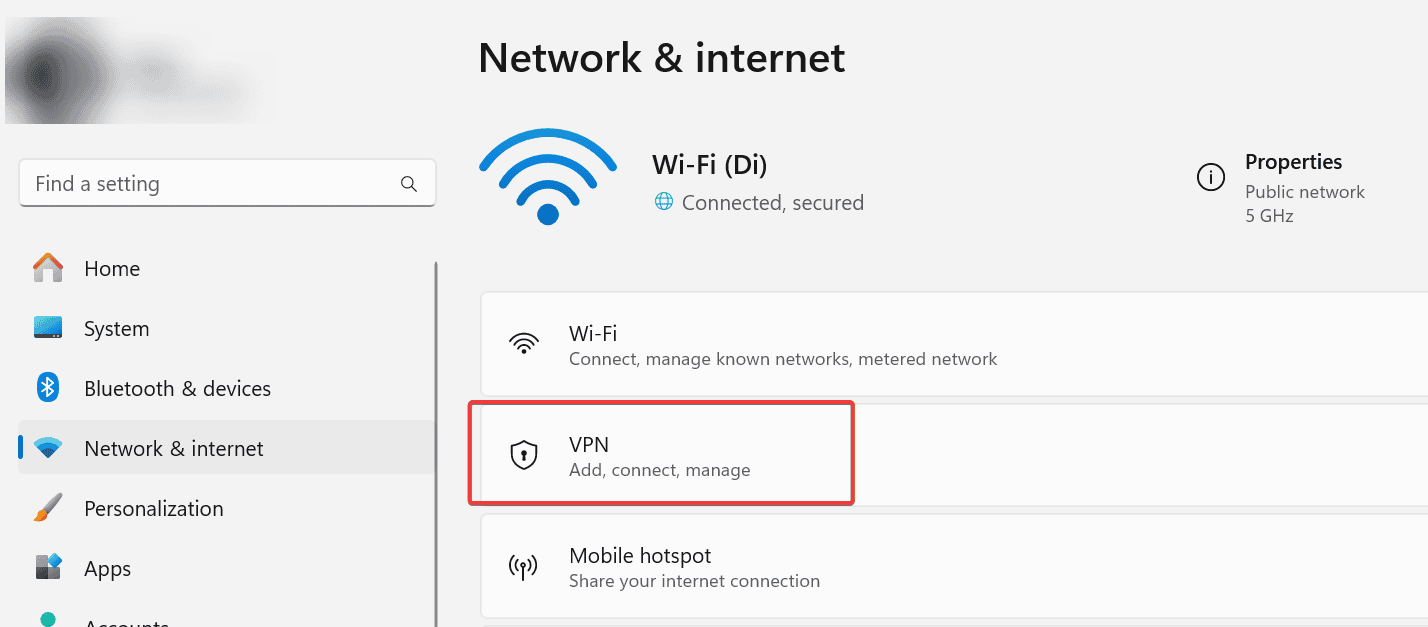
- Choose your connections and then select Disconnect.
For browser users, disable all VPN extensions if you’re using the web version of Copilot. Users had issues with Mcafee VPN, but almost every VPN service will cause problems.
After disabling your VPN, you can also follow this guide on how to access Microsoft Copilot on Windows 11 to make sure you’re opening it the right way.
2. Delete your Edge profile
- Open Microsoft Edge.
- Click the Menu icon in the top right corner and choose Settings.
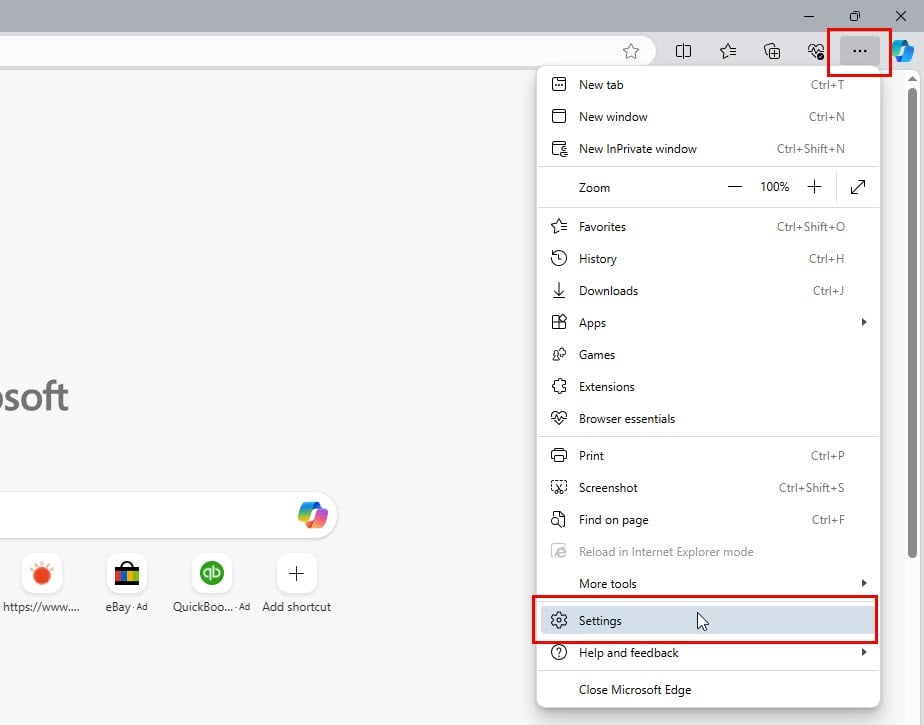
- Locate your profile in the right pane.
- Click the Delete icon to remove it.
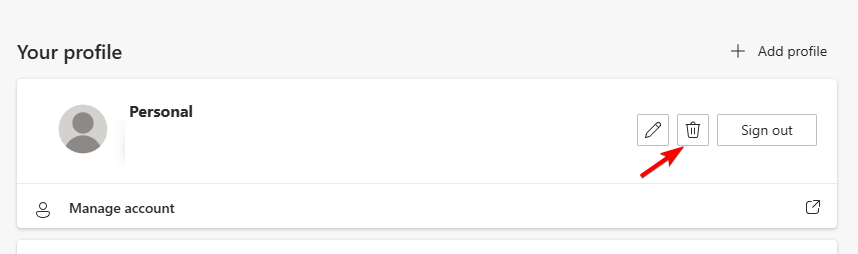
Once the profile is removed, check if the problem is still there.
3. Close all Edge instances
- Press Ctrl + Shift + Esc to open Task Manager.
- Look for all Edge processes and end them.
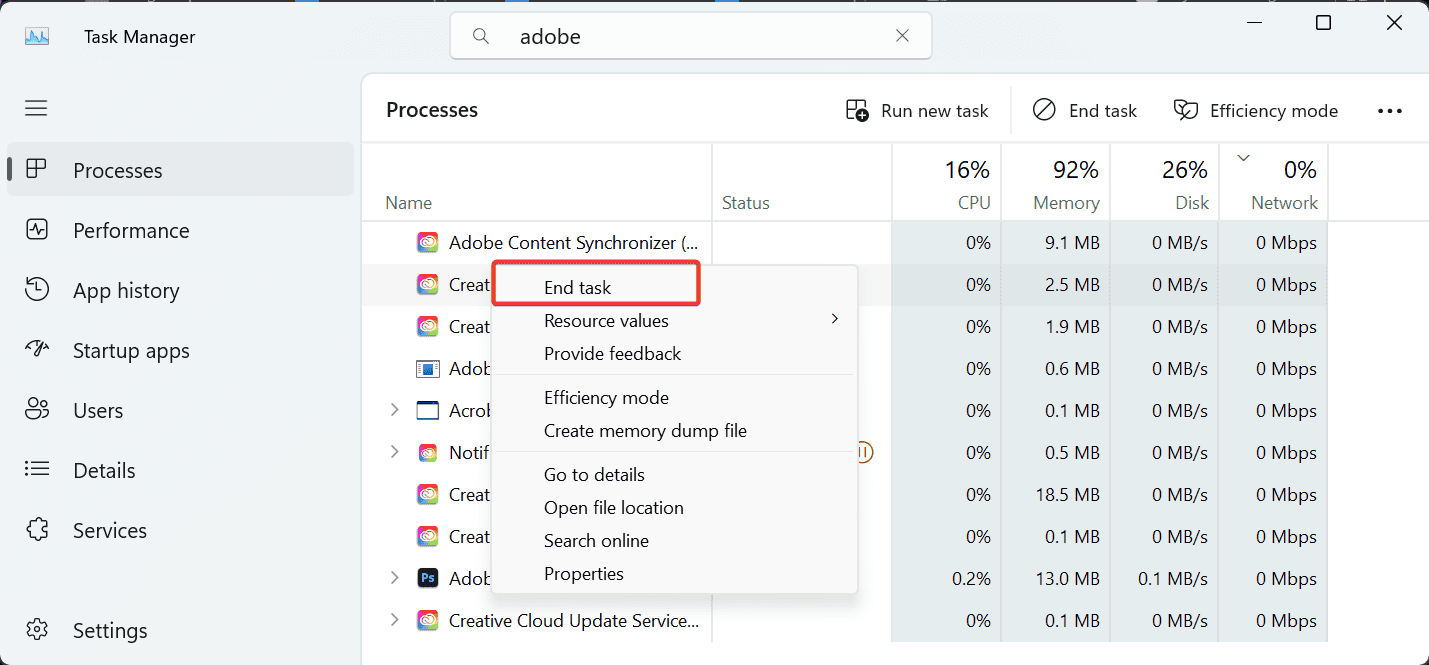
- Once you disable them all, check if the issue is resolved.
It’s pretty simple to fix Copilot if it’s not working, but sometimes you might get specific issues such as Something went wrong in Copilot or Copilot error Getaddrinfo. We also have a guide on what to do if GitHub Copilot X is not working, so we suggest you check it out before you leave.
FAQs related to Copilot not working issue
Microsoft Copilot may stop working because of a temporary server outage, internet connectivity issues, an outdated browser or app, account problems, or service disruptions. In some cases, browser extensions, VPNs, or firewall settings can also interfere with Copilot.
If Copilot suddenly stops responding or won’t load, Microsoft could be experiencing a temporary service issue. The quickest way to check is by visiting Microsoft’s service status page or seeing if other users are reporting the same problem.
Try refreshing the page, clearing your browser cache, disabling VPNs or browser extensions, signing out and back into your Microsoft account, or using a different browser. If you’re using Microsoft 365 Copilot, make sure you’re signed in with the correct account and have an active license.
A slow internet connection, browser cache issues, temporary server problems, or network restrictions can cause Copilot to remain on the loading screen. Refreshing the page or trying another browser often resolves the issue.
This error typically appears because of temporary server issues, failed account verification, or network interruptions. If the error persists, sign out and back in, verify your internet connection, and check for Microsoft service advisories.
If Copilot isn’t working across multiple devices or browsers, it’s worth checking Microsoft’s official status page or recent user reports to see whether there’s an ongoing outage or service disruption.

Read our disclosure page to find out how can you help Windows Report sustain the editorial team. Read more



Improve this guide



User forum
1 messages