
How to Access Microsoft Copilot on Windows 11 (Quick Guide)


 3 min. read
  Updated on

Want to try out Copilot on your Windows 11 PC? This quick guide shows you exactly how to access it and start using it.
Table of contents
How to access Copilot on Windows 11?
1. Check Windows 11 Version
Copilot is only available starting with the Windows 11 23H2 update. To check your version:
- Press Win + R, type winver, and hit Enter.
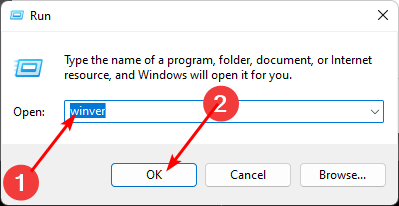
- If you’re not on 23H2 or later, go to Settings > Windows Update and install the latest updates.
You can follow this detailed guide on how to install Copilot on Windows 11 when the feature does not appear after updating.
2. Enable and Launch Copilot
- Right-click an empty spot on the taskbar.
- Select Taskbar settings.
- Toggle Copilot (preview) to On.

- The Copilot icon will appear on your taskbar.
- Click the icon or press Win + C to launch Copilot instantly.
Having trouble finding the toggle? Follow our simple guide on how to enable Copilot on Windows 11 to make sure it’s turned on correctly before launching it.
Once open, you can use Copilot to adjust system settings, summarize text, or search the web without leaving your desktop.
You can go further by following this guide on how to use Microsoft Copilot on Windows 11 to explore more practical examples and features.
To reuse your best instructions across chats, see this step-by-step guide on how to save a prompt in Copilot and keep your workflows consistent.
Want a visual walkthrough? Check out our Microsoft Copilot how to videos for quick, step-by-step tutorials across Windows, Word, Excel, Outlook, and Teams.
If you ever decide it’s too distracting, check out this guide on how to disable Microsoft Copilot.
Why You Might Not See Copilot
- Your PC isn’t updated to the latest Windows 11 release.
- The rollout hasn’t reached your region yet.
- Your account or organization may have disabled it.
If Copilot is missing, run Windows Update again or ask your IT administrator. For troubleshooting tips, see what to do when Microsoft Copilot is not working.
FAQs
Yes, it’s included at no extra cost.
Right-click the taskbar, go to Taskbar settings, and switch off Copilot (preview).
No. Copilot requires an internet connection.
It’s supported on most devices with version 23H2 or later, but rollout timing can vary.
Yes. You can type or use voice commands if speech recognition is enabled.
Conclusion
Accessing Microsoft Copilot on Windows 11 is simple once you’re on the right version and have enabled it from the taskbar. Whether you’re tweaking settings or looking for quick answers, Copilot makes it easier to get things done.
Need Copilot’s full Microsoft 365 features for work? Follow our step-by-step guide on how to buy Microsoft Copilot.
If you also use Microsoft apps, you might want to learn how to enable Copilot in Outlook for extra productivity.

Read our disclosure page to find out how can you help Windows Report sustain the editorial team. Read more



Improve this guide



User forum
0 messages