How to create a Start Button in Windows 8

Start Button in Windows 8

If you, like me, are using Windows 7 in your work environment but often find that you must use Remote Desktop to get to a Windows 8 or 2012 box, then you often are likely slowly dragging the mouse to find the Start button or the Charms menu so that you can reach the Modern UI. No longer. Here’s a solution to help fix this problem.

Or maybe you are just not willing to wait for Windows 8.1 and the possible return of the Start button? Do this on the Windows 8 or 2012 machines to help ease your troubles now:

  1. Open Notepad by doing a Charms search
  2. Copy this text:
  • set shell=createobject(“wscript.shell”)
  • shell.sendkeys “^{Esc}”
  1. Now Save as windowskey.vbs to somewhere accessible by you or all users on the machine, such as the root of C (C:\) or if you will be the only one needing this, the root of your profile (C:\users\%username%\)
  2. Right click on your desktop and choose New->Shortcut
  3. The path for this shortcut will be “C:\Windows\system32\wscript.exe” and name it something like Windows Key or Start Button
  4. Now, alter the icon by right clicking the icon and choosing Properties from the menu and then Change Icon
  5. To find different icons already available in Windows, alter the path to “C:\windows\system32\shell32.dll”
  6. I chose a Star
  7. Press OK or double click the icon in the list of icons and then Apply once your icon is chosen. Leave the Properties window open
  8. Now alter the path of the Target in the Properties dialog box:
  • For the root of C: c:\windows\system32\wscript.exe c:\users\%username%\windowskey.vbs
  • For the root of your profile: c:\windows\system32\wscript.exe c:\users\%username%\windowskey.vbs
  1. The shortcut now appears on your desktop and if you press it, it will function as a Start button to get you to the Modern UI/Start screen
  2. Now drag the shortcut to the taskbar to pin it

Now when you press the icon on the Taskbar it will emulate a Windows key press and function as a Start button! Wowza!

Microsoft celebrates one year anniversary of its investment in open standards and open source

Microsoft

Microsoft’s Open Technologies subsidiary is celebrating its one year anniversary and Microsoft is dedicated in the company’s investment in openness including interoperability, open standards, and open source.

“At MS Open Tech, we work fast, we work openly with others, bridging the interaction between Microsoft’s proprietary development processes and the company’s open innovation efforts and relationships with the open source and open standards communities,” Microsoft stated. MS Open Tech was created on the 12th of April, 2012.

As MS Open Tech celebrates its first anniversary, Microsoft explains that there are more than 70 individuals at the Open Tech organization, each of the individuals being diverse in their skills and background. The team members consist of engineers, standards professionals, and technical evangelists looking to build relationships with the open source/standard communities.

In just one year, MS Open Tech has shipped 51 important open source devices and services projects. There are also 25 active open source projects on CodePlex and GitHub. Microsoft is also an ongoing contributor to several other open source and open standards initiatives.

To give you an idea of the organization’s that MS Open Tech deals with, here is a quick rundown: jQuery, MongoDB, Apache Cordova, Redis, Apache Qpid, Apache Solr, Outercurve, Eclipse, Node.js, Cocos2D, Ogre3D, Web Platform Docs, Symfony, Doctrine, WebKit, GitHub, CodePlex and more.

Hit the source link to see a timeline of events from the day MS Open Tech was created to the organizations’ first anniversary.

Microsoft and Internet Explorer 10 play a role in the new SDP-US caption spec

Internet Explorer 10

In an official blog post, Microsoft is showcasing Internet Explorer 10’s support for the new SDP-US video captioning spec. This spec was created after input was given by companies such as Adobe, MovieLabs, NBC, Cox, Apple, Netflix, and even Microsoft.

For those that don’t know, Internet Explorer 10 was one of the first browsers to include early support for HTML5 based video captioning (via theelement) using the TTML and WebVTT file formats. Microsoft has now gained valuable feedback from content authors and a new spec called SDP-US was formed. This new spec provides interoperability and a fully featured captioning solution for modern browsers.

“SDP-US will meet this need by defining a streamlined set of captioning capabilities for the HTML5element. Developers will be able to add captioning to an HTML5 video by providing a caption file that contains a styled text representation of the video dialog or actions and by using theelement to render and display the contents of that file,” Microsoft explained.

Timed Text Markup Language (TTML), which is a framework that has been used in the video industry for years, is still the basis for SDP-US. However, the new spec will have better features that lets you control the layout, style, timing, and requirements for captions. SDP-US will streamline the creation of closed captions to deliver media content to a wide variety of platforms, such as Internet Explorer on a desktop computer to the Xbox entertainment console and even via apps that are built using the Microsoft Media Player Framework.

SDP-US

This new spec allows for professional-quality online video, including the ability to color your captions and even apply a background color to those captions. From the screenshot above, you can see how Internet Explorer 10 showcases a colored caption, via this new spec. You can review the new spec’s profile here.

Microsoft Store wants your old gadgets as part of Recycle for Rewards program

Microsoft Store

Microsoft is kicking its Recycle for Rewards program into full gear by offering retail store credit if you turn in your old gadget or device. Of course, your device will have to be appraised based on its condition and current market value.

“To get started, simply bring your computer, phone, or other device to the Answer Desk at the Microsoft retail store. We will appraise its value based on condition and current market value. If it’s determined to have value, we will provide you with a Microsoft retail store credit. If it doesn’t have value, we will wipe it of all data and safely recycle it for you. The process is fast, easy, and free of charge,” Microsoft stated on its website.

Microsoft will be accepting qualified laptops and tablets, cell phones, digital audio players, and video game consoles as well as video games. If you turn in a console or PC, you must also turn in the power cord and the device must not be password protected. Microsoft will then offer a gift card that may equal trade-in value.

Microsoft would also like to remind everyone that the software giant ‘supports the responsible disposal and recycling of electronic products.’ In case you had any doubts. Head over to your local Microsoft Store to check out this program.

Pinball FX2: A Taste of Childhood in Windows 8, Windows 10

pinball-fx-2-windows-8-game (4)

As kids, most of us spent our time at the arcade, playing Pac Man and Space Invaders. But one type of game will always remain in our hearts: Pinball. The sweet sounds of the Pinball machine and the dazzling light will be with us for ever, and with this Windows 8, Windows 10 Pinball game, anyone can remember how those games were.

Pinball FX2 is a free Windows 8, Windows 10 game that is fun for everyone, even for those that haven’t played pinball on the real ting. Even if you are like me and you want to remember the good old days, when we played Pinball, or if you are now starting to play, Pinball FX2 for Windows 10, Windows 8 is a awesome game.

Pinball FX2 for Windows 10, Windows 8 – The True Pinball feel

pinball-fx-2-windows-8-game (3)

The game is free to download from the Windows Store, however, it features only one free level, the rest of the layouts can be bought in-game if you want. The layout that is free is called Mars, and your mission is to repair the ship and get out of there.

pinball-fx-2-windows-8-game (1)

In terms of gameplay, there’s not much to say, as the game has a classic Pinball look and feel. However, the developers have managed to add options for controlling the game via a keyboard, a controller or the usual touch interface. The layout of the buttons can be seen in the Options menu.

pinball-fx-2-windows-8-game (6)

The graphics of Pinball FX2 for Windows 10 Windows 8 are pretty good, having decent textures and a very entertaining light show. The menu is pretty simple, however, the options menus are others are not as simple to navigate and the Operator’s menu is pretty difficult to operate.

pinball-fx-2-windows-8-game (5)

Nevertheless, this game is tons of fun, and thanks to its integration with Xbox Live, you can compete against your friends to see who has the biggest scores. In the sound department, the game pretty good, the music in not annoying and the sound effects are what you’d expect from a Pinball machine.

pinball-fx-2-windows-8-game (2)

Overall, I think that Pinball FX2 is a wonderful Windows 8, Windows 10 game that everyone should try out. It’s great for both players who want to take a trip down Memory Lane or for those who want to experience the game that fascinated generations before them.

Download Pinball FX2 for Windows 10, Windows 8


Microsoft launches new consumer awareness campaign focused on online privacy

Internet Explorer

While many of us enjoy sharing data with others online, some of the data should never make it online for all to see. Microsoft has launched a new campaign focused on online privacy. Microsoft also revealed that 85% of Americans are concerned about their online privacy, but less than that take any action about it.

Microsoft aims to help raise awareness on how users can have greater choice and control as they browse the internet. Microsoft, of course, recommends Internet Explorer 10 as the browser of choice for enhanced security and privacy.

“We want to help people learn more about the tools and technologies Microsoft provides that give them have greater control over personal information as they browse the web and use their favorite Microsoft devices. As part of this, we’re also launching an advertising campaign to kick start awareness and conversation,” Microsoft stated in an official blog post.

Microsoft has created a new page on its website that offers you a quiz and identifies your privacy tendencies and preferences. After the quiz, you are presented with tips on how to turn your new awareness into action. Head over to www.microsoft.com/YourPrivacy to check it out and take the quiz at yourprivacytype.com

Twitter kills support for Microsoft’s Internet Explorer 6 and 7 starting May 13th

IE6

Twitter has announced that they are killing support for Microsoft’s Internet Explorer 6 and Internet Explorer 7 starting May 13th. Twitter’s Tweet button was first introduced in 2010 and was built around Internet Explorer 6.

“When the Tweet button was introduced in 2010, Microsoft’s Internet Explorer 6 was our baseline. Now, most users have upgraded and we see IE6 usage dwindled. On May 13th 2013, we’re going to prune our support for that browser and its successor, IE7,” Twitter stated in an official blog post.

In essence, the Tweet button, Follow button, embedded Tweets, and Twitter timelines will no longer work in Internet Explorer 6. “The script will detect the unsupported browser and silently exit. The content from the embed codes will remain in place,” Twitter adds. The framework that allows developers to respond to user interactions with Twitter widgets will no longer work in IE6 and IE7.

In Internet Explorer 7, however, widgets will still be rendered but only for the time being as the browser is now given “limited support” and future features may not be implemented. Although support for IE6 and IE7 is dead, “Tweet” links will still share your page, “Follow” links will still point to a users’ profiles, and embeddable timeline codes will link to the main timeline on the Twitter website.

Again, this does not take affect until May 13th.

Microsoft now allows you to sign-in with an alias on Outlook.com, offers 32 new email address domains

Outlook.com

Along with the announcement of enabling two-step verification for your entire Microsoft Account, Microsoft has revealed that Outlook.com will now allow sign-ins using an alias. Microsoft is also offering 32 new email address domains for Outlook.com.

For those of you who signed up on Outlook.com with an email alias, Microsoft is now allowing you to sign into Outlook.com using that alias. Microsoft is finally allowing this feature based on consumer feedback. Microsoft has also made it easier to manage your aliases.

“We’ve heard from a lot of you that you love using Outlook.com but you wish you had more flexibility signing in. Many of you have added an email alias to your account, but you can’t use the alias to sign in to your account. Previously the only option was to permanently rename your account, which is a hassle and requires you to reset certain devices,” Microsoft explained.

Microsoft has also added 32 new email address domains, so you can rock an @outlook.com email address specific to the country of your choice. “But we also heard from some of you that you’d like to be able to have an @outlook address that is unique to your country (e.g. @outlook.de),” Microsoft stated in an official blog post. Take a look at the list of domains below:

Outlook Alias

Microsoft is set to release these new features for Outlook.com over the course of the next few days.

Google beats out Microsoft’s Bing when it comes to keeping malware out of search results

Bing

The guys over at AV-Test have concluded an 18 month study, in which they were able to determine that Google is safer than its primary competitor Bing, when it comes to keeping malware out of search results. In other words, Bing delivers five times as many malicious malware results than Google does.

The results are from nearly 40 million websites provided by seven different search engines, including Bing and Google. 10 million of those results were from Bing and another 10 million from Google. Of the 40 million sites, AV-Test found 5,000 total pieces of malware, with Bing having the most compared to Google. (see chart below).

“The infected websites mostly use malware that exploits existing security vulnerabilities in users’ software. These vulnerabilities normally involve outdated browsers, old add-ons or extensions and out-of-date versions of PDF readers. Users can drastically reduce the likelihood of infection by keeping the software on their systems up to date. They can also guarantee that they have the best possible protection by additionally using high-quality security software that is constantly updated,” AV-Test stated.

While these results don’t mean you should stop using Bing in favor of Google, it just shows that Google places a stronger effort in keeping its users safe online. Which search engine do you use?

AV-Test

Search for Cheap Flights With SkyScanner for Windows 8, Windows 10

The official SkyScanner app for Windows 10, Windows 8 and Windows 8.1 tablets is one of the best ways to search for flights (yes, cheap ones, as well) while you’re on the go. Read our review below.

search-for-flights-with-skyscanner-for-windows-8-app-review (3)

Are you a frequent flyer? Or are you planning for your next trip? Regardless of the case, you will probably go online to see which flights are available and you will probably want to pay less for your flight. If this is true, then you need a way to see all the flights departing from your local airport and going towards your destination. SkyScanner is a very well known service that does exactly this, allowing you quickly find all the possible apps from one place to another.

While there are some other services that do this, most are regulated by an airline, which makes their flights appear in front of others. This might confuse some and they won’t get the best deal they could. SkyScanner is a great way to get unbiased results of flight costs no matter what airline you prefer.

SkyScanner for Windows 10, Windows 8

search-for-flights-with-skyscanner-for-windows-8-app-review (5)

I used to use this app on my Android device, and I was very pleased with it. However, it did have one flaw: while the app itself is not regulated by any airline, which means that it shows pretty much every airline, on some occasions, it does not show some flights. I’m sad to say this sometimes happens to the Windows 8, Windows 10 version of the app, and I hope it will be sorted out in the next updates.

search-for-flights-with-skyscanner-for-windows-8-app-review (4)

The SkyScanner app for Windows 10, Windows 8 is great! First off, let me start by saying that this is a free app, but it does however show one ad on the bottom of the screen. Apart from this, there are no other ads or other promotional material in sight.

search-for-flights-with-skyscanner-for-windows-8-app-review (6)

Once you’ve installed the app, you will be greeted by a screen which allows you to input your location and your destination, the days of your flights and the number of passengers. The user interface is very simple to use, the menus are easy to follow and by pressing the Search button, you can view a list of flights.

search-for-flights-with-skyscanner-for-windows-8-app-review (7)

You have the option to sort the flights according to price, time, airline, number or stops and if you find the one that is perfect for you, you can proceed to book the flight. This process will refer you to a webpage for completion, as in-app booking are not allowed.

search-for-flights-with-skyscanner-for-windows-8-app-review (8)

On the main menu, if you scroll to the right, you can see your recent searches as well as a list of the cheapest destinations flying from the airport you have imputed in the main window. If you want to see specific flights from this list, you can simply click on the country you are interested in and see all available flights in a very nicely designed calendar view.

search-for-flights-with-skyscanner-for-windows-8-app-review (9)

Overall, SkyScanner for Windows 10, Windows 8 is a great app to search and find flights. It works everywhere in the world and you can even set your current city and currency for your future searches from the Settings charm. The app worked excellent throughout our tests. Its stability and ease of use are the main highlights of SkyScanner for Windows 10, Windows 8. I gladly recommend this app to everyone who is in need of information regarding a flight.

Download SkyScanner for Windows 10, Windows 8

Microsoft releases Office 2010 and SharePoint 2010 Service Pack 2 Public Beta

Office 2010

Back in January, we learned about Office 2010 Service Pack 2 entering private beta testing. Microsoft sent out invites to select testers to get their hands on the new Office 2010 SP2, which is the sequel to SP1, released nearly a year and a half ago.

Microsoft is now allowing a public beta test for the service pack. The Beta build of Service Pack 2 is dated April 8th of 2013 and comes in a 32bit flavor for Office 2010 (1,759.51 MB) as well as a 64bit flavor for Office 2010 (1,954.7 MB).

Microsoft has not revealed exactly what is new with Office 2010 Service Pack 2, but stated that there were improvements in stability and performance and compatibility with Windows 8 and IE10. Service Pack 2 is valid for Office 2010, Project 2010, Visio 2010, SharePoint Designer 2010, Office 2010 Language Pack, and Office 2010 Filter Pack.

“This service pack beta includes previously unreleased fixes that were made specifically for this service pack. In addition to general product fixes, these fixes include improvements in stability, performance, and security as well as compatibility with Windows 8, Windows Server 2012, and Internet Explorer 10. The service pack beta also includes all the public updates and cumulative updates (hotfixes) that have been released since Service Pack 1. A full list of fixes will be available at the time of final release,” Microsoft stated.

Office 2010 has been available since June of 2010 and according to recent reports, Office 2010 was discontinued by Microsoft. In fact, some retailers were reported to have jacked up the price of Office 2010’s cheapest multi-license package as a result.

The Public Beta of Service Pack 2 is valid until December 31st of 2013, or until Microsoft releases the final version of Service Pack 2, and is available in either English or Japanese. Hit the source link to read the EULA and download SP2!

Thanks for the tip, Krst1! Much appreciated!

Microsoft offers short tutorial on how to migrate from Live Messenger to Skype

Skype

Its finally that time. The time Live Messenger is phased out for Skype. If you are a Live Messenger user, here is a tutorual put together by Microsoft to help you make the transition with ease.

Not too long ago, we learned that Microsoft had plans to retire Windows Live Messenger in favor of Skype. Microsoft officially announced back in November of 2012 that Windows Live Messenger and Skype would become one and revealed that beginning April 8th of this year, the transition from Messenger to Skype would begin.

Microsoft’s main goal with Skype is to provide the best communications experience for everyone and making things simple for users while improving overall experience. Check out the tutorial below and get started with Skype!

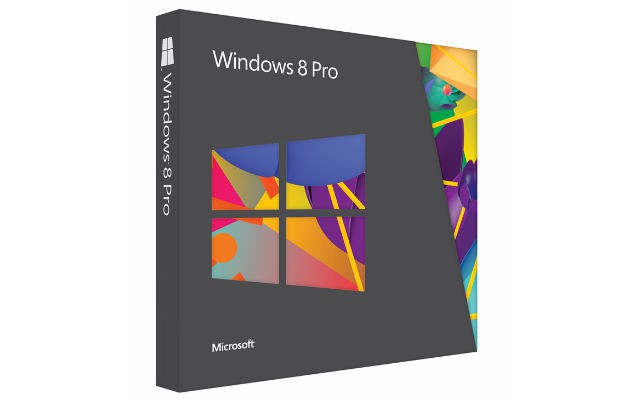
Windows 8 Pro Discount: Upgrade from Windows XP and Get 15% Off [Business Users]

Just as it does so many times, Microsoft is offering discounts especially in those moments when you have to leap from a much older operating system. In our case, we are talking about Windows XP. As Microsoft has recently announced that they are going to stop support for XP one year from now, they have also informed how we could get a discount on Windows 8 Pro.

Unfortunately, not all users will be able to take benefit of this offer, as it will apply only to business users and Microsoft will offer only up to 100 licences per company. This means that the offer applies to small or medium sized business and it will end on June 30. Besides the 15% discount on the Windows 8 Pro acquisition, you will also get the same discount on the Office Standard 2013.

You can choose the Windows 8 Pro version you want to download from the Microsoft page: if you choose the cheapest one, at $120, you will be able get it at around $100 which, in my humble opinion, is still not such a great price. If I were in a leading position at Microsoft, I’d make an additional discount for, let’s say, at least 30 copies bought. However, this is your offer if you run a business and you want to exchange Windows XP for Windows 8.

windows 8 pro

Microsoft co-founders Bill Gates and Paul Allen reunite for a classic photo refresh

Bill Gates and Paul Allen

Back in 1981 Microsoft’s founders Bill Gates and Paul Allen took a photo of them near several personal computers. Fast forward 32 years later, Microsoft’s two co-founders reunite for a classic photo refresh!

The photo was taken this week at Paul Allen’s Living Computer Museum in Seattle, Washington, and was taken during a celebration of computing pioneers at the museum. It is no doubt that these two men were pioneers of computing and this classic photo refresh is actually pretty neat.

It seems that the computers used in the re-creation of the classic photo shot are somewhat similar! As for Gates and Allen, notice how the major differences consist of Allen’s missing beard and tie.

Bill Gates and Paul Allen 2013

Microsoft releases Update 2 for Visual Studio 2012, comes with a ‘wealth of new functionality’

VS 2012 update 2

For all you app developers out there, Microsoft has made available Update 2 for Visual Studio 2012. This new update features some “significant improvements” to Visual Studio 2012. Microsoft had originally released a preview of this update for you to test out and provide feedback back in January of this year, and now this update is final.

“Just as with VS2012.1 (which is installed as part of VS2012.2 for those of you who don’t already have VS2012.1 installed), this release contains important fixes as well as a wealth of new functionality, addressing feedback we’ve received from the community and aligning with key software development trends in the market,” Microsoft stated in an official blog post.

Of the new features, there is a new “VS Blue” theme as well as performance enhancements when it comes to load time in the XAML designer. The new improvements deal with agile planning, quality enablement, Windows Store development, line-of-business development, and the general developer experience. There are also bug fixes and performance improvements.

Microsoft wants the Visual Studio experience be as streamlined an experience as possible for developers. For a detailed description of the update, hit the source link below, or hit the download link to grab the update!

Microsoft finally modernizes the Calendar on Outlook.com, rolls out this week

Outlook.com

With the launch of Outlook.com and the modernizing of Microsoft’s other online services, one thing was lacking attention. The Calendar on Outlook.com has retained the old Hotmail look for a while now. But no longer! Microsoft has announced that the Calendar on Outlook.com will finally receive its big update, rolling out this week.

“The Outlook.com calendar has been entirely redesigned with a modern, intuitive interface that puts you in control of your schedule. Our calendar service is faster than ever, helps you focus on the events and appointments and tasks you’ve added, and lets you take your calendar with you on any device,” Microsoft stated in an official blog post.

Navigating through the new Calendar is a breeze and feels modernized, and now matches its email, address book, and SkyDrive counterparts. On top of that, the new Calendar features friend information from your social networks (Skype, LinkedIn, and Facebook) so you can see your friend’s birthdays on your Calendar automatically. You can even import your Google Calendar data!

The new Outlook.com calendar is rolling out now and will be available around the world this week. So head over to calendar.live.com and check to see if you have the update!

Calendar

Microsoft releases Windows Embedded 8 Industry Pro, Pro Retail, and Enterprise editions

Windows Embedded 8 Industry

Last month, Microsoft revealed Windows Embedded 8 Industry during the Retail Tech Japan trade show. Windows Embedded 8 Industry is set to be the sequel to Windows Embedded POS Ready 7 and is a retail platform solution based on Windows 8.

In an official blog post, Microsoft has announced the availability of Windows Embedded 8 Industry and its three SKUs: Windows Embedded 8 Industry Pro, Windows Embedded 8 Industry Pro for Retail, and Windows Embedded 8 Industry Enterprise.

“Windows Embedded 8 Industry provides a fixed-image OS that is especially suited to power industry devices, control panels, kiosks, and yes, POS terminals. It provides a single image with lockdown features and embedded enhancements that will make the next generation of industry devices smarter, better connected, more secure, and more user friendly,” Microsoft stated in an official blog post.

With Windows Embedded 8 Industry, Microsoft touts app compatibility across devices as well as an easy means of deployment and an operating system that is easy to manage. Here is a breakdown of its features (per edition):

  • Windows Embedded 8 Industry Pro. This is the ideal SKU to build ATMs and devices for the healthcare and manufacturing industries, creating a new class of industry-specific device with a sleek, powerful, modern OS.
  • Windows Embedded 8 Industry Pro (Retail). This SKU provides specialized embedded functionality to get the most out of retail devices like POS terminals, kiosks, scanners and more.
  • Windows Embedded 8 Industry Enterprise. Available through Volume Licensing in July, the Enterprise SKU provides embedded-specific features designed to integrate seamlessly with Windows 8 Enterprise.

Microsoft believes that its Windows 8 platform has opened up a wide range of possibilities. The software giant also believes that Windows Embedded 8 Industry is the “right product at the right time” to power the next generation of intelligent systems. Hit the download link below to grab the 180 day evaluation.

Microsoft currently in talks with Vringo to settle search advertising patent lawsuit

Image

Microsoft is currently in settlement talks with Vringo, a small company who deals with software platforms for mobile social and mobile video services. Vringo originally filed a lawsuit against the software giant claiming they violated two patents dealing with search advertising.

Vringo sued Microsoft this past January and claimed Microsoft used Vringo’s own technology on Bing.com, which were covered by two patents, the same patents that Vringo defended in a case with Google, AOL, and other companies the previous year. Vringo and Microsoft are currently in talks to settle this case.

Vringo is accusing Microsoft for infringing on two of its patents that revolve around selecting and positioning advertising on internet search results. Vringo had won $30 million dollars in monetary damages from Google and AOL and was also granted “future royalties” that were estimated at “several hundreds of millions of dollars.” Google, on the other hand, refuses to admit defeat and is trying to appeal.

Microsoft recently launched its own patent tracker to provide “transparency” in the world of patents and urged other companies to do the same. “Transparency around patent ownership will help prevent gamesmanship by companies that seek to lie in wait and “hold up” companies rather than enable a well-functioning secondary market,” Microsoft stated. Too bad its not helping them right now with Vringo.

Microsoft wants to create more diverse gaming storylines to appeal to women gamers

Xbox

According to a Microsoft narrative writer, women are the “new core” when it comes to gaming. No longer are they a small percentage of the gaming market. Microsoft wants to create more diverse storylines and add more female characters and ethnicities for better gaming, especially for women.

“Women are not a small special market on the fringe of the core. Women are the new core,” claims Tom Abernathy, a narrative writer for Microsoft Studios. Abernathy believes that current games do not keep up with today’s social culture and the market for video games is changing too fast for developers and publishers to keep up.

“Our audience is leaving us behind. The world is changing, it has already changed, and we have not been doing a very good job of keeping up with it, Abernathy adds. Apparently 30% of US gamers are women! At least according to data from the Entertainment Software Association and game developer PopCap Games.

Having much more diverse games would obviously be good for the gaming industry as it allows for games to be given a wider audience. “Nobody in the room admits to being against making characters female or nonwhite. But they’re scared because they don’t know how to defend that choice to their bosses. Our industry, our art, and our business stand to gain in every sense simply by holding a mirror up to our audience and reflecting their diversity in what we produce,” Abernathy adds.

Microsoft releases low level driver update for Surface Pro, improves SSD performance during boot

Surface Pro

For those who own a Surface Pro, you may have noticed a new update available via Windows Update. The update is simply a low level driver update for the Surface Pro which improves SSD performance during boot.

The update is dated 03/28/13 and is for the Surface Pro. Microsoft did not offer specifics on why this update was needed except that it offered improved SSD performance during boot.

Since the launch of the Surface RT back in October of 2012 and the launch of the Surface Pro in February of 2013, Microsoft has been releasing monthly firmware updates as well as app updates to offer a better customer experience. Microsoft even promised continued support for both devices, so it is great to see this update from Microsoft.

If you have yet to install this update, head over to PC Settings, tap or touch Settings, then tap or touch Change PC Settings, then under PC settings, tap or select Windows Update. Did you notice any performance improvements after installing this update?

7-inch Windows 8 Tablets: Microsoft’s Ready

Go to any electronics shop in your city and in the tablets section you’ll see all kinds of sizes: 10 inch, 7 inch, 8 inch and so on. However, if you’re looking for a 7-inch tablet with Windows 8 or at least RT inside, you will be disappointed – there’s not yet such a device on the market. You can experience Android on almost any size; you can take the smaller 7.9 inch iPad Mini if you’re into iOS. But with Windows 8, things are different.

But that is about to be changed, apparently. New Windows 8 hardware specifications and requirements hint towards the possibility of seeing 7-inch tablets with the latest OS from Windows. Is Microsoft getting ready to launch a 7-inch Surface tablet or is this all nothing but mere speculation? Microsoft silently changed the hardware certifications guidelines for Windows 8 earlier this month.

Would something like this fancy you?

From Microsoft’s newsletter:

We’re changing the System.Client.Tablet.Graphics.MinimumResolution requirement to create a consistent minimum resolution of 1024 x 768 at a depth of 32 bits across all Windows 8 system form factors. The physical dimensions of the display panel must still match the aspect ratio of the native resolution. This doesn’t imply that we’re encouraging partners to regularly use a lower screen resolution. In fact, we see customers embracing the higher resolution screens that make a great Windows experience. We understand that partners exploring designs for certain markets could find greater design flexibility helpful.

7-inch Windows tablets incoming

These changes are effective immediately but could it be that they are planned along with the Windows Blue update? As we can see, the resolution has been stepped down from 1366 x 768 to 1024 x 768. And recently, a leaked Windows Blue build showed that the minimum resolution for app snap view mode has also been reduced. While this could mean that Microsoft is relaxing its requirements, there’s also room for speculation that this would allow OEMs to make 7-inch tablets.

However, special attention needs to be given to this phrase – We understand that partners exploring designs for certain markets could find greater design flexibility helpful. Could this mean that Microsoft is giving the green line to start the fight against iPad Mini, Google Nexus, Kindle Fire and many others?

But could Microsoft be secretly planning something? What about an e-Reader? Too old, ‘ye think? The Surface tablet wasn’t such a novelty, either, so I won’t be really surprised to see a Microsoft Reader. If they manage to price it accordingly, and thanks to their partnership with Nook, offer appealing content, then it would be an interesting product, after all.


Windows Store app highlight: Art Text, a design app that turns your text into art

Art Text

Art Text is a Windows Store app available for Windows 8 and Windows RT that helps users turn their text into art and help create logos, icons, web graphics, and buttons. The app runs for $9.99 and claims to be similar to Adobe’s Photoshop or Illustrator, without the steep learning curve.

“Art Text is a layer-based design application for turning text into art and creating logos, application icons, web graphics, and buttons. With Art Text you will get professional results without the steep learning curve of Photoshop or Illustrator,” the app description reads.

So what can you do with Art Text? Users can create catchy headings, unique titles for PowerPoint presentations, logos, or web graphics. Art Text features a template gallery packed with over 100 examples, as well as various materials, textures, and fills.

If you want to try out a cheaper and easier alternative to Adobe’s Photoshop, check out Art Text. It is $9.99 for a limited time, so hit the download link below to snag it!

Microsoft believes transparency is imperative when it comes to patents, launches patent tracker

Microsoft

With all the fuss over patents, especially between Microsoft and Google recently, the software giant has expressed its new-found belief that transparency is imperative when it comes to patents. On top of that, Microsoft has launched a patent tracker to showcase every single patent that the company owns.

“Transparency around patent ownership will help prevent gamesmanship by companies that seek to lie in wait and “hold up” companies rather than enable a well-functioning secondary market. Of equal importance, transparency is a prerequisite to enforceability of patent licensing pledges, whether to standards bodies or to the world at large,” Microsoft stated in an official blog post.

Via the company’s new patent tracker, one can search an entire downloadable Excel file for Microsoft’s patents or simply search by patent number, patent title, country, and if the patent is held by Microsoft or a subsidiary.

Microsoft believes that transparency is important and without transparency, it would be impossible to determine is a company is ‘abiding by those commitments.’ Microsoft wants other company’s to jump on board this bandwagon and do the same.

Picfinity Brings 500px to Windows 8, Windows 10

Photographers and photo enthusiasts that work on Windows 10, Windows 8 have a few drawbacks. At this time, there are still some very important services missing from Windows 10, Windows 8, and while Instagram can be somewhat replaced with Metrogram, there are still many more missing. One such popular image service is 500px, which is used by thousands.

Even though the official 500px app is not yet available, users who use this service regularly can still benefit from its services by using another service: Picfinity. What Picfinity does is it brings 500px to Windows 10, Windows 8, and anyone can use it as they would the web service.

How good is Picfinity?

picfinity-brings-500px-to-windows-8-app-review (2)

Right off the back, I can tell you that Picfinity is one of the best photography apps I’ve seen in quite a while. It comes closest to the service it tries to provide than pretty much any other app and it does it with style. Everything comes together in harmony creating a perfect environment to view photos and all of this while not compromising performance.

After you install Picfinity, the first menu you see when you open the app is the Popular photos, and by scrolling to the right, you can see other categories, such as Upcoming, Editor’s Choice and many others. Also, you have the possibility to open each category and browse photos from it.

picfinity-brings-500px-to-windows-8-app-review (3)

For an even easier transition between categories, you can select which category you want to view from the drop-down menu at the top right corner. Also here, you have your Log In button which opens a window with the 500px login page. Before the page is opened, you will see a notification prompting you to use the username/password log in method, as the Facebook or Twitter methods are not working currently. Also, probably the only thing I didn’t like about the app is the tiny browser window that only shows half of the 500px page.

picfinity-brings-500px-to-windows-8-app-review (4)

Maybe in the future, with the next updates, these problems will be sorted out and we’ll have an app that pretty much has it all. Also, after you log in to your 500px account, you can view your profile and upload photos by clicking on your avatar. On the profile page, you will see your info as well as your photos and an upload button. Uploading is fairly simple: you use the default file explorer to find your photos and then you add all the info to the photos. When you are done, you can upload them by right clicking anywhere and selecting “Upload” from the bottom menu.

picfinity-brings-500px-to-windows-8-app-review (5)

Users can also search whiting the app using the Search charm from the Windows 8, Windows 10 OS. Also, when they open a photo, by right clicking they reveal all the options they have at their disposal: Like, Set as Lock Screen Photo, Purchase Photo, Add to Favorites, Comment, Show Details, Return to Home or Start a Slide Show. While most of these options are usable within the app, if you decide to buy a photo, it will forward you to the 500px website.

picfinity-brings-500px-to-windows-8-app-review (6)

The possibility to add any photo as your lock screen is pretty awesome, allowing users to customize their Windows 8, Windows 10 devices as they please. However, for those of you who are more technical, the Show Details feature might be of more use, as it shows all the information about the photo (Camera, Shutter Speed, Aperture etc).

picfinity-brings-500px-to-windows-8-app-review (7)

After testing the app and playing around with its features, I was pleasantly surprised to see how well it works. Picfinity provides all the possible features that a regular user might want. The functioning of the app fluent and fast, making it a perfect tool for every photography lover.

Download Picfinity for Windows 10, Windows 8

Windows Blue lets users sync more of their Start Screen settings, including tile size and layout

Windows Blue

We all know by now that Windows Blue is set to bring forth much-needed updates for Windows 8. But did you know that Windows Blue will also feature improved sync settings so you can have your custom Start Screen tile size and layout saved, as well as have it displayed on other devices?

According to a new report, Windows Blue will further enhance the Start Screen syncing feature already seen in Windows 8. Currently in Windows 8, you can save your Start Screen background across your Windows 8 devices via your Microsoft Account. With Windows Blue, you can save not only the color scheme but also the tile sizes and layout.

Windows Blue will also allow for syncing of File History, quick links, app secondary tiles, tethering, and device input personalization. Internet Explorer in Windows Blue will also see some new syncing functionality, including synced tabs across your devices. Bluetooth will also be associated with more than one Windows Blue device, once you pair it with one Windows Blue device.

The latest rumor states that we will see a public preview build of Windows Blue during the upcoming Build 2013 developer conference taking place in San Francisco on June 26th. It’s going to be interesting to see what new features we will see in that build, compared to the leaked Windows Blue build of 9364. These new sync features are a welcomed addition in enhancing our Windows 8 experience!

Metro IE11 includes new Downloads list and Tracking Protection features

Internet Explorer 11 (IE11) in Windows Blue appears to be rocking a few new features which are yet to be talked about. These new features include a dedicated downloads list and a new feature called Tracking Protection. The downloads list is self explanatory, it allows you to remove, run, check the status and delete downloads. The Tracking Protection allows you to enable or disable the feature.

WinBeta

The new downloads list is a must have feature for those who don’t want to use IE11 on the desktop. The downloads list is accessible by tapping on the wrench icon and then tapping on View Downloads. This feature should have been in the Metro version of IE since the start. At least they’re working on it now.

The second feature is the option to enable or disable Tracking Protection. Currently, this setting is unchangeable in IE10, but with IE11 you can switch it on or off. The setting can be accessed from the Internet Options option from the settings charm when the app is open.

WinBeta

Microsoft testing new Search charm functionality in Windows Blue

With the recent Windows Blue leak, many hidden features are beginning to emerge from the new operating system. It appears Microsoft may be working on a new way of searching in Windows Blue, the feature is still heavily in development and doesn’t work properly.

The Search charm in Windows Blue appears to be getting an update, as enabling a few hidden registry tweaks presents you with an incomplete version of the Search charm that allows searching on the web and locally. Currently, the web search feature is broken, along with most of the charms UI, however searching for local apps works just fine. Microsoft will obviously fix many of the problems seen in the video above before Windows Blue hits RTM.

This feature fits well with a recent rumour that claimed that Windows Blue would improve dramatically on searching via the Search charm. We can’t wait to see the final outcome of the charms new features!

Microsoft hires Oracle’s Judson Althoff to be in charge of North American Sales and Marketing

Judson Althoff Microsoft

Microsoft has hired a new President for the company’s North America Sales and Marketing role. In an official press release today, Microsoft revealed that the software giant has hired Oracle’s Judson Althoff to be the man in charge of sales and marketing in the good ol’ USA.

As the President of North American Sales and Marketing, Althoff will manage a team of sales, marketing, and services professionals across the United States and Canada. This group is primarily responsible for Microsoft earnings. In fact, this group managed to earn Microsoft a whopping $73 billion dollars during the fiscal year 2013.

“Judson has a track record of successfully developing, growing and leading global sales organizations with a culture of execution excellence. Judson’s proven leadership will enable us to continue to excel in delivering the best devices and services experience to our customers including businesses and consumers, Microsoft Chief Operating Officer Kevin Turner stated in an official press release.

Althoff was previously the Senior Vice President, Worldwide Alliances and Channels, reporting to Oracle President Mark Hurd. Althoff spent 14 years at Oracle. Althoff will begin his new role at Microsoft beginning Friday, March 29th and will report directly to Microsoft Chief Operating Officer Kevin Turner.

Windows Blue lets you automatically update your modern Apps from the Windows Store

App auto update

More Windows Blue news hitting the internet for your reading pleasure. This time, Microsoft has allowed users to automatically update their modern Apps from the Windows Store with the flick of a setting.

As you can see from the screenshot above, there is a setting in the Control Panel that allows a user to easily update apps automatically, without having to open up Windows Store and see an “update” link at the top-right of their screen anymore.

This is indeed a great feature, although it is so minor, because it allows users to automatically update their apps without having the need to check the Store every time or be bothered to update an app while browsing the Store. Currently, this feature is present in the leaked Windows Blue build 9364, which leaked yesterday.

Windows Blue is bringing forth a plethora of changes and tweaks to make your modern experience that much better. We recently learned about the File Manager app that Microsoft is working on. It is still in early stages of development but it is a good start nonetheless.

Microsoft is indeed working on a modern File Manager app for Windows Blue

File Manager

Yesterday, we reported the possibility of Microsoft working on a File Manager app for the next update to Windows 8. The references to this new File Manager app was seen in the leaked Windows Blue build 9364. Now, an image has surfaced showcasing the File Manager app.

If you are one of the lucky ones to get your hands on this leaked build, you will notice the presence of the File Manager app, but you cant run it. However, someone was able to get it running and now we get our first look at this File Manager app. (see screenshot below)

As you can see, the app functions like your typical file manager app. You can create new folders, rename folders, add an item into a folder, delete or rename files, etc. It still has a long way to go before it replaces the useful File Explorer in Windows 8.

This app also presents a threat to all those third party File Manager apps that are currently available in the Windows Store. With Microsoft creating their own app, the need for those third party apps will no longer be there. More on this as it develops.

File Manager

Windows RT to also receive Windows Blue, Surface RT users can now rejoice

WinBeta Blue Start

The frenzy over Windows Blue has begun. It has been over 24 hours since the leak of Windows Blue build 9364 and new details are emerging about this update to Windows 8. Is it just for Windows 8? What about Windows RT or Windows Server?

According to references within Windows Blue, Windows 8 will not be the only operating system receiving Windows Blue. As a matter of fact, Windows RT and Windows Server will also receive the Blue treatment. Great news for those on a Surface RT.

Obviously Microsoft should update Windows RT with the same new features that Windows 8 will receive from Windows Blue. It only makes sense. Microsoft shouldn’t neglect Windows RT, especially Surface RT owners, if the company wants to boost sales of that device.

Aside from Windows RT, the update will also be for Windows Server as well. There is a reference to “Windows Server Blue” in a file called WindowsProducts.adml, which can be seen in the leaked build of Windows Blue.

While Microsoft has yet to reveal any information about Windows Blue or even confirm if Windows RT will receive Windows Blue, the leaked build is giving us all the indication we need. However, once the company makes an official mention, we will gladly keep you updated.

Watch this! Windows Blue build 9364 has new Start Screen tile interactions and resizing abilities (video)

Windows Blue

Windows Blue build 9364 was leaked earlier today and we got our first look at the upcoming update to Windows 8. One thing we know for sure is that the Start Screen will have better customization options, especially when it comes to re-sizing the Live Tiles. Now you can see it for yourself in this video.

In the video (below), you will see the new Start Screen tile interactions, which allow you to re-size a particular Live Tile to double its size or even to half its current size (resembling the Live Tile on a Windows Phone device). There are also other user interface tweaks when it comes to interacting with Live Tiles, as you will see in the video.

Keep in mind that this video was recorded on a device that had Windows Blue displayed via an RDP connection, therefore you will see lag. The operating system itself is pretty damn fast, as you can see from our exclusive video from when this news broke earlier today.

Windows Blue seems to have several user interface tweaks that make Windows 8 what it should have been. What other tweaks or features are you hoping to see in Windows Blue?

Thanks to @windows4live for the tip!

Watch this! Using Metro apps on Multiple Monitors in Windows Blue (video)

Many multi-monitor improvements are apparent in Windows Blue, and we’ve created a quick video demonstrating its usefulness! Windows Blue allows those who are using more than 1 monitor to have 2 or more apps open over 2 or more screens at the same time. This means you can have the Mail and People app open on both screens at once, or the Start Screen and Desktop!

Of course, as this is a pre-release build of Windows Blue, bugs are apparent. Just ignore them, we’re certain they’ll get fixed before the RTM version of Windows Blue. In the meantime, get excited, as we expect many more cool features to be part of Windows Blue!

Currently in Windows 8, it is not possible to have the Start Screen or any Metro app opened on one monitor while the desktop is in use on another monitor. The Metro app or Start Screen will disappear. In other words, the Metro app will not remain in full screen on the second monitor. This feature is apparently being worked on in Windows Blue and it partially works as of the leaked build from today.

The video was made with a Virtual Machine, which means both monitors aren’t really monitors (mind boggling!). Check out the video below!

Windows Blue improves Metro on the desktop, offers 4 way snap and better multi-monitor support

WinBeta

It appears Windows Blue will be better suited for desktop PC’s, as the recent Windows Blue leak has revealed changes to the core that allows for 3 or 4 apps to be snapped on screen at one time, as well as 2 or more metro apps running across multiple screens! This is a feature many have been waiting for.

These changes, along with many more for Windows Blue are still in development, which means they are absolutely full of bugs. Other changes include more tile sizes, a wider variety of colours, and a dedicated mode which allows you to move, pin and unpin multiple apps at one time.

We hope Windows Blue will include many more awesome features for the desktop, but in the mean time, stay locked in at WinBeta.org!

Leaked Windows Blue build confirms smaller and larger tile sizes, better multitasking and personalization

It appears the recent Windows Blue build that leaked onto the web is indeed real, as screenshots from the build have began leaking online. Along with the screenshots, it has been revealed that Windows Blue will indeed support a smaller tile size, just like in Windows Phone 8. Also, metro apps can be ran side by side evenly now, instead of having one of the apps in a smaller size.

WinBeta
WinBeta
WinBeta
WinBeta

The new personalization and larger tile sizes are a surprise to many, but are very much welcomed changes. We assume this build has many more goodies to be discovered. These changes, are all apart of the build which recently leaked onto the internet. We are yet to confirm these images are real, so look at them with the knowing that they could be fake.

The build that leaked had been compiled at build 9364, which is rather recent. This means this build will have a few features noticeable that Windows 8 doesn’t. Keep checking back at WinBeta.org for more as it happens!

Word Twist: Classical Word Game for Windows 8, Windows 10

Word Twist is a terrific Windows 8 and Windows 8.1, Windows 10 word game not only for yourself, but for your family and friends: start playing!
windows 8 word game
We just can’t have enough of word games on Windows 10, Windows 8, do we? After reviewing Wordament for Windows 8 and Adlib, now it’s time for Word Twist: a word game for Windows 10, Windows 8 that wants to bring back the classical fun, if we can say so. Word Twist has a 4 out of 5 rating based on almost 1500 votes and is currently free in the Windows Store with no pro version around, but the free one is good enough to keep you entertained.

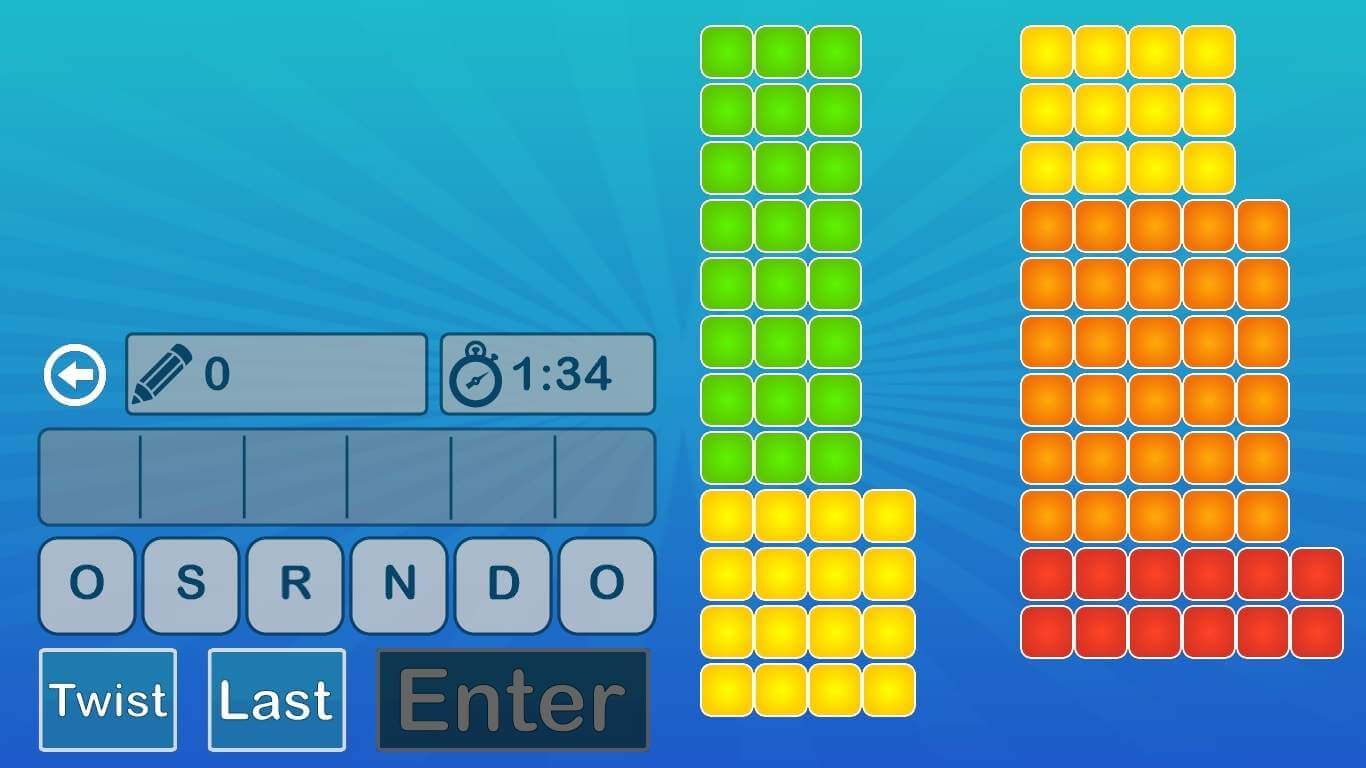
What makes the game appealing is the simplicity behind – you have only 6 letters to play around with. Random Salad Games, the creator of the games, has done a pretty decent job, the colors and interface of the game being very pleasant to the eye. The are four game modes: Classic, All or Nothing, Blind, and Kids modes and three levels of difficulty. What’s really awesome is that there are dictionary definitions for all of the words!

word twist for windows 8

Enrich your vocabulary with WordTwist

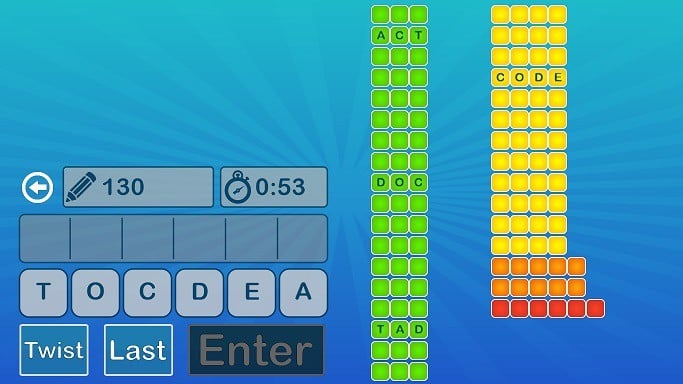
You have two minutes at your disposal to make a word and score as much as possible. But because the application is free, there will be times when you will be annoyed by that advertising banner. I am suggesting developers to try a different placing, as it really troubles word twist windows 8 word gamethe player. You can use the Twist button to arrange differently the letters, if you’re out of ideas. And sometimes, that really helps!

Also, the achievements board is another motivational tool to get those words flipping. You have 4 different colors, according to the difficulty, which is represented by the length of the word you’re going to create. So, if you’ll make a word out of 3 letters, you’ll fill out the green column and so on. And, of course, you will get a smaller score for doing that and a bigger one for managing to discover a longer, more difficult word. And if you’re playing in team, you can always prove that your word “makes sense” with the help of the dictionary tool, which proves to be very useful.

Check the gallery for more images with the in-game action and give WordTwist a try on your Windows 10, Windows 8 or Windows RT device if you’re into word games and you won’t regret it!

Download WordTwist from the Windows Store