
How to Log In to PayPal Account [App, Website & QR Code]


 6 min. read
  Published on

PayPal login allows you to make transactions, check payment history, linked cards, and other account features. If you are willing to sign into your PayPal account, you must know that it can be done through a browser or the official mobile app, depending on your preference. In this guide, we have covered steps to sign into your PayPal account on website and app, different ways to account recovery, and ways to fix common login issues.
How do I Log In to PayPal?
Log in using the website
The PayPal website lets you access your account without installing any software. Before entering your credentials, check that you’re visiting the official PayPal domain.
- Open your browser and visit the official PayPal login page.
- Enter your registered email address or mobile number.
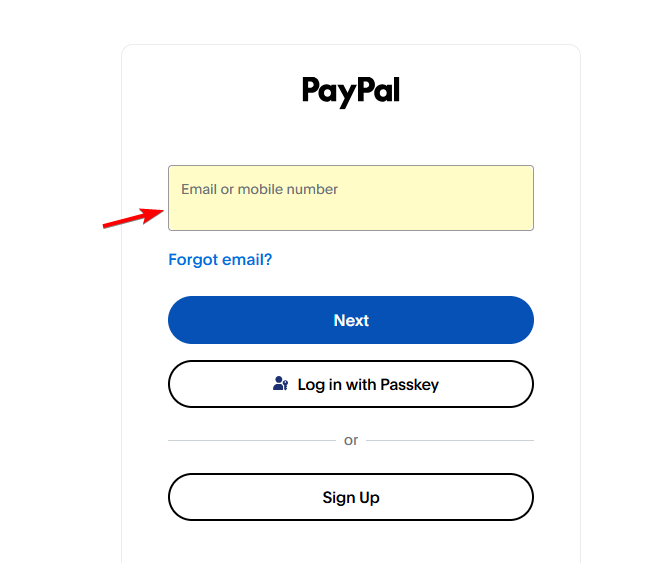
- Select Next and follow the on-screen instructions.
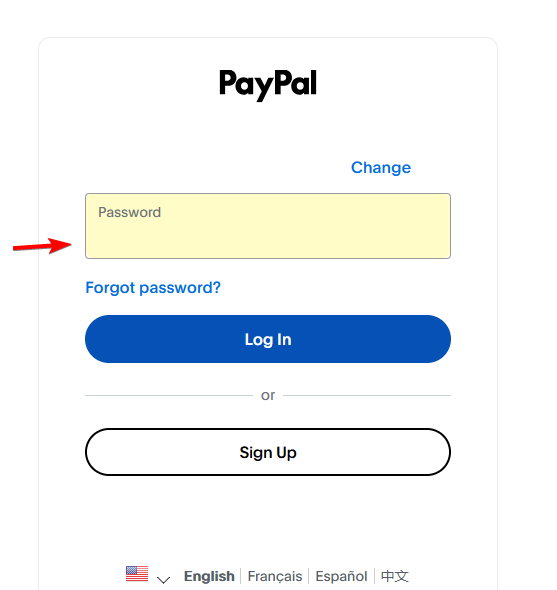
- Enter your password if prompted.
- Complete any requested security verification.
- Wait for PayPal to open your account dashboard.
Once logged in, you can review transactions, manage payment methods, send money, and access account settings.
How to Log In to PayPal Using the Mobile App
The PayPal app offers a convenient way to manage payments on Android and iPhone. Depending on your device and account settings, you may also have access to biometric sign-in or passkeys.
- Open the Google Play Store (Android) or Apple App Store (iOS).
- Search for PayPal and install the official app (Android | iOS).
- Launch the app and tap Log In.
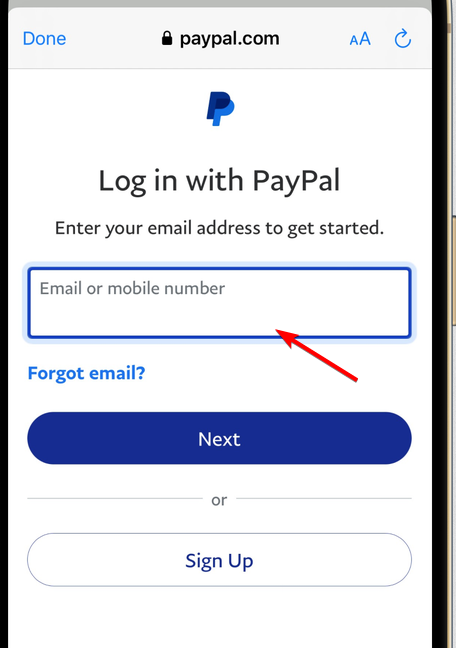
- Enter your registered email address or mobile number.
- Follow the prompts to enter your password or use an available sign-in method.
- Complete any security verification.
After signing in, you can check transactions, send or receive money, and manage linked payment methods. If supported, enable fingerprint recognition or facial recognition for convenient future access.
How to Log In to PayPal Using a QR Code
PayPal lets eligible users sign in to their accounts on a desktop by scanning a QR code with their phone. To use this method, make sure you have the latest PayPal app installed and have enabled biometric authentication, such as Face ID, Touch ID, or fingerprint recognition, if required.
Using the PayPal App to Scan the QR Code
- Open PayPal on your desktop and click Log In.
- Open the latest version of the PayPal app on your phone.
- Tap the QR code icon in the top-right corner, if available.
- Point your phone’s camera at the QR code displayed on your desktop.
- Follow the prompts and verify your identity using your enabled biometric method, if requested.
- Once authentication is complete, PayPal should redirect your desktop browser to your signed-in account.
Using Your Phone’s Camera to Scan the QR Code
You can also scan the QR code using your phone’s built-in camera, provided your device supports this method.
- Visit PayPal’s login page on your desktop.
- Open your phone’s camera and point it at the displayed QR code.
- Tap the banner or link that appears to open the PayPal app.
- Follow the instructions to verify your identity using Face ID, Touch ID, fingerprint recognition, or another available method.
- After successful authentication, your desktop browser should open your PayPal account.
Tips for PayPal QR Code Login
- Update the app: Install the latest PayPal app version before attempting to sign in.
- Enable biometric authentication: Set up a supported biometric method if PayPal requires it for your login.
- Check the QR code: Scan only codes displayed during a login attempt you initiated yourself.
- Keep your phone nearby: You may need to approve the request or complete additional verification.
- Try another sign-in method: If QR code login isn’t available, use your registered email address or mobile number instead.
Note: QR code login options may vary by device, account, and region. If you don’t see the QR code option, use the standard sign-in method or check PayPal’s official Help Center. every region. Only scan codes during login attempts you initiated yourself.
How to Fix PayPal Login Issues
PayPal login problems can occur because of incorrect credentials, verification issues, outdated apps, or browser errors. Try these fixes to identify the cause.
- Check your login details: Confirm that your email address or phone number is correct. Check your password for typing errors.
- Reset your password: Use the official recovery process if PayPal rejects your password.
- Check your verification messages: Look in your SMS inbox, email inbox, and spam folder for security codes.
- Request another code carefully: If a code doesn’t arrive, wait briefly before requesting another one.
- Update the PayPal app: Install the latest version from your device’s official app store.
- Clear browser cache and cookies: Stored website data can sometimes interfere with sign-in. Clear the data and try again.
- Try another browser: Use an updated browser to check whether an extension or browser setting is causing the issue.
- Complete security checks: PayPal may request additional verification if it detects unusual account activity.
Tip: Never share your password or verification codes with someone claiming to provide support.
PayPal login gives you access through the official website or mobile app, with account recovery options available when sign-in fails. Use the official PayPal pages, complete security checks carefully, and avoid sharing your credentials. You can also check out our guide on how to fix common PayPal issues. You can also read our guide on fixing PayPal not working on Steam for platform-specific troubleshooting tips.
FAQs related to PayPal login
1. How do I log in to PayPal without a password?
Some accounts may support passkeys or other sign-in methods. Otherwise, use PayPal’s password recovery process.
2. Can I log in to PayPal using my phone number?
Yes, if phone-number sign-in is supported for your account. You can also use your registered email address.
3. Why can’t I log in to my PayPal account?
Incorrect credentials, verification problems, outdated software, or security checks may prevent access. Try the troubleshooting steps above.
4. Can I log in to PayPal without the app?
Yes. Visit the official PayPal website in a supported browser and sign in there.
5. How do I recover my PayPal account if I forgot my email?
Visit the PayPal Help Center and follow its account recovery guidance. You may need additional information to identify your account.
6. Is it safe to log in to PayPal on a public computer?
Using a trusted personal device is safer. If you use a public computer, don’t save your password and sign out completely afterward.

Read our disclosure page to find out how can you help Windows Report sustain the editorial team. Read more



Improve this guide




User forum
0 messages