
How to Fix a PC That Won't Boot After BIOS Updated
Booting into Safe mode may come in handy


 5 min. read
  Updated on
Key notes
- An interrupt BIOS update may trigger a broken boot operation.
- Booting in Safe mode may work in many cases, but you will need a clean installation in extreme situations.

If your PC won’t boot after a BIOS update, the problem often comes down to boot errors caused by unsupported BIOS versions, third-party flashing tools, or interruptions during the update. These issues can prevent Windows from starting or even brick your motherboard.
Below, you’ll find solutions that work across major brands like HP, Dell, and ASUS to help you recover your system.
How can I fix a PC that won’t boot after BIOS update?
1. Reset CMOS
- Shut down your PC completely.
- Unplug the power cord and remove the battery if it’s a laptop.
- Hold the power button for 60 seconds to completely discharge your PC.
- Open the PC case and touch a metal surface to discharge your static electricity.
- Remove the CMOS battery; it should be a 3V standard flat wristwatch battery.
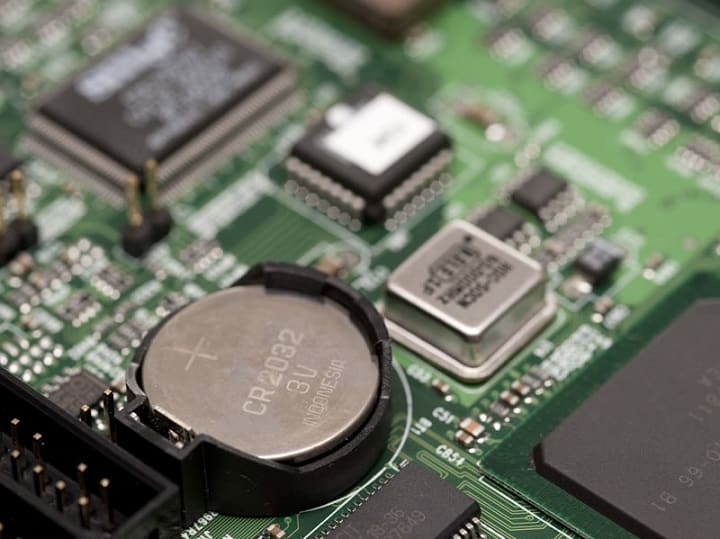
- Please wait for a few minutes and place it again carefully.
- Power On your PC and look for changes.
On the other hand, if you cannot reach and access the CMOS battery, you can reset BIOS settings by temporarily removing motherboard jumper pins and reconnecting them.
In addition, once you boot again, set the proper BIOS time in the Boot settings. Without it, you won’t be able to boot in Windows 10.
2. Try booting into Safe mode
- Plug in or insert a bootable drive (USB flash stick or DVD) and restart your PC.
- Access the boot menu by pressing the F8 key during Restart (this may differ depending on the make).
- Using the arrow keys, navigate to the Boot section and change the boot order to start with the bootable drive.
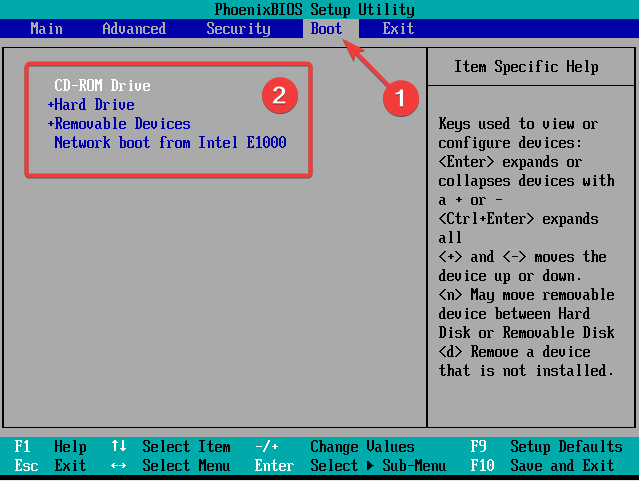
- The loading process of the installation file should commence.
- Select your preferences and hit the Next button.
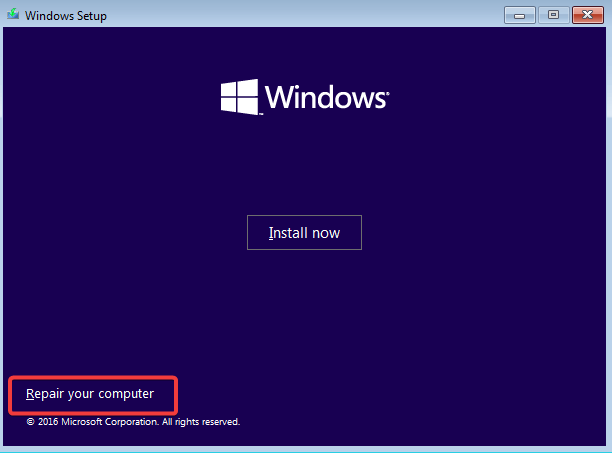
- Select Repair your computer from the bottom left corner in the following dialog box.
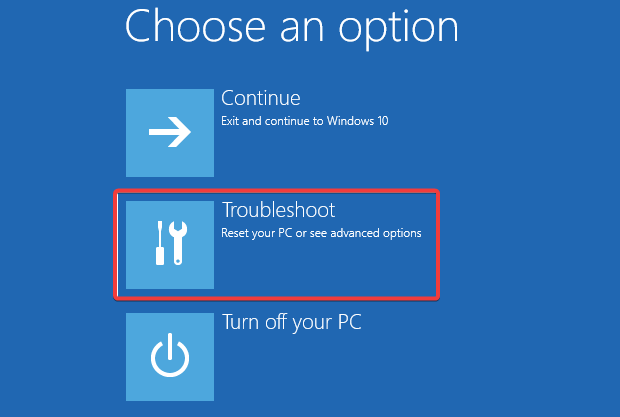
- Open Troubleshoot and choose Advanced Options.
- Choose Startup Settings and select Restart.
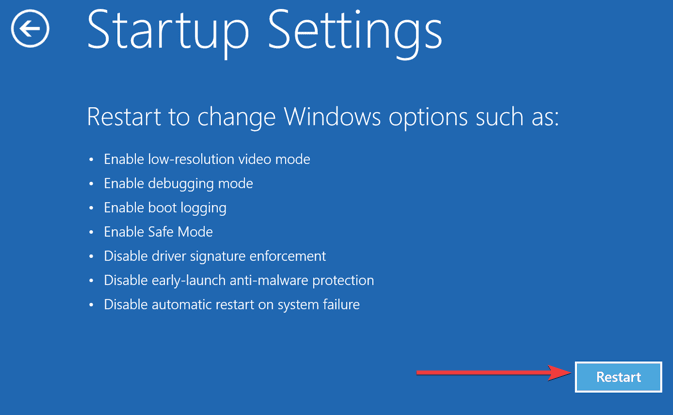
- Once your PC restarts, press F4, F5, or F6 to boot in various Safe Mode options.
- When/if the system boots in Windows 10 finally, you can restart your PC and start the system in a standard manner.
Many users reported that, somehow, the Safe mode ‘forced’ the system to boot and resolved the stall caused by the flashing failure.
If you want to know how to create a Windows 10 installation media, follow the steps in this simple guide.
3. Tweak BIOS settings
Now, this highly depends on your PC’s configuration and motherboard model. We advise you to google your motherboard and look for the preferred settings for that purpose.
Explaining what you’ll need to change is redundant since the options are pretty diverse.
If you’re not 100% sure, don’t meddle with BIOS settings. Instead, you should contact the official support or explain your problem to knowledgeable folks or PC enthusiasts.
That’s your safest bet to tweak BIOS settings and retrieve full functionality.
4. Flash BIOS again
You flashed BIOS once, and the hell broke loose. It seems ludicrous to do it again, but that might resolve your problems. Namely, you probably installed the wrong version or interrupted flashing and bricked your motherboard.
Luckily, some users who managed to get over the initial boot screen (and get stuck in Windows 10 animation) resolved the problem by flashing BIOS again with the correct version.
Nevertheless, we advise you not to rush and to take every step carefully. To help you address this, we recommend reading the article below with a thorough explanation of flashing.
Make sure to check it out before you move to flash.
5. Reinstall the system
Some users reported that the problem could be solved by reinstalling the system completely. However, it seems that the failed flashing procedure affects the hard disk somehow, forcing you to start from scratch.
The Windows 10 reinstallation procedure isn’t as complicated as it was on some older Windows iterations back in the day.
Nonetheless, for a novice user, it can lead to prolonged hardship. To avoid that, make sure to read the complete instructions compiled in the article below.
6. Replace your motherboard
Finally, if none of the previous steps helped you, we’re sorry to inform you that you’ll need another motherboard.
On a side note, you can ask for a repair which is also an option, but that’s a long shot, and the odds are not in your favor.
Your Windows 10 BIOS settings and updates control key hardware and boot functions but can sometimes cause startup issues. Using an unsupported BIOS version can cause verification ID errors or prevent your PC from booting properly. Interruptions during the BIOS update process may also lead to boot failures after flashing BIOS. Brands like ASUS have specific BIOS update steps worth following carefully.
If your PC automatically boots into BIOS without warning, this guide will help you fix it. When your BIOS recognizes your SSD but Windows won’t boot, there are targeted solutions to try. And if your PC gets stuck and won’t exit BIOS, our detailed walkthrough can get your system back on track.
That should conclude it. In case you have any questions or alternative solutions, make sure to share them with us. You can do it in the comments section below.

Read our disclosure page to find out how can you help Windows Report sustain the editorial team. Read more



Improve this guide



User forum
4 messages