
PC Doesn’t Turn On After Overheating: Step-by-Step Fixes


 4 min. read
  Updated on

If your PC doesn’t turn on after overheating, the issue is often linked to hardware damage, a triggered thermal protection feature, or residual heat affecting internal components. This guide walks you through the most effective ways to troubleshoot and get your system running again.
Table of contents
Why a Computer Won’t Turn On After Overheating
When a computer won’t turn on after overheating, it’s usually because internal safety mechanisms have shut down the power to prevent further damage. Overheating can cause:
- CPU or GPU thermal throttling and auto-shutdown.
- Damage to the power supply or motherboard.
- Melted or degraded thermal paste reducing heat transfer.
- Triggered BIOS/UEFI thermal protection settings.
- Short-circuited components from excessive heat.
Understanding the cause is key to ensuring your PC won’t overheat again in the future.
1. Wait for the cooldown
For starters, you should wait for some time and try again. Most of the time, it’s hard for constant exposure to high temperatures to damage your PC.
Basically, your motherboard is programmed to shut down in case of abnormally high CPU or GPU temperature as a precaution measure. With that in mind, there’s a cooldown period after which your PC will start normally.
On the other hand, if you’re still unable to start your PC after, let’s say, 15 minutes or so, we are sad to inform you some part of the hardware is probably fatally damaged.
Our guess is that motherboard, GPU or CPU are critically affected by the constant exposure to high temperatures. In this case, there’s nothing else you can do but to contact your service and replace the affected components.
2. Software tweaking with SpeedFan
There are two ways to protect and upkeep your PC in regards to high temperatures. Firstly, let’s take a look at software part. Most PCs will track temperature and regulate coolers on their own, but you can boost them manually, as well.
By using a third-party software you can manipulate fans and monitor temperatures on both your PC and laptop. And, by adding an extra power to coolers, avoid the overheating issue.
The first program that crosses our mind is highly-regarded SpeedFan.
SpeedFan is a nifty and small tool that grants you total control over your cooling system. With it, you’ll be able to regulate fans speed manually or use the advanced automatized feature and let it work its magic.
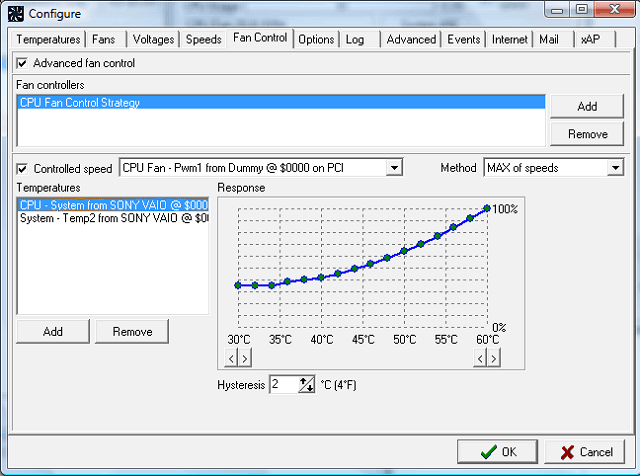
You can download SpeedFan for free by following this link. And if you’re not satisfied with what it has to offer, make sure to check this article for viable alternatives.
3. Hardware
Now, let’s move to a hardware part and give you an insight on that, too. Extra coolers are always welcomed. Most of the time, your PC configuration comes with CPU, power supply, and GPU coolers respectively.
But, as you can see for yourself by a simple glimpse on the back side of the computer case, there are empty compartments for extra coolers. If you’re an avid gamer, make sure to add some of those in order to reduce heating substantially.
Moreover, you should probably change your thermal paste. This gum-like grease has an important role in keeping the heat flowing from the heat source (CPU) through the heat sink.
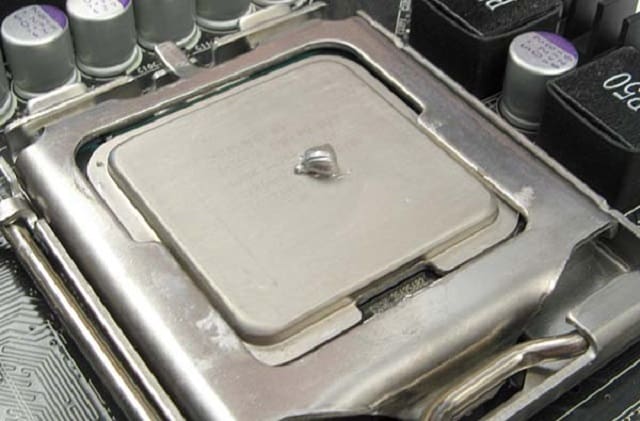
Over time, it will lose its original state and won’t provide your CPU with needed protection. So, make sure to change it and look for improvements. If you’re not sure how to do it, inform yourself in order to avoid additional issues.
That should do it. Don’t forget to post your questions or suggestions in the comments section below. We’ll be glad to hear from you.
FAQs
Thermal protection may have shut it down, or heat damage may have affected the battery or motherboard.
Yes, prolonged overheating can destroy internal components, especially the CPU, GPU, and motherboard.
Keep your PC clean, ensure good airflow, replace thermal paste when needed, and avoid blocking vents.

Read our disclosure page to find out how can you help Windows Report sustain the editorial team. Read more



Improve this guide


User forum
1 messages