
PowerShell Direct Not Working in Hyper-V? 6 Ways to Fix It


 4 min. read
 Published on
If PowerShell Direct is not working in Hyper-V, the problem usually involves incorrect VM credentials, an unsupported Windows version, or the PowerShell Direct service. You can fix the connection without changing your VM’s network settings.
What can I do if PowerShell Direct is not working in Hyper-V?
1. Restart the Hyper-V PowerShell Direct service
PowerShell Direct relies on the vmicvmsession service inside the virtual machine. If the service stops responding, restarting it can restore connectivity.
- Open Hyper-V Manager.
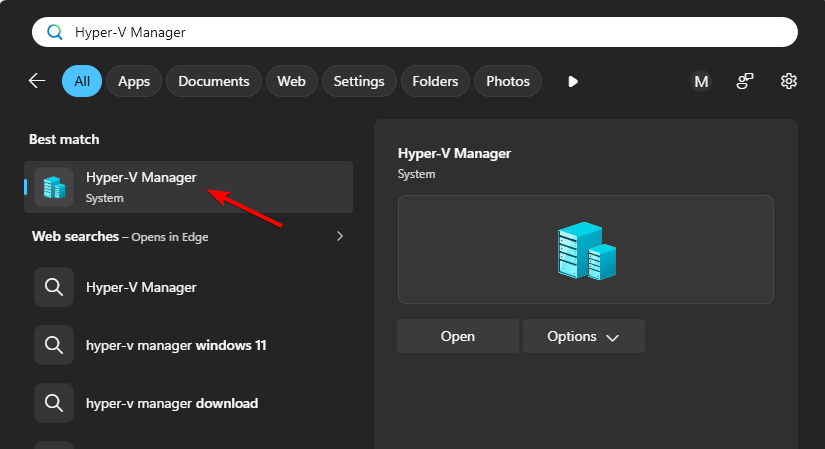
- Right-click the affected virtual machine and select Connect.
- Sign in to Windows inside the VM.
- Open PowerShell as administrator.
- Run
Restart-Service -Name vmicvmsession - Try connecting through PowerShell Direct again.
If the service is stopped, run Start-Service -Name vmicvmsession
2. Check whether the virtual machine is running
PowerShell Direct cannot connect to a VM that is turned off, still booting, or waiting for initial Windows setup.
- Open PowerShell as administrator on the Hyper-V host.
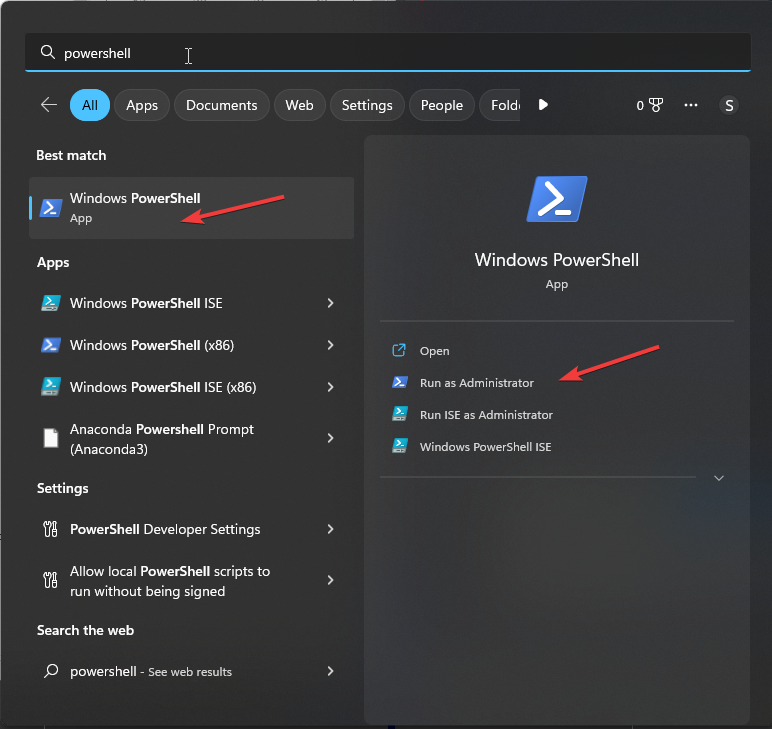
- Run
Get-VM - Find your virtual machine and check its State.
- If the state shows Off, run
Start-VM -Name "VMName" - Wait until Windows finishes booting inside the VM.
Replace VMName with the actual name of your virtual machine.
3. Use the correct virtual machine credentials
PowerShell Direct requires valid credentials from the guest operating system. Your Hyper-V host administrator credentials do not automatically grant access to the VM.
- Open PowerShell as administrator on the Hyper-V host.
- Run
Enter-PSSession -VMName "VMName" -Credential (Get-Credential) - Enter the username and password of an account inside the virtual machine.
- For a local account, use the format
GuestComputerName\Username - Check whether the PowerShell session connects.
If you receive The credential is invalid, verify the password and confirm that the guest account exists and is enabled.
4. Check whether PowerShell Direct supports your Windows version
PowerShell Direct requires Windows 10 or later, or Windows Server 2016 or later, on both the host and guest.
- Open PowerShell on the Hyper-V host.
- Run the following to check your PowerShell version:
$PSVersionTable.PSVersion - Confirm that you have PowerShell 5.0 or later.
- Run the following to check the host Windows build:
[System.Environment]::OSVersion.Version - Verify that the guest runs a supported Windows version.
If the VM runs Windows Server 2012 R2, Windows 8.1, or Linux, use another supported management method, such as a VM console or network-based remote access.
Microsoft explains these requirements in its PowerShell Direct documentation.
5. Check Hyper-V integration services
Outdated or malfunctioning integration components can interfere with communication between the host and guest.
- Open Hyper-V Manager.
- Right-click the virtual machine and select Settings.
- Select Integration Services under Management.
- Review the available integration services and their status.
- Inside the Windows VM, open PowerShell as administrator.
- Run the following to inspect Hyper-V services:
Get-Service -Name vmic*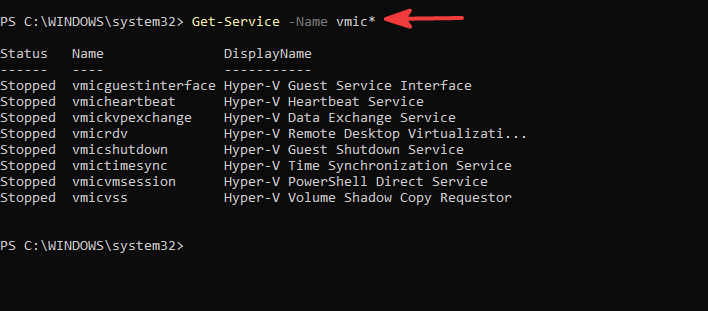
- Check that the Hyper-V PowerShell Direct Service exists and is not disabled.
The PowerShell Direct service can show a stopped state when idle. A stopped state alone does not prove that the service is broken.
Install the latest Windows updates on both the host and guest to keep their integration components current. Microsoft provides additional details in its Hyper-V integration services guide.
6. Create a new PowerShell Direct session
If the previous methods fail, test a fresh connection rather than reusing an existing session.
- Close any existing PowerShell Direct sessions.
- Open Windows PowerShell as administrator on the Hyper-V host.
- Run
$session = New-PSSession -VMName "VMName" -Credential (Get-Credential) - Enter valid credentials for the guest VM.
- If the command creates a session, run
Enter-PSSession -Session $session - Run hostname to confirm that commands execute inside the guest.
If the connection works, exit using Exit-PSSession
If Windows also fails to launch the command-line utility, check how to fix PowerShell not being recognized.
If you encounter scripting issues after restoring the connection, learn how to resolve PowerShell Export-CSV access denied errors or find and replace multiple lines in PowerShell.
FAQ
Does PowerShell Direct require a network connection?
No. PowerShell Direct communicates between the Hyper-V host and guest through the virtualization layer, so it does not require a network adapter, WinRM, or firewall configuration.
Can I use PowerShell Direct with a Linux virtual machine?
No. PowerShell Direct requires a supported Windows operating system in the guest VM. For Linux VMs, use SSH or another supported remote-management method.
Why does PowerShell Direct say that my credentials are invalid?
The credentials must belong to an account inside the guest VM. Host administrator credentials do not automatically work. Verify the username, password, account status, and local-account format.
What should I do if the vmicvmsession service is missing?
Confirm that the guest runs a supported version of Windows and that Hyper-V integration services are available. Install pending Windows updates and restart the VM before testing the connection again.
Does PowerShell Direct work with Windows Server 2012 R2?
No. PowerShell Direct requires Windows 10 or later, or Windows Server 2016 or later, on the host and guest. Use a VM console or network-based remote-management method for unsupported versions.

Read our disclosure page to find out how can you help Windows Report sustain the editorial team. Read more


Improve this guide


User forum
0 messages