
How to Fix Ryzen Master Does Not Support Current Processor on Windows 11


 5 min. read
 Published on
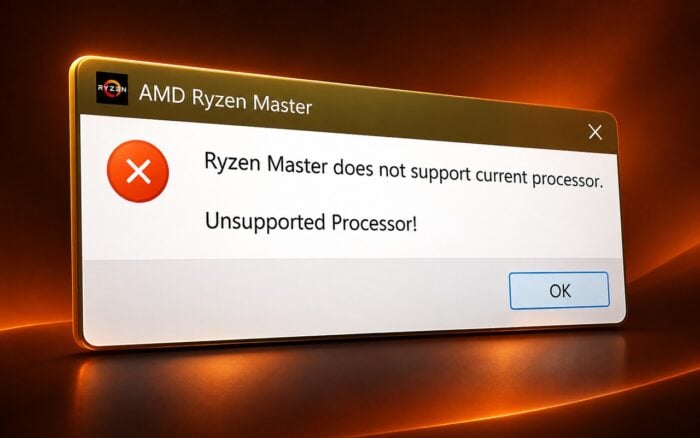
The “Ryzen Master does not support current processor” error prevents AMD Ryzen Master from launching on Windows 11 and Windows 10. It usually occurs because of an unsupported CPU, an incompatible Ryzen Master version, outdated chipset drivers, or BIOS compatibility issues.
Follow these fixes to resolve the error.
How Do I Fix Ryzen Master Does Not Support Current Processor on Windows 11?
1. Check if your processor supports Ryzen Master
AMD Ryzen Master primarily supports compatible desktop Ryzen, Ryzen Threadripper, and Threadripper PRO processors. Most laptop Ryzen processors do not support the utility.
First, identify your processor.
- Press Ctrl + Shift + Esc to open Task Manager.
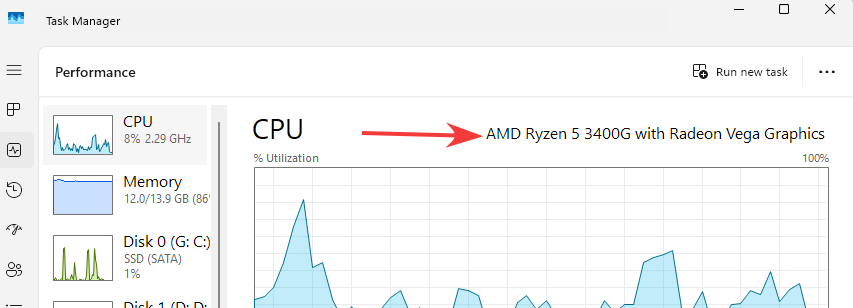
- Select Performance and click CPU.
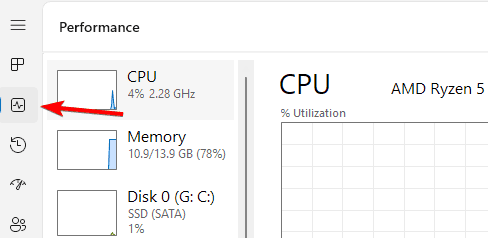
- Check your AMD Ryzen processor model.
- Visit AMD’s Ryzen Master supported platforms documentation.
- Confirm that your processor and motherboard support Ryzen Master.
If your hardware does not support the utility, reinstalling the software will not resolve the error.
2. Install the correct Ryzen Master version
An outdated or incompatible Ryzen Master version can cause the unsupported processor error, especially after upgrading your CPU.
AMD provides different downloads for different processor generations.
- Visit the official AMD Ryzen Master download page.
- Locate the download section.
- Select the version for your processor generation:
- Ryzen 5000 Series and later.
- Ryzen 3000 to 4000 Series.
- Ryzen 2000 Series and earlier.
- Download the appropriate installer.
- Run the installer and follow the instructions.
- Restart your computer and launch Ryzen Master.
AMD maintains separate downloads for older processor generations, so avoid installing a version intended for newer hardware.
3. Update AMD chipset drivers
Outdated chipset drivers can contribute to Ryzen Master compatibility problems.
To update them, follow these steps.
- Open the AMD Drivers and Support website.
- Find your motherboard chipset, such as B450, B550, B650, X570, or X670.
- Select your Windows version.
- Download the latest compatible AMD chipset driver.
- Run the installer and complete the installation.
- Restart your PC.
Alternatively, use AMD’s automatic driver detection tool to identify compatible chipset drivers.
4. Completely reinstall AMD Ryzen Master
If Ryzen Master previously worked with your processor, a damaged installation or leftover configuration may cause the error.
Perform a clean reinstall.
- Press Windows + I to open Settings.
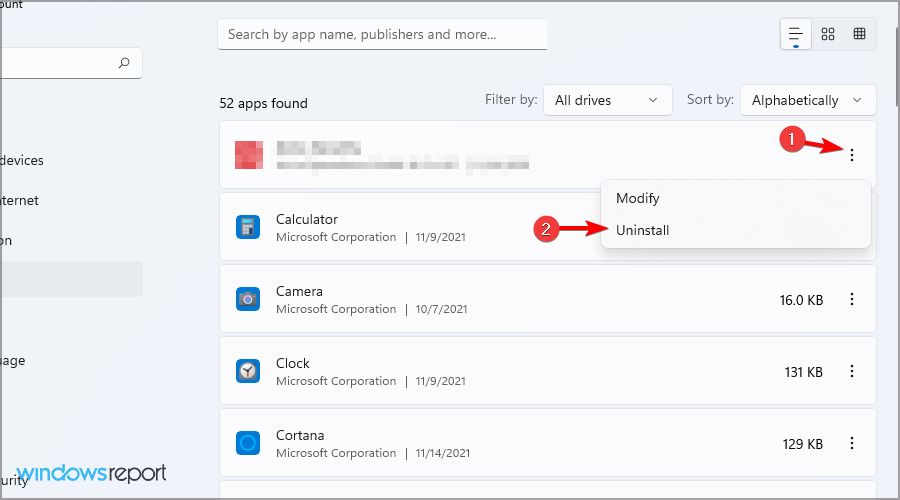
- Navigate to Apps > Installed apps.
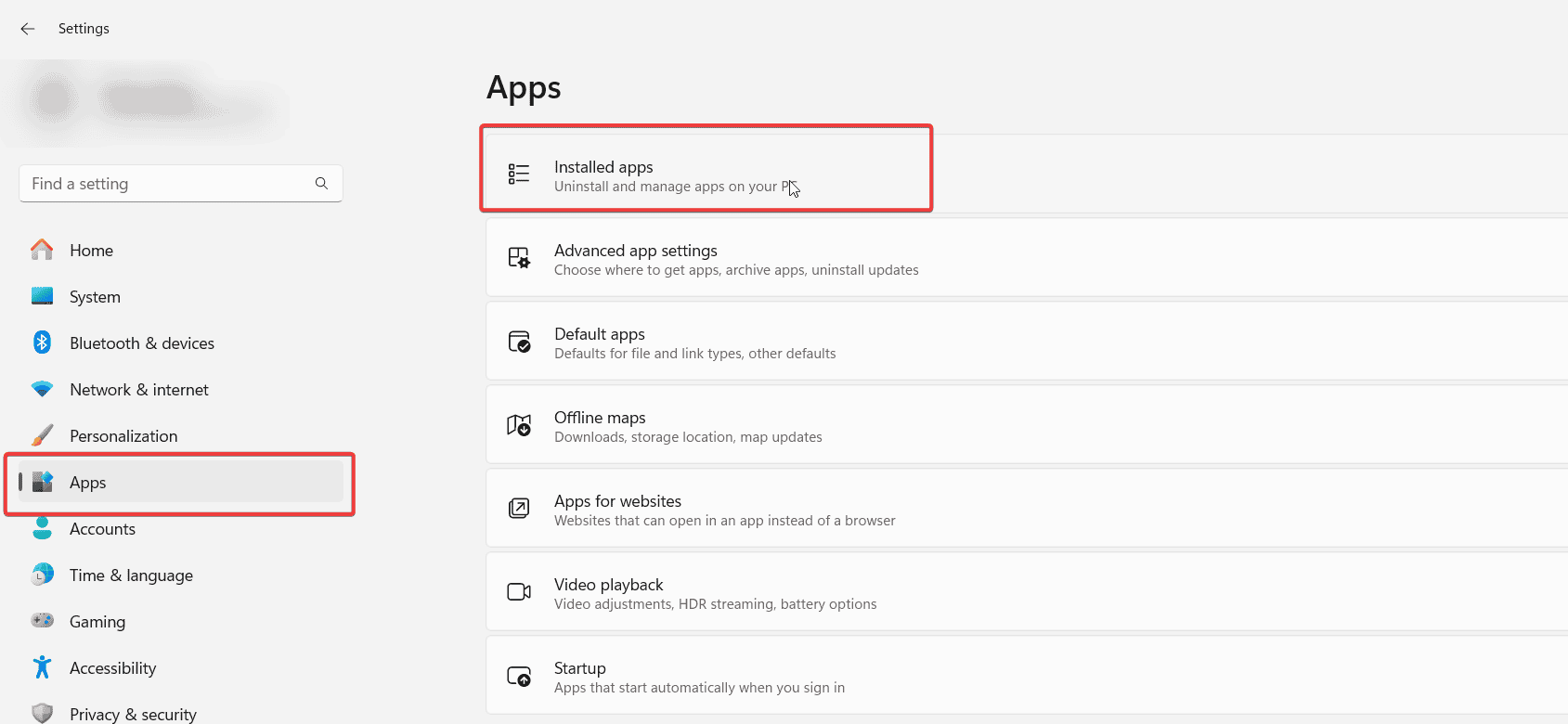
- Locate AMD Ryzen Master.
- Click the three-dot menu and select Uninstall.
- Follow the removal instructions.
- Restart your computer.
- Download the appropriate Ryzen Master version from AMD’s official website.
- Install it and check whether the error persists.
If the installer cannot remove the previous version, use Microsoft’s Program Install and Uninstall troubleshooter before reinstalling Ryzen Master.
5. Update your motherboard BIOS
An outdated BIOS can prevent the motherboard from properly supporting a newer Ryzen processor.
AMD recommends using an up-to-date motherboard BIOS and default BIOS settings before installing Ryzen Master.
Check your BIOS version before updating.
- Press Windows + R, type msinfo32, and press Enter.
- Find BIOS Version/Date in System Information.
- Visit your motherboard manufacturer’s official support website.
- Search for your exact motherboard model.
- Compare your installed BIOS version with the latest available version.
- Download the appropriate BIOS update if necessary.
- Follow the manufacturer’s update instructions.
- Restart your computer and try Ryzen Master again.
Important: Use only BIOS files intended for your exact motherboard model. Maintain a stable power supply during the update. Resetting BIOS defaults can also remove custom memory, fan, and overclocking settings.
6. Use System Restore if the error appeared recently
If Ryzen Master previously worked and the problem started after a Windows or driver update, try restoring your system.
- Press Windows + R, type rstrui.exe, and press Enter.

- Click Next.
- Select a restore point from before the error appeared.

- Click Next > Finish.
- Allow Windows to complete the restoration.
- Restart your computer and check Ryzen Master.
System Restore can reverse recent driver and system changes without deleting personal files, although it may remove applications installed after the selected restore point.
Check processor compatibility first, then update Ryzen Master, chipset drivers, and BIOS as needed. A clean reinstall or System Restore can also resolve the error when the hardware is supported.
If you encounter other AMD-related issues, check our guides on fixing AMD Radeon graphics problems, resolving AMD driver crashes in Windows 11, and fixing the Please update your AMD Radeon driver error.
FAQ
Does Ryzen Master support all AMD Ryzen processors?
No. Ryzen Master mainly supports compatible desktop Ryzen, Ryzen Threadripper, and Threadripper PRO processors, while many laptop Ryzen CPUs are unsupported.
How do I check whether my processor supports Ryzen Master?
Open Task Manager with Ctrl + Shift + Esc, select Performance > CPU, and compare your processor model with AMD’s official supported-platform documentation.
Can outdated chipset drivers cause this error?
Yes. Download and install the latest chipset drivers for your motherboard from AMD’s official support website, then restart your computer.
Should I update my motherboard BIOS?
Yes, especially if you recently installed a newer Ryzen processor. Check your motherboard manufacturer’s support page and install the correct BIOS update for your exact model.
What should I do if Ryzen Master previously worked?
Uninstall and reinstall the correct Ryzen Master version, and consider using System Restore if the problem began after a recent Windows, BIOS, or driver update.

Read our disclosure page to find out how can you help Windows Report sustain the editorial team. Read more


Improve this guide

User forum
0 messages