
AMD Radeon Graphics Problem Fix Guide For Windows PCs


 5 min. read
  Published on

Learn how to fix an AMD Radeon graphics problem on Windows using quick checks and driver repair steps. These methods help you stop crashes, black screens, and driver errors fast.
Table of contents
How Can I Fix AMD Radeon Graphics Problems?
Check for basic issues
Start with simple checks because loose connections or temporary glitches often cause display failures.
- Restart your PC.
- Reseat the video cable.
- Try a different GPU output.
- Test another monitor.
- Remove any GPU overclock settings.
Update AMD Radeon drivers
Many Radeon issues appear when the driver becomes outdated or corrupted, so update your GPU driver first to restore stable performance.
- Open Device Manager.
- Expand Display adapters.
- Select your AMD Radeon GPU.
- Click Update driver.

- Choose Search automatically for drivers.

If Windows cannot install a working version, AMD Software lets you grab the newest package and fix the please update your AMD Radeon driver error. You can follow a detailed guide on how to resolve the please update your AMD Radeon driver problem for more step by step help.
Reinstall the AMD driver with a clean install
A clean install replaces damaged components and restores missing AMD Software features when simple updates do not help.
- Press Windows + R and type appwiz.cpl.
- Uninstall all AMD graphics components.
- Restart your PC.
- Download the latest driver from the official AMD site.
- Choose Factory Reset or Clean Install in the setup.
- Restart your PC again after the install finishes.
Roll back a faulty update
If your AMD Radeon graphics problem started right after a new driver release, roll back to the previous version and restore stability.
- Open Device Manager.
- Expand Display adapters.
- Right click your AMD Radeon GPU.
- Select Properties.
- Open the Driver tab.
- Click Roll Back Driver.

- Restart your PC.
When you need more detailed instructions, you can use a walkthrough that explains how to roll back an AMD Radeon driver safely and avoid new bugs.
Reset AMD Software settings
Incorrect tuning presets and aggressive performance profiles often cause stutters or crashes, so reset everything to the default configuration.
- Open AMD Software.
- Go to Settings.
- Select Preferences.
- Click Restore Factory Defaults.
- Restart your PC.
Check Windows updates
Windows updates frequently include graphics fixes and driver improvements, so you should keep the system fully updated.
- Press Windows + I to open Settings.
- Go to Windows Update.

- Click Check for updates.
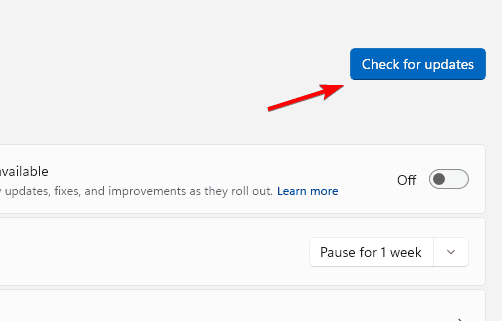
- Install all available patches.
- Restart your device.
If you notice display issues after a big system upgrade, you can review how AMD graphics drivers work in Windows 11 and affect performance so you can pick the best version.
Fix overheating or power issues
Heat and unstable power often trigger black screens, hard freezes, or sudden FPS drops during gaming.
- Clean dust from the GPU cooler and case fans.
- Improve airflow with better cable management.
- Reseat all PCIe power connectors.
- Test another PSU if you suspect low power delivery.
- Monitor GPU temperature in AMD Software while gaming.
Disable integrated GPU conflicts
If Windows uses the integrated GPU instead of the AMD Radeon card, your games and apps will run with much lower performance.
- Open the Start menu and search for Graphics settings.
- Open Graphics settings from the results.
- Add the affected game or app to the list.
- Set Graphics preference to High performance.
- Restart the app and test it again.
Run System File Checker
Corrupted system files can break communication between Windows and the AMD driver, so repair them with a quick scan.
- Open the Start menu and search for Command Prompt.
- Choose Run as administrator.
- Type sfc /scannow and press Enter.

- Wait for the verification to finish.
- Restart your PC after the scan completes.
FAQs
Driver corruption, high temperatures, and unstable tuning settings usually cause repeated crashes during games or heavy workloads.
A faulty release, rapid temperature spikes, or poor power delivery can trigger a black screen while the AMD Radeon graphics problem appears under load.
Update the driver regularly, reset AMD Software, enable High performance mode, and keep GPU temperatures under control with proper cooling.
Use a clean install when updates fail, when AMD Software does not open, or when you see recurring driver errors after every reboot.
Conclusion
An AMD Radeon graphics problem usually comes from bad drivers, Windows compatibility issues, or overheating. You can solve most cases by updating, rolling back, or reinstalling the driver, and by keeping the system patched and cool. If these steps do not fix crashes or black screens, test the GPU in another PC to confirm whether the hardware still works correctly.

Read our disclosure page to find out how can you help Windows Report sustain the editorial team. Read more



Improve this guide


User forum
0 messages