
Stripe Login Guide: How to Sign In to Your Dashboard on App & Website


 5 min. read
 Published on
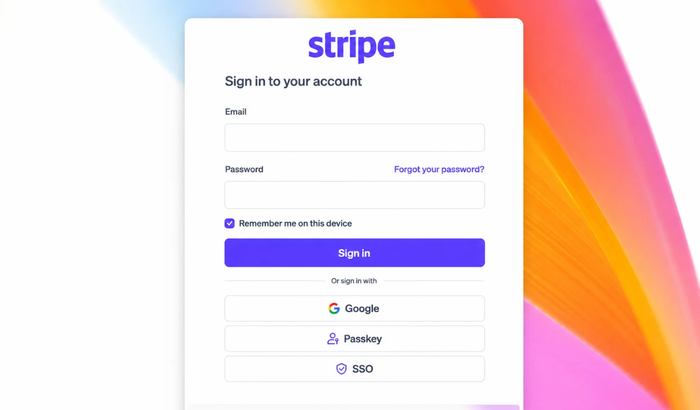
If you need access to your Stripe payments, customers, payouts, or account settings, heading to the Stripe login portal is the first step to get access to everything from transaction history to business management tools. Whether you’re signing in from a desktop browser or the Stripe mobile app, this guide covers the login process, password recovery, Express account access, and the most common sign-in issues.
How to Log In to Your Stripe Dashboard Using Website
The simplest way to access your Stripe account is through the official Dashboard.
- Visit the official Stripe login page.
- Enter your registered email address.
- Click Continue.
- Enter your password.
- Complete two-step authentication if prompted.
- Wait for the Stripe Dashboard to load.
Always use Stripe’s official website when signing in. Avoid entering your credentials through links received in unsolicited emails or messages.
How to Log In to Stripe on Mobile App
Stripe offers a Dashboard app for both Android and iPhone users. The app allows you to monitor payments, view balances, manage customers, and check recent transactions on the go.
- Download the Stripe Dashboard app from Google Play Store or the App Store.
- Open the app.
- Enter your Stripe credentials.
- Complete two-factor authentication.
- Follow the on-screen instructions to access your Dashboard.
Note: You must have two-step authentication enabled to use the Stripe Dashboard app. Stripe also notes that Google sign-in isn’t available within the mobile app. Instead, you’ll need to use your Stripe password. Express and Custom accounts cannot access the standard Dashboard app.
How to Reset Your Stripe Sign In Password
Can’t remember your password? Resetting it only takes a few minutes.
- Open the Stripe login page.
- Enter your registered email address.
- Click Forgot your password?
- Follow the recovery prompts.
- Open the password reset email from Stripe.
- Create a new password.
- Return to the login page and sign in.
If two-factor authentication is enabled, you’ll still need to complete that verification step.
How to Log In to Strip Dashboard Using Google Account
Eligible Stripe accounts can use Google authentication for faster access.
- Go to the Stripe Dashboard login page.
- Select sign in with Google.
- Choose the Google account linked to Stripe.
- Complete any required verification.
- Wait for the Dashboard to open.
If the Google sign-in option doesn’t appear, log in with your email and password first. You can then review available sign-in methods from your account settings.
Stripe Express Login Explained
Stripe Express accounts work differently from standard Stripe Dashboard accounts. They’re commonly used by marketplaces, creator platforms, gig economy services, and companies that pay contractors through Stripe. Instead of a traditional password login, Express accounts typically use SMS verification.
- Open the platform that sends your Stripe payments.
- Navigate to payment or payout settings.
- Select the Stripe Express account option.
- Enter your registered phone number if requested.
- Enter the six-digit verification code.
- Access your payout information.
If you’ve changed your phone number or can no longer receive verification codes, you’ll need to use Stripe’s account recovery process.
How to Fix Stripe Login Issues
1. Check Your Email Address
Make sure you’re using the email address linked to your Stripe account. If you’re unsure, search your inbox for previous Stripe emails.
2. Fix Two-Factor Authentication Issues
If you can’t access your verification method, use a backup code or select Sign in another way and follow Stripe’s recovery steps.
3. Try Another Browser or Device
Browser extensions, blocked cookies, or outdated software can interfere with sign-in. Test Stripe in a different browser, device, or network.
4. Confirm Your Account Type
Not every Stripe user signs in through the standard Dashboard.
- Standard users: Stripe Dashboard
- Express users: Through the platform that pays them
- Custom users: Through their platform provider
5. Contact Stripe Support
Still locked out? Visit the Stripe Support Center and follow the account recovery process. Never share passwords or verification codes with anyone claiming to be Stripe support.
Important: Never share passwords, authentication codes, or recovery codes with anyone claiming to be Stripe support.
FAQs related to Stripe Login
1. How do I log in to my Stripe account?
Visit the Stripe login page, enter your registered email address, and complete the sign-in process using your password and authentication method.
2. Can I log in to Stripe without a password?
Yes. Eligible Dashboard users may be able to use Google sign-in or other supported authentication methods. Stripe Express users typically verify access using a one-time code.
3. Why can’t I log in to my Stripe account?
Common causes include incorrect login credentials, authentication issues, browser problems, account restrictions, or using the wrong account type.
4. How do I recover my Stripe account if I lost access to my phone?
You can use backup recovery codes or submit an account recovery request through Stripe’s support channels.
5. Is Stripe login available on mobile devices?
Yes. Stripe provides Dashboard apps for Android and iPhone. However, Express and Custom accounts can’t use the standard Dashboard app.
6. Do I need to pay to access Stripe Dashboard?
No. Accessing your Stripe account and Dashboard is free. Stripe charges fees for payment processing and certain business services.
Summing Up
Stripe login provides secure access to your payments, customers, balances, payouts, and account management tools. Whether you’re using the standard Dashboard, Google sign-in, or a Stripe Express account, using the correct login method is essential for hassle-free access.
If you’re locked out, start with password recovery, verify your authentication methods, and confirm you’re using the correct account type before contacting Stripe Support. In most cases, login issues can be resolved within a few minutes using Stripe’s built-in recovery tools.

Read our disclosure page to find out how can you help Windows Report sustain the editorial team. Read more


Improve this guide




User forum
0 messages