
How to Fix Unable to Find Active Directory Web Services Running


 4 min. read
 Published on
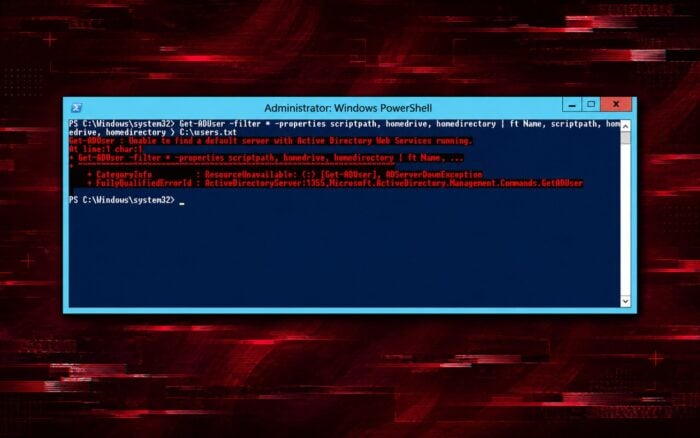
The Unable to find a default server with Active Directory Web Services running error usually appears when you run Active Directory PowerShell commands such as Get-ADUser or Get-ADDomain.
The error occurs when Windows cannot locate or connect to a domain controller running Active Directory Web Services (ADWS). Follow these fixes to restore connectivity.
How can I fix Unable to find a default server with Active Directory Web Services running error?
1. Start Active Directory Web Services
ADWS must run on at least one accessible domain controller.
- Log in to your domain controller.
- Press Windows + R, type services.msc, and press Enter.
- Find Active Directory Web Services.
- Right-click the service and select Start if it isn’t running.
- Open Properties and change Startup type to Automatic.
- Click Apply and OK.
Alternatively, open PowerShell as administrator on the domain controller and run:
Set-Service -Name ADWS -StartupType Automatic
Start-Service -Name ADWS
Check its status:
Get-Service ADWSThe status should display Running.
2. Check connectivity to the domain controller
Active Directory Web Services uses TCP port 9389. If your firewall blocks this port, PowerShell cannot communicate with ADWS.
- Open PowerShell on the affected computer.
- Run the following command:
Test-NetConnection dc01.contoso.com -Port 9389- Replace dc01.contoso.com with your domain controller’s hostname.
- Check whether TcpTestSucceeded returns True.
If it returns False, check the Windows Defender Firewall rules on the domain controller and any network firewalls between the systems.
Ensure the Active Directory Web Services (TCP-In) rule allows inbound TCP traffic on port 9389.
3. Specify the domain controller manually
PowerShell sometimes fails to discover a suitable domain controller automatically. You can bypass automatic server selection by specifying the domain controller directly.
- Open PowerShell.
- Import the Active Directory module:
Import-Module ActiveDirectory- Run:
Get-ADDomain -Server dc01.contoso.com- Replace the example hostname with your domain controller’s FQDN.
If the command works, specify the same server when running other Active Directory commands.
For example:
Get-ADUser -Identity administrator -Server dc01.contoso.comThis method helps when automatic domain controller discovery fails but a specific server remains accessible.
4. Fix DNS and domain controller discovery
Incorrect DNS settings can prevent Windows from locating a domain controller running ADWS.
Follow these steps to check domain discovery.
- Open Command Prompt as administrator.
- Run:
nltest /dsgetdc:contoso.com /ws /force- Replace contoso.com with your Active Directory domain.
- Check whether Windows returns a domain controller.
- If discovery fails, verify that your network adapter uses your organization’s Active Directory DNS servers.
You can also check DNS resolution with:
Resolve-DnsName contoso.comIf DNS resolves correctly but discovery still fails, verify that ADWS runs on an accessible domain controller.
5. Check Active Directory Web Services for errors
If ADWS refuses to start or stops unexpectedly, check the server’s event logs.
- Press Windows + R, type eventvwr.msc, and press Enter.
- Expand Applications and Services Logs.
- Find Active Directory Web Services.
- Review recent warnings and errors.
- Resolve any reported service or configuration issues.
You should also confirm that the domain controller’s Active Directory Domain Services components function correctly.
6. Verify that Windows can discover ADWS
After applying the fixes, open PowerShell and run:
Get-ADDomainController -Discover -Service ADWSIf PowerShell finds a domain controller, test Active Directory access:
Get-ADDomainIf both commands succeed, Windows can discover an ADWS-enabled domain controller and query Active Directory.
The Unable to find a default server with Active Directory Web Services running error usually results from a stopped ADWS service, blocked TCP port 9389, or incorrect DNS configuration. If the service fails to start, check our guide on fixing Active Directory Web Services Error 1053. You can also follow these troubleshooting steps if Active Directory Domain Services is currently unavailable on your computer.
FAQ
What causes the “Unable to find a default server with Active Directory Web Services running” error?
The error usually occurs when the Active Directory Web Services service is stopped, TCP port 9389 is blocked, DNS is misconfigured, or Windows cannot discover an available domain controller.
How can I check whether Active Directory Web Services is running?
Open PowerShell as an administrator on the domain controller and run Get-Service ADWS. The service status should be Running. If it is stopped, run Start-Service -Name ADWS.
Which port does Active Directory Web Services use?
Active Directory Web Services uses TCP port 9389. You can test connectivity by running Test-NetConnection dc01.contoso.com -Port 9389 and checking whether TcpTestSucceeded returns True.
Can I specify a domain controller manually?
Yes. Use the -Server parameter with the domain controller’s fully qualified domain name, such as Get-ADDomain -Server dc01.contoso.com. This bypasses automatic domain controller discovery.

Read our disclosure page to find out how can you help Windows Report sustain the editorial team. Read more


Improve this guide




User forum
0 messages