
What Is Data Execution Prevention And How It Works


 4 min. read
  Published on

Data Execution Prevention (DEP) helps Windows block malicious code from running in protected memory areas. The feature improves system security and reduces attacks that target memory issues. This guide explains how DEP works and shows you how to check or change its settings.
Table of contents
What Is Data Execution Prevention In Windows
DEP stops harmful programs from running code in parts of memory that only store data. Windows uses hardware and software protections to verify that apps run in safe memory regions.
Why DEP exists
DEP protects your device from exploits that take advantage of memory overflow or corruption. These attacks often try to run harmful instructions in data sections.
How DEP works
DEP marks certain memory areas as non executable. When an app tries to run code from one of these protected zones, Windows blocks it and shows a warning.
Supported Windows features
Windows uses hardware based DEP when the CPU includes NX or XD support. Windows also uses software based DEP for older hardware that does not support those flags.
How To Check If DEP Is Enabled
1. Check via System Information
System Information shows your current DEP status.
- Press Windows + R and type
msinfo32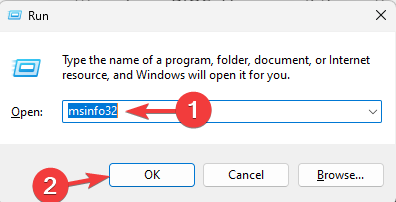
- Select System Summary.

- Look for the entry labeled Data Execution Prevention.
- Confirm that it shows the feature as enabled for the system.
For a broader look at core protection settings, you can also review the virus and threat protection settings that work alongside DEP.
2. Check via Command Prompt
Command Prompt displays DEP details quickly.
- Open Start and type Command Prompt.
- Select Run as administrator.
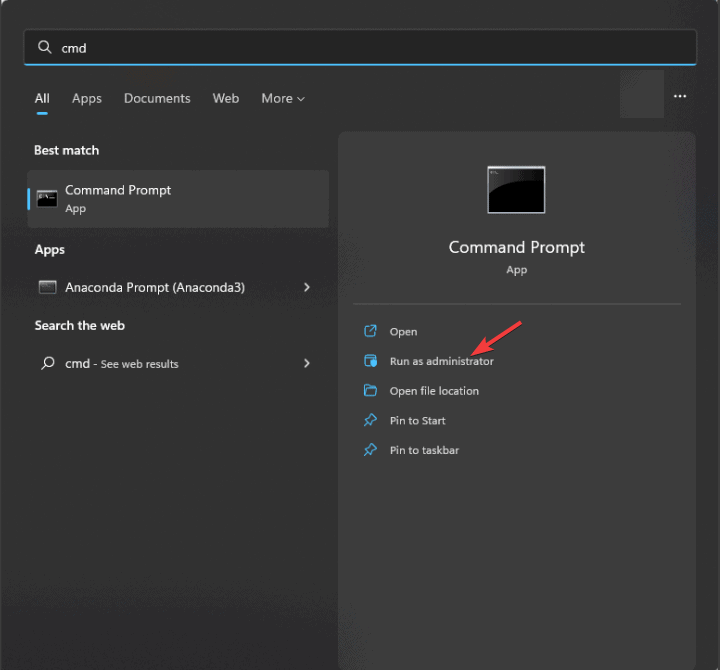
- Type the following and press Enter:
wmic OS Get DataExecutionPrevention_Available, DataExecutionPrevention_SupportPolicy - Review the output to confirm DEP availability and support level.
How To Change DEP Settings
You can adjust DEP behavior from the Advanced settings panel.
- Press Windows + R and type
sysdm.cpl
- Open the Advanced tab.
- Select Settings under Performance.
- Open the Data Execution Prevention tab.
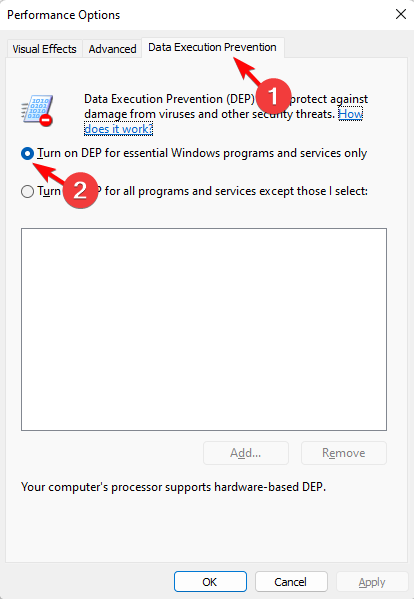
- Choose one of the two available DEP options.
- Select Add if you want to exclude a specific program.
- Select Apply and restart your PC.
If you also manage advanced rule sets on the same device, you can open the Local Security Policy console to review other security options that work with DEP.
When To Adjust DEP
Most users should not change DEP. Only adjust the setting if a trusted program fails to run because DEP blocks it, and always confirm that the program comes from a reliable source before you create an exception.
Common DEP Error Causes
Many issues trigger a DEP warning. Understanding these causes helps you troubleshoot the right way.
- Incompatible software Older apps sometimes use outdated memory operations that trigger DEP.
- Malware attempts DEP often blocks unsafe instructions from malicious software.
- Damaged system files Corrupt Windows system files sometimes create DEP alerts.
FAQs
No. DEP does not slow down Windows, so you keep it on for system safety.
Yes. Some harmful tools try to disable DEP, so you keep security features active and scan the system regularly.
Most modern CPUs include NX or XD support. Older systems may rely on software DEP instead of hardware DEP.
Some legitimate apps use outdated memory routines that DEP flags as unsafe, so updating or replacing the program usually fixes the issue.
Conclusion
Data Execution Prevention helps your Windows PC block unsafe memory execution and reduce attack risks. Keep DEP enabled unless a trusted program requires an exception, and review any change carefully before you adjust the setting.
For a more detailed walkthrough of the available options, you can follow this Data Execution Prevention configuration guide that explains additional DEP tweaks for advanced users.

Read our disclosure page to find out how can you help Windows Report sustain the editorial team. Read more



Improve this guide


User forum
0 messages