
Virus and Threat Protection Guide for Windows Users


 4 min. read
  Published on

Virus and threat protection keeps your Windows PC safe from malware, risky downloads, and suspicious apps. You strengthen your system when you update settings, run scans, and use the right Windows Security tools.
Table of contents
What is Virus And Threat Protection And How to Use it?
What Is Virus and Threat Protection
Virus and threat protection acts as the main security module in Windows Security and monitors threats in real time.
Why Virus and Threat Protection Matters
Cyber threats target sensitive data and system files, so strong protection helps you avoid infections and performance issues.
How to Set Up Virus and Threat Protection
Start by opening Windows Security and turning on key protections.
Open Windows Security
Use these steps to reach the main dashboard.
- Press Windows + I
- Select Privacy and Security
- Click Windows Security
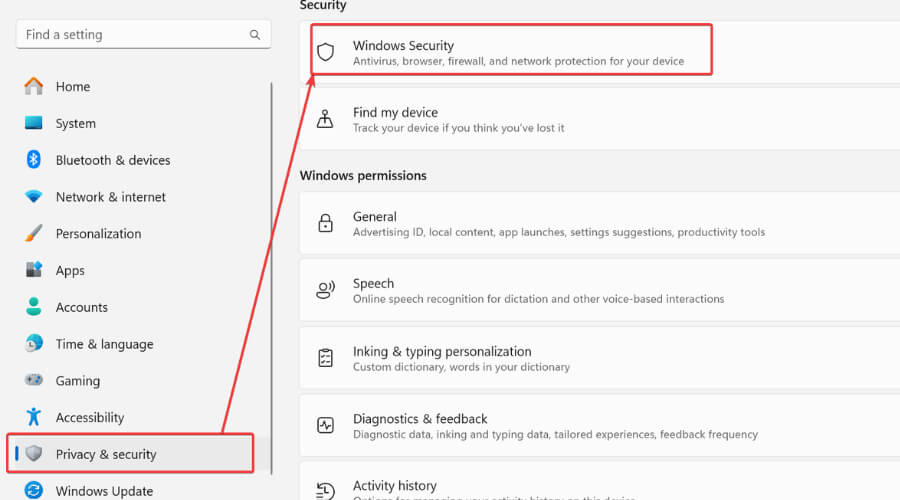
- Choose Virus and Threat Protection

Update Protection Settings
Update definitions to improve threat detection.
- Click Protection Updates
- Select Check for Updates
- Install the newest security intelligence files
Configure Real Time Protection
Turn on real time checks to block threats instantly.
- Return to the Virus and Threat Protection menu
- Select Manage Settings

- Turn on Real Time Protection

- Turn on Cloud Delivered Protection
You can confirm your configuration by reviewing how to turn on Windows Defender in Windows 11.
How to Run a Scan in Virus and Threat Protection
Run scans often to find harmful files before they spread.
Quick Scan
Use these steps to check common threat locations fast.
- Open Virus and Threat Protection
- Click Quick Scan
- Wait for the scan to finish
Full Scan
Follow these steps to scan the entire system.
- Select Scan Options
- Choose Full Scan
- Click Scan Now
- Wait for the scan to finish
Custom Scan
Use this option when you suspect a specific folder.
- Go to Scan Options
- Select Custom Scan
- Choose the folder
- Click Scan Now
You can better understand each option by checking this explanation of Windows Defender settings.
How to Improve Virus and Threat Protection
Use additional layers like ransomware control and firewall filtering to strengthen security.
Enable Controlled Folder Access
Turn on this feature to protect sensitive folders.
- Open Ransomware Protection
- Click Manage Controlled Folder Access

- Turn on the setting
- Add trusted apps if needed
Remove Harmful Apps
Clean up your system to reduce risk.
- Open Settings
- Click Apps
- Select Installed Apps
- Remove apps you do not trust
Turn On Firewall
Enable the firewall to block unwanted network traffic.
- Open Windows Security
- Select Firewall and Network Protection
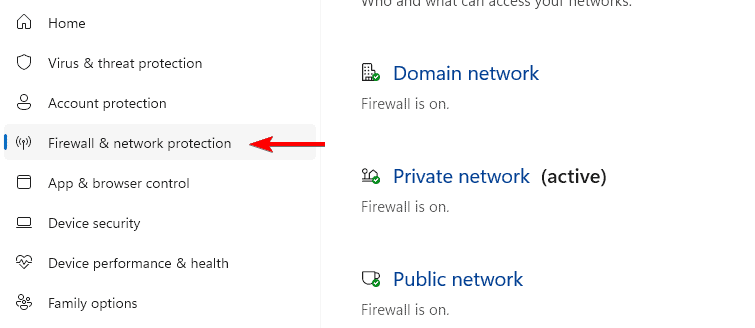
- Enable the firewall for each network type
Why These Steps Work
Each feature works together to detect threats, block risky files, and remove harmful activity before it spreads.
You strengthen Windows Security by understanding how each protection layer works, and you can also learn how Data Execution Prevention helps stop unsafe memory actions by reading more at this DEP guide.
FAQs
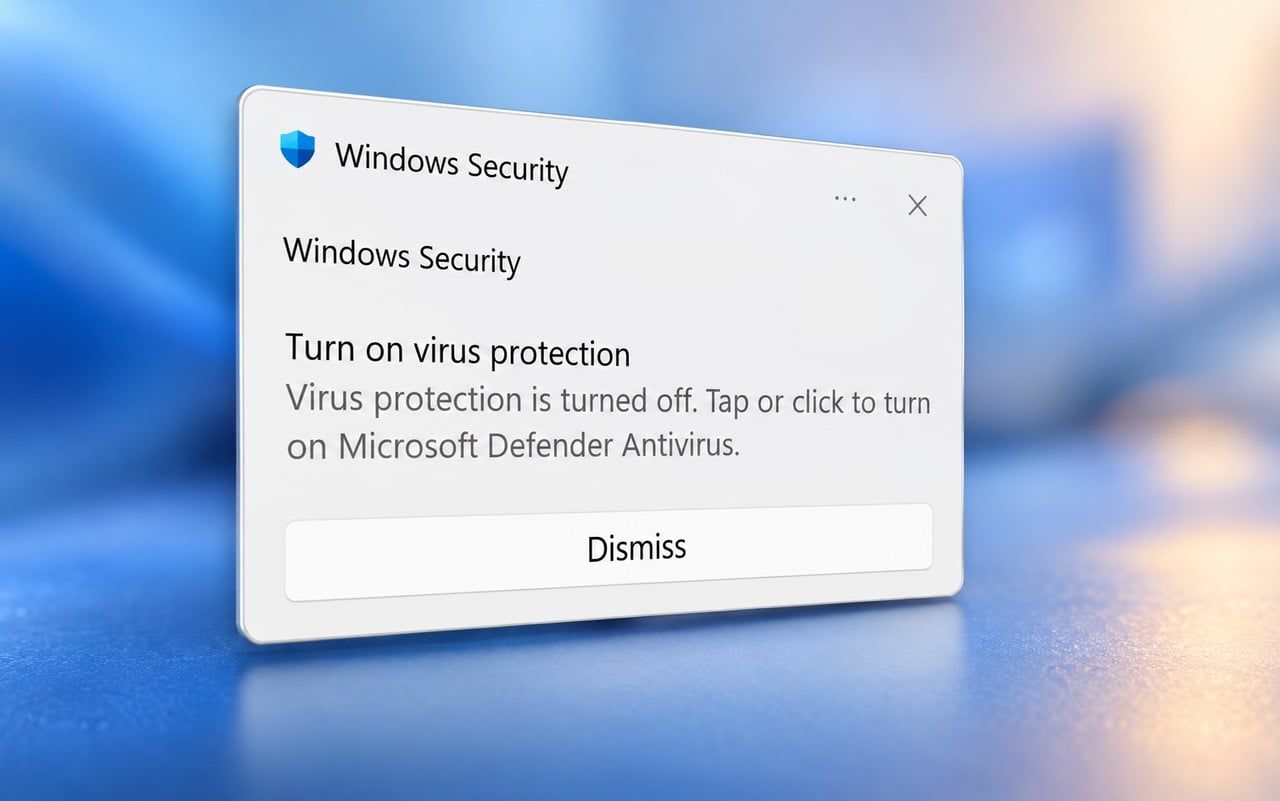
Windows shows this message when settings turn off or definitions expire. Turn the settings back on and update files.
Most users stay protected with built in features. You only need extra software for advanced privacy tools.
Run a quick scan daily and run a full scan once each week.
Restart the Security Center service or install the newest system updates.
Conclusion
Virus and threat protection helps you block malware, prevent risky activity, and keep your PC stable. You improve security when you update definitions, turn on real time protection, and scan your system often. If you need to pause protection during troubleshooting, you can follow steps that show how to disable Windows Defender in Windows 11.

Read our disclosure page to find out how can you help Windows Report sustain the editorial team. Read more



Improve this guide



User forum
0 messages