
Edit Response After Submission in MS Forms [How to]
You can edit Forms responses, but there are few limitations


 2 min. read
  Updated on
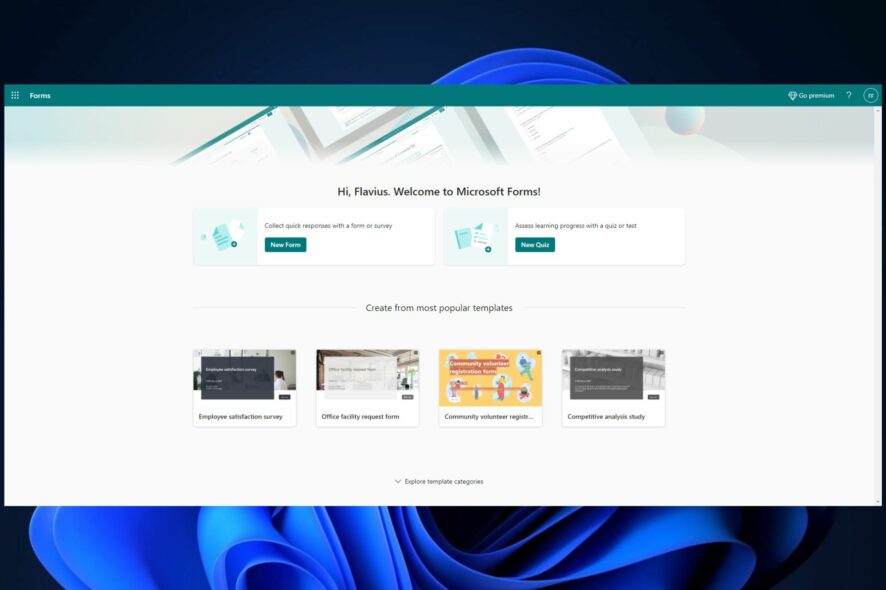
MS Forms lets you edit responses after submission, but this feature needs to be enabled to use it.
In today’s guide, we’re going to show you the proper way to do this, so keep on reading.
How do I change the answer on Microsoft Forms after submission?
1. Allow respondents to edit their responses in Microsoft Forms
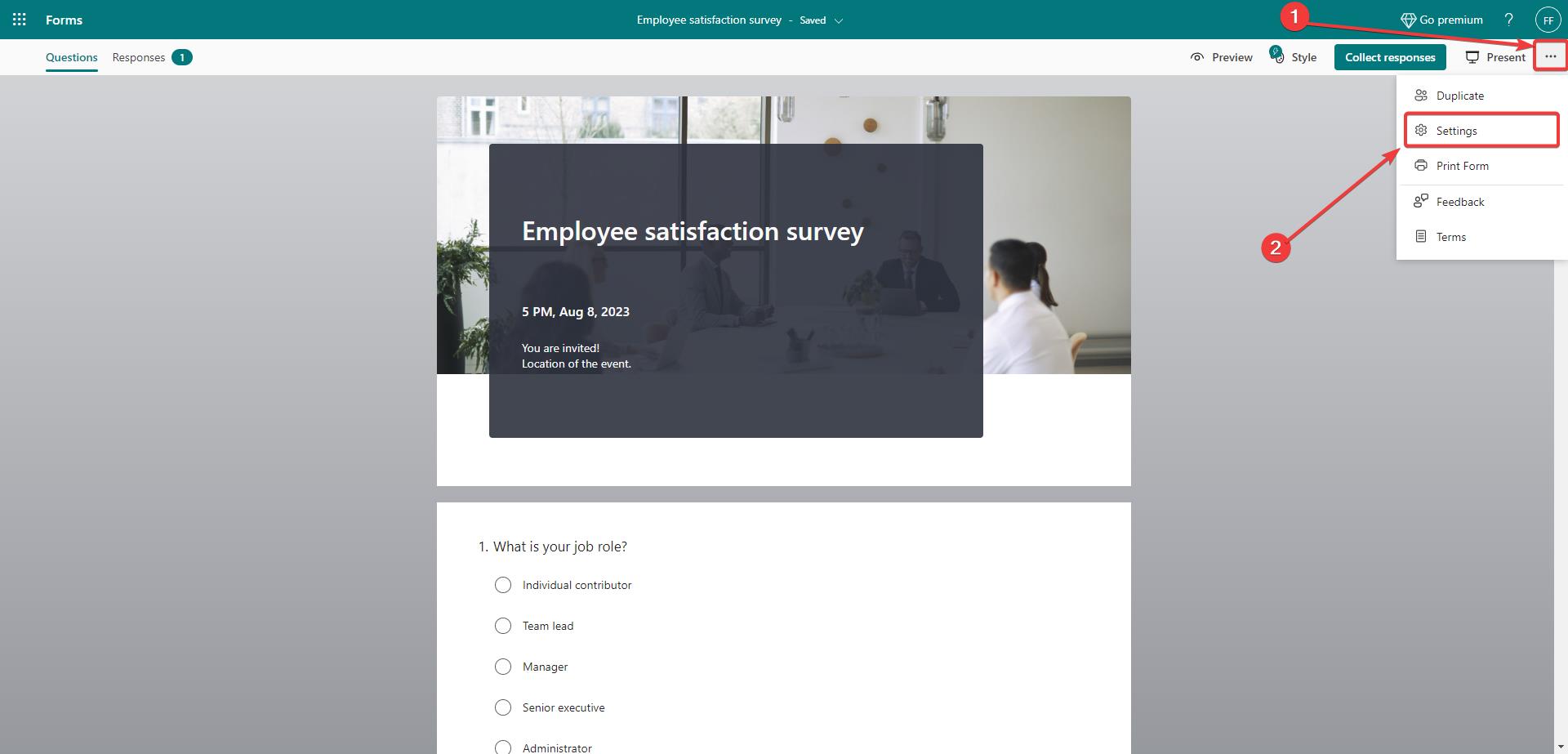
- Click the three dots in Microsoft Forms, and select Settings.
- Once you open Settings, check on the Allow respondents to save their responses and Allow respondents to edit their responses boxes.
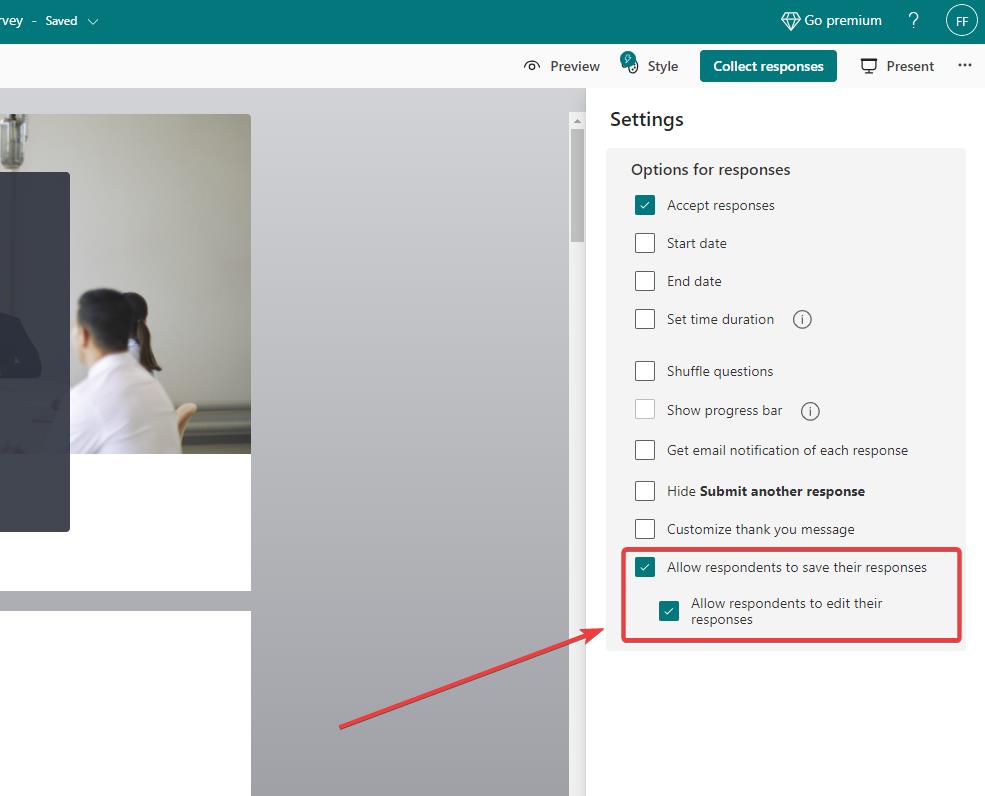
When these settings are enabled, they will allow your respondents to edit their responses simply.
 NOTE
NOTE
2. Use Edit responses in Forms
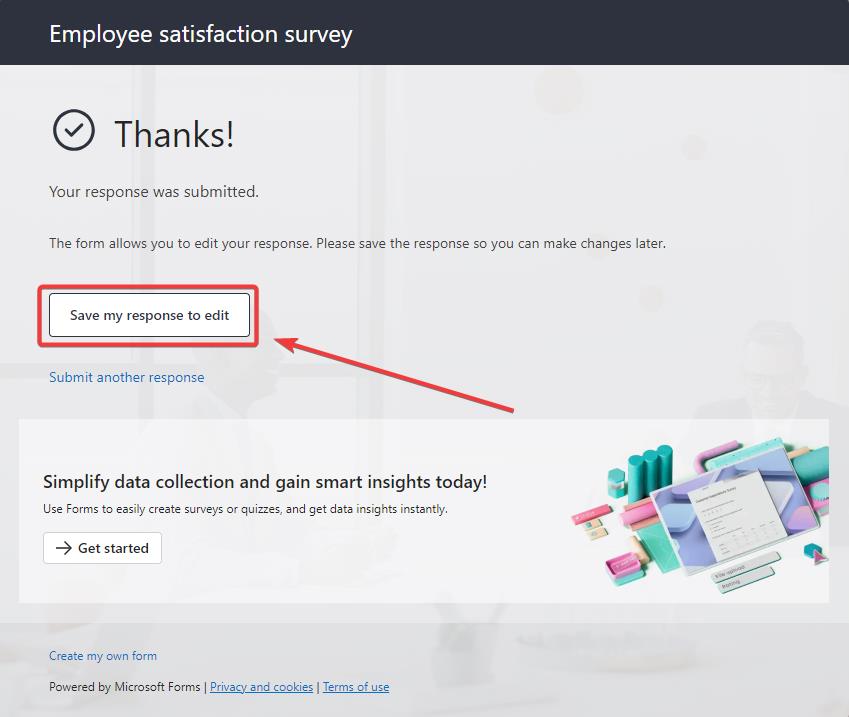
- Let’s say you completed your Form and submitted it. Click on Save my response to edit.
- In your Microsoft Forms account, go to Filled Forms, and go to the latest completed form.
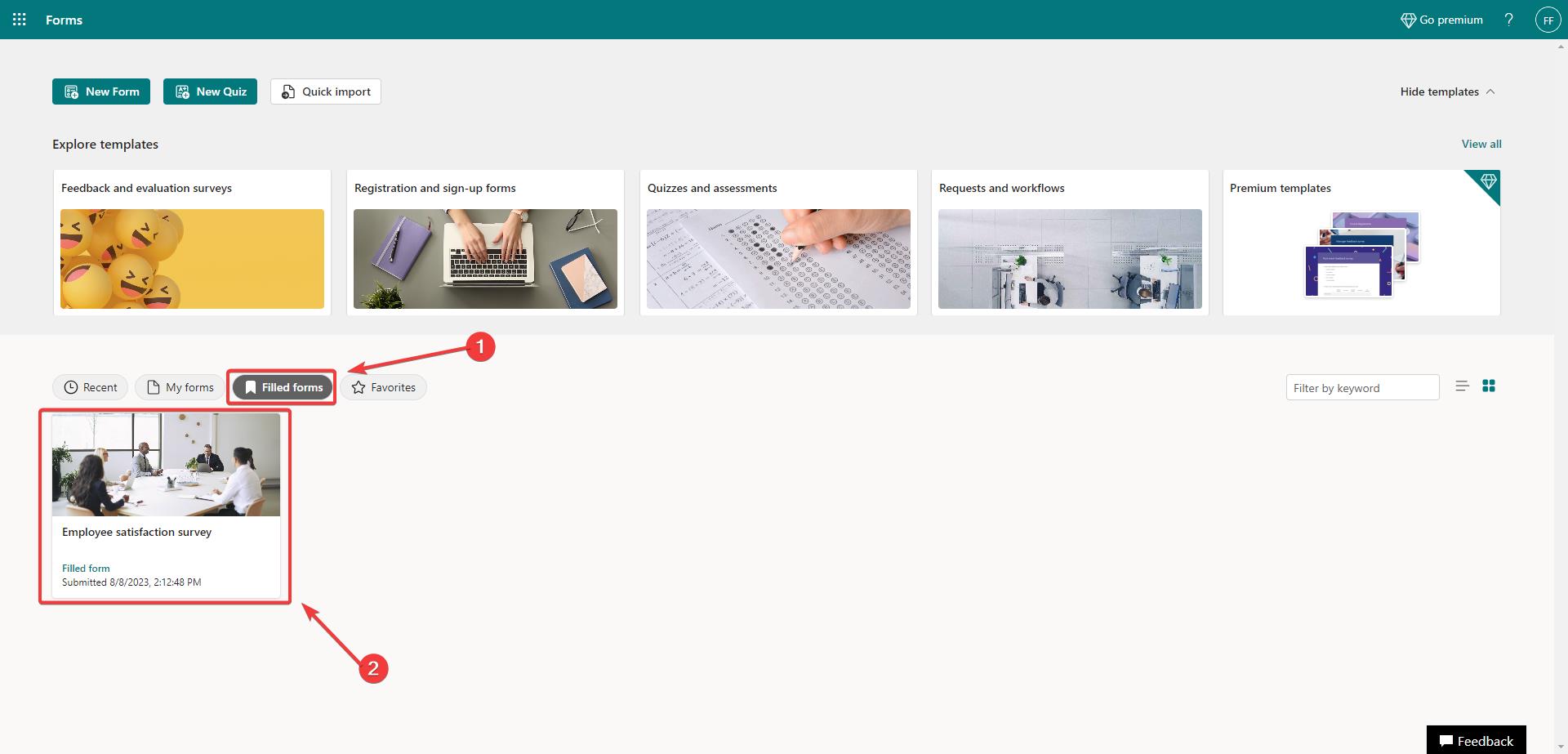
- On this new window, click on the View response option.

- This will take you to the form, and at the top of it, you’ll see the Edit response option.
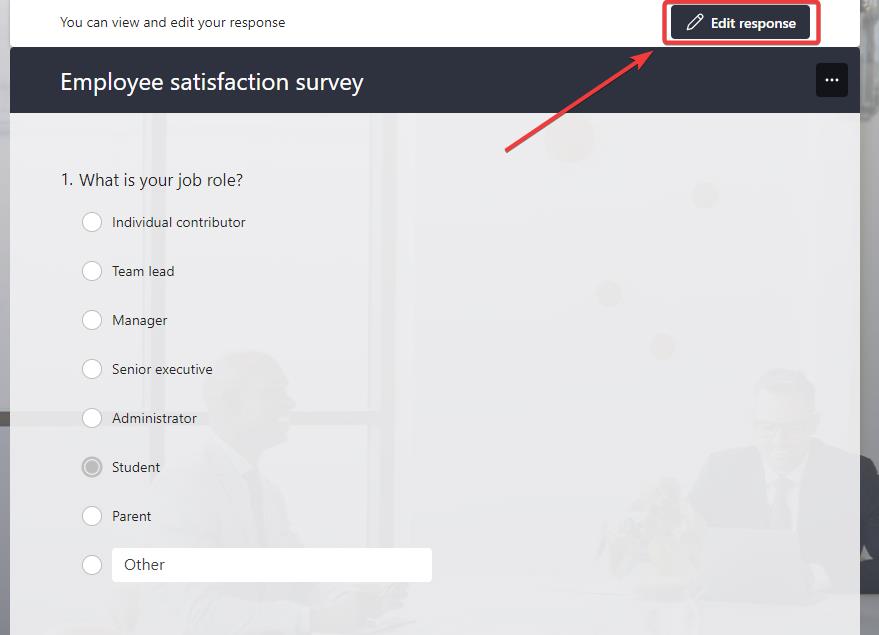
- Edit your responses, and then click on Submit.
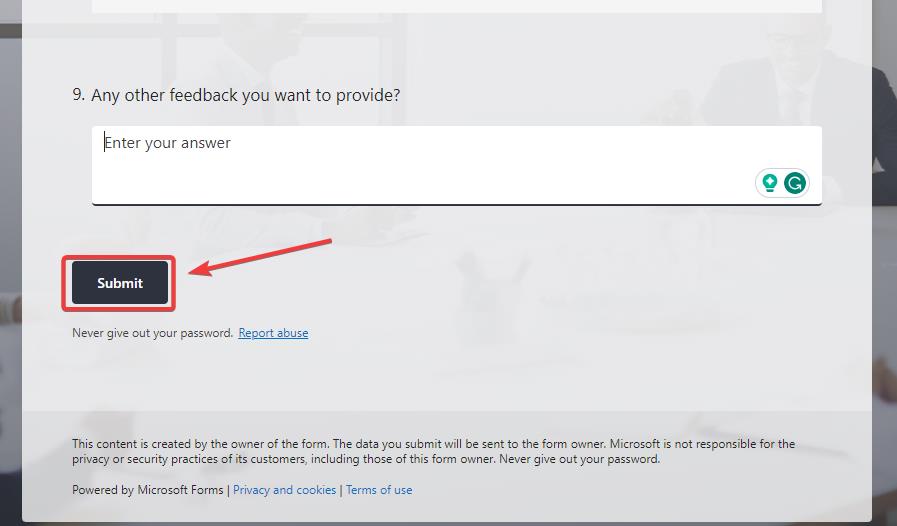
- And that’s it. You’ve just submitted your newly edited responses.
This is how you will be able to edit your responses in case you ever have second thoughts about them.
Issues with Forms can appear, and we have a guide for Your account is not enabled for Microsoft Forms errors. If Microsoft Forms is not showing all questions, we have a dedicated article for that as well.
If you found this guide useful, don’t forget to let us know in the comments section below.


Read our disclosure page to find out how can you help Windows Report sustain the editorial team. Read more



Improve this guide


User forum
1 messages