
Netflix Login Guide: How to Access Your Account on Any Device in 2026


 7 min. read
  Published on

Whether you’re setting up a new Smart TV, switching to a new phone, or simply logging in after a while, Netflix login is designed to be quick across almost every major platform. You can sign into Netflix through a web browser, the official mobile app, Smart TVs, streaming devices, game consoles, and even some set-top boxes. Once you’re signed in, your profiles, watch history, recommendations, and downloads (on supported devices) automatically sync with your account.
How to Sign in to Netflix on Any Device
No matter which device you’re using, you’ll need an active Netflix account and a stable internet connection.
Option 1: Netflix Login on a Web Browser
Signing in through your browser is the easiest option if you’re using a Windows PC, Mac, Chromebook, or Linux computer.
- Open your preferred web browser.
- Go to https://www.netflix.com.
- Click Sign In in the top-right corner.

- Enter your email address or mobile number associated with your account.
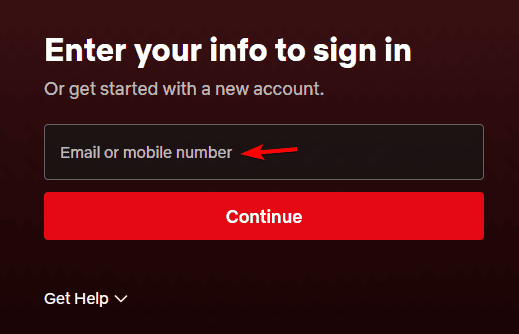
- Type your password.
- Select Sign In.
Once logged into Netflix, you can:
- Watch Netflix instantly
- Switch between profiles
- Manage your subscription
- Change account settings
- Update payment information
- View your viewing history
- Sign out of other devices if needed
Tip: Always make sure you’re signing in through the official Netflix website. Avoid unofficial websites that ask for your Netflix credentials.
How to Login to Netflix on Android
Watching Netflix on Android is straightforward and gives you access to downloads, offline viewing, and personalized recommendations.
Here’s what you should do:
- Download the Netflix app from the Google Play Store.
- Open the app.
- Tap Sign In.
- Enter your email (or phone number) and password.
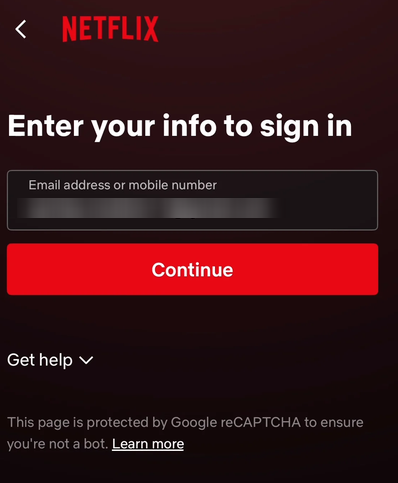
- Tap Sign In again.
If you’ve already signed in before, Netflix may automatically log you back into your account.
How to Login to Netflix on iPhone & iPad
The process is almost identical on iOS devices.
- Install the Netflix app from the Apple App Store.
- Launch the app.
- Tap Sign In.
- Enter your Netflix login details.
- Select Sign In.
After signing in, your profiles and watch list will appear automatically.
How to Login to Netflix on Smart TVs
Most modern Smart TVs come with Netflix pre-installed, including models from Samsung, LG, Sony, TCL, Hisense, Panasonic, and many others. You’ll have two different options to sign into Netflix on smart TVs.
Option 1: Sign In with Email and Password
- Open the Netflix app.
- Select Sign In.
- Enter your email and password using the on-screen keyboard.
- Select Sign In.
Option 2: Sign In Using an Activation Code
Typing long passwords with a TV remote isn’t always convenient. Netflix lets you link your TV using an activation code instead.
- Open the Netflix app on your TV.
- Choose Sign In.
- Select the option to sign in using a web browser if it’s shown.
- A unique activation code will appear on your TV screen.
- On your phone or computer, visit this URL.
- Sign in to your Netflix account if prompted.
- Enter the activation code displayed on your television.
- Your TV will automatically sign in after the code is verified.
This method is usually much faster than entering your password with a remote.
How to Login to Netflix on Streaming Devices
Netflix supports many streaming devices, including Roku, Amazon Fire TV Stick, Google TV, Chromecast with Google TV, Apple TV, and NVIDIA Shield TV. To sign in:
- Open the Netflix app.
- Choose Sign In.
- Either:
- Enter your email and password, or
- Use the activation code displayed on your TV.
- Complete the login process.
Your account will sync immediately with your saved profiles and preferences.
How can I log into Netflix on PlayStation and Xbox
Netflix is also available on supported gaming consoles, making it easy to stream without switching devices. Supported consoles include:
- PlayStation 5
- PlayStation 4
- Xbox Series X
- Xbox Series S
- Xbox One
In order to sign into Netflix on Xbox or other consoles, do the following:
- Download or open the Netflix app.
- Select Sign In.
- Enter your Netflix account credentials.
- Alternatively, use the activation code if your console offers that option.
- Begin streaming.
How to Sign in to Netflix on Multiple Devices
A single Netflix account can be used across multiple supported devices. After signing in, you’ll be able to:
- Continue watching from where you stopped
- Switch between profiles
- Access My List
- View personalized recommendations
- Sync your watch history
Note: Keep in mind that the number of devices that can stream at the same time depends on your Netflix subscription plan, not the number of devices you’ve signed into.
Common Netflix Login Issues & How to Fix
- Netflix throwing incorrect email or password while logging in: Double-check your spelling and ensure Caps Lock isn’t enabled. If you’ve forgotten your password, use Forgot Password? on the sign-in page to reset it.
- Netflix activation code isn’t working during sign in: Refresh the code by returning to the previous screen and selecting the activation option again. Activation codes expire after a short period.
- Netflix keeps signing out despite trying to login: This may happen after changing your password, clearing app data, reinstalling the app, or if your account has been signed out remotely.
- Too many people are watching: If you receive a streaming limit message, you’ve likely reached the maximum number of simultaneous streams allowed by your plan.
When You Might Need to Log in Again to Netflix
You may be asked to sign in to Netflix again if you:
- Purchase a new phone or tablet
- Buy a new Smart TV
- Reset your streaming device
- Change your Netflix password
- Clear your browser cookies
- Reinstall the Netflix app
- Sign out manually
- Use Netflix while traveling
Now that you know how to log in to Netflix, check out our guide on adding an extra member. You can also cancel your Netflix subscription easily, while users experiencing service issues can follow our Netflix troubleshooting guide.
FAQs related to Netflix login
1. How do I find my login and password for Netflix?
Your Netflix login is usually the email address or mobile number you used when creating your account. If you’ve forgotten your password, go to the Netflix sign-in page and select Forgot password?. Netflix will send a password reset link or verification code to your registered email address or phone number so you can regain access to your account.
2. Why is Netflix not allowing me to log in?
Netflix login problems can happen for several reasons, including an incorrect email or password, a poor internet connection, an outdated app, or temporary server issues. Double-check your login details, restart the app or browser, and make sure you’re using the official Netflix website or app. If you still can’t sign in, reset your password or check whether Netflix is experiencing a service outage.
3. How do I log in to Netflix on my TV?
Open the Netflix app on your Smart TV or streaming device and select Sign In. You can either enter your email address and password using your remote or choose the activation code option if it’s available. If an activation code appears, visit netflix.com/tv8 on your phone or computer, sign in to your account, enter the code shown on your TV, and your television will automatically log in.
4. How do I log into my existing Netflix account?
To access your existing Netflix account, visit netflix.com in a web browser or open the official Netflix app on your device. Select Sign In, enter the email address or phone number associated with your account along with your password, and choose Sign In. Once authenticated, you’ll be able to access your profiles, continue watching, and manage your account settings.

Read our disclosure page to find out how can you help Windows Report sustain the editorial team. Read more



Improve this guide




User forum
0 messages