
Google Makes Chrome’s Three-Dot Menu Overhaul Available for Testing in Canary
Google is making Chrome’s redesigned three-dot menu available for testing in Canary, with larger action buttons and a reorganized layout.


 2 min. read
  Published on
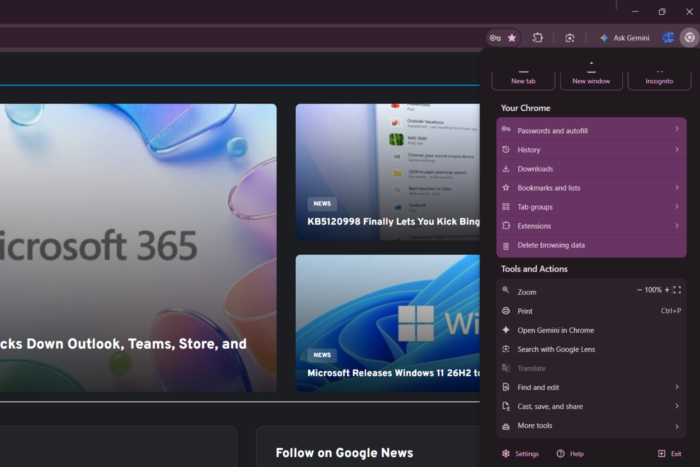
Google is continuing its Chrome UI “Glow Up” project, and the three-dot menu redesign is now available for testing in Chrome Canary. We recently reported that Google was redesigning Chrome’s main menu as part of the project, and the company is now exposing an experimental version of the menu behind a dedicated flag.
The Chrome UI “Glow Up” project is Google’s broader effort to refresh the browser’s interface, including its menus and other frequently used elements. This latest menu version looks quite different from Chrome’s current Stable design, with Google reorganizing several elements and introducing a more structured layout.
What’s new in Chrome’s three-dot menu
The most visible change is at the top of the menu. New tab, New window, and Incognito are now presented as three large buttons instead of standard list entries.
Underneath, the “Your Chrome” section remains, grouping core browser options such as Passwords and autofill, History, Downloads, Bookmarks and lists, Tab groups, Extensions, and Delete browsing data.
Below that, the “Tools and Actions” section includes options such as Zoom, Print, Open Gemini in Chrome, Search with Google Lens, Translate, Find and edit, Cast, save, and share, and More tools.
Google has also tweaked some labels. The earlier Google Password Manager entry is now called Passwords and autofill, while Manage extensions has been shortened to Extensions.
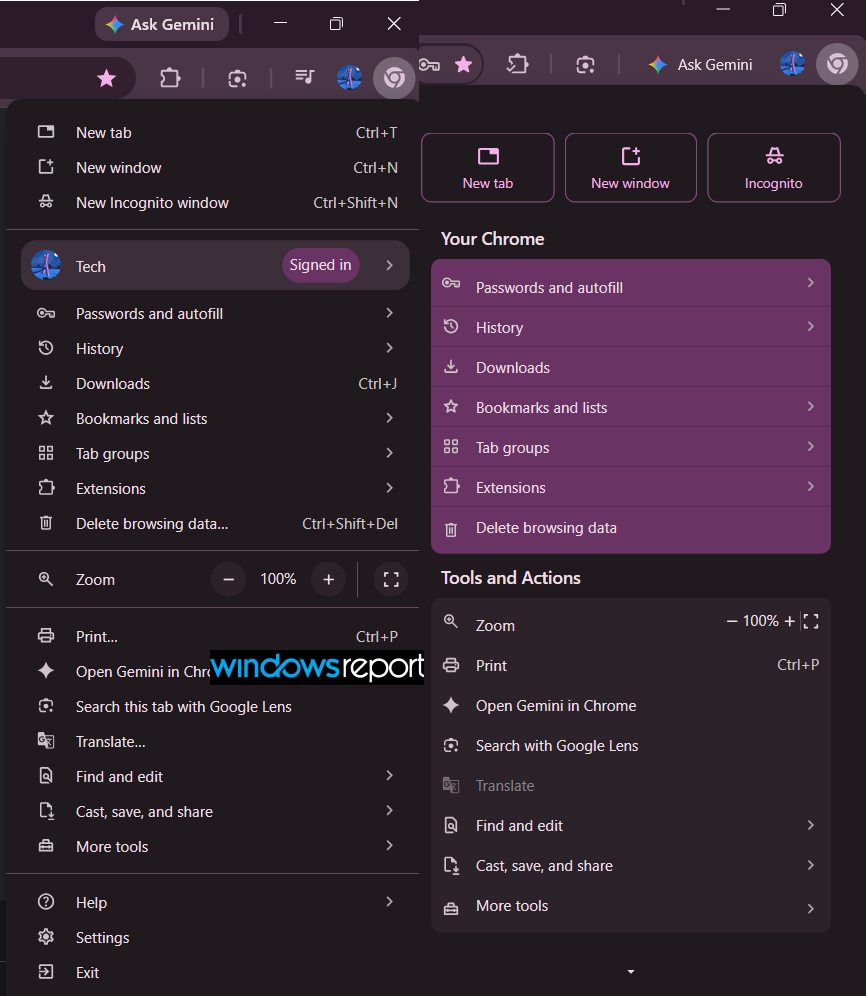
Compared with the current Stable menu, the new iteration puts more emphasis on the three primary actions at the top, while reorganizing the remaining options into the “Your Chrome” and “Tools and Actions” sections.
How to enable Chrome’s redesigned menu in Canary
Google is exposing the experimental menu through the “App Menu Glow Up” flag in Chrome Canary. The flag is available in current Chrome Canary builds on Windows, macOS, Linux, and ChromeOS. To enable it:
- Open chrome://flags in the latest Chrome Canary build.
- Search for “App Menu Glow Up”.
- Set the flag to Enabled.
- Relaunch Chrome.

After relaunching, the redesigned three-dot menu should replace the existing menu.
As with other Canary experiments, Google could continue changing the interface before it reaches Chrome’s stable version, and there is no guarantee that every part of this design will ship in the final release.


Read our disclosure page to find out how can you help Windows Report sustain the editorial team. Read more



Improve this guide

User forum
0 messages