
How to Log in to PlayStation Network on PS4 or PS5


 5 min. read
  Published on

Getting started with your PlayStation console means more than just powering it on; logging in to the PlayStation Network (PSN) is the key to unlocking everything from online multiplayer and cloud saves to the PlayStation Store and exclusive content.
In this guide, we’ll walk you through a step-by-step method to log in to your PlayStation account.
Table of contents
How to log in on PlayStation 5
1. The Quick QR Code Way (Recommended)
This is the fastest method if you already have the official PlayStation App on your smartphone.
- Power on your PS5 and ensure it is connected to the internet.
- From the main dashboard, select the Settings (gear icon) in the top-right corner.
- Navigate to Users and Accounts > Account > Sign In.
- When the sign-in screen appears, a QR code will be displayed on your TV screen.
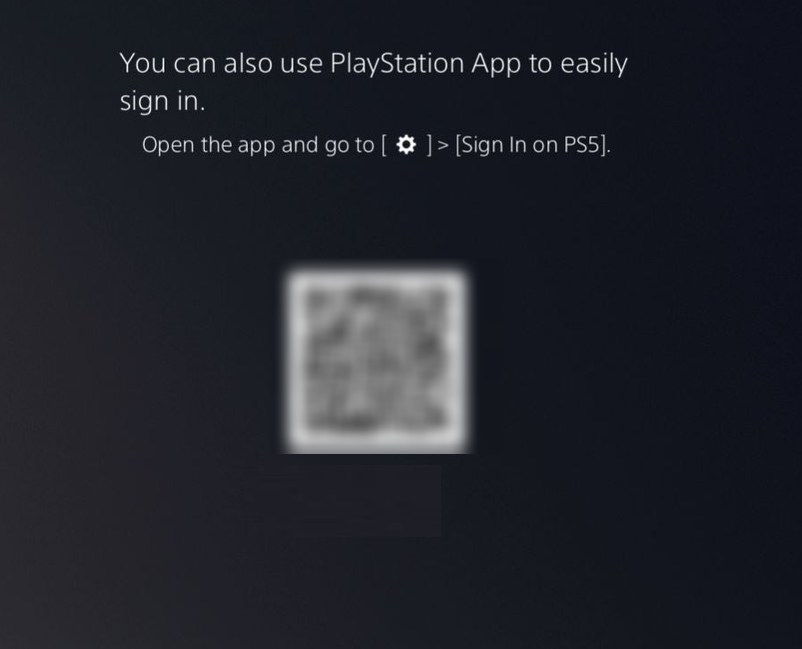
- Open the PlayStation App on your phone (make sure you are logged into your account on the app).
- In the app, go to Settings (gear icon), scroll down to Console Management, and select Scan QR Code.
- Scan the code on your TV using your phone’s camera, then tap Approve to log in instantly.
2. The usual way to login to PS5
If you don’t have the mobile app, you can type your login information directly.
- Go to Settings > Users and Accounts > Account > Sign In.
- Select Sign in Manually on the screen.
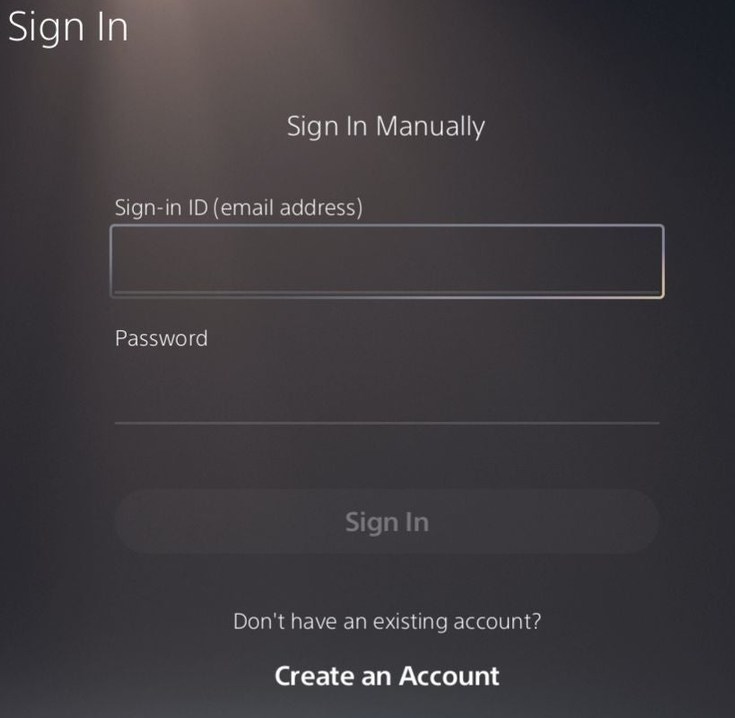
- Type in the email address and password associated with your PlayStation Network account.
- Select Sign In. If you have two-factor authentication (2FA) enabled, enter the verification code sent to your phone or email.
How to log in on PlayStation 4
The PS4 login process is similar but uses slightly different menu wording.
- Go to Settings
- Then click on Account Management
- Next, click on Sign In to PlayStation Network
- Enter your sign-in ID (email) and password
- Complete two-step verification if requested
- Avoid saving credentials if the account belongs to someone else
How to login to your PlayStation Console from a browser
You can manage your account without using a console. Open the official PlayStation website and choose the sign-in option. Enter your account credentials when prompted. After authentication, you can access account-related features available for your region.
Quick tip: Check the website address before entering your password. Phishing pages can closely imitate familiar login screens.
PlayStation login on your phone
PlayStation also supports account access through its mobile experience.
1. PlayStation App
The official PlayStation App is available for iPhone and Android devices.
- Install the official PlayStation App.
- Open the application.
- Select Sign In.
- Enter your PlayStation Network credentials.
- Complete the requested verification.
- Follow any prompts to connect your console.
The app can be particularly useful when you are away from your console. You can also use your phone to manage games, messages, friends, downloads, and other PlayStation features.
2. Using a mobile browser
You do not necessarily need the app for basic account access. Open the official PlayStation website in your mobile browser. Select Sign In, enter your credentials, and complete verification. This option can help when the app refuses to load or you are using another person’s phone.
We hope you found this guide useful and managed to log in to the PlayStation service. If you need more help with your console, check out our guides on how to start PlayStation 5 in Safe Mode and how to use PlayStation Plus on a Windows PC.
What to do when PlayStation login isn’t working?
- Check your internet connection first. Try another online service from the same console. This quickly shows whether the problem is broader than PlayStation.
- Check PlayStation service status. A network outage can prevent sign-in even when your password is correct.
- Restart the console. A simple restart can clear temporary connection or authentication problems.
- Check your credentials. Make sure you are using the email address associated with your PlayStation account.
- Look at two-step verification. If verification codes are not arriving, check your phone, authenticator app, or backup codes.
- Update the console. Older system software can sometimes create account or network problems.
FAQs related to PlayStation Login
1. Can I use my PlayStation account on PS5 and PS4?
Yes. The same PlayStation Network account can generally be used across supported PlayStation consoles.
2. Can I sign in without my PlayStation console?
Yes. You can access your account through the PlayStation website or supported mobile services.
3. What is my PlayStation sign-in ID?
Your sign-in ID is normally the email address associated with your PlayStation Network account.
4. Why does PlayStation keep asking me to verify my identity?
Additional verification can appear when security checks are triggered. Two-step verification can also require a code during sign-in.
5. Can I recover a forgotten PlayStation password?
Yes. Use the password recovery option on the official PlayStation sign-in page and follow the recovery instructions.

Read our disclosure page to find out how can you help Windows Report sustain the editorial team. Read more



Improve this guide




User forum
0 messages