
Trello Login: How to Sign In on PC and Mobile


 3 min. read
  Published on

Need to access your Trello boards or pick up where you left off on a project? You can log in to Trello from your computer or phone using your Atlassian account or a supported sign-in provider, such as Google or Microsoft.
Below, we’ll walk you through the different ways to sign in to Trello and access your workspace.
How do I log in to Trello?
1. Log in to Trello using your email and password
The easiest way to access Trello is through its official website. Since Trello uses Atlassian accounts, you may need to complete your login through the Atlassian sign-in page.
- Open your preferred web browser.
- Go to the official Trello login page.
- Enter the email address associated with your Trello account.
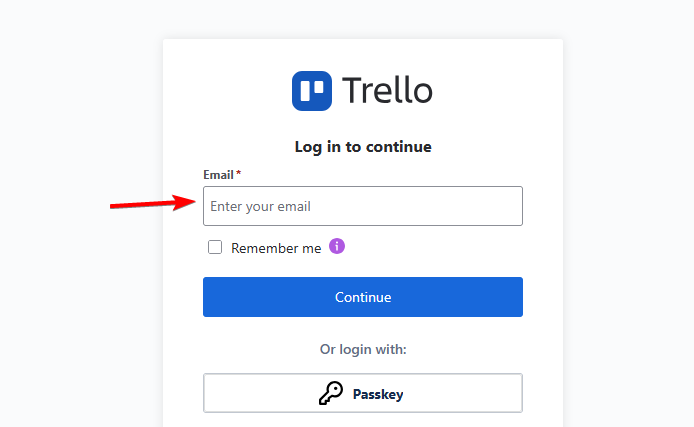
- Click Continue to proceed.
- Enter your Atlassian password and select Log in.
- Complete any additional security verification if prompted.
- Optional: You can also use your Google, Microsoft, or Apple account to quickly log in.
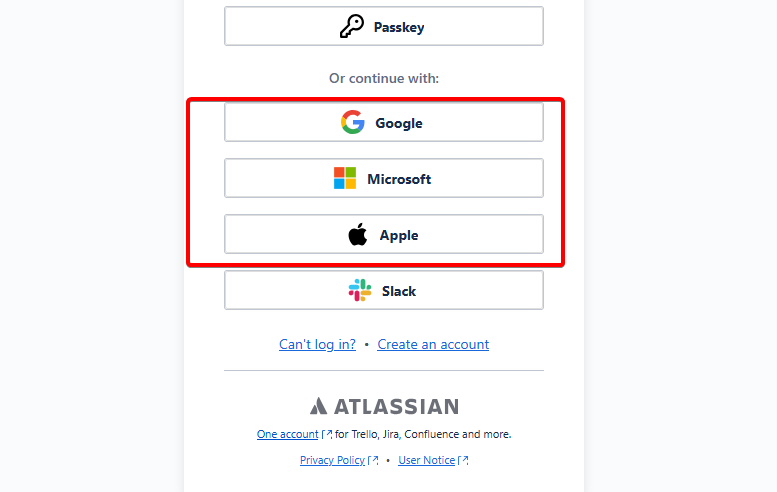
Once you sign in, Trello will take you to your account, where you can open your boards, view assigned tasks, and manage your projects.
2. Log in to Trello on Android or iPhone
You can also access Trello through its official mobile app. It offers access to your boards, cards, notifications, and project activities while you’re away from your computer.
- Download the Trello app from the Google Play Store or Apple App Store.
- Open the app on your Android phone or iPhone.
- Tap Log in.
- Enter your Atlassian account email address or select an available sign-in provider.
- Enter your login credentials.
- Complete the authentication process to open your Trello account.
After signing in, you can access your existing boards, create cards, update tasks, and collaborate with teammates directly from your phone.
3. Log in to Trello with your company account (SSO)
If your organization uses Trello for work, your administrator may have configured single sign-on (SSO). This lets employees access Trello through their company’s authentication system.
- Navigate to trello.com/login.
- Enter your company email address.
- Click Continue.
- Follow the redirect to your organization’s sign-in page.
- Enter your work credentials and complete any required verification.
- Return to Trello automatically after successful authentication.
Some companies use identity providers such as Microsoft Entra ID or Okta to manage employee access. If your organization requires SSO, use your company account rather than a personal login method.
Trello offers several convenient ways to sign in, whether you prefer an email and password, Google, Microsoft, Apple, or your company’s SSO system. Once you’ve logged in, you can start managing your projects and collaborating with your team.
If you’re exploring other project management options, our Microsoft Planner vs Trello comparison and guide to the best Kanban tools for organizing your workflow can help. And if your boards don’t update properly across devices, you can follow our guide to fixing Trello syncing issues.
FAQs
What is the official Trello login URL?
The official Trello login URL is https://trello.com/login. You can use it to access Trello through your browser.
Can I log in to Trello with my Google account?
Yes. Trello supports Google authentication through Atlassian. Select Continue with Google and choose the account associated with your Trello profile.
Do I need an Atlassian account to log in to Trello?
Yes. Trello uses Atlassian accounts for authentication, although you can also sign in through supported third-party providers.
Can I log in to Trello on multiple devices?
Yes. You can use the same Trello account on your computer, Android phone, and iPhone. Your boards and tasks sync across your devices.

Read our disclosure page to find out how can you help Windows Report sustain the editorial team. Read more



Improve this guide



User forum
0 messages