
How to Use PlayStation Plus on Windows PC (Step by Step)


 4 min. read
  Published on
PlayStation Plus now works on Windows, letting you stream console games without owning a PlayStation. All you need is the PlayStation Plus app for PC, a stable internet connection, and the right subscription tier. Here’s everything you need to get started.
Table of contents
How can I use PlayStation Plus on Windows?
1. Check System Requirements
Before installing, make sure your PC can handle game streaming smoothly.
- Ensure your PC runs Windows 8.1, Windows 10, or newer.
- Have at least a Core i3 2.0 GHz CPU, 2 GB RAM, and 300 MB storage.
- Use a wired connection with a minimum of 5 Mbps internet speed.
- Plug in a DualShock 4 or DualSense controller for the best experience.
Meeting these specs helps you avoid lag and playback issues. If you plan to play remotely from your console, check the full setup guide on how to use PS4 Remote Play on Windows.
2. Download and Install the PlayStation Plus App
Once your PC meets the basics, install the PlayStation Plus app from the official site.
- Go to the PlayStation official website and download the app for Windows.
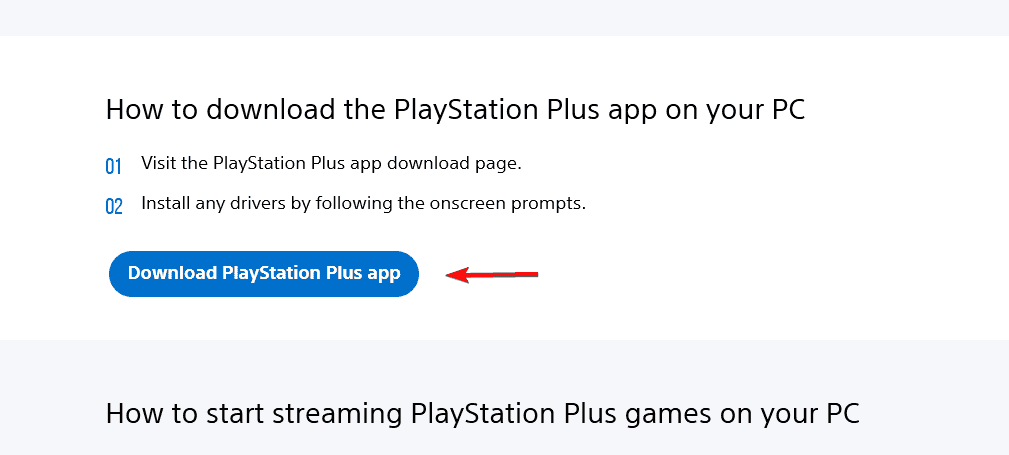
- Run the installer and complete the setup wizard.
- Launch the app and sign in with your PlayStation Network account.

- Connect your controller via USB or Bluetooth.
- Open the Game Catalog and browse available titles.
The app works like a streaming platform, giving you instant access to your library. To learn which games are supported for PC play, see this detailed list of PlayStation Now games you can stream on Windows PC.
3. Subscribe to the Correct Plan
To stream PlayStation games on PC, you’ll need the right subscription level.
- Choose the Premium or Extra tier (depending on your region).

- Verify that your subscription includes cloud streaming.
- Check available titles in the PlayStation Plus catalog.
- Confirm your billing details and renew automatically if needed.
Without a Premium plan, PC streaming won’t be available.
4. Play Games on Windows PC
After logging in and subscribing, you can start playing instantly.
- Open the PlayStation Plus app and sign in.

- Connect your controller or use keyboard and mouse if supported.
- Select a title from the streaming catalog.
- Click Play to begin the session.
- Keep your connection stable for smooth performance.
For the best experience, close other apps that use internet bandwidth. If you want to play online or join multiplayer sessions, you can also join PlayStation Party Chat on PC to talk with friends while gaming.
5. Fix Common Issues
If something goes wrong, these quick checks can help.
- Game won’t start: Confirm your subscription is active and your app is updated.
- Lag or stutter: Switch to wired internet and lower resolution settings.
- Missing titles: Some games may be console-only or region-locked.
- Controller not working: Re-pair or update your controller’s firmware.
Most issues can be solved by restarting the app or updating Windows.
FAQs
Yes. With the Premium plan, you can stream games directly from the cloud to your PC.
No. The Windows app only supports streaming, not downloads.
DualShock 4 and DualSense are fully supported for all compatible games.
Availability depends on your country or region. Some features may be limited.
Final Thoughts
PlayStation Plus on Windows gives PC gamers access to hundreds of PlayStation titles without needing a console. With the Premium plan, strong internet, and a compatible controller, you can play top PlayStation games directly from your computer in just a few clicks.

Read our disclosure page to find out how can you help Windows Report sustain the editorial team. Read more



Improve this guide



User forum
0 messages