
LinkedIn Login Guide: How to Sign into Your Account on PC & Mobile


 4 min. read
  Published on
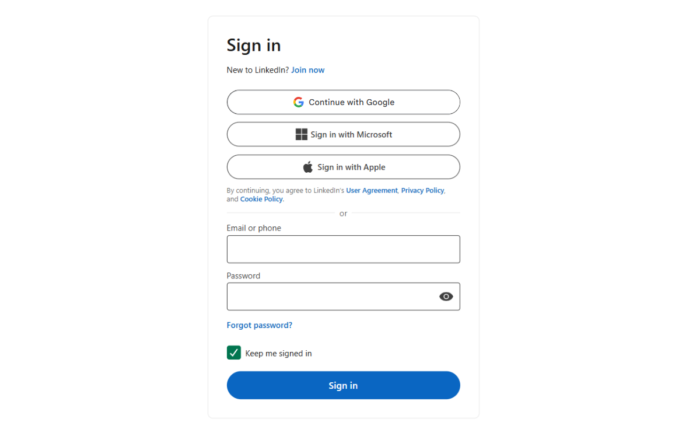
Logging into your LinkedIn account is all you need to access your professional profile, messages, connections, jobs, and saved activity. Whether you are switching devices or returning after a break, signing in usually takes only a minute. In case you’re new to LinkedIn, you should know that you can sign into the platform via the official website or mobile app.
Here’s How to Sign Into Your LinkedIn Account on PC and Mobile App
How to Log In to LinkedIn via the Official Website
- Open your browser and visit the official LinkedIn website.
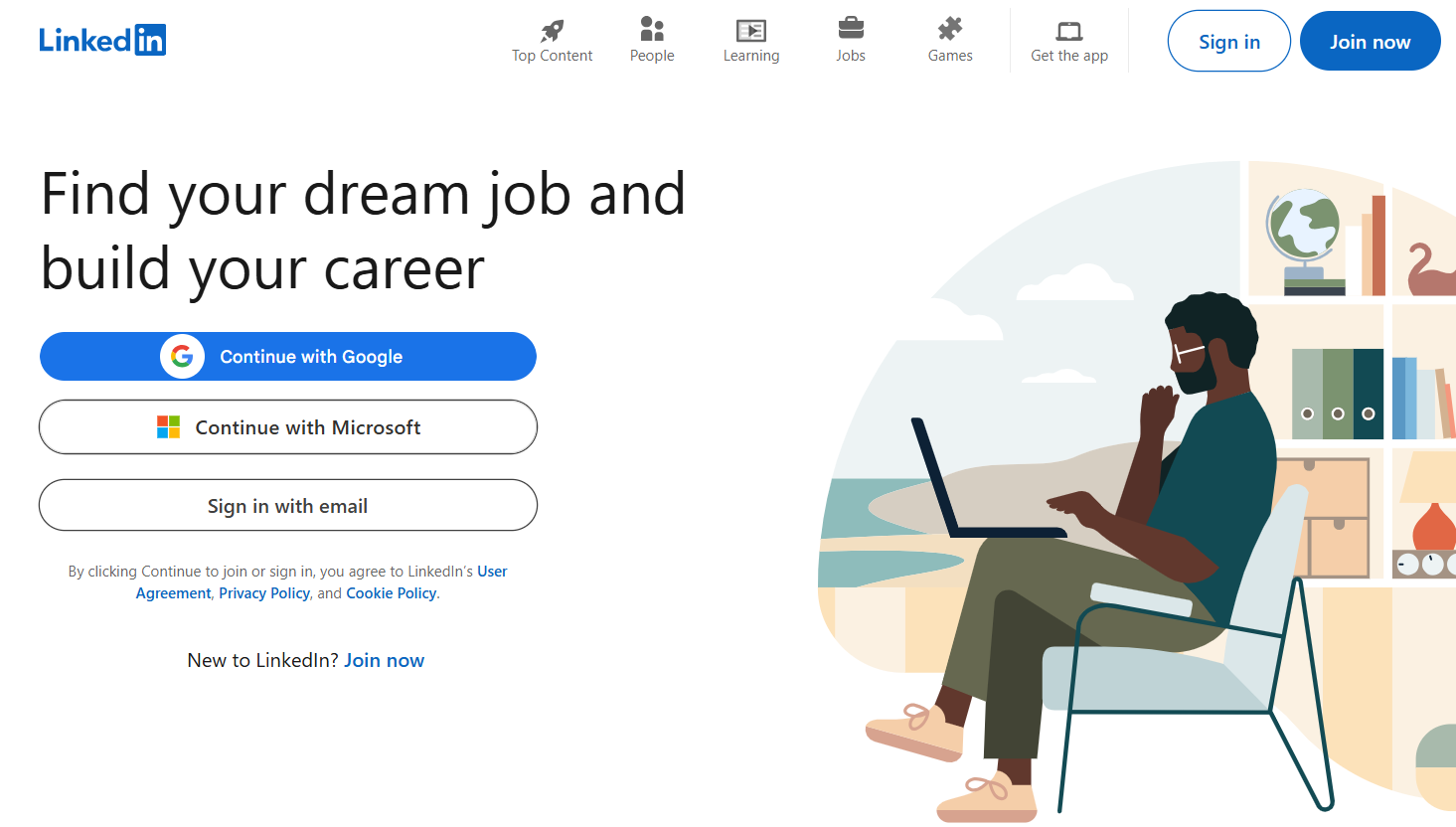
- Select Sign in near the top of the page or on the left center of the screen. You can also sign in via your Google account or Microsoft account.
- Enter your LinkedIn email address or phone number and your password, then select Sign in.
- Complete any security verification LinkedIn requests.
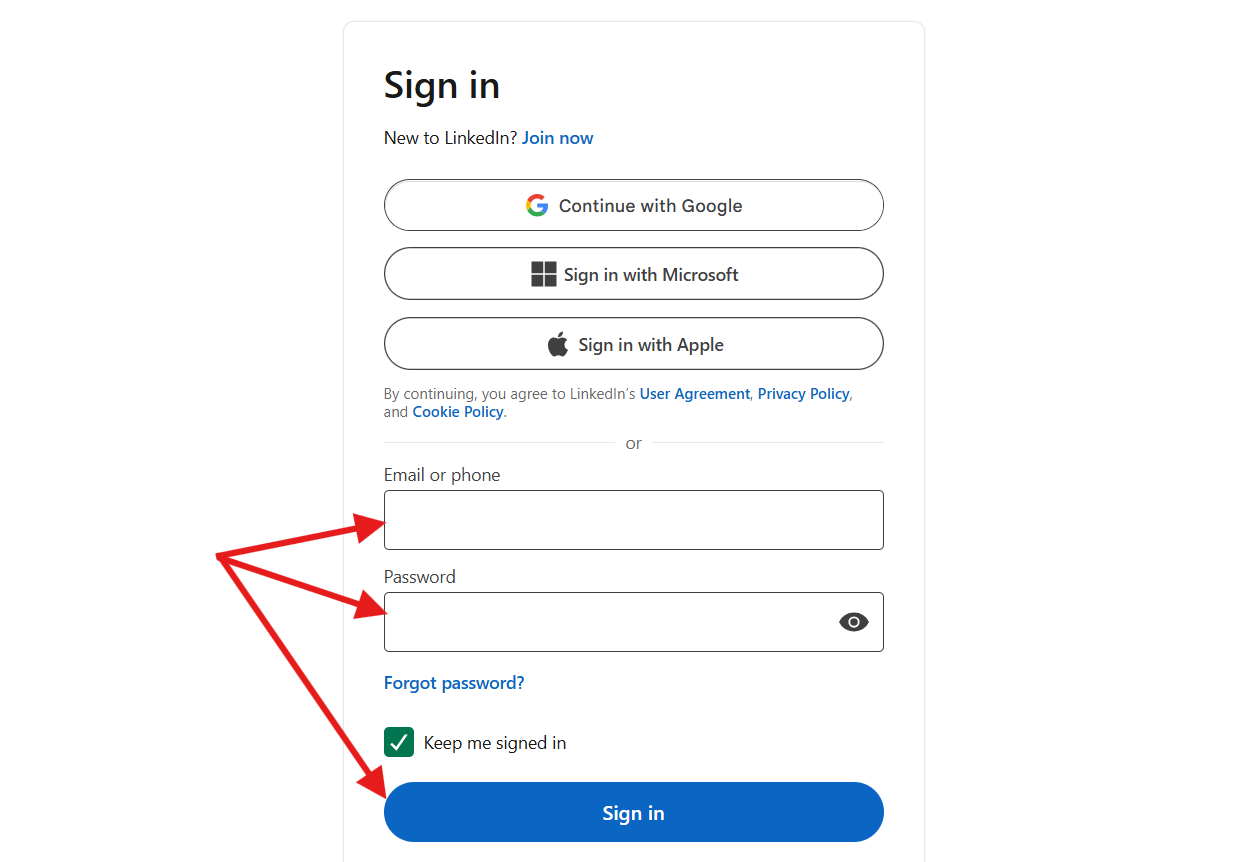
If you enabled two-step verification, LinkedIn may request an additional security code. Keep your phone or authentication method nearby before starting.
Forgot Your LinkedIn Login Password?
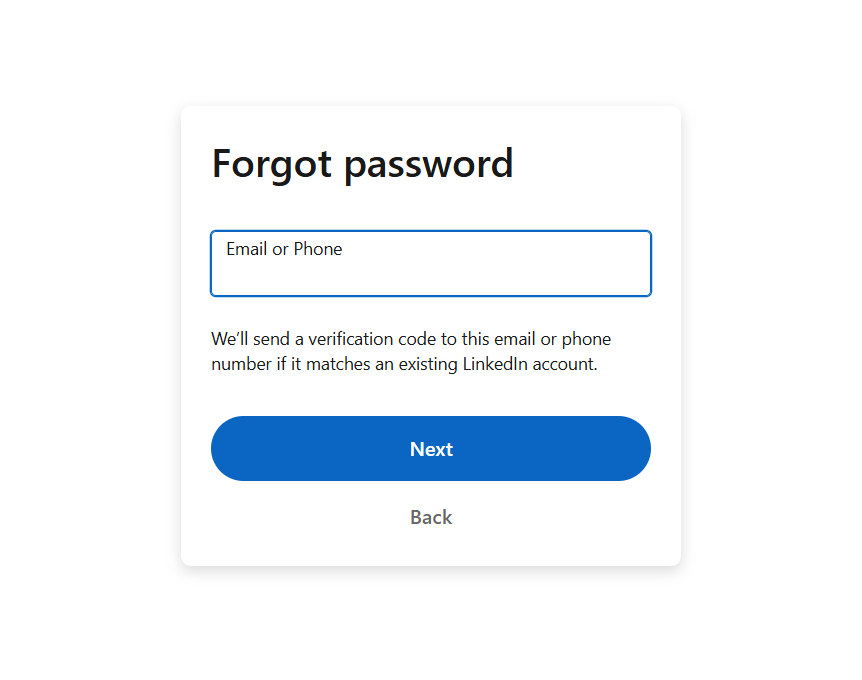
A forgotten password does not mean you have lost your account. Select Forgot password? on the sign-in screen. Enter your email address or phone number when prompted. LinkedIn will then guide you through the available account recovery steps.
How to Sign In to LinkedIn on Mobile
If you are using LinkedIn on your phone, you can sign in through the official app or a mobile browser.
Using the LinkedIn app
- Open the LinkedIn app on your Android phone or iPhone.
- Tap Sign in on the welcome screen.
- Enter the email address or phone number linked to your account.
- Enter your LinkedIn password.
- Tap Sign in to continue.
- If LinkedIn asks for a verification code, enter the code sent to you.
- Once verified, LinkedIn will open your account.
Using a mobile browser
- Open Chrome, Safari, or another browser on your phone.
- Go to the official LinkedIn website.
- Tap Sign in.
- Enter your email address or phone number.
- Enter your password and tap Sign in.
- Complete any security check LinkedIn displays.
- You can now use LinkedIn directly from your browser.
What if LinkedIn Login Isn’t Working?
Several simple problems can block access. Your password may be incorrect, your browser session may be stuck, or LinkedIn may request extra verification.
Try these fixes before assuming your account has disappeared:
- Check that your email address or phone number is correct.
- Re-enter your password carefully.
- Use Forgot password? if your password is no longer working.
- Try another browser or private browsing window.
- Update the LinkedIn app if mobile sign-in fails.
- Check your internet connection before trying again.
- Complete every security prompt shown during login.
Avoid repeatedly entering random passwords. Too many failed attempts can make account recovery more complicated.
Hopefully, you were able to sign in to LinkedIn without any issues. If you want to manage your account further, check out our guides on how to delete your LinkedIn account permanently, remove Open to Work from LinkedIn, and upload your resume on LinkedIn.
FAQs Related to LinkedIn Login
1. How Do I Log In to LinkedIn?
Visit LinkedIn’s official website and select Sign in. Enter your registered email address or phone number and password.
2. Can I Access LinkedIn Without the App?
Yes. LinkedIn works through a web browser on desktop and mobile devices. You can access your account without installing the app.
3. What Should I Do if I Forgot My LinkedIn Password?
Select Forgot password? on the LinkedIn login page. Follow the recovery instructions using the email address or phone number connected to your account.
4. Why Is LinkedIn Asking Me for a Verification Code?
LinkedIn may request additional verification to protect your account. Follow the displayed instructions and use your configured verification method.
5. Is LinkedIn Login Free?
Yes. Signing into a standard LinkedIn account does not require a paid subscription. LinkedIn also offers optional premium services separately.

Read our disclosure page to find out how can you help Windows Report sustain the editorial team. Read more



Improve this guide



User forum
0 messages