
How to Log In to eHarmony on Desktop and Mobile


 4 min. read
  Published on

If you want to access your matches, messages, or profile settings, you’ll first need to complete the eHarmony login. Today, we’ll show you how to log in to eHarmony on your computer or mobile device, as well as what to do if you can’t access your account.
How do I log in to eHarmony?
1. Use your browser
You can access your eHarmony account directly from the official login page.
- Go to the eHarmony login page.
- Enter the email address associated with your account.
- Type your password.
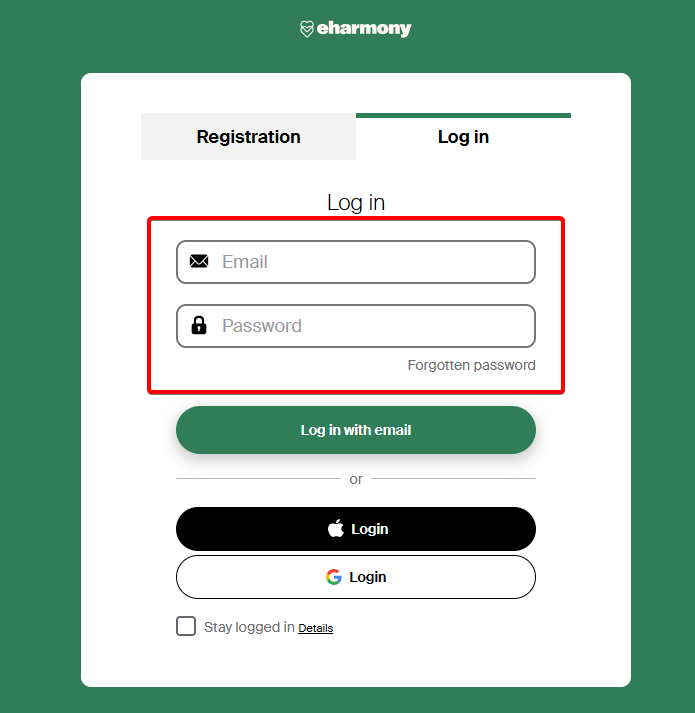
- Select Stay logged in if you use a private device and want eHarmony to remember your login.
- Click Log in to access your profile.
eHarmony warns against using the Stay logged in option on a shared device because other people could gain access to your profile.
2. Use the mobile app
You can also sign in to eHarmony through its Android or iPhone app.
- Open the eHarmony app on your phone or tablet.
- Select the option to log in.
- Enter your registered email address.
- Enter your password.
- Tap Log in.
What to do if you forgot your eHarmony password
If you can’t remember your password, reset it instead of repeatedly trying different passwords.
- Open the eHarmony login page.
- Click Forgotten password.
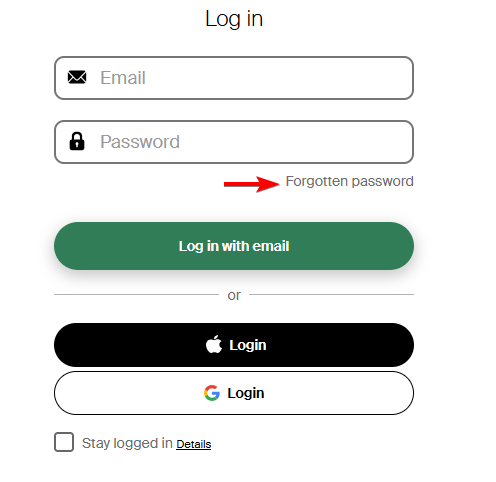
- Enter the email address linked to your eHarmony account.
- Click Request password.
- Open the email from eHarmony.
- Follow the personal access link and create a new password.
Fix eHarmony login problems
Most eHarmony sign-in problems come from incorrect credentials, browser settings, or temporary loading issues.
- Check your email and password – Make sure you entered the email address you originally used when creating your account.
- Reset your password – Use the Forgotten password option if eHarmony keeps rejecting your credentials.
- Enable cookies – eHarmony requires browser cookies for its website to work correctly.
- Enable JavaScript – Turn JavaScript on if the login page does not load or work properly.
- Update your browser – Install the latest version of Chrome, Firefox, Edge, or another supported browser if you see compatibility errors.
- Clear browser data – Remove old cookies and cached files, reopen the browser, and try signing in again.
- Try another browser or device – This can help determine whether the problem comes from your account or your current browser.
- Check your internet connection – An unstable connection can interrupt the login process.
- Contact eHarmony Customer Care – If you still can’t access your account, contact the support team.
We hope you managed to complete the eHarmony login and access your account by following our steps. If you want additional privacy while using the dating service, check out our guide to the best VPNs for eHarmony in 2026. You can also learn how to use Tinder in your web browser or see what to do if you encounter a Grindr registration error.
FAQs
Why can’t I log in to my eHarmony account?
Check that you entered the correct email address and password. If those details look correct, enable cookies and JavaScript, update your browser, or reset your password.
How do I reset my eHarmony password?
Click Forgotten password on the login page, enter your registered email address, and select Request password. eHarmony will send you a link you can use to create a new password.
Can I log in to eHarmony from my phone?
Yes. You can access eHarmony through a mobile browser or use the official Android or iOS app.
Do I need a Premium membership to log in?
No. Both free and Premium account holders can log in to eHarmony.
Can you stay logged in to eHarmony?
Yes. Select Stay logged in on the login screen if you want eHarmony to remember your account on that browser.

Read our disclosure page to find out how can you help Windows Report sustain the editorial team. Read more



Improve this guide



User forum
0 messages