
CVS Login Guide: How to Access Account on Website & Mobile App


 5 min. read
  Published on
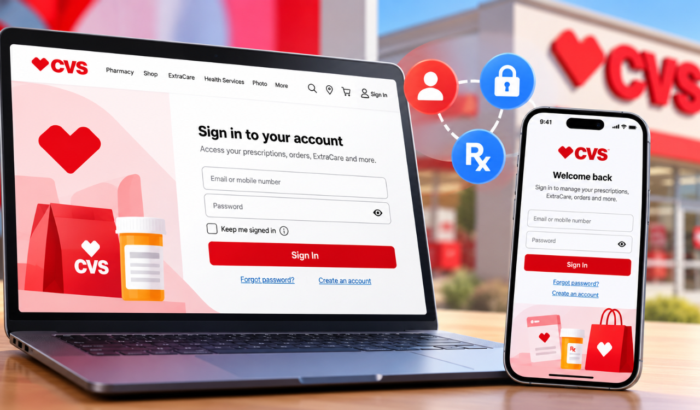
Managing your health, prescriptions, and savings with CVS is simple once you’re logged into your account. Whether you want to check your ExtraCare rewards, request a prescription refill, or track an online order, accessing your CVS.com profile takes just a few clicks. Here is a quick guide to logging in using a web browser or the CVS Health app.
How to Login to CVS Using Web Browser
The CVS website uses your mobile number or email to begin the sign-in process. The current CVS login page also includes a Keep me signed in option.
- Open a web browser on your computer.
- Go to CVS.com.
- Select Sign In.
- Enter your mobile number or email address.
- Select Continue.
- Enter your password when prompted.
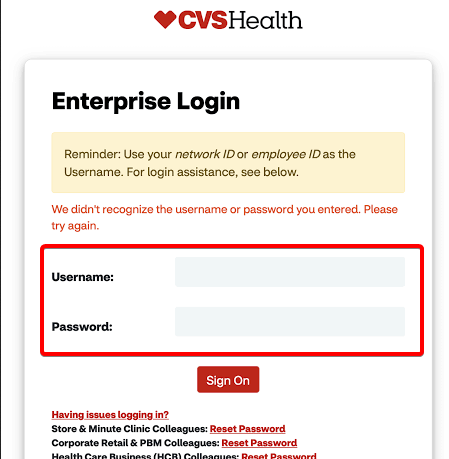
- Select the option to stay signed in if you are using your personal device.
- Complete any additional verification CVS requests.
You should now be signed into your CVS account. Make sure to avoid using Keep me signed in on public or shared computers. CVS specifically recommends against using this option on devices other people can access.
How to Login to CVS on a Mobile Browser
If you prefer logging into your CVS account using your mobile browser, here are the steps to do so:
- Open Safari on your iPhone or Chrome on Android.
- Go to CVS.com.
- Tap Sign In.
- Enter your mobile number or email address.
- Tap Continue.
- Enter your CVS password.
- Complete any requested verification.
If the mobile website refuses to sign you in, check that cookies are enabled in your browser. Do note that disabled cookies are one of the possible causes of CVS mobile sign-in problems.
How to Login to CVS Health app on Android and iOS
The CVS Health app provides access to prescriptions, ExtraCare savings, store rewards, and other CVS services. Here’s how you can login to CVS Health app on Android smartphones.
- Install the CVS Health app from Google Play.
- Open the app.
- Select Sign In.
- Enter your CVS account email or mobile number.
- Tap Continue.
- Enter your password.
- Complete any verification requested by CVS.
- Allow the requested permissions if you want the app’s available features.
Once signed in, you can access supported prescription and ExtraCare features directly from your phone. Not to forget, the CVS Health app is also available for iPhone users. Here’s how you can login to CVS Health app on iOS.
- Install the official CVS Health app from the App Store.
- Open the app.
- Tap Sign In.
- Enter your email address or mobile number.
- Tap Continue.
- Enter your password.
- Complete any requested verification.
Your CVS account should then be available through the app.
How to Reset Your CVS Login Password
Forgotten passwords can prevent you from completing the CVS login process. Here’s how to reset your CVS login password:
- Open the CVS sign-in page.
- Select Forgot Password.
- Enter the email address associated with your account.
- Select Continue.
- Open the password-reset email from CVS.
- Follow the included link.
- Answer your security question if requested.
- Create and confirm your new password.
- Return to CVS.com or the app.
- Sign in using your new password.
Check your spam or junk folder if the reset email does not appear. CVS also advises against repeatedly submitting the request because the email can take several minutes to arrive.
How to Fix CVS Login When It Isn’t Working
Most CVS login problems can be narrowed down to incorrect credentials, browser settings, or a temporary connection issue. Try these checks before contacting CVS support.
- Confirm that your email or mobile number is correct.
- Check that your password is entered correctly.
- Reset your password if you cannot remember it.
- Enable cookies in your mobile browser.
- Try another browser.
- Update the CVS Health app.
- Restart the app or browser.
- Check your internet connection.
- Try signing in through CVS.com instead of the app.
- Contact CVS Customer Care if you still cannot access your account.
Note: You can call Customer Care at 1-888-607-4CVS (1-888-607-4287) Monday – Friday 8:30 AM – 7:00 PM ET, Sat. & Sun. 10:00 AM – 6:30 PM ET. Do note that customer care executives may not be available during major holidays.
Summing Up
CVS login works through the CVS website, mobile browser, Android app, and iPhone app. If you run into trouble, password recovery, cookie settings, and app updates are the best places to start.
Also, don’t forget to check our guide for times when the CVS app isn’t working for you. For other health-related services, we also have guides on logging in to SSM MyChart on web and mobile and accessing your Anthem.com account.
FAQs related to CVS login
1. Can I login to CVS without the app?
Yes. You can access your account through CVS.com using a computer or mobile browser. CVS also provides a mobile website for phone users.
2. Can I login to CVS on Android?
Yes. Install the CVS Health app from Google Play and sign in using your existing CVS account credentials.
3. Can I login to CVS on iPhone?
Yes. The CVS Health app is available for iPhone users. You can also sign in through Safari using CVS.com.
4. What is my CVS User ID?
For a CVS.com account, your email address serves as your User ID. If you cannot remember it, CVS advises contacting Customer Care.
5. Why can’t I login to CVS on my phone?
Check your credentials and browser cookies first. If you use the app, update it and try signing in again before contacting CVS support.

Read our disclosure page to find out how can you help Windows Report sustain the editorial team. Read more



Improve this guide



User forum
0 messages