
How to Fix Microsoft Family Child Account Not Showing in Windows 11


 4 min. read
 Published on

If your Microsoft Family child account is not showing in Family Safety or Windows 11, the problem may involve a pending invitation, an incorrect Microsoft account, or a device sync issue. Follow these steps to restore the missing child account.
What can I do if a child account is not showing in Microsoft Family?
1. Check your Microsoft Family group
First, confirm that the child account belongs to your family group.
- Open Microsoft Family.
- Sign in with your parent or organizer Microsoft account.
- Check whether the child account appears under your family members.
- If the account is missing, select Add a family member.
- Enter the child’s Microsoft account email address.
- Select Member and send the invitation.
The child must accept the invitation before Microsoft adds the account to your family group.
2. Accept the pending family invitation
A child account may not appear because the invitation remains pending.
- Visit account.microsoft.com/family using the organizer account.
- Look for the child’s invitation under Pending member.
- Ask the child to open the invitation email.
- Sign in using the child’s Microsoft account.
- Accept the invitation and complete any required parental consent steps.
- Refresh the Microsoft Family page.
If the invitation has expired or does not work, cancel the pending invitation and send another one.
3. Make sure the child isn’t in another family group
Microsoft does not allow an account to belong to multiple family groups simultaneously.
- Sign in to account.microsoft.com/family using the child’s account.
- Check whether another family group appears.
- If the child already belongs to another group, ask its organizer to remove the account.
- Complete any required parental consent or removal steps.
- Send a new invitation from the correct family organizer account.
4. Add the child account to Windows 11
If the child appears on the Microsoft Family website but not on your computer, check Windows account settings.
- Press Windows + I to open Settings.
- Navigate to Accounts > Family.

- Check whether Windows lists the child’s Microsoft account.
- If the account appears, allow it to sign in if Windows provides that option.
- If it is missing, use the available option to add the family member or their Windows account.
- Sign in to Windows using the child’s Microsoft account.
After the child signs in, check Family Safety again to see whether Windows displays the connected device.
5. Refresh Microsoft Family Safety
If the child appears on the website but not in the Family Safety app, try refreshing the app.
- Open Microsoft Family Safety.
- Sign out of your Microsoft account.
- Close the application completely.
- Reopen Family Safety.
- Sign in using the family organizer account.
- Check whether the child account appears.
If the problem continues, update the app through your device’s app store and restart your device.
6. Verify the child’s Microsoft account
An account verification issue can prevent Family Safety features from working correctly.
- Sign in to Windows using the child’s Microsoft account.
- Open Settings > Accounts > Your info.
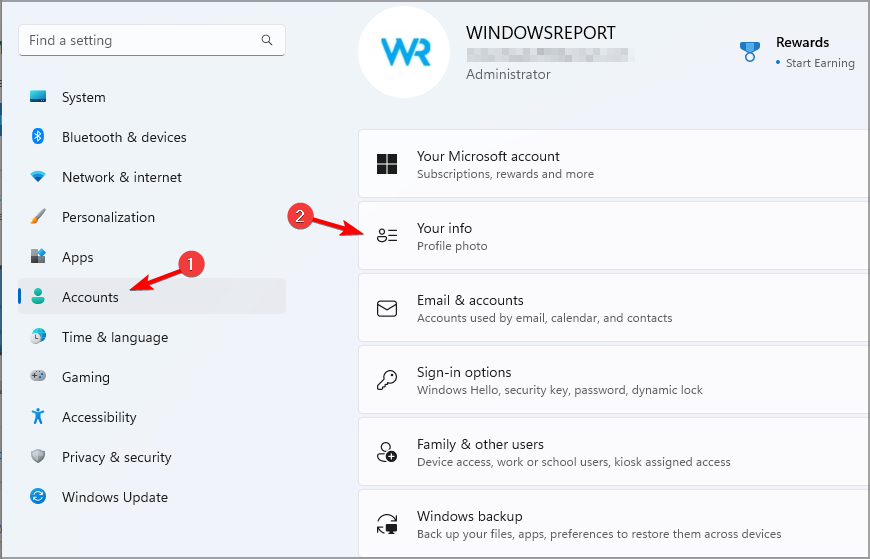
- Look for a Verify option.
- If Windows displays it, follow the instructions to verify the account.
- Restart the computer.
- Open Microsoft Family Safety and check the account again.
Also, ensure Windows uses the child’s account as a Standard user, not an Administrator. Microsoft recommends this configuration for Family Safety.
When a Microsoft Family child account does not show up, start by checking family membership and pending invitations. You can also change your Microsoft Family settings to correct account permissions or review how to change a Microsoft Family member from adult to child if the account has the wrong role. If the child appears online but not in Windows 11, reconnect the account and try additional fixes for Microsoft Family Safety not working on Windows 11.
FAQ
Why is my child account missing from Microsoft Family?
The account may not have accepted the family invitation, may belong to another family group, or may be signed in with a different Microsoft account. Check the family group and confirm the child’s account email address.
How do I resend a Microsoft Family invitation?
Open Microsoft Family, sign in as the organizer, cancel the pending invitation if necessary, and select Add a family member to send a new invitation.
Why does the child appear online but not in Windows 11?
Windows may not have synchronized the family account yet. Add the child account under Settings > Accounts > Family, then have the child sign in to Windows using the same Microsoft account.
Can Microsoft Family Safety monitor an administrator account?
Microsoft Family Safety works best when the child’s Windows profile is a Standard user. Change the account type from Administrator to Standard user and then restart Windows before checking Family Safety again.

Read our disclosure page to find out how can you help Windows Report sustain the editorial team. Read more


Improve this guide


User forum
0 messages