
Fix: An Error Occurred While Attempting to Export the Virtual Machine in Hyper-V


 4 min. read
 Published on
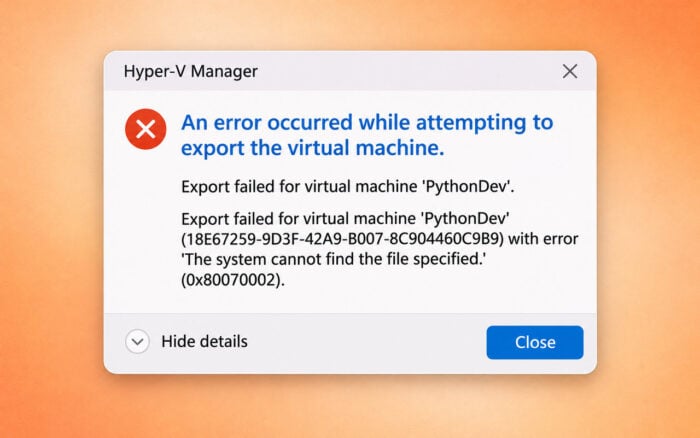
The “An error occurred while attempting to export the virtual machine” message in Hyper-V prevents users from exporting virtual machines on Windows 11 and Windows Server.
The error usually occurs because of insufficient permissions, damaged checkpoints, missing virtual disk files, or storage problems. The exact cause depends on the accompanying error code.
How can I fix An error occurred while attempting to export the virtual machine in Hyper-V?
1. Check the export folder permissions
Hyper-V needs permission to access virtual machine files and write data to the export destination. Incorrect permissions can trigger error 0x80070005 (Access is denied).
To check the permissions:
- Open File Explorer and locate the export destination folder.
- Right-click the folder and select Properties.

- Open the Security tab and click Advanced.

- Check that the required Hyper-V service accounts have appropriate permissions.
- Verify that the destination folder allows writing files.
- Apply the necessary changes and retry the export.
2. Check and remove problematic checkpoints
Damaged checkpoints or incomplete virtual disk chains can prevent Hyper-V from exporting a virtual machine.
To check the checkpoints:
- Open Hyper-V Manager.
- Select the affected virtual machine.
- Locate the Checkpoints section.
- Check whether the virtual machine has existing checkpoints.
- Back up the virtual machine before making changes.
- If you no longer need a checkpoint, right-click it and select Delete Checkpoint.
- Allow Hyper-V to complete the disk merge before retrying the export.
Do not manually delete .avhdx files from File Explorer. These files may contain changes that Hyper-V has not merged into the parent virtual disk.
3. Export the virtual machine using PowerShell
If Hyper-V Manager cannot complete the export, try using PowerShell instead.
Follow these steps:
- Open PowerShell as administrator.

- Create a destination folder with sufficient available storage.
- Run the following command, replacing the virtual machine name and destination path with your values: Export-VM -Name “Windows11VM” -Path “D:\HyperVExports”
- Wait for the export to complete.
- If the command fails, check its error message for more specific details.
4. Check available disk space and virtual hard disks
Hyper-V may fail to export a virtual machine if the destination drive lacks sufficient storage or the source virtual disk has problems.
To investigate:
- Open File Explorer and check the free space on the destination drive.
- Make sure the destination can accommodate the virtual machine’s disks and associated files.
- Open Hyper-V Manager and select the affected virtual machine.
- Click Settings and check the paths to its virtual hard disks.
- Confirm that the .vhdx files exist and that Hyper-V can access them.
- Retry the export to a different local drive if necessary.
If Windows reports file system errors, investigate the drive’s health before attempting repairs.
5. Check Hyper-V error logs
If the error persists, Windows Event Viewer can help identify the underlying cause.
Follow these steps:
- Press Windows + R, type eventvwr.msc, and press Enter.
- Navigate to Applications and Services Logs > Microsoft > Windows.
- Open Hyper-V-VMMS > Admin.
- Locate errors that occurred when the export failed.
- Read the error description and note any hexadecimal error codes.
For example, 0x80070002 generally indicates a missing file, while 0x80070005 indicates an access-denied problem. Use the exact error details to determine which component requires attention.
The Hyper-V export error usually indicates permissions, checkpoint, or storage problems. If you recently enabled Hyper-V on Windows 11, check your configuration and export destination. You can also troubleshoot issues if you are unable to extend a volume in Hyper-V or encounter the Hyper-V not authorized to connect error. If the export still fails, use PowerShell and Event Viewer to identify the underlying cause.
FAQs
Why does Hyper-V fail to export a virtual machine?
Hyper-V can fail because of incorrect permissions, insufficient disk space, missing virtual disks, corrupted checkpoints, or storage errors. The accompanying error code helps identify the cause.
Can I export a running Hyper-V virtual machine?
Yes. Hyper-V supports exporting running virtual machines. However, certain workloads may require an application-consistent export or a planned shutdown to protect data integrity.
Does deleting a Hyper-V checkpoint delete the virtual machine?
No. Deleting a checkpoint through Hyper-V Manager starts the process of merging its changes into the virtual disk chain. However, you should back up important data and avoid manually deleting checkpoint files.
How do I fix Hyper-V export error 0x80070005?
Check the source and destination folder permissions, including the permissions Hyper-V uses to access virtual machine files. If the destination is a network share, verify its share and NTFS permissions.

Read our disclosure page to find out how can you help Windows Report sustain the editorial team. Read more


Improve this guide

User forum
0 messages