
Black Screen After Resolution Change on Windows 11: How to Fix It


 5 min. read
 Published on
A black screen after a resolution change usually occurs when Windows switches to a display resolution or refresh rate that your monitor cannot support. You can fix this by reverting the change, resetting the graphics driver, or starting Windows in low-resolution video mode.
How can I fix black screen after resolution change on Windows 11?
1. Wait for Windows to revert the resolution
Windows normally reverts an unconfirmed resolution change automatically. If your screen turns black immediately after changing the resolution, try this first.
- Wait approximately 15 seconds without pressing any keys.
- Check whether Windows restores the previous resolution.
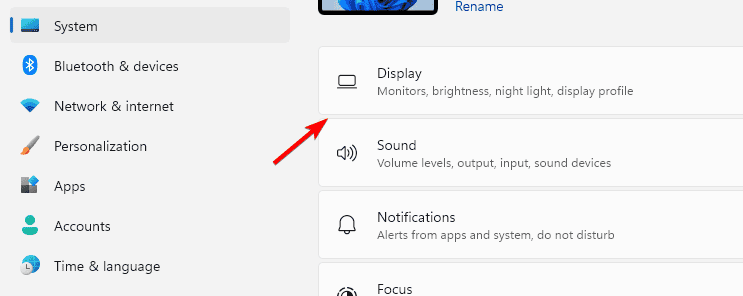
- If the display returns, open Settings > System > Display.
- Under Display resolution, select the recommended resolution.
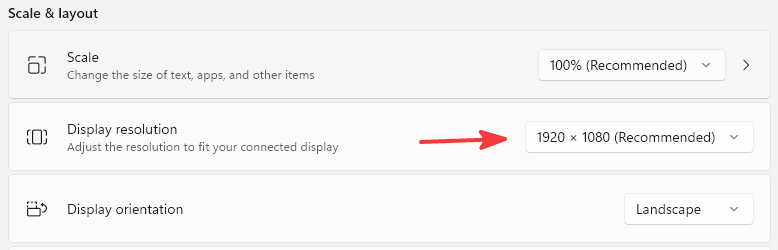
- Click Keep changes once you confirm the display works.
If the screen remains black, continue with the next solution.
2. Reset the graphics driver using a keyboard shortcut
Windows includes a keyboard shortcut that can recover a blank display without restarting your computer.
- Press Windows + Ctrl + Shift + B simultaneously.
- Wait for the screen to flicker or for a beep.
- Check whether the desktop appears.
- If the display returns, open Settings > System > Display and select a supported resolution.
3. Change the display mode
Sometimes Windows sends video output to another display after a resolution change. You can switch display modes without seeing the desktop.
- Press Windows + P.
- Press P again to select the next display mode.

- Press Enter to apply the selection.
- Wait a few seconds to see whether the screen returns.
- Repeat the process to cycle through the available display modes.
If you use multiple monitors, disconnect the secondary displays and test your primary monitor.
4. Start Windows in low-resolution video mode
If the screen stays black after restarting, Windows may continue using an unsupported display setting. Low-resolution video mode lets you start Windows with safer display settings.
- Turn off your computer.
- Turn it on and interrupt startup by holding the power button when Windows begins loading.
- Repeat the interruption once more. On the next startup, Windows should enter Automatic Repair.
- Select Advanced options > Troubleshoot > Advanced options > Startup Settings.

- Click Restart.
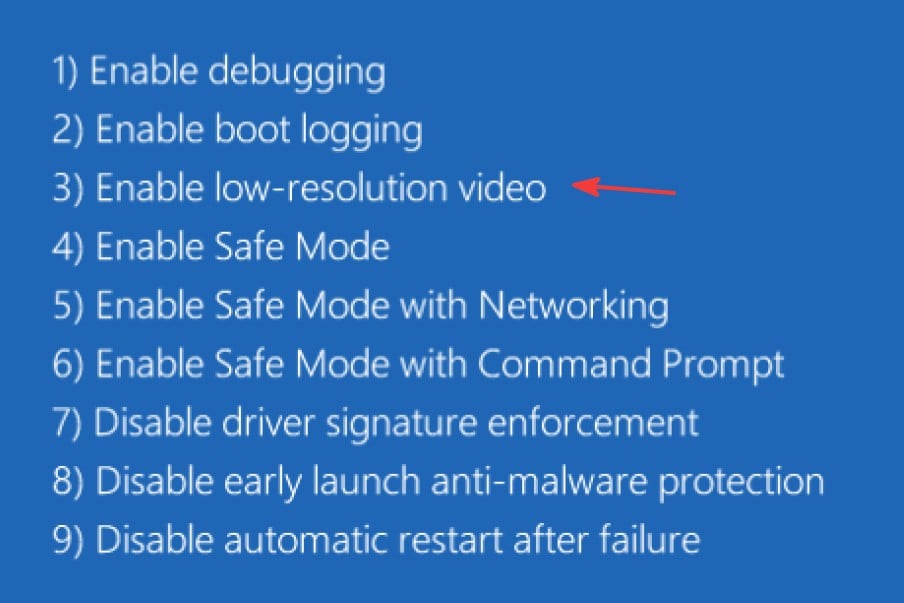
- Press 3 or F3 to select Enable low-resolution video.
- Once Windows loads, open Settings > System > Display.
- Select the recommended resolution and restart normally.
If Windows does not enter Automatic Repair, use a Windows recovery USB drive to access the recovery environment.
5. Reinstall the graphics driver
A faulty or incompatible graphics driver can prevent Windows from displaying certain resolutions.
If you can access the desktop through Safe Mode, follow these steps:
- Right-click Start and select Device Manager.

- Expand Display adapters.
- Right-click your graphics card and select Uninstall device.

- Leave the driver removal checkbox unchecked initially, if Windows displays one.
- Click Uninstall and restart your computer.
- Allow Windows to reinstall the display adapter.
If the black screen continues, install the latest compatible graphics driver directly from your PC manufacturer, NVIDIA, AMD, or Intel.
6. Check the monitor’s refresh rate and connection
An unsupported refresh rate or unstable display connection can also cause a black screen after changing the resolution.
- Open Settings > System > Display > Advanced display.

- Select the affected monitor.
- Under Choose a refresh rate, select 60 Hz, if your monitor supports it.
- Return to Display and select the recommended resolution.
- Check whether the issue disappears.
If the screen remains black, reconnect the HDMI or DisplayPort cable, try another cable, or connect your computer to a different monitor.
A black screen after a resolution change usually results from unsupported display settings or graphics driver problems. Resetting the graphics driver or enabling low-resolution video mode should help.
However, if your monitor fades to black, you experience a black screen with a cursor, or you encounter a black screen after changing the refresh rate, these issues may require additional troubleshooting.
FAQs
Why does my screen go black after changing the resolution?
Your screen may turn black because the selected resolution or refresh rate exceeds your monitor’s supported settings. An incompatible graphics driver or display connection can also cause the problem.
How do I reset my screen resolution when the screen is black?
Wait for Windows to revert the change automatically. If that fails, press Windows + Ctrl + Shift + B to reset the graphics driver. You can also enter Windows Recovery and enable low-resolution video mode to restore access to display settings.
Can I fix a black screen without restarting my computer?
Yes. Try pressing Windows + Ctrl + Shift + B to recover the display. You can also use Windows + P to switch display modes if Windows sends video output to the wrong screen.
Will Safe Mode fix a black screen caused by resolution changes?
Safe Mode can help you regain access to Windows using basic display settings. From there, you can remove a problematic graphics driver before restarting normally. However, low-resolution video mode offers a more direct way to reset your display configuration.

Read our disclosure page to find out how can you help Windows Report sustain the editorial team. Read more


Improve this guide



User forum
0 messages