
FIX: Windows Boot Manager has been blocked by the current security policy


 6 min. read
 Published on
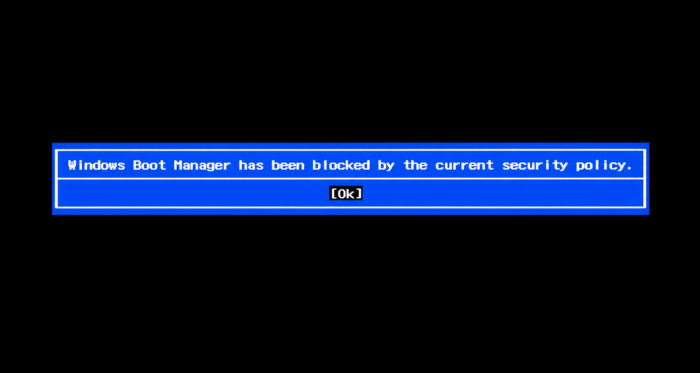
The “Windows Boot Manager has been blocked by the current security policy” error prevents your PC from booting into Windows. It usually appears when UEFI Secure Boot no longer trusts the installed Windows bootloader or its current boot configuration. The issue may involve Secure Boot keys, incorrect BIOS settings, boot order changes, or outdated firmware. Try the fixes below to resolve the error.
Table of contents
How to fix “Windows Boot Manager has been blocked by the current security policy” error
1. Restore default Secure Boot keys
Secure Boot relies on trusted certificates stored in your motherboard’s firmware. If those keys are missing, altered, or incorrectly configured, the firmware may block Windows Boot Manager.
Restoring the factory Secure Boot keys can help resolve the issue without reinstalling Windows.
- Restart your PC and repeatedly press the BIOS key. Common keys include F2, Delete, Esc, or F10.
- Open the Security, Boot, or Secure Boot section.
- Locate Secure Boot Mode and switch it to Standard if available.
- Look for Restore Factory Keys, Install Default Secure Boot Keys, or Reset Secure Boot Keys.
- Select the option and confirm the change.
- Ensure Secure Boot is enabled and save your settings.
- Restart your PC and check whether Windows boots normally.
Note: If your firmware offers both “Clear Secure Boot Keys” and “Restore/Install Default Keys,” choose the restore/install option. Avoid clearing keys without a recovery plan.
2. Temporarily disable Secure Boot
If restoring the default keys doesn’t work, Secure Boot itself may be blocking the installed bootloader. Temporarily disabling it can help determine whether the security policy is responsible.
- Restart your PC and enter BIOS/UEFI.
- Open the Security or Boot tab.
- Find Secure Boot and set it to Disabled.
- Save the changes and exit BIOS.
- Allow the computer to restart.
If Windows boots successfully, the problem is likely related to Secure Boot configuration, trust keys, or bootloader compatibility. Keep Secure Boot temporarily disabled while proceeding with the next checks, but re-enable it after resolving the underlying issue.
3. Check the boot mode and Windows Boot Manager priority
An incorrect boot mode or boot order can cause the system to load the wrong boot entry. Make sure your PC is using the correct Windows boot configuration.
- Enter BIOS/UEFI setup again.
- Open the Boot tab.
- Ensure the boot mode is set to UEFI, not Legacy or CSM, if Windows was installed in UEFI mode.
- Find Boot Priority or Boot Order.
- Move Windows Boot Manager for your system drive to the first position.
- Save the changes and restart your PC.
Now, check whether Windows now loads. If Windows Boot Manager is missing or the same security-policy error persists, continue with Startup Repair.
4. Run Windows Startup Repair
Windows Startup Repair can automatically detect and fix certain boot-related problems, including damaged startup configuration files. You will need Windows Recovery Environment. If it doesn’t appear automatically, use a Windows installation USB.
- Turn on your PC and interrupt startup two or three times to trigger Automatic Repair, if available.
- Select Advanced options.
- Navigate to Troubleshoot > Advanced options > Startup Repair.
- Select your Windows installation if prompted.
- Enter your account credentials if required.
- Let Startup Repair finish diagnosing and repairing your PC.
- Restart and check whether Windows Boot Manager works.
If Startup Repair completes but the same error returns, move to the boot-file repair option.
5. Rebuild Windows boot files
If your Windows boot files are corrupted or missing, rebuilding them may restore the boot process. Use this fix only after confirming Windows can boot with Secure Boot temporarily disabled.
- Boot into Windows with Secure Boot disabled.
- Search for Command Prompt.
- Right-click it and select Run as administrator.
- Enter the following command and press Enter:
mountvol S: /S - Then enter this command to rebuild the Windows boot files:
bcdboot %systemroot% /s S: /f UEFI - Wait for the confirmation message indicating that boot files were successfully created.
- Restart your PC and confirm Windows loads normally.
Once Windows boots successfully, return to BIOS/UEFI and re-enable Secure Boot. Confirm the system is using UEFI mode and Windows Boot Manager remains the first boot option. If the security-policy error returns, the firmware may still reject the bootloader’s signature.
6. Update your BIOS/UEFI firmware
If the error keeps returning after restoring keys and repairing boot files, outdated firmware may be the cause. Firmware updates can address Secure Boot compatibility and certificate-handling problems.
- Identify your PC or motherboard manufacturer and exact model.
- Visit the manufacturer’s official support website.
- Download the latest BIOS/UEFI update for your model.
- Read the installation instructions and update requirements carefully.
- Install the firmware update without interrupting power.
- Restart your PC and check its Secure Boot settings.
Now, restore the recommended Secure Boot settings, make sure Windows Boot Manager is the first boot option, and test Windows startup again. Avoid resetting Secure Boot keys unnecessarily after updating firmware.
Summing Up
We hope the aforementioned methods helped you fix the “Windows Boot Manager has been blocked by the current security policy” error. We always recommend you to start with simple troubleshooting methods before moving to more advanced boot repairs. Avoid clearing Secure Boot keys or rebuilding boot files unless necessary. If Windows still fails to start, try Windows Recovery Environment or follow the official Secure Boot recovery instructions.
For further troubleshooting, check out related guides on EFI USB devices blocked by security policy, Secure Boot failures, and Secure Boot enabled but not active.
Frequently asked questions
1. Is it safe to disable Secure Boot?
Temporarily disabling Secure Boot can help diagnose boot problems. Re-enable it after fixing the underlying issue to maintain protection against boot-level malware.
2. Will this error delete my files?
No. The error itself doesn’t delete your files. The fixes above are intended to restore boot functionality, not erase your Windows installation.
3. What if none of these fixes work?
The firmware may be blocking an older bootloader certificate or experiencing a Secure Boot database issue. You may need a manufacturer-specific firmware fix or Microsoft’s Secure Boot recovery procedure.

Read our disclosure page to find out how can you help Windows Report sustain the editorial team. Read more


Improve this guide

User forum
0 messages