
Is Apple TV App Not Working? 10 Quick Fixes to Try


 4 min. read
  Published on
If the Apple TV app is not working for you all of a sudden today, you must understand that it could very well be due to an issue on Apple’s side. However, we have got you covered. Follow the steps in order. First, start with the simple fixes before resetting or reinstalling the app.
Here’s what to do when the Apple TV app doesn’t work
1. Check Apple’s System Status
First, make sure Apple TV is not experiencing an outage.
- Open your browser.
- Go to Apple’s System Status page.
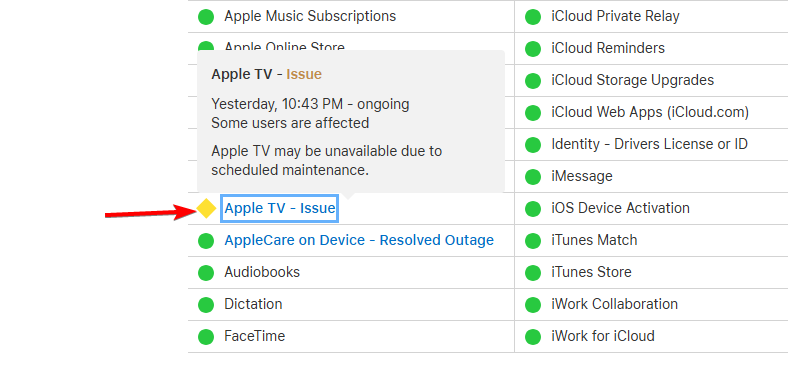
- Look for Apple TV.
- If it shows an outage, wait until Apple resolves the issue.
- If everything is green, continue to the next step.
2. Check Your Internet Connection
A weak connection can stop Apple TV from loading or playing videos.
- Open another streaming app.
- Play a video for a few seconds.
- If other apps also struggle, restart your router.
- Wait about 30 seconds.
- Reconnect your device to Wi-Fi.
- Open Apple TV again.
3. Close and Reopen Apple TV
The app may simply be stuck.
- Close the Apple TV app completely.
- Remove it from your recent apps if you’re using a phone or tablet.
- Wait a few seconds.
- Open Apple TV again.
- Try playing the same content.
4. Restart Your Device
Restarting can clear temporary app and system problems.
- Save anything you are working on.
- Restart your phone, PC, smart TV, or streaming device.
- Wait for the device to start completely.
- Open the Apple TV app.
- Try streaming again.
5. Update the Apple TV App
An outdated version can cause compatibility problems.
On iPhone or iPad:
- Open Settings.
- Tap General.
- Tap Software Update.
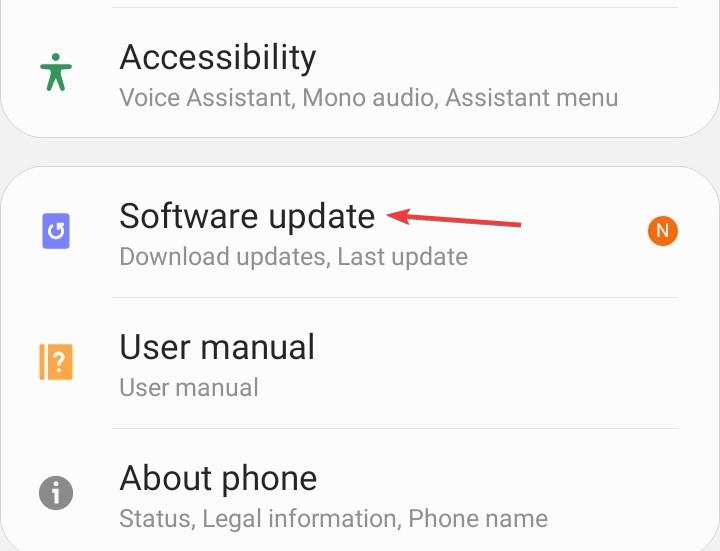
- Check for an available iOS or iPadOS update.
- Tap Update Now if one is available.
- Wait for the update to finish.
- Open the Apple TV app and try again.
On iPhone and iPad, Apple TV is integrated with the operating system, so you generally update it through iOS or iPadOS, rather than updating Apple TV separately.
On Mac:
- Click the Apple menu in the top-left corner.
- Select System Settings.
- Click General.
- Select Software Update.
- Install any available macOS update.
- Restart your Mac if requested.
- Open the Apple TV app again.
On Android:
- Open the Google Play Store.
- Search for Apple TV.
- Open the Apple TV app page.
- Tap Update if available.
- Open the app after the update finishes.
On Windows:
- Open the Microsoft Store.
- Select Library.
- Click Get updates.

- Install the Apple TV update if one appears.
- Reopen the Apple TV app.
6. Update Your Device
The problem may come from outdated system software.
- Open your device’s Settings.
- Find Software Update or System Update.
- Check for available updates.
- Install the update if one is available.
- Restart the device.
- Test Apple TV again.
7. Turn Off Your VPN
A VPN can sometimes interfere with streaming services.
- Open your VPN app.
- Disconnect from the VPN.
- Close Apple TV.
- Open Apple TV again.
- Try playing a movie or episode.
If Apple TV works after this, the VPN may be causing the connection problem.
8. Sign Out of Apple TV
If the app opens but your subscription or library is missing, refresh your account session.
- Open Apple TV.
- Open your account or profile settings.
- Select Sign Out.
- Close the app.
- Open Apple TV again.
- Sign in with your Apple Account.
- Try playing content.
9. Clear the App Cache
On Android, clearing the cache can fix loading and crashing problems.
- Open Settings.
- Go to Apps.
- Select Apple TV.
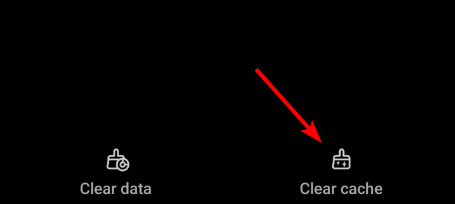
- Tap Storage or Storage & cache.
- Tap Clear cache.
- Open Apple TV again.
Avoid Clear storage unless necessary because it can remove locally stored app information.
10. Reinstall Apple TV
If nothing else works, reinstall the app.
- Uninstall Apple TV from your device.
- Restart the device.
- Open the official app store.
- Search for Apple TV.
- Install the app again.
- Sign in.
- Try playing your content.
Start with the service-status and internet checks before making bigger changes. If those do not help, updating the app, clearing its cache, signing in again, or reinstalling Apple TV should be your next steps.
If the problem continues, we also have guides for fixing Apple TV sign-in issues, resolving unsupported browser errors, and improving playback when Apple TV keeps buffering.
FAQs related to Apple TV app issues
1. Why is Apple TV not working?
A service outage, internet problem, outdated software, VPN, account issue, or corrupted app data may be responsible.
2. Why does Apple TV keep loading?
Check your internet connection first. Then restart the app and device, and install any available updates.
3. Why does Apple TV keep crashing?
Update the app and your device. On Android, clearing the Apple TV cache can also help.
4. Why won’t Apple TV play videos?
Check Apple’s service status, test your internet connection, disable your VPN, and restart the app.

Read our disclosure page to find out how can you help Windows Report sustain the editorial team. Read more



Improve this guide



User forum
0 messages