
Step by Step Guide to Check Driver Version in Windows 11


 3 min. read
  Updated on
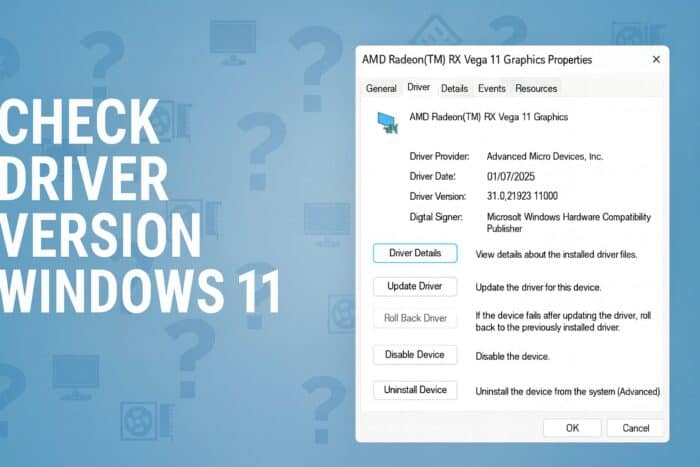
Check driver version Windows 11 when your apps misbehave, hardware stops responding, or you want to confirm compatibility before updating. The steps below show the fastest ways to verify your current drivers.
Table of contents
How to Check Driver Version in Windows 11?
1. Check driver version with Device Manager
Device Manager displays the current version and release date for every installed driver.
- Press Windows + X and select Device Manager.

- Expand the category of the hardware you want to inspect.
- Double-click the device to open Properties.
- Select the Driver tab.
- Review the Driver Version and Driver Date.

If you want to update drivers after checking the version, you can use this step-by-step guide to update drivers in Windows 11.
2. Check driver version with Windows Update
Windows Update can show optional driver updates that you can compare with your installed versions.
- Open Settings.
- Select Windows Update.
- Choose Advanced options.
- Open Optional updates.

- Compare the listed versions with the versions inside Device Manager.
3. Check driver version with Command Prompt
Command Prompt gives you a complete list of all installed drivers in one place.
- Press Windows + S and type cmd.
- Run Command Prompt as administrator.
- Enter:
driverquery /v /fo table- Check the Version column.
- Use Ctrl + F to search for a specific device.
You can also get a clearer overview of every driver on your system by reading this complete guide on how to view installed drivers in Windows 11, which helps you understand all versions currently installed.
4. Check driver version with PowerShell
PowerShell helps you see device name, version, and release date for each installed driver.
- Open PowerShell as administrator.

- Enter:
Get-WmiObject Win32_PnPSignedDriver | select DeviceName, DriverVersion, DriverDate- Scroll through the output to locate your device.
- Compare the version with the current release from your hardware manufacturer.
5. Check GPU driver version
NVIDIA
- Right-click your desktop and open NVIDIA Control Panel.
- Select System Information.
- Read the Driver Version at the top.
AMD
- Open AMD Software: Adrenalin Edition.
- Navigate to the Home or System tab.
- Check the Driver Version displayed.

If you also need to verify chipset updates for AMD systems, this guide to checking AMD chipset driver versions helps you confirm the full platform.
FAQs
You confirm compatibility, fix performance issues, and diagnose hardware errors faster.
Check them when troubleshooting, after major updates, or when adding new hardware.
Graphics, chipset, audio, network, Bluetooth, and storage drivers influence stability and speed.
You can revert to a previous version using the built-in rollback feature in Windows.
Conclusion
You can check driver version Windows 11 using Device Manager, Windows Update, Command Prompt, PowerShell, or GPU utilities. These methods help you confirm system stability, decide when to update, and troubleshoot performance issues. If a recent update breaks something, you can roll back the driver using this guide to rolling back a driver in Windows 11.

Read our disclosure page to find out how can you help Windows Report sustain the editorial team. Read more



Improve this guide


User forum
0 messages