
How to Check AMD Chipset Driver Version on Windows 11


 4 min. read
  Updated on
Ensuring that your AMD chipset driver is up to date is essential for maintaining your system’s performance and stability. An outdated driver can cause hardware issues and lower your PC’s efficiency. In this guide, we’ll show you how to check the version of your AMD chipset driver on a Windows PC.
Table of contents
How to Check AMD Chipset Driver Version?
1. Open Device Manager
To begin, open Device Manager to access the system’s hardware settings.
- Press the Windows key and type Device Manager in the search bar.
- Select Device Manager from the search results.
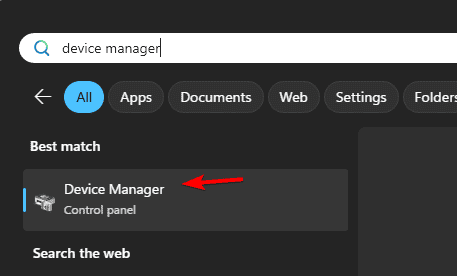
You can confirm any driver number on your system with this guide for checking driver versions in Windows 11 before reviewing your AMD chipset entry.
2. Locate the “System Devices” Section
Now that Device Manager is open, find the section where your chipset driver is listed.
- In Device Manager, expand the System Devices category.
- Look for an entry named AMD Chipset or AMD SMBus.
3. View Driver Properties
Next, you need to view the properties of the AMD chipset entry to check the driver version.
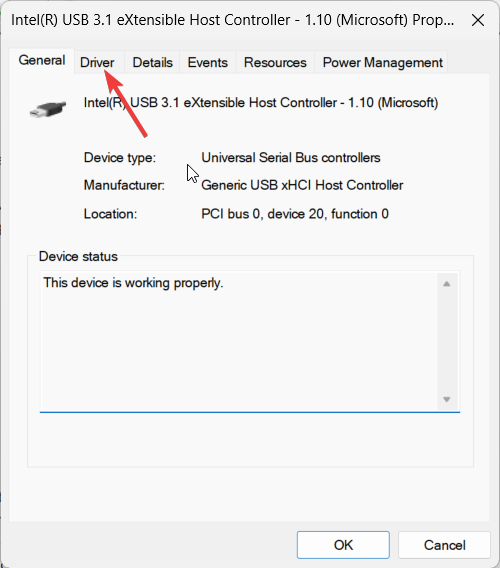
- Right-click the AMD chipset entry and select Properties.

- Go to the Driver tab in the properties window.
4. Check the Driver Version
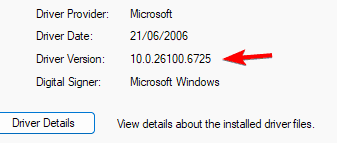
The Driver Version will tell you the exact version of the installed AMD chipset driver.
- Under the Driver tab, you’ll see the Driver Version and Driver Date.
- The version number shows the currently installed AMD chipset driver version.
5. Check for Updates (Optional)
If you’d like to update your driver, you can check for the latest version directly from Device Manager.
- To check for driver updates, click Update Driver.
- You can search for updates automatically or download the latest version manually from the AMD Driver Update Tool.
Why You Should Check Your AMD Chipset Driver Version
Regularly checking your AMD chipset driver ensures that you’re running the most stable and optimized version. Outdated drivers can lead to performance issues and even hardware malfunctions. By keeping your drivers updated, you ensure your PC remains compatible with the latest hardware and software updates.
Additional Tips for Keeping Your AMD Chipset Driver Updated
Here are some extra tips to help you keep your AMD chipset driver up to date:
- Set a schedule to check for updates after major Windows updates.
- AMD’s Auto-Detect Tool helps automatically find and install the latest chipset drivers.
- For manual updates or specific driver versions, visit the AMD Drivers and Support page.
FAQ
It’s recommended to check after each major Windows update or every 3-6 months.
Yes, you can use the AMD Auto-Detect Tool for automatic driver updates.
You can download the latest version from the AMD Drivers and Support page.
Try uninstalling the current driver and reinstalling the latest version from the AMD website. You can also perform an AMD driver rollback if necessary.
Conclusion
Checking the version of your AMD chipset driver is a quick and easy process. By staying on top of driver updates, you ensure that your system remains efficient and free of issues. Follow the steps in this guide to keep your system running smoothly. If you’re facing issues, you can check out this guide on updating AMD graphics drivers for further insights.

Read our disclosure page to find out how can you help Windows Report sustain the editorial team. Read more



Improve this guide


User forum
0 messages