
Chromecast Remote Not Working? 8 Easy Fixes to Try


 4 min. read
  Updated on
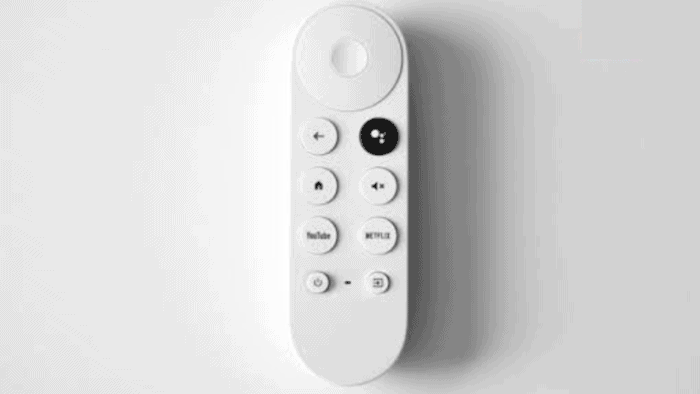
If your Chromecast remote doesn’t work out of nowhere, you are not alone. Many Chromecast users have been looking for fixes online. Whether the Chromecast remote stopped responding after an update, refuses to pair, or only some buttons work, the problem is usually easy to fix.
In this guide we have covered fixes for every common scenario, including a Chromecast remote not working and showing only white light, sometimes not even showing light, pairing failures, and connection problems.
How to fix Chromecast remote not working
1. Restart your Chromecast
This is the quickest fix for pairing and responsiveness issues.
- Unplug Chromecast from power.
- Wait 30 seconds.
- Plug it back in.
- Test the remote again.
Many users experiencing the issue of Chromecast remote not working on TV find that a simple reboot restores communication.
2. Remove and reinstall the batteries
If your Chromecast remote not working after changing batteries, don’t assume the new batteries are the issue.
Try this instead:
- Remove both batteries.
- Wait 60 seconds.
- Insert them again.
- Ensure the polarity matches the battery markings.
If the issue persists, try another fresh pair of batteries from a different brand.
3. Re-pair the remote
A lost Bluetooth connection is one of the most common causes.
To pair again:
- Hold Back + Home together for about 10 seconds.
- Wait until the LED begins blinking.
- Follow the pairing instructions on your TV.
If the Chromecast remote isn’t working and only showing white light that keeps flashing, you should know that pairing is still in progress.
4. Factory reset the remote
If pairing fails repeatedly, reset the remote completely.
- Remove one battery.
- Hold the Home button.
- Reinsert the battery while continuing to hold Home.
- Release the button when the LED changes behavior.
- Pair the remote again.
This resolves many stubborn pairing issues.
5. Check the LED behavior
The LED gives useful clues.
- No light usually means drained batteries, battery contact issues, or hardware failure.
- Blinking white light typically means pairing mode.
- Solid white light may indicate the remote is attempting to connect.
In case Chromecast remote isn’t working and there is no light even with multiple battery replacements, make sure to inspect the battery terminals for dirt or corrosion.
6. Update your Chromecast
Older firmware can occasionally create remote communication problems.
- Open: Settings > System > About > System Update
Don’t forget to Install any available updates and restart the Chromecast afterward.
7. Reset the Chromecast
If nothing else works:
- Hold the Chromecast reset button.
- Wait until the LED changes color.
- Set the device up again.
- Pair the remote during setup.
This often fixes cases where the Chromecast remote doesn’t work except the volume.
8. Replace the remote
If every troubleshooting step fails and the remote still refuses to respond, the hardware itself may have failed. Google sells replacement Chromecast Voice Remotes separately.
Why is my Chromecast remote not working?
A Chromecast Voice Remote can stop working for several reasons:
- Dead or faulty batteries.
- Bluetooth pairing failure.
- Corrupted firmware after an update.
- Temporary Chromecast software glitch.
- Physical damage.
- Low battery despite recently replacing them.
- TV HDMI-CEC conflicts.
If your Chromecast remote not working suddenly started after replacing the batteries or following a software update, start with the fixes below.
FAQs related to Chromecast remote issues
1. Why is my Chromecast remote suddenly not working?
Temporary software glitches, Bluetooth pairing failures, low battery power, or recent firmware updates are the most common reasons. Restarting Chromecast and repairing the remote usually fixes the issue.
2. How do I resync my Chromecast remote?
Press and hold the Back and Home buttons together until the LED starts blinking, then follow the pairing instructions displayed on your TV.
3. How do I reboot my Chromecast remote?
Remove both batteries for about one minute, then reinstall them. If necessary, perform a factory reset before pairing it again.
4. Can a Chromecast remote go bad?
Yes. Like any Bluetooth remote, internal hardware can eventually fail because of worn buttons, battery contact damage, liquid exposure, or age.
5. Can I turn on Chromecast without a remote?
Yes. You can use the Google Home app on Android or iPhone, HDMI-CEC through your TV remote (if supported), or pair a replacement Chromecast Voice Remote.
6. Why won’t my Chromecast remote pair?
The most common causes include weak batteries, Bluetooth interference, outdated Chromecast firmware, or a failed pairing session. Resetting both the remote and Chromecast usually restores the connection.

Read our disclosure page to find out how can you help Windows Report sustain the editorial team. Read more



Improve this guide
User forum
0 messages