
How to Disable Bluetooth on Windows 11 (Simple Steps)


 3 min. read
  Published on
Bluetooth is handy for connecting wireless accessories, but sometimes you may want to turn it off. Whether you are saving battery, troubleshooting a device, or protecting your privacy, disabling Bluetooth on Windows 11 only takes a few clicks. Below are all the effective ways to do it.
Table of contents
How to Disable Bluetooth on Windows 11?
1. Turn Off Bluetooth from Quick Settings
The fastest way to disable Bluetooth on Windows 11 is from Quick Settings.
- Click the Network, Sound, and Battery icon on the taskbar.

- In the Quick Settings panel, find the Bluetooth icon.

- Click the icon to turn Bluetooth off.
- When the icon turns gray, Bluetooth is disabled.
This method is ideal if you frequently switch Bluetooth on and off. If you later need to reconnect your headset or controller, you can turn Bluetooth back on just as easily.
2. Disable Bluetooth via Settings
If Quick Settings does not appear or you want finer control, open the Settings app.
- Press Windows + I to open Settings.
- Select Bluetooth & devices from the left panel.
- Locate the Bluetooth toggle at the top.

- Switch it to Off.
Your computer will stop discovering or connecting to nearby Bluetooth devices once this option is disabled. The same menu is also where you can enable Bluetooth on older Windows versions.
3. Disable Bluetooth Through Device Manager
If you prefer to stop Bluetooth hardware from running completely, you can do it from Device Manager instead of Settings.
- Press Windows + X and choose Device Manager.

- Expand the Bluetooth category.
- Right-click your Bluetooth adapter, such as Intel Wireless Bluetooth.
- Select Disable device and confirm your choice.
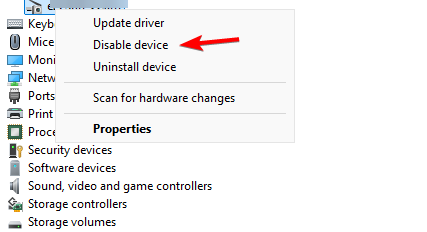
This ensures Windows will not automatically re-enable Bluetooth until you manually turn it back on.
4. Turn Off Bluetooth Services (Advanced)
For full control, you can stop background Bluetooth services entirely. This option is more advanced but useful when you want to avoid automatic connections.
- Press Windows + R, type services.msc, and press Enter.
- Scroll down to Bluetooth Support Service.
- Right-click it and choose Properties.
- Under Startup type, select Disabled.
- Click Apply, then OK.
After restarting, Bluetooth will remain off until you enable the service again. Afterward, you can still pair multiple Bluetooth devices later when the service is restored.
Why Disable Bluetooth on Windows 11
Turning off Bluetooth helps conserve battery life, limits background pairing requests, and enhances privacy. It is especially useful when you are traveling, working in public spaces, or simply not using wireless peripherals.
FAQs
Disabling Bluetooth saves power, reduces interference, and helps protect against unauthorized connections.
Yes. All connected devices are immediately disconnected and remain inactive until you turn Bluetooth back on.
Yes. You can easily toggle it on again from Quick Settings or the Settings app.
No. Wi-Fi and Bluetooth use separate radio systems, so disabling one will not interfere with the other.
Conclusion
Disabling Bluetooth on Windows 11 is quick, reversible, and effective. Whether you prefer using Quick Settings, the Settings app, or Device Manager, each method lets you regain control over your wireless connections. When you need to use your accessories again, you can re-enable Bluetooth in seconds.

Read our disclosure page to find out how can you help Windows Report sustain the editorial team. Read more



Improve this guide




User forum
0 messages