
Dr.Fone Android Data Recovery Review: Recover Deleted Data Without Root


 5 min. read
  Published on
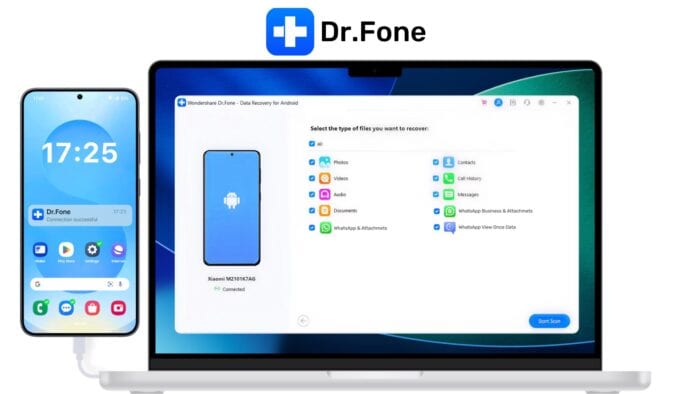
Losing important data on Android happens surprisingly easily. Whether you accidentally delete photos, clear chats, factory reset your phone, or damage the device, it can be difficult to retrieve files when they’re gone from the interface.
The good news? Dr.Fone Android Data Recovery simplifies this process with a recovery tool that works for virtually any Android device.
I recently got hands-on with the Windows version, but you can also recover Android data on a Mac or use the standalone Android app.
Key Features
Dr.Fone Android Data Recovery provides a comprehensive range of features for recovering almost any type of data. This includes photos, videos, audio files, WhatsApp messages, contacts, SMS conversations, call logs, documents, and other file types.
Scan and Preview
The process starts by connecting the Android device to a PC via USB. It then performs a deep scan to identify recoverable files.
Rather than immediately restoring everything, the program displays recoverable content in organized categories you can preview.

This is particularly useful because many recovery tools provide vague results or force you to recover entire storage partitions blindly.
The preview system also helps determine whether files are genuinely recoverable before purchasing the full version. You can verify deleted images and conversations before committing to recovery.
Moreover, instead of restoring everything at once, you can scan your device and choose specific files to recover. This helps save time and avoid restoring unnecessary data.
Recover from Any Device

Because your device is connected to Windows, the software offers a wide variety of recovery options. Accidental deletion is the most obvious scenario, but the software is also useful when recovering data from:
- Water-damage
- Broken screens
- Boot loops
- Failed Android updates
- Factory resets
- Crashed systems
- Virus infections
I tested it on my old Huawei that is unable to navigate due to a cracked screen. Because it can access internal storage, the phone itself does not have to be fully functional.
In basic broken screen scenarios, you can even control the device directly on the PC under the “Recover from Broken Phone” option.
Dr.Fone also supports thousands of Android devices from brands such as:
- Samsung
- Google Pixel
- Xiaomi
- OnePlus
- Motorola
- Oppo
Compatibility varies slightly depending on Android version and manufacturer restrictions, but overall support is broader than many competing recovery tools.
WhatsApp Media Server
One standout feature is the WhatsApp Media Server. As well as recovering regular WhatsApp data, it can also help you save temporary WhatsApp media files, including “View Once” content.

This is most successful when the data was stored in a backup before it was opened or is still accessible as temp data in the device’s cache.
Windows Guide
It couldn’t be easier to get started on Windows.
1. Download and install Dr.Fone
Install the Windows software from the official Wondershare website and launch the application.
2. Select Android Data Recovery
From the main dashboard, choose the Android Data Recovery module.
3. Connect your Android device

When prompted, use a USB cable to connect the device to your PC. You may need to enable USB debugging through Android Developer Options.
4. Choose file types
Select the types of data you want to recover, such as photos, videos, contacts, or WhatsApp messages.
5. Start the scan
Dr.Fone will begin scanning the device for recoverable data.
6. Preview results
Once scanning is complete, browse recoverable files through the preview interface.
7. Recover selected files
Choose the files you want and restore them to your PC.
The process is heavily guided throughout, making it easy for anyone to recover their data.
FAQ
Does Dr.Fone Android Data Recovery require root access?
No. Dr.Fone Android Data Recovery does not require root access for Android data recovery. The software supports a no-root recovery workflow, allowing Android devices to be connected to a Windows PC or Mac, scanned for recoverable data, and restored after previewing the scan results.
The standard process includes connecting the device, enabling USB debugging when prompted, scanning for supported data types, previewing recoverable files, and recovering selected items to the computer.
Where is the recovered data stored?
Dr.Fone Android Data Recovery primarily recovers files to your PC, not directly back onto the Android device itself. This is desired if the device itself is broken or unstable.
If you previously used Dr.Fone to create a full backup of your phone to your PC, you can use the “Restore to Device” feature to push that specific backup file back onto your phone.
Is it safe to use?
Yes, Dr.Fone is developed by Wondershare, a long-established software company with widely used media and utility tools.
What are the recovery limitations?
Dr.Fone is unable to recover data from internal device storage if it has already been overwritten by new data and files.
To improve the chances of recovery, you should stop using the device and disconnect it from the internet.
Pricing and Download
You can download Dr.Fone Android Data Recovery for Windows for free and use the trial to view exactly what data is recoverable.
To make a full recovery, you will need one of the following premium plans:
- $34.95/mo
- $39.95/yr
- $49.95 Lifetime
Dr.Fone Android Data Recovery Review – Verdict
Overall, Dr.Fone Android Data Recovery is one of the most accessible Android recovery tools currently available. Its step-by-step interface, broad device support, and preview features make it a viable solution for everyone.
While no recovery software can guarantee success in every case, Dr.Fone excels when it comes to recently deleted files, WhatsApp recovery, and damaged-device situations.


Read our disclosure page to find out how can you help Windows Report sustain the editorial team. Read more



Improve this guide
User forum
0 messages