
How to Enable Windows Boot Manager Quickly on Your PC


 3 min. read
  Published on
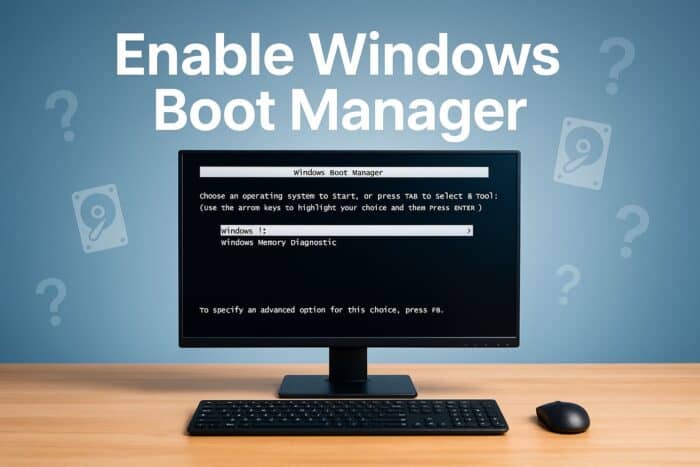
Windows Boot Manager lets you choose which operating system to start. If it’s disabled or missing, your PC may fail to boot. Follow these quick methods to enable it again.
Table of contents
How to Enable Windows Boot Manager?
1. Enable Using Command Prompt
If you prefer a quick command-line method, you can turn on the boot manager using Command Prompt.
- Press Windows + S, type cmd, and select Run as administrator.
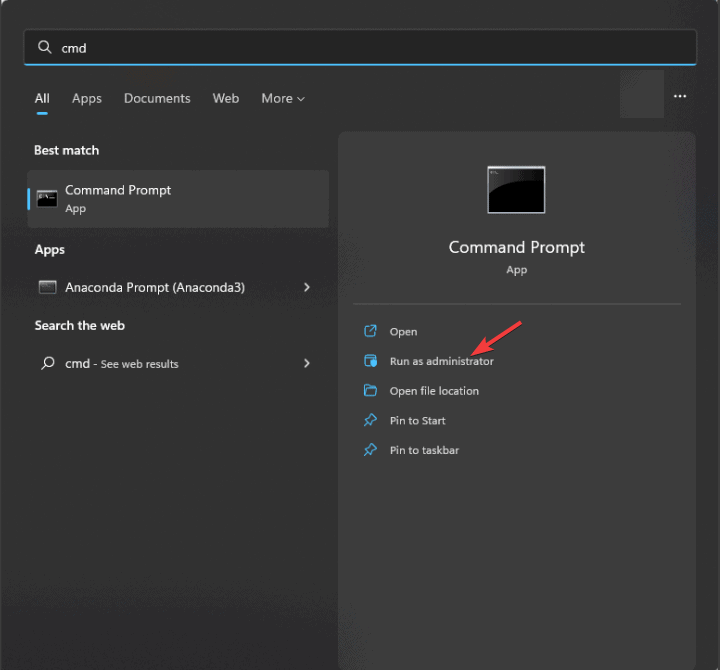
- Type the following command:
bcdedit /set {bootmgr} displaybootmenu yes
- Press Enter and restart your PC.
For more control over startup order, see how to change the boot order in Windows 11.
2. Enable Through System Configuration
This method uses the built-in System Configuration tool to manage boot settings visually.
- Press Windows + R, type msconfig, and press Enter.
- Open the Boot tab.
- Check Make all boot settings permanent (optional), then click Apply and OK.
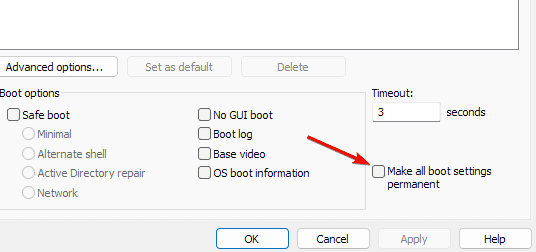
- Restart your computer.
You can also explore other Windows 11 boot settings to optimize startup behavior.
3. Use EasyBCD (Third-Party Tool)
If you want an easier graphical interface, EasyBCD simplifies managing boot entries.
- Install EasyBCD and open it.
- Go to Edit Boot Menu and ensure Windows Boot Manager is listed.
- Click Save Settings and restart your PC.
4. Rebuild the Boot Configuration Data
If Boot Manager is missing or corrupted, rebuilding the BCD manually can restore it.
- Boot from a Windows installation USB or DVD.
- Select Repair your computer then Troubleshoot then Command Prompt.
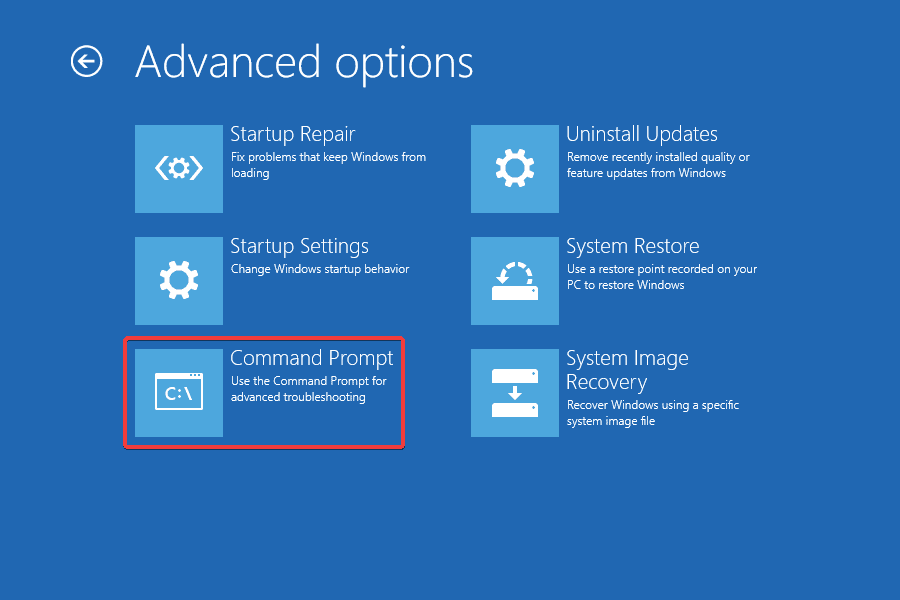
- Run these commands one by one: bootrec /fixmbr then bootrec /fixboot then bootrec /rebuildbcd
- Restart your PC.
What Is Windows Boot Manager?
Windows Boot Manager (BOOTMGR) is a built-in Windows component that runs before your operating system. It ensures your PC starts correctly and lets you choose between different installed systems.
Why Enable Windows Boot Manager?
- It ensures smooth startup for your system.
- It helps fix boot-related errors.
- It allows you to manage multiple operating systems efficiently.
FAQs
Open Command Prompt and run bcdedit. If bootmgr appears with settings, it is active.
Yes, but it is not recommended unless you have a single operating system.
Windows will not load and you will need to repair it using installation media.
No. BIOS initializes hardware while Boot Manager loads the operating system.
Conclusion
Enabling Windows Boot Manager ensures reliable startups and gives you control over boot options. Use Command Prompt, System Configuration, or EasyBCD to restore it quickly. For broader performance tips, see how to optimize PC startup.

Read our disclosure page to find out how can you help Windows Report sustain the editorial team. Read more



Improve this guide




User forum
0 messages