
How To Enable Windows Installer Service And Fix MSI Errors


 3 min. read
  Published on

If installers fail or show service related errors, the Windows Installer Service likely stopped. This guide shows quick ways to enable the service so installations start working again.
Table of contents
How To Enable Windows Installer Service?
1. Start The Service From Services Panel
This method quickly restores the service on both Windows 11 and Windows 10.
- Press Windows key + R.
- Type services.msc and press Enter.

- Scroll down and select Windows Installer.
- Click Start on the left panel.
- Set Startup type to Manual.
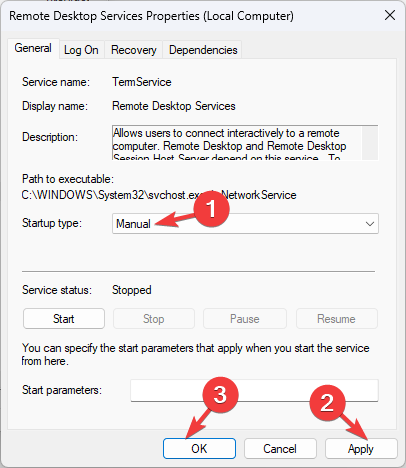
- Click Apply, then OK.
If the entry does not appear in the list, you might be dealing with a missing service. This guide explains how to recover a Windows Installer Service that does not show up.
2. Restart The Service From Command Prompt
You can restart the service when installers freeze or stop responding.
- Press Windows key, type cmd.
- Select Run as administrator.

- Type net stop msiserver and press Enter.
- Type net start msiserver and press Enter.
- Close the window and try the installer again.
3. Fix The Service From System Configuration
This option helps when background services were disabled manually.
- Press Windows key + R.
- Type msconfig and press Enter.

- Open the Services tab.
- Check Windows Installer.
- Click Apply, then OK.
- Restart your PC.
4. Register The Windows Installer Engine Again
Re-registering the engine fixes corruption issues.
- Press Windows key, type cmd.
- Select Run as administrator.
- Type msiexec /unregister and press Enter.
- Type msiexec /regserver and press Enter.
- Restart your PC.
What Is Windows Installer Service
Windows Installer Service handles installation, removal, and updates for MSI based apps. When the service becomes inaccessible, installers often trigger errors that block setup. You can learn more about this issue in a detailed guide that explains why the Windows Installer Service could not be accessed.
Why Windows Installer Service Stops Working
Corruption inside system components often prevents installers from running correctly. Issues with related components such as the Windows Modules Installer can also affect MSI based setups. If you need help restoring that component, use this guide on the Windows Modules Installer Service download process.
FAQs
Installers fail when the Windows Installer engine stops responding or becomes disabled. Enabling and restarting the service usually solves the issue.
It manages MSI based installations, updates, repairs, and removals.
You can, but the service automatically starts when required. Disabling it manually can cause setup failures.
Yes. Starting or restarting the service requires admin privileges.
After you enable or restart the Windows Installer Service, most setup issues clear up immediately. If problems continue, check for missing service components or system corruption and apply the recommended fixes from the linked WindowsReport guides.

Read our disclosure page to find out how can you help Windows Report sustain the editorial team. Read more



Improve this guide



User forum
0 messages