
How to Fix Windows Installer Service Missing in Windows 11


 3 min. read
  Updated on
If you see “Windows Installer Service could not be accessed” on Windows 11, the system cannot start the installer engine required for app setup and updates. Use the steps below to restore it quickly.
Table of contents
What can I do if Windows Installer Service is Missing?
1. Start the Windows Installer Service
Begin by confirming the service is enabled and running.
- Press Windows + R, type services.msc, and press Enter

- Find Windows Installer and double-click it
- Set Startup type to Manual
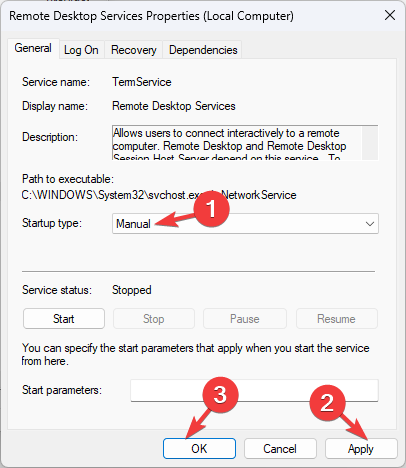
- Click Start, then select Apply and OK
- Retry your installation
Verify and start the service to resolve core access errors, as detailed in this Windows Installer Service guide. You can also check this detailed guide on how to enable Windows Installer Service for additional steps when the service will not start or becomes unresponsive.
2. Re-register the Windows Installer
Re-registering refreshes the Installer’s registration and fixes missing configurations.
- Open the Start menu, type cmd, right-click Command Prompt, and choose Run as administrator

- Unregister the service, then re-register it
msiexec /unregister msiexec /regserver - Restart your computer and test the installer again
3. Repair System Files
Fix corrupted system components that can break Windows Installer.
- Open Command Prompt (Admin) and run System File Checker
sfc /scannow
- If errors remain, run Deployment Image Servicing and Management
DISM /Online /Cleanup-Image /RestoreHealth - Restart your PC
Fix corrupted components that trigger installer package errors, similar to issues covered in this installer package troubleshooting guide
4. Reinstall Windows Installer Redistributable
Replace missing or damaged Installer files using the official package.
- Go to the Microsoft Update Catalog
- Search for Windows Installer Redistributable for Windows 11
- Download the latest build for your architecture
- Run the installer
- Restart your PC
Replace missing Installer files via the Microsoft Update Catalog, and for related service downloads see this Windows Modules Installer Service download guide.
5. Check the Registry for MSIServer Entry
Ensure Windows points to the correct Installer executable.
- Press Windows + R, type regedit, and press Enter

- Navigate to
HKEY_LOCAL_MACHINE\SYSTEM\CurrentControlSet\Services\MSIServer - Open ImagePath and confirm the value is
%systemroot%\System32\msiexec.exe /V - Save changes and restart your PC
FAQs
It can disappear due to registry corruption, malware, or damaged system files.
Yes, install the Windows Installer Redistributable and reboot.
Yes, but use it only after trying the steps above.
Yes, many desktop apps still depend on it.
Keep Windows updated, avoid aggressive registry cleaners, and run regular malware scans.
Conclusion
Start the service, re-register it, and repair core files to restore Windows Installer on Windows 11. If needed, reinstall the redistributable and confirm the MSIServer registry path. The links above cover related Installer errors and service packages and are included once for clarity.

Read our disclosure page to find out how can you help Windows Report sustain the editorial team. Read more



Improve this guide

User forum
0 messages