
ERROR_MULTIPLE_FAULT_VIOLATION: 5 Tested Fixes


 2 min. read
  Published on

If you’re seeing the ERROR_MULTIPLE_FAULT_VIOLATION on your PC, it usually points to a hardware issue, outdated drivers, or system file corruption.
Here’s how you can fix it step by step.
How to fix ERROR_MULTIPLE_FAULT_VIOLATION
1. Run hardware diagnostics
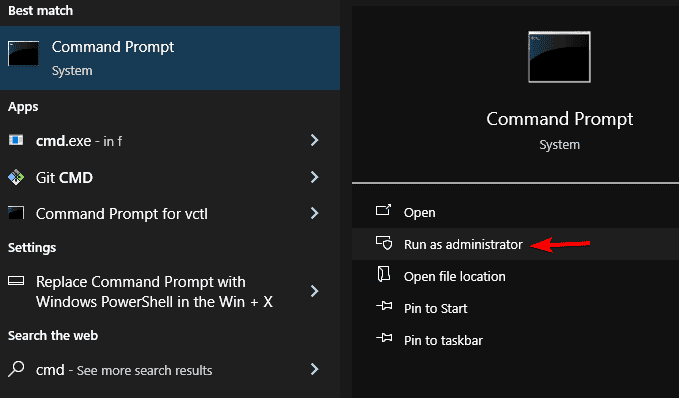
- Type Windows key + cmd and Run Command Prompt as Administrator.

- Type chkdsk /f /r and press Enter.

- Replace C: with the drive letter you want to check (if it’s not your C drive).
- It will ask if you want to schedule the check for the next reboot. Type Y and press Enter.
- Restart your PC
When your PC will restart, it’ll look for disk issues on boot and automatically fix them.
2. Update drivers
- Type Device Manager in the search bar and open it.

- Look for any devices with a yellow triangle next to them (indicating problems).
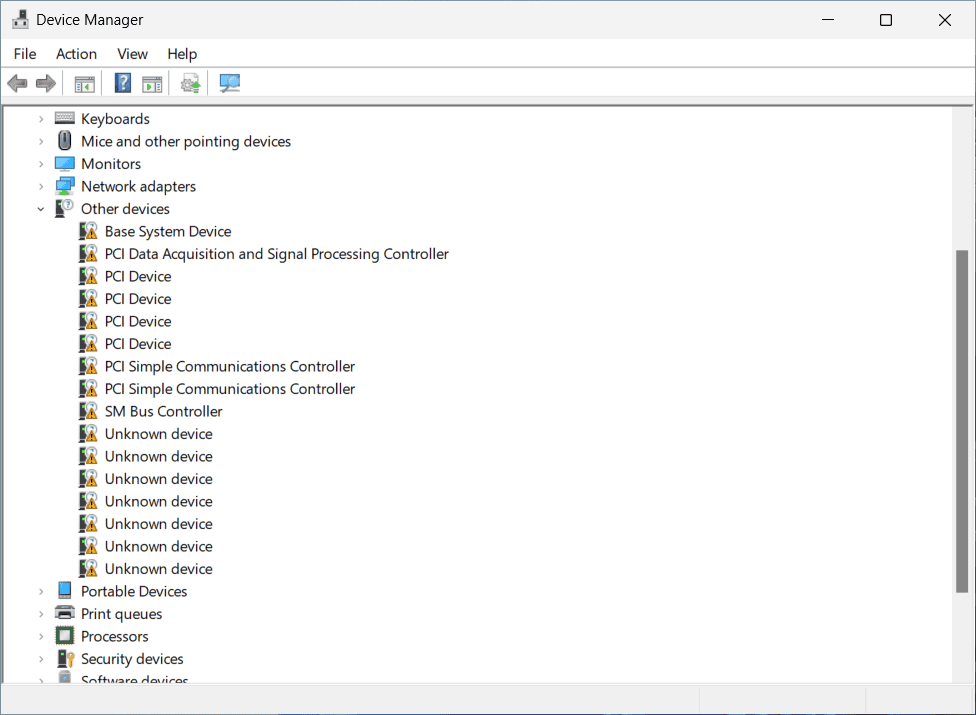
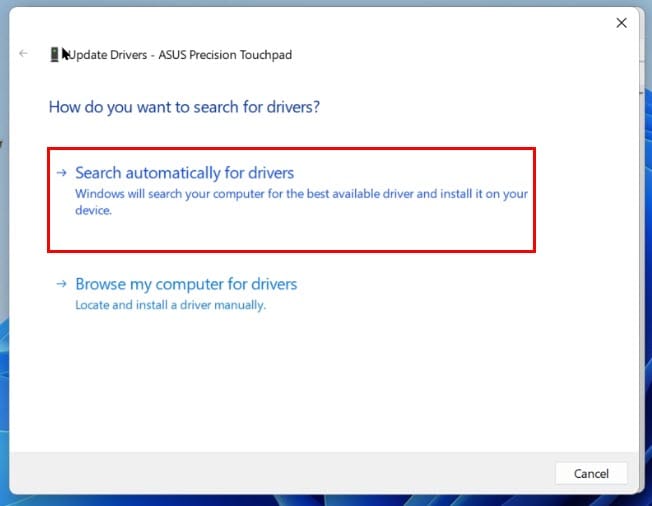
- Right-click the device > Update driver > Search automatically for drivers.
3. Perform a system restore
- Go to Control Panel.

- Search for Recovery and open the section.

- Select Open System Restore.

- Pick a restore point created before the error started.

- Follow the on-screen instructions to complete the process.
4. Scan for malware
- Open Windows Settings.

- Go to Update & Security.
- Select Windows Security.
- Pick Virus & Threat Protection.

- Select Full scan.

- Run the scanner and remove any found threats.
- Restart your PC and check if ERROR_MULTIPLE_FAULT_VIOLATION persists.
5. Fix system file corruption
- Press the Windows key, type cmd, and Run the Command Prompt as administrator.
- Type sfc/scannow and press Enter.
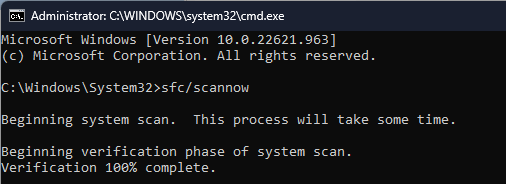
- Wait for the scan to complete and reboot your PC. This tool scans for and automatically fixes corrupt system files that lead to ERROR_MULTIPLE_FAULT_VIOLATION errors on your PC.
- Restart your PC.
Like ERROR_PORT_NOT_SET and CANT_ENABLE_DENY_ONLY, the ERROR_MULTIPLE_FAULT_VIOLATION is is usually tied to hardware issues, outdated drivers, or system file corruption.
By following the steps above, you can diagnose and fix most causes of the error. If you’re still having trouble with it, leave a comment below.


Read our disclosure page to find out how can you help Windows Report sustain the editorial team. Read more



Improve this guide

User forum
0 messages