
Janitor AI Not Working Today? Here's Why & How to Fix It
Add or remove your VPN depending on the situation


 5 min. read
  Updated on
Key notes
- Some sites are geo-restricted, which means you need to set your location to an approved one using a VPN.
- This could be the reason Janitor AI is not working, so try your luck by switching locations.
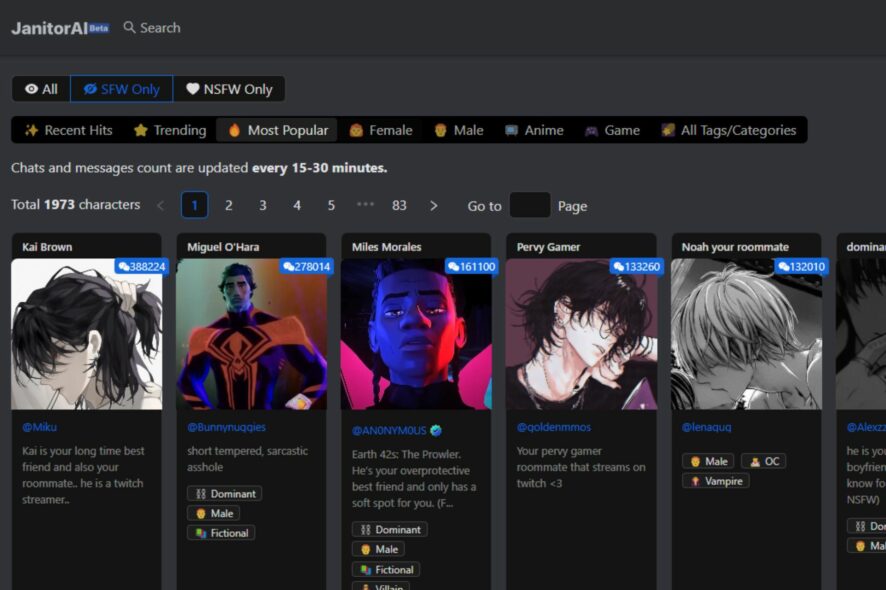
Getting immediate responses to your queries whenever you try out any AI software makes it worth your while. However, if you have to deal with long wait times, there might be a problem. Janitor AI is one of these tools; if it takes forever to load, it may not be working.
We’ve already discussed what to do if Perplexity AI is not working, so check our article. For this guide, we get to the root cause of why Janitor AI is not working and provide possible solutions.
How can I fix the Janitor AI not working issue?
First off, try the following before any technical solutions:
- Close any background processes and apps taking up extra memory.
- Switch to an Ethernet cable if available to enhance your connection.
- Try using a mobile hotspot if your internet connection is experiencing downtimes.
- Check if there are any bandwidth limits enforced and disable them where necessary.
- Ensure your browser is up-to-date.
- Verify that the Janitor AI server status is up and running.
- Try restarting your browser or switching to another one.
1. Clear the browser cache
- Launch your browser, and for this step, we shall be using Google Chrome.
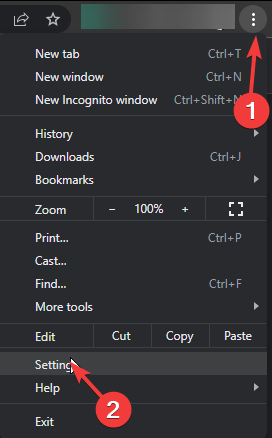
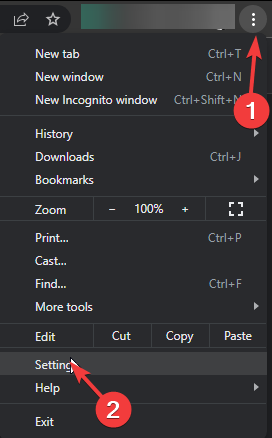
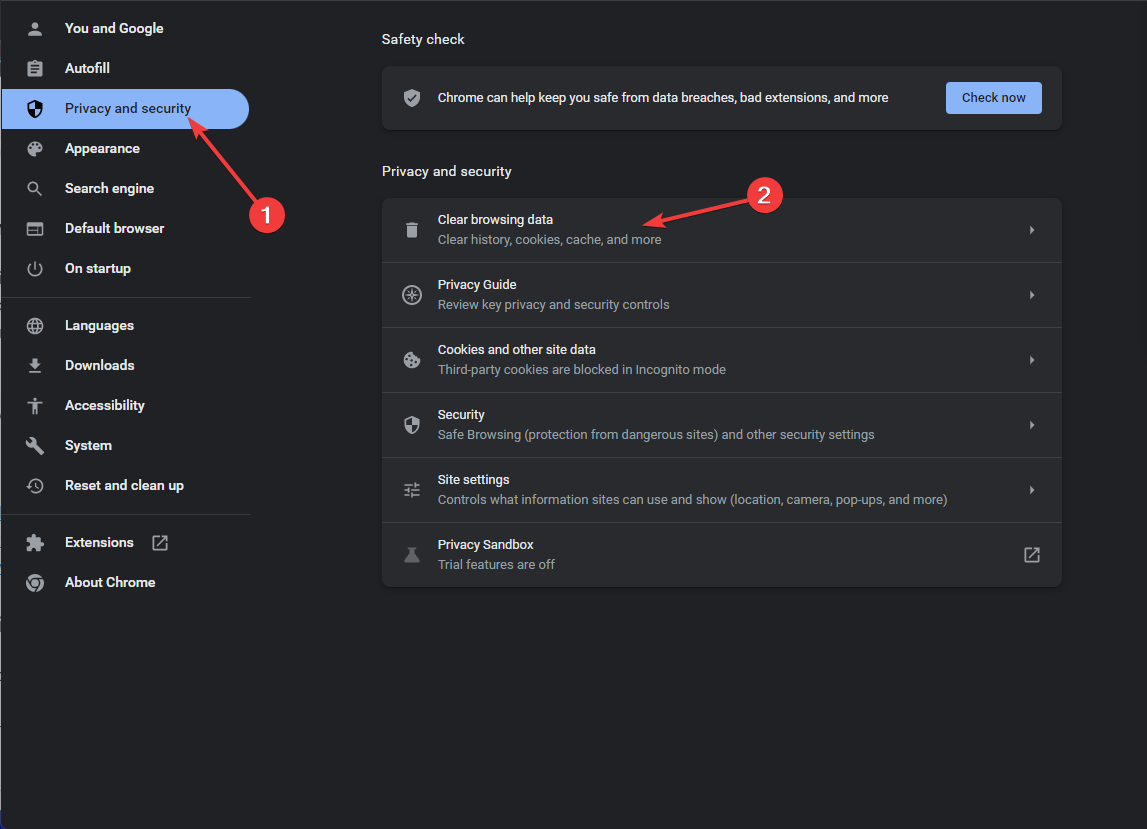
- Click the three horizontal dots and select Settings.
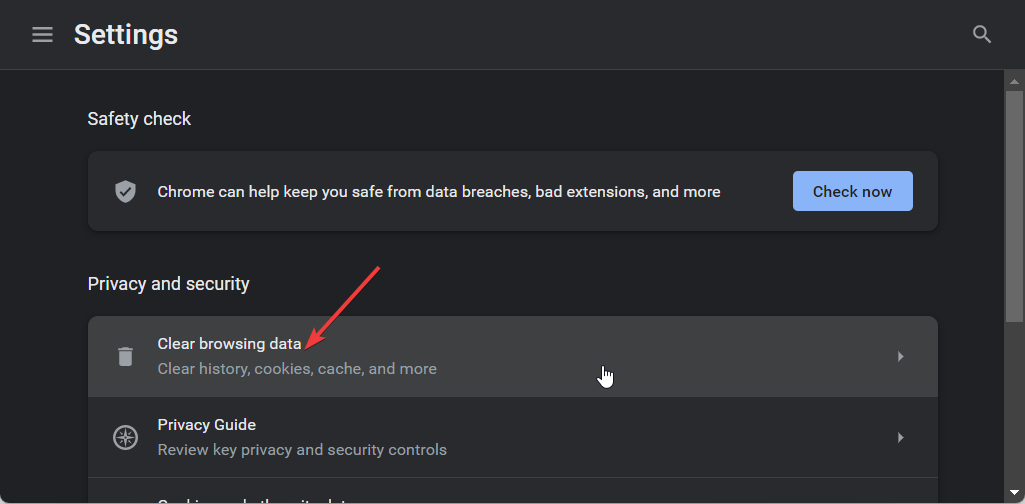
- Go to Privacy and security and click Clear browsing data.
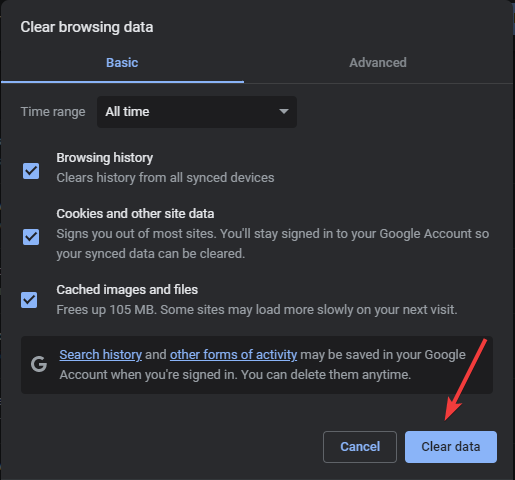
- Select Browsing history, Cookies and other site data, & Cached images and files, then click Clear data.
2. Disable the browser extensions
- Launch your Chrome browser, and in a new tab, enter the following address:
chrome://extensions/ - Peruse through your extensions and toggle the Disable button for any suspicious-looking ones.
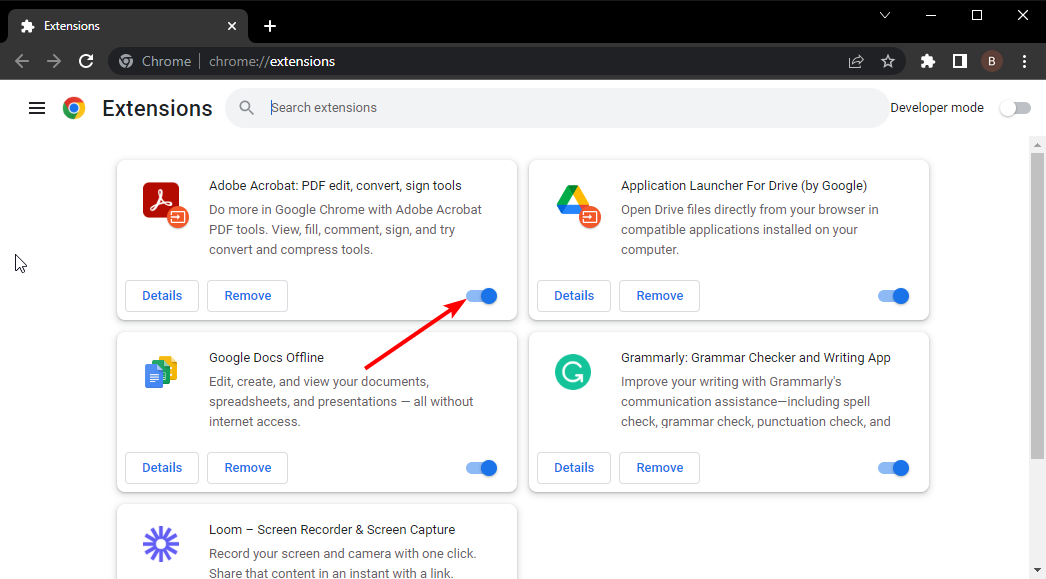
- Repeat this step until you find the culprit.
3. Reset your browser
- Open your Chrome browser and click on the three vertical ellipses at the top right corner.
- Select Settings.
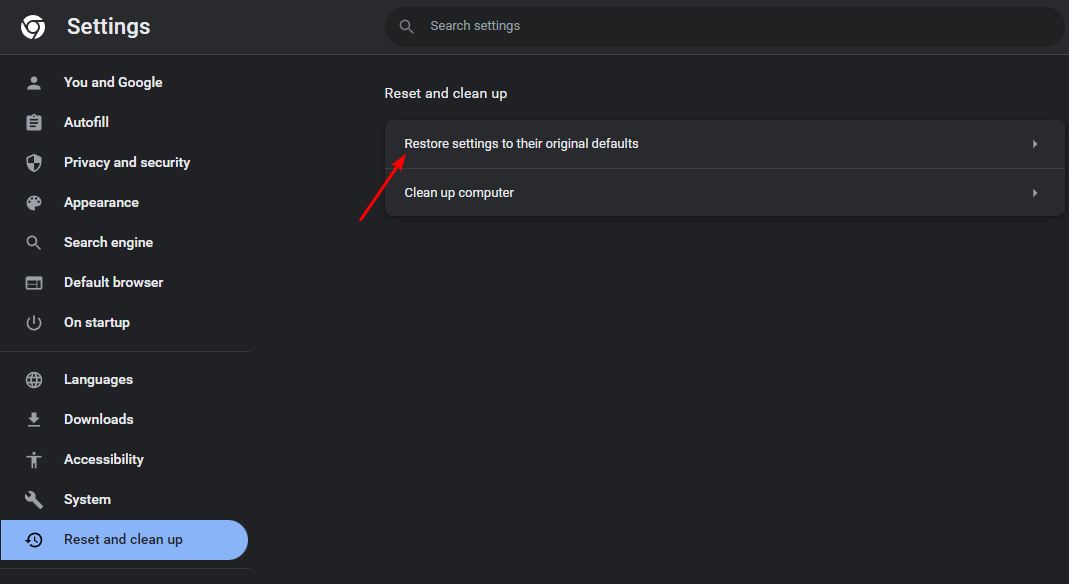
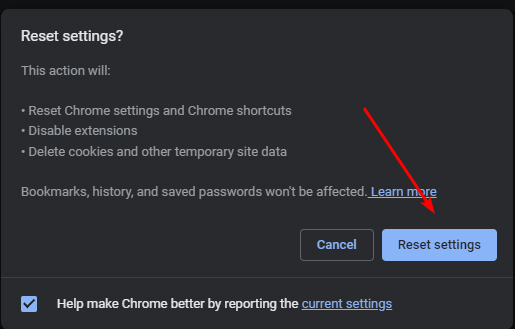
- Next, click on Reset and cleanup, then select Restore settings to their original defaults.
- Confirm Reset settings in the next dialog box.
4. Disable VPN
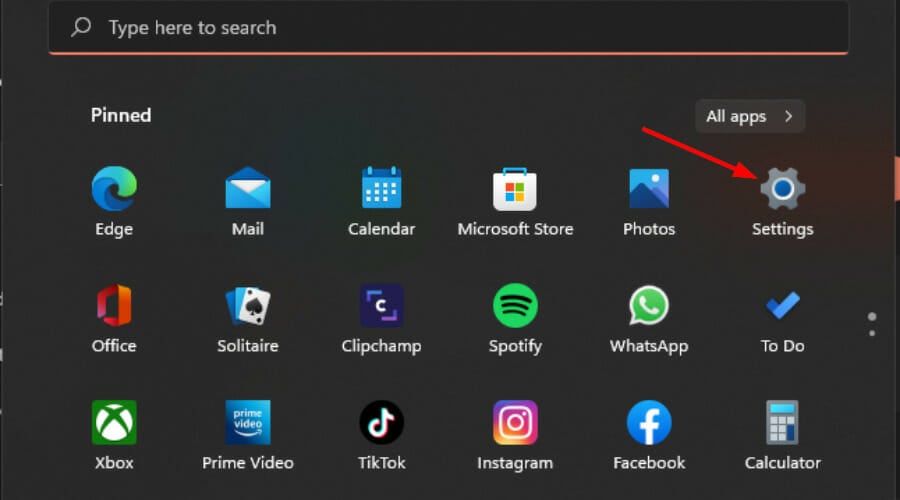
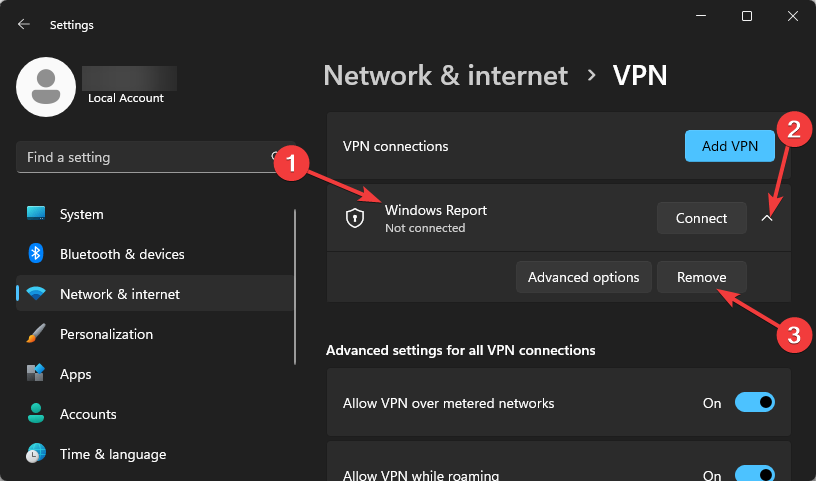
- Press the Windows key and select Settings.
- Next, select Network & internet and click on VPN in the right-side menu.
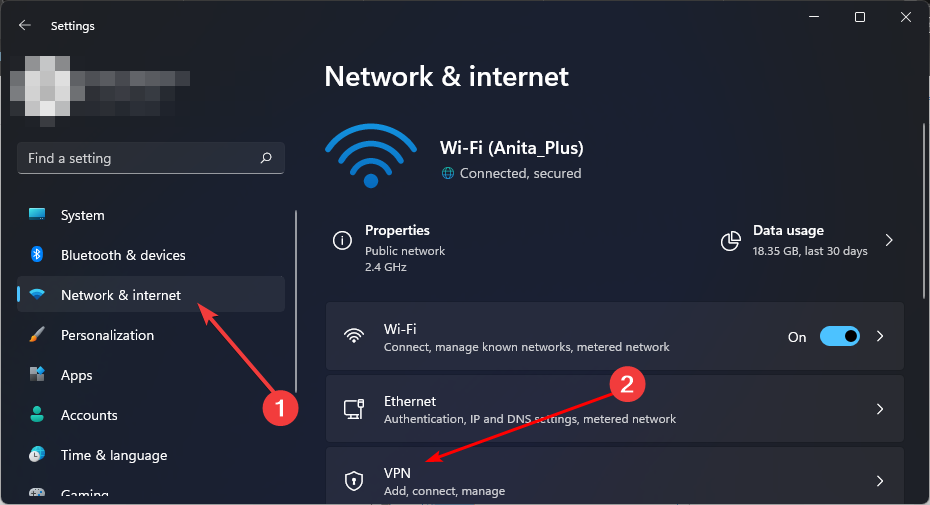
- Select the VPN connection you want to disable, click on the drop-down and select Remove.
5. Disable Proxy
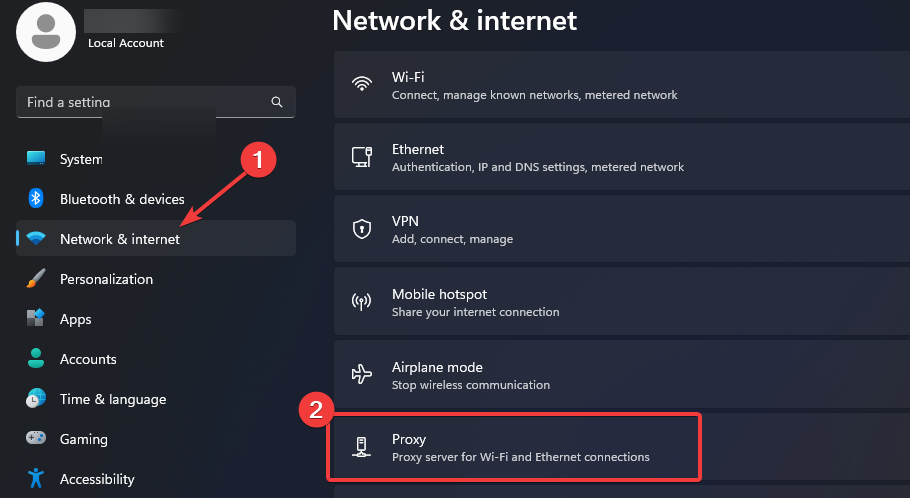
- Press the Start Menu icon and select Settings.
- Click on Network & Internet on the left pane, then scroll down and click Proxy on the right pane.
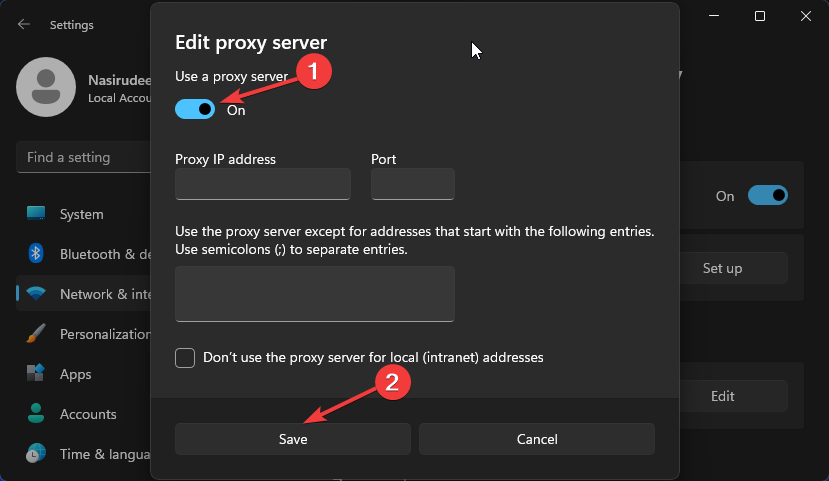
- Select Edit next to Use a proxy server option in the Manual proxy setup section, toggle off Use a proxy server and click on Save.
Proxy servers are a great way to protect your privacy while surfing the web. They can also bypass blocked websites or access content otherwise unavailable in your country.
The downside is that using proxies can slow down your connection significantly. This is because they route all your traffic through their servers, adding extra steps and delays before reaching the destination site or service. By the time your connection has been established, you may receive another Janitor AI internal server error.
Why is Janitor AI not working or so slow today?
With all the tasks AI software can perform, its efficiency and performance may sometimes be subpar. This is due to one or more of the following reasons:
- Poor internet connection – If you’re using a wireless connection, it tends to be slower than wired connections.
- Bandwidth limits – If your ISP has set bandwidth limits, you may have trouble accessing some sites.
- Too many processes – Having too many open processes and background apps can hog up your memory. This, in turn, makes your PC slow.
Summing Up
If none of these methods get your Janitor AI working again, it may be beyond you, and it is time to leave it to the experts. Janitor AI has a responsive customer care contact where you can raise queries. You should be able to get feedback on your problem once you reach out to them.
FAQs related to Janitor AI issues
1. Why is Janitor AI not working?
Janitor AI can stop working because of server outages, browser issues, network problems, login sessions, or model provider errors.
2. Is Janitor AI down right now?
If Janitor AI fails across different browsers, devices, and networks, the problem may be on the service side. Check its current service status before changing your settings.
3. Why is Janitor AI stuck on generating a response?
A stuck response can be caused by server congestion, provider limits, or problems with the selected model or proxy.
4. Why is Janitor AI showing a 429 error?
A 429 error generally indicates that a model provider or proxy has reached a rate limit. Waiting before trying again can resolve temporary limits.
5. Why am I getting a 401 error on Janitor AI?
A 401 error can indicate an invalid authentication session, rejected API credentials, or an authorization problem. Logging out and signing back in can help with session-related issues.
6. Why are my Janitor AI chats not loading?
Try refreshing the page, opening Janitor AI in an incognito window, or testing another browser. Corrupted cookies, cached data, or extensions can interfere with loading.
Well, that sums up our article, and we hope you’ve gotten an answer as to why your Janitor AI was not working as well as a solution. You can also check some of the useful FAQs below. Let us know in the comment section below if you have further suggestions or thoughts.


Read our disclosure page to find out how can you help Windows Report sustain the editorial team. Read more



Improve this guide

User forum
0 messages