
Handle Error On Critical Thread 0x000001ED: How to Fix it
Updating your drivers can prevent this error


 3 min. read
  Published on

HANDLE_ERROR_ON_CRITICAL_THREAD is a BSOD error, and it’s not very common as it usually affects developers. However, if you ever encounter it, you can fix it by following the steps from this guide.
How can I fix HANDLE_ERROR_ON_CRITICAL_THREAD?
1. Update your system and drivers
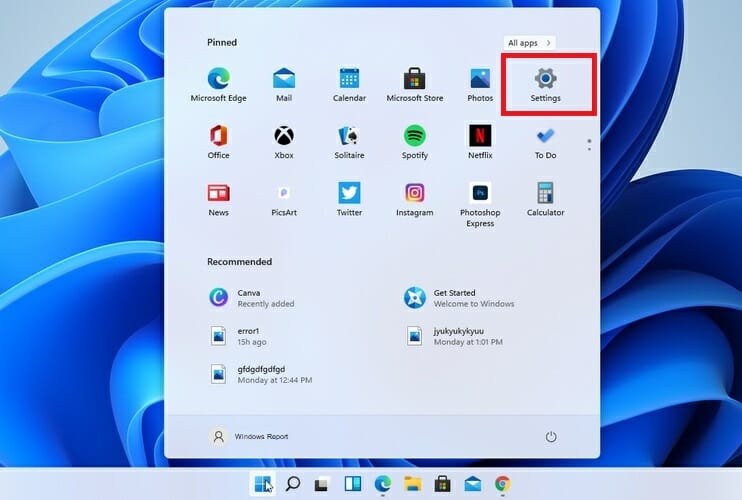
- Click Start and select Settings.
- Navigate to Windows Update and click on Check for updates.
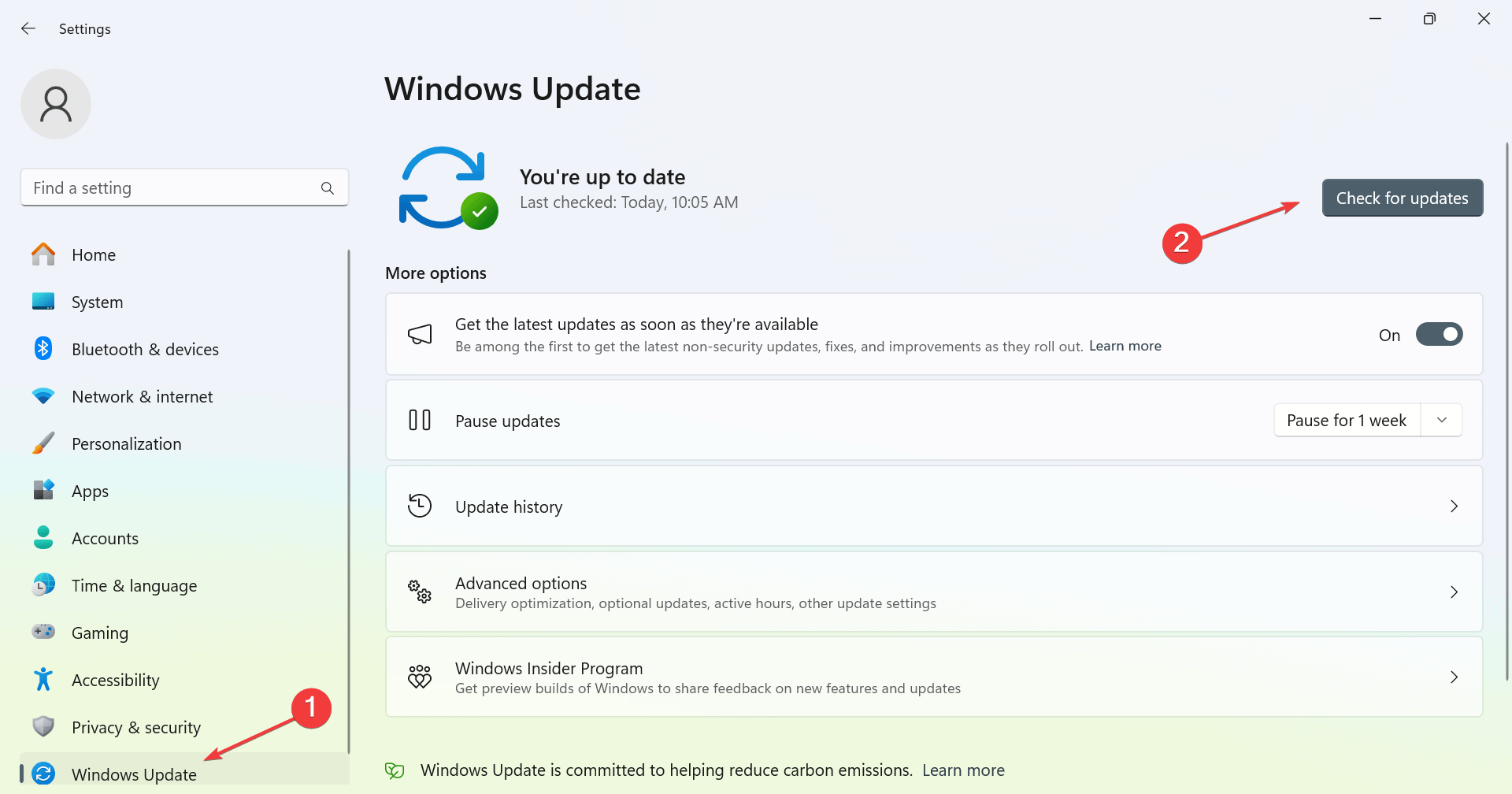
- If any updates are available, they will be downloaded in the background.
In addition to updating your system, it’s also important to update drivers on Windows 11, especially your motherboard and GPU driver.
2. Run SFC and DISM scans
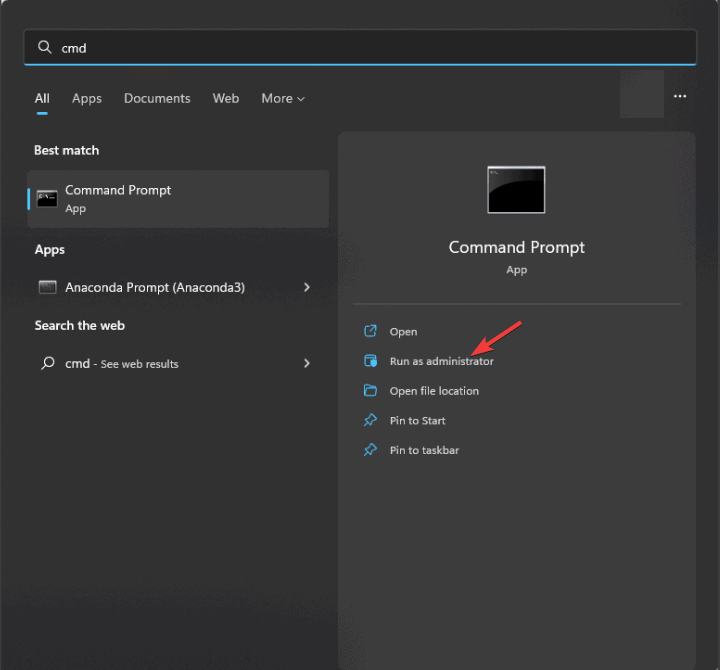
- Press the Windows key + S and type cmd. Choose Run as administrator.
- Next, run
sfc /scannow - Wait for the scan to finish and check if that solves the problem.
- If the issue is still there, run the following:
DISM /Online /Cleanup-Image /CheckHealth
DISM /Online /Cleanup-Image /ScanHealth
DISM /Online /Cleanup-Image /RestoreHealth - Once all the scans are finished, check if the issue is still present.
Keep in mind that each of these scans can take a while, so don’t interrupt them.
3. Use Safe Mode
- Open the Start Menu and click the Power button. Press and hold the Shift key and then click on Restart.

- Once the PC restarts, choose Troubleshoot and then Advanced options. Lastly, select Startup Settings.
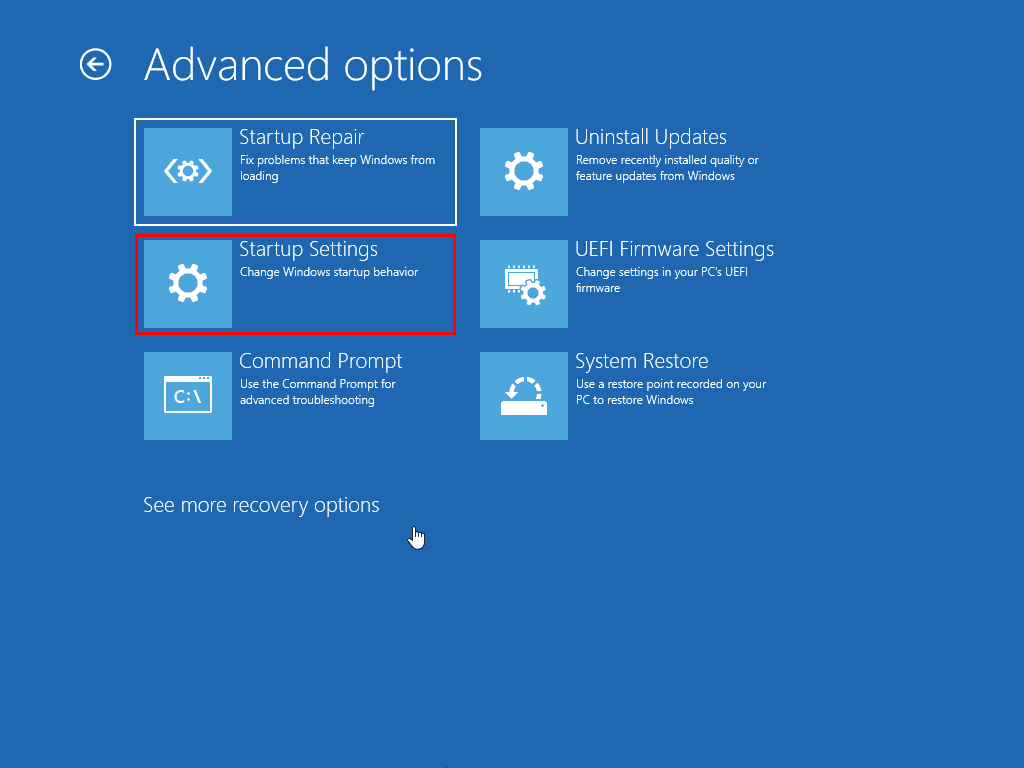
- Once your device restarts, select Safe Mode with Networking.
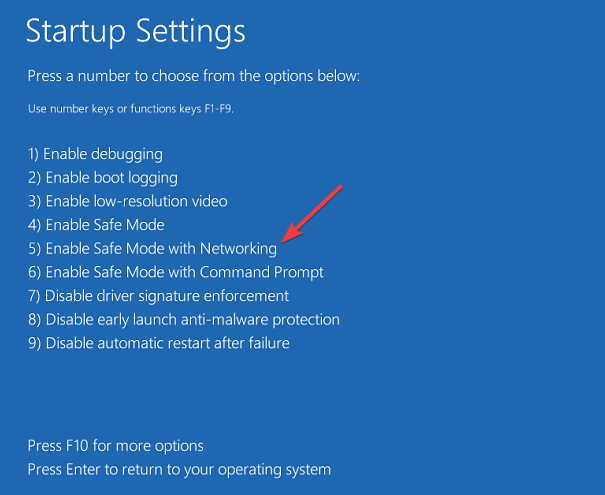
- After you enter Safe Mode, check if the problem is still there.
If the problem doesn’t appear in Safe Mode, it means that there’s an issue with one of your drivers or installed applications.
4. Reinstall or remove problematic applications
- Open the Settings app, go to Apps, and then select Installed apps.
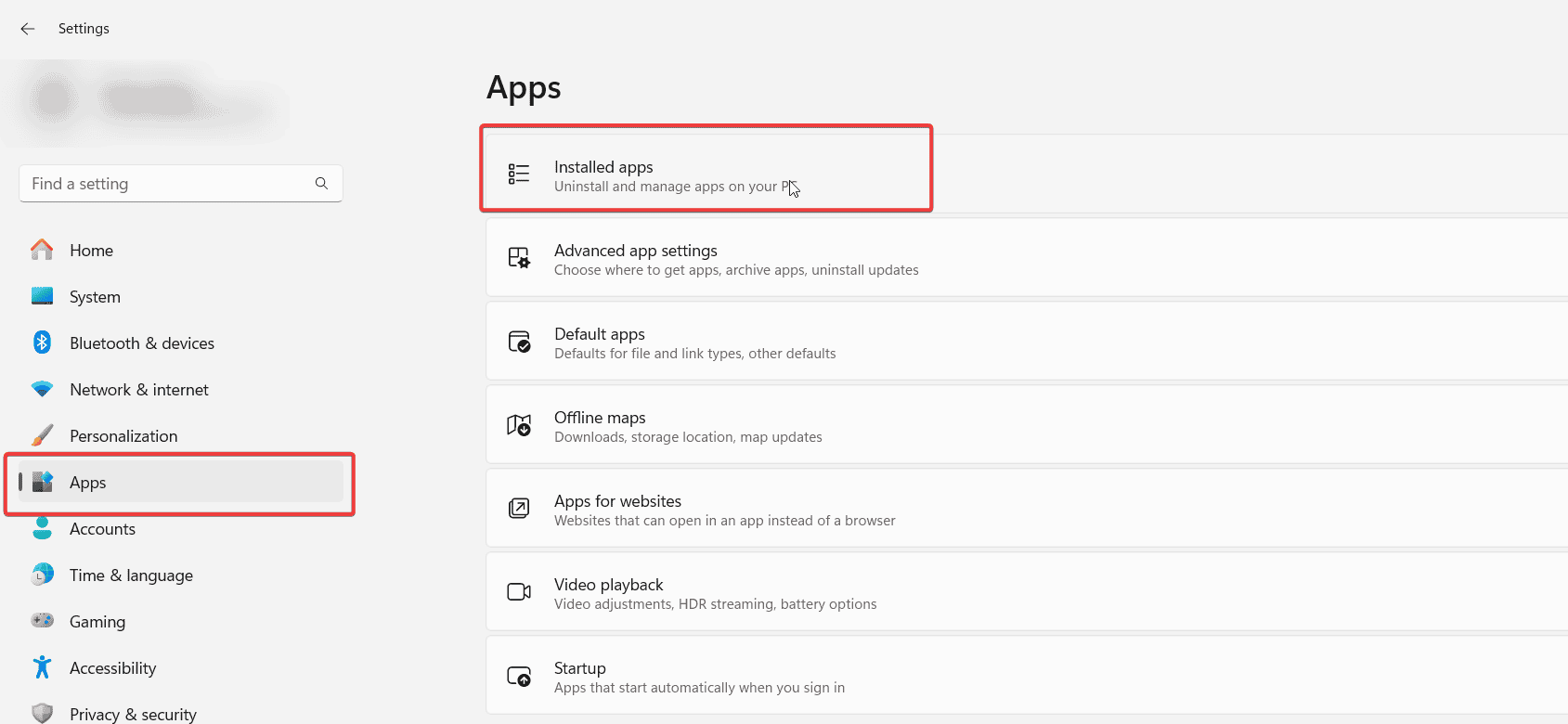
- Locate the application that is causing the crash and click the three dots next to it.
- After that, choose Uninstall and follow the steps on the screen to remove it.
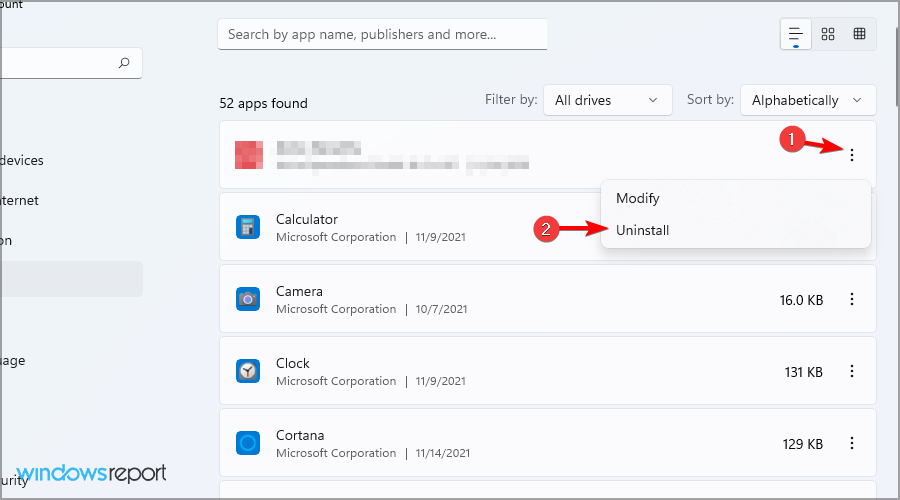
Once removed, check if the error is gone.
5. Use Event Viewer
- Press the Windows key + X and choose Event Viewer.

- Go to Windows Logs and then System.
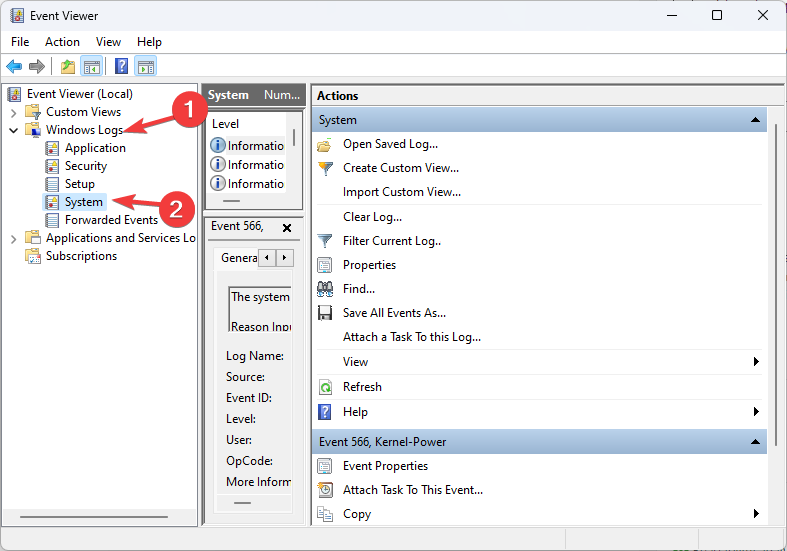
- Locate the time when the crash occurred and look for errors or warnings before it to pinpoint the cause.
While this won’t solve the problem, it will help you diagnose the issue so you can research it further on your own.
HANDLE_ERROR_ON_CRITICAL_THREAD can cause issues, and if nothing else works, you might have to restore your system or perform a factory reset of Windows 11.
If you’re having problems with similar errors, we also have a guide on Thread Stuck in Device Driver and System Thread Exception Not Handled, so don’t miss them for more information.

Read our disclosure page to find out how can you help Windows Report sustain the editorial team. Read more



Improve this guide


User forum
0 messages