
How to Create a Complete iPhone Photo Backup on Windows: Preserve Albums and Message Images


 4 min. read
  Published on
Transferring photos from your iPhone to a Windows PC is easy if you only need a few recent pictures. However, creating a complete backup of your entire photo library can be a bit trickier. Standard methods like the Windows Photos app or manual file transfers often miss certain file types and fail to preserve albums, Live Photos, message attachments, and the overall organization of your library.
Today I got to try TouchCopy, a comprehensive solution for exporting media from your iOS device to your computer. It can find and organize the full scope of photos and videos, including screenshots, WhatsApp media, HEIC files, ProRAW images, and shared content from messaging apps.
While basic transfer methods can leave these files scattered across folders or create compatibility problems on Windows, TouchCopy ensures nothing gets missed and the album structure is preserved.
Step-By-Step: Back Up iPhone Photos to Windows with TouchCopy
Here’s how to get started and perform a successful iPhone to Windows transfer.
1) Download TouchCopy from the Microsoft Store and install it on your computer.
2) After launch, you will be prompted to connect your iPhone to the PC using a USB cable or shared Wi-Fi.
2) Click the Photos tab to open your iPhone photo library. This lets you browse and preview individual photos and videos from all categories and albums.
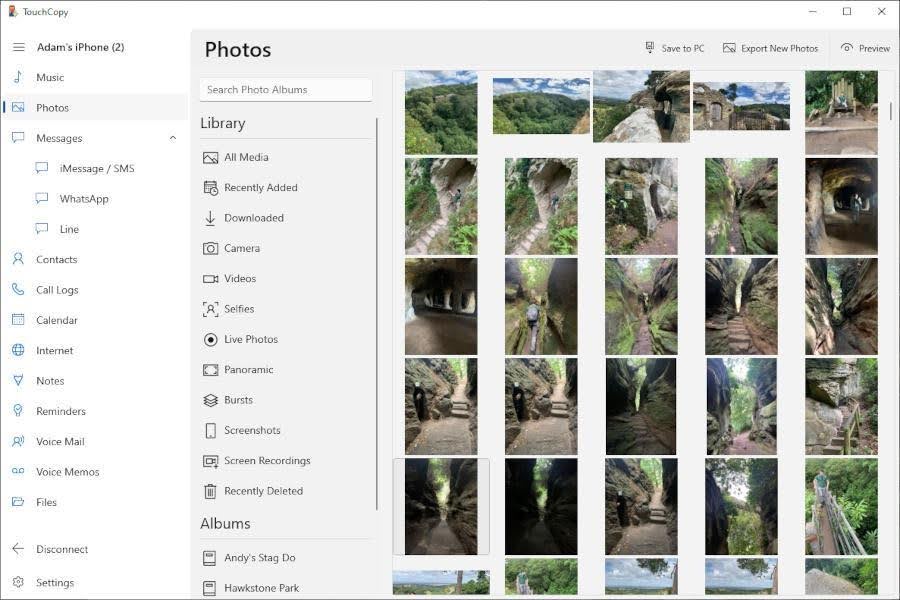
3) Save the entire library or select individual albums or photos, then click Save to PC at the top. You can choose to save them to a folder on your PC or external drive.
How To Preserve iPhone Album Structure
One of TouchCopy’s biggest advantages is its ability to preserve your iPhone album structure.
Photos are automatically organized into subfolders based on their original albums, such as Camera, Selfies, or personal albums. This keeps your backup far more organized and avoids dumping thousands of mixed images into a single folder.
Since this is done by default, you don’t have to worry about changing any settings or manually organizing albums before saving to PC.
How To Save all File Formats
Depending on your iPhone model and camera settings, your photos library will contain multiple file formats beyond basic JPG files.
Fortunately, TouchCopy can handle photos and videos, including HEIC, animated GIFs, and Apple ProRAW. The latter is saved in DNG format for compatibility on Windows, but this does not modify the content or reduce quality in any way.
To configure TouchCopy to automatically convert HEIC into JPG, go to Settings > Photos and select the option from the dropdown menu.
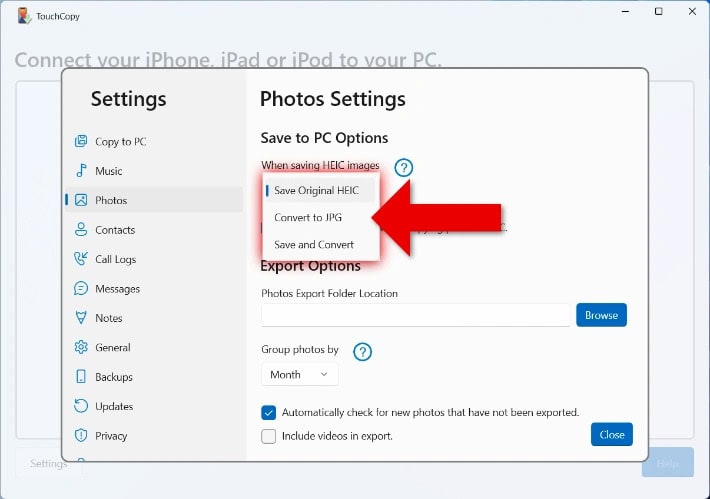
You can also choose to save Live Photos as a video, a still image, or both.
How To Avoid Duplicates
If you’re making regular backups, it doesn’t make sense to save your entire library each time. That’s why TouchCopy offers an Export New Photos feature. A scan of your chosen PC export folder is compared with the library on your iPhone, enabling you to save only photos and videos that you haven’t exported before.
To do this, follow the same steps as before but choose the Export New Photos option at the top instead of the regular Save To PC.
How To Save Media from iPhone Messages and Apps
TouchCopy can also back up images stored inside messaging apps, not just your main iPhone photo library. This includes photos, stickers, and media shared through iPhone Messages, WhatsApp, Line, and other common messaging apps.
To save them, simply click the Messages tab and this will list the supported apps. Each app then lists its message threads.
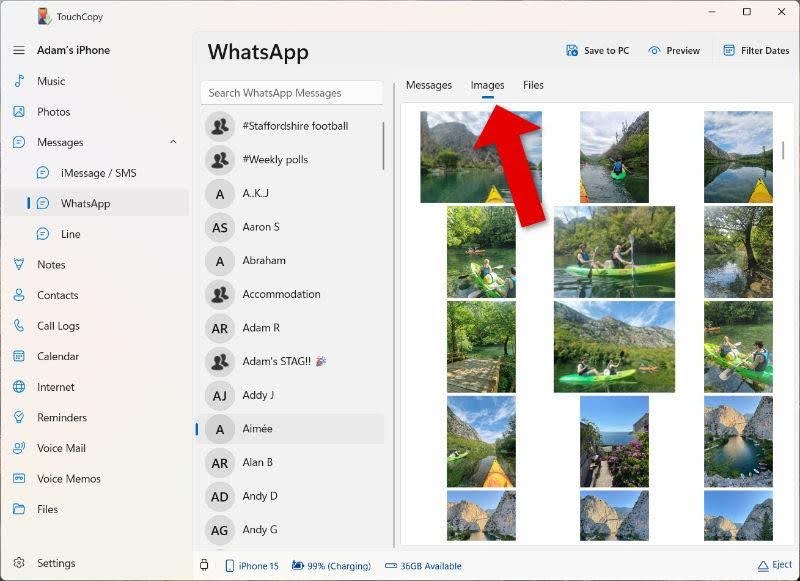
The built-in media viewer displays all shared photos and attachments from that thread, allowing you to either export everything at once or select individual items. This makes it much easier to recover important shared images without backing up entire conversations manually.
As well as the individual media files, TouchCopy can export your iPhone messages in PDF or HTML, with images embedded within the files.
Final Thoughts on TouchCopy
Overall, TouchCopy offers a far more complete solution for backing up iPhone photos and media to Windows than standard transfer methods. Rather than simply copying recent camera images, it preserves album structure, supports multiple Apple file formats, and can even recover media stored inside messaging apps like WhatsApp and iPhone Messages.
Features such as preserving albums, HEIC conversion, Live Photo support, and duplicate prevention make the process much easier for users with large photo libraries. Combined with its simple interface and flexible export options, TouchCopy is one of the most practical tools available for creating a reliable and well-organized iPhone photo backup on Windows.


Read our disclosure page to find out how can you help Windows Report sustain the editorial team. Read more



Improve this guide




User forum
0 messages