
Is Hinge App Not Working? Here's Why & How to Fix It


 4 min. read
  Published on
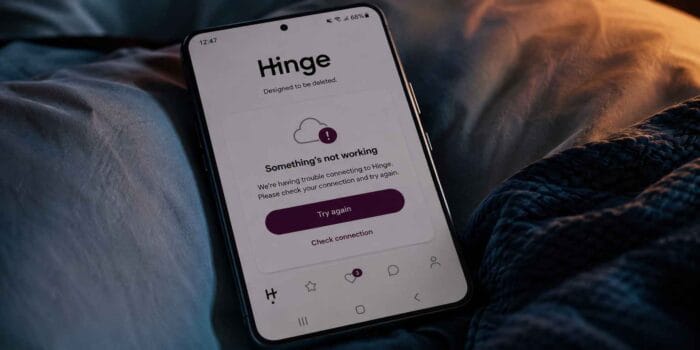
If Hinge app isn’t working, you are probably seeing connection error, a stuck loading screen, or an account that suddenly refuses to sign you in. Hinge is currently experiencing a spike in outage reports, with users reporting connectivity, sign-in and app-loading problems.
That means there may be nothing wrong with your phone. However, if Hinge is only not working for you, a few troubleshooting steps can help narrow down the problem before you simply wait for the service to recover.
Hinge is down for thousands of users
For many Hinge app users, the problems aren’t limited to one feature, either, with connectivity, sign-in and loading appearing among the reported issues. Hinge has also experienced separate incidents involving messaging, profiles, matches and the app failing to load during this year. So if everything suddenly stopped working at once, repeatedly reinstalling the app probably won’t make much difference.
If other Hinge users aren’t having problems, however, try the following fixes.
How to fix Hinge app when it is not working for you
1. Check your internet connection
Start with the simplest possibility. Hinge says a strong Wi-Fi connection or cellular signal is important, particularly when the app is trying to sync account data.
- Turn Wi-Fi off and try Hinge using mobile data.
- If you’re already using cellular data, switch to Wi-Fi.
- Open another website or app to confirm the connection works.
- Temporarily disable a VPN if you use one.
- Reopen Hinge and check whether profiles and messages load.
If Hinge works on one network but not the other, the problem is more likely related to your network than your account.
2. Close and reopen Hinge
Hinge can occasionally get stuck while loading or syncing your account.
- Force-close Hinge completely.
- Wait a few seconds.
- Open the app again.
- Try loading Discover, Likes and Matches.
For messaging problems specifically, Hinge also recommends closing and reopening the app before trying to send the message again.
3. Log out and sign back in
If Hinge opens but your matches, conversations or profile aren’t loading correctly, logging out can refresh the connection between the app and Hinge’s servers.
- Open your profile.
- Tap the gear icon to enter Settings.
- Scroll down and tap Log Out.
- Sign back in using the same method you originally used.
Hinge specifically recommends this as its first troubleshooting step for technical issues because it refreshes and re-syncs the device with its servers.
4. Make sure you’re using the correct login method
If Hinge suddenly appears to have lost your account, don’t immediately create another one. Hinge says you need to use the same login method you used when registering. Basically, that means if you originally signed up with a phone number, use that same number; if you used Google or Apple, use the corresponding account. Using another method can make Hinge treat you as though you’re creating a new account.
5. Update or reinstall Hinge
An outdated or damaged installation can also cause Hinge app loading and login problems.
- Open the App Store or Google Play.
- Search for Hinge.
- Install any available update.
- Open Hinge and test it again.
If the latest version is already installed, reinstalling the app is another option. Hinge says reinstalling does not delete your profile, provided you don’t choose Delete Account inside the app.
Why is Hinge app not working?
The cause depends on what you’re seeing. A widespread outage is the obvious explanation when thousands of users suddenly report the same problem, while an individual connection issue can produce similar symptoms.
Other possibilities include an outdated app, a broken login session or temporary synchronization problems. Hinge notes that accounts with many likes, hidden chats or conversations can sometimes experience a delay while its servers sync that information with the app.
FAQs related Hinge app issues
1. Is Hinge down right now?
As of writing this, there has been a significant spike in user reports. If reports are still rising, waiting for Hinge to resolve the server-side problem is likely more useful than repeatedly reinstalling the app.
2. Will reinstalling Hinge delete my account?
No. Hinge says reinstalling the app won’t delete your profile. Just don’t select the Delete Account option inside Hinge.
3. Why does Hinge work on mobile data but not Wi-Fi?
That points toward a network-specific problem. Try restarting your router, disabling a VPN or using another Wi-Fi network to see whether the behavior changes.
4. Why can’t I log into Hinge right now?
Check that you’re using the same phone number, Apple ID or Google account you originally used to create the account.
Summing Up
That’s all you need to try when Hinge is not working. With a widespread outage, there’s only so much that can be fixed from your side, but checking your connection, restarting the app, refreshing your login and reinstalling the latest version can rule out most device-specific problems

Read our disclosure page to find out how can you help Windows Report sustain the editorial team. Read more



Improve this guide


User forum
1 messages