
How to Enable and Disable “Hey Copilot” in Windows 11


 2 min. read
  Updated on
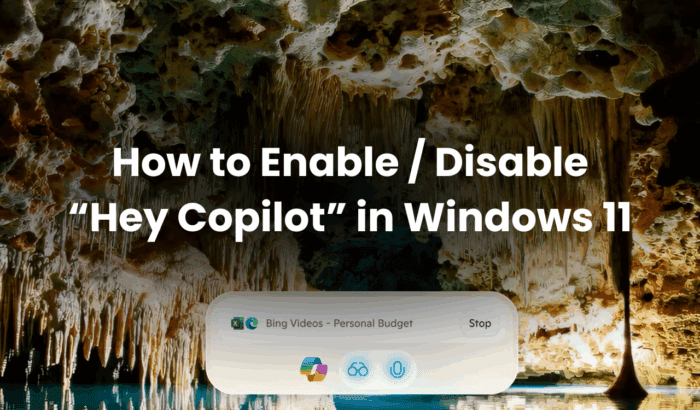
After months of testing with Windows Insiders, Microsoft has officially launched the “Hey Copilot” voice wake command to all Windows 11 users. The feature lets you summon Copilot hands-free by simply saying “Hey Copilot”, and your PC listens instantly. It’s part of Microsoft’s ongoing plan to make Copilot in Windows feel like a real assistant, integrated across apps, the taskbar, and now your voice.
The new voice trigger is available through the Copilot app on Windows, giving users a faster, more natural way to interact with the AI assistant without touching the keyboard or mouse. However, it’s not enabled by default. In this guide, we’ll walk you through every step to enable or disable “Hey Copilot” in Windows 11.
How to Enable “Hey Copilot” in Windows 11?
To turn on “Hey Copilot,” follow these quick steps:
- Open the Copilot app on your Windows 11 PC.
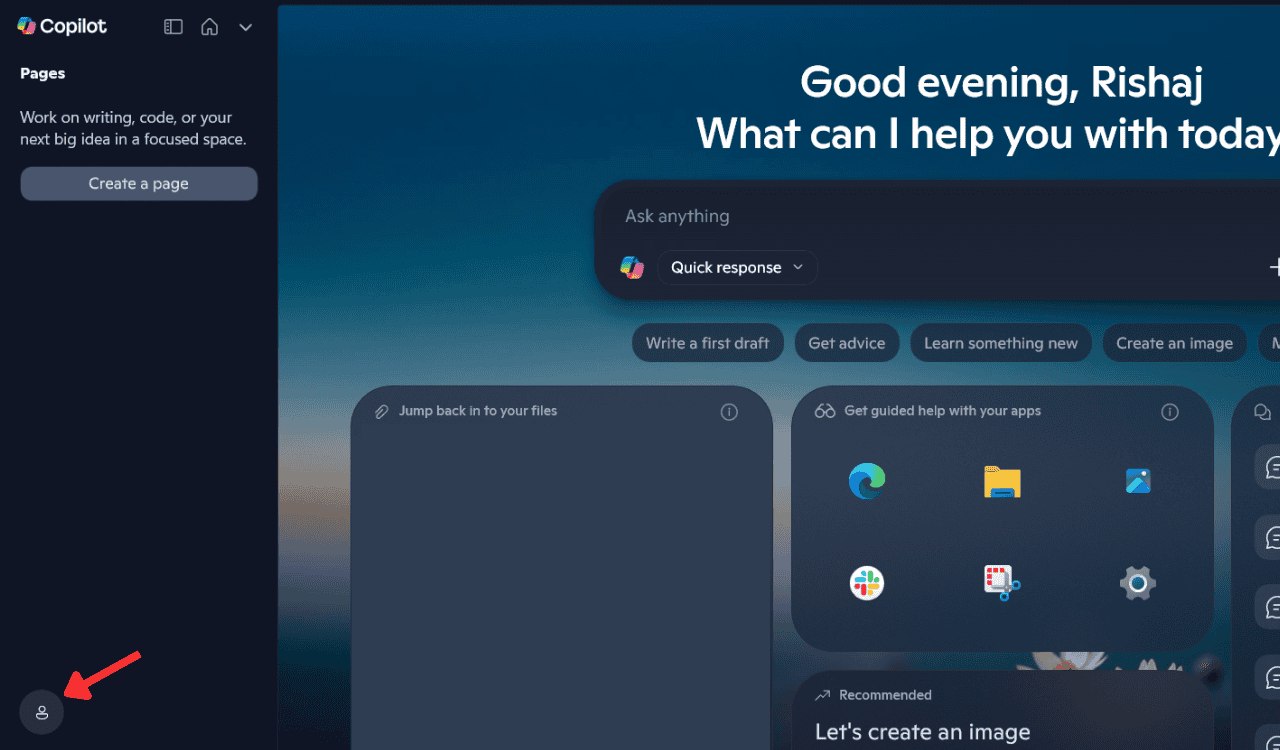
- If required, open the sidebar from the top left, then tap on your profile icon in the bottom-left corner.
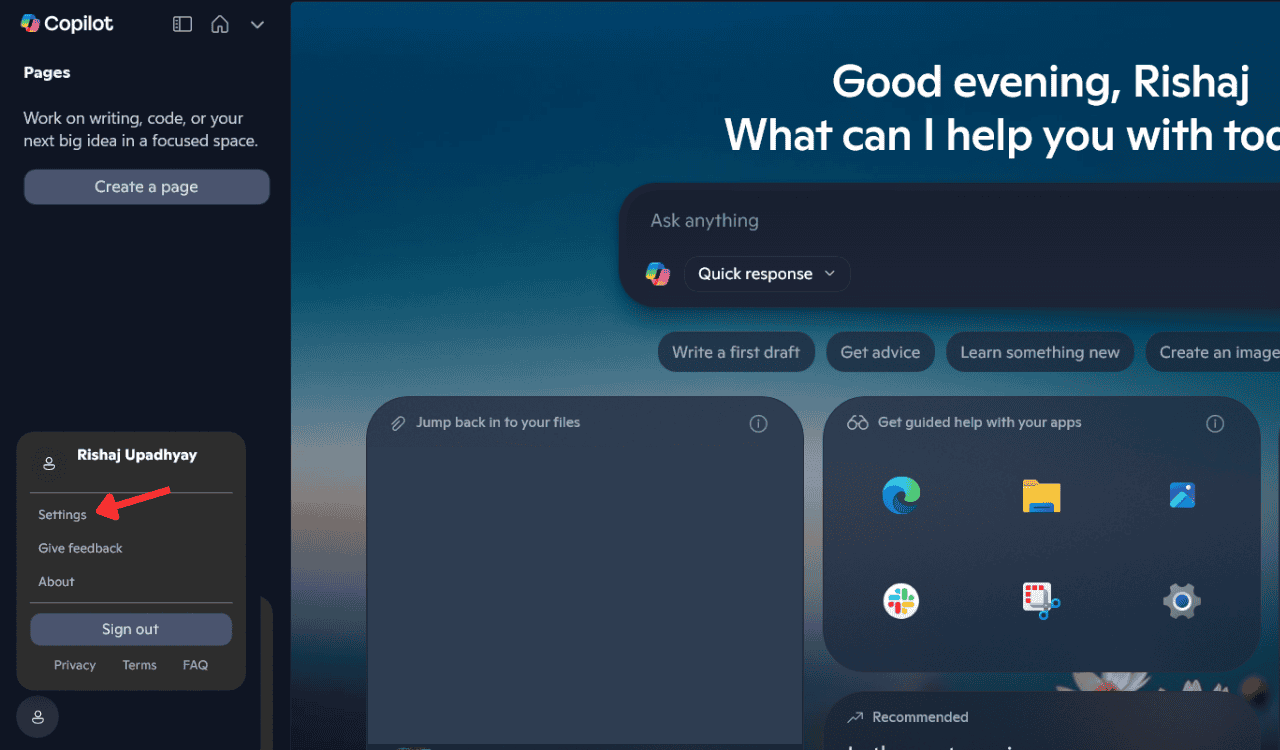
- Click Settings from the menu.
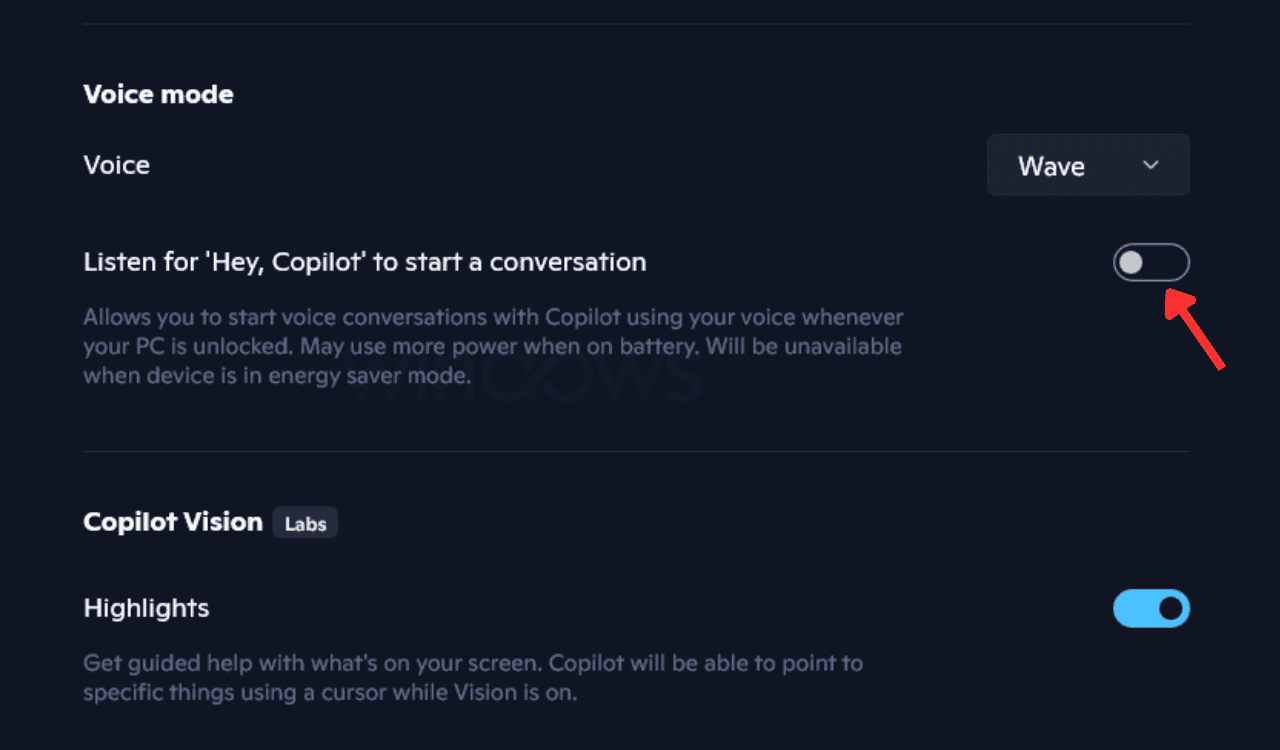
- Scroll down to the Voice section and toggle on “Listen for ‘Hey Copilot’ to start a conversation.”

That’s it. Once enabled, you can just say the phrase, and Copilot responds with a chime and a microphone overlay, ready to take your command. You can ask questions, open apps, or say “goodbye” to end the session. After a few seconds of silence, Copilot automatically shuts down.
How to Disable “Hey Copilot” in Windows 11?
If you don’t want Copilot listening for voice commands, you can turn it off anytime:
- Open the Copilot app and go to your profile.
- Select Settings.
- Scroll to the Voice section.
- Toggle off “Listen for ‘Hey Copilot’ to start a conversation.”
Summing Up
The “Hey Copilot” command brings a faster, more natural way to talk to Copilot on Windows 11. You no longer need to open the assistant manually, just say the phrase, and Copilot is ready to help. It’s ideal for multitasking, accessibility, or when you’re away from the keyboard. If you prefer a quieter desktop, turning the feature off takes just a few taps in the Copilot app settings.
You can also explore Google Assistant for PC to expand your voice control options on Windows 11.

Read our disclosure page to find out how can you help Windows Report sustain the editorial team. Read more



Improve this guide



User forum
0 messages