
How to fix BitLocker stuck on decrypting in Windows 11


 5 min. read
  Published on
If BitLocker appears stuck during the decryption process, don’t panic. Decryption requires Windows to read, decrypt, and write back every individual block of data on your drive. On large mechanical hard drives (HDDs) or secondary drives, this process can legitimately take several hours to complete. However, if the completion percentage hasn’t moved for hours, or drive activity in Task Manager has dropped to zero, follow these step-by-step to fix the issue.
What to do when BitLocker is stuck on decrypting process in Windows 11
1. Check if BitLocker is actually stuck
Before changing anything, check whether BitLocker is still making progress.
- Press Windows + X.
- Select Terminal (Admin).
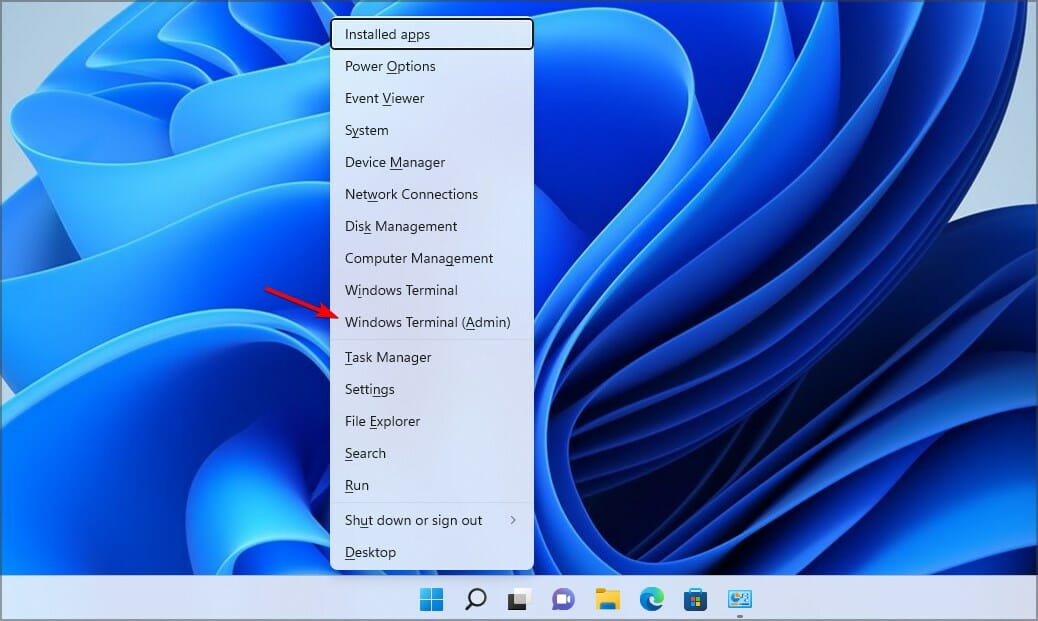
- Click Yes when prompted.
- Type:
manage-bde -status C: - Then, press Enter.
- Check Conversion Status and Percentage Encrypted.
- Wait a few minutes and run the command again.
If the percentage changes, BitLocker is still working. Let the process continue rather than interrupting it.
2. Restart your Windows 11 PC
A normal restart can sometimes clear a temporary issue affecting BitLocker.
- Save your work.
- Open Start.
- Click Power.
- Select Restart.

- Sign back into Windows.
- Check the BitLocker status again.
Avoid repeatedly forcing the PC to shut down while the drive is being decrypted.
3. Pause and resume BitLocker
If the percentage has remained unchanged for a long time, try pausing the process and starting it again.
- Press Windows + X.
- Select Terminal (Admin).
- Click Yes.
- Type:
manage-bde -pause C: - Then, press Enter.
- Wait for the command to finish.
- Type:
manage-bde -resume C: - Then, press Enter
- Check the progress again with:
manage-bde -status C:
If your BitLocker-protected drive uses a different letter, replace C: with that drive letter.
4. Check the drive for errors
A file-system problem can sometimes interfere with BitLocker.
- Open Terminal (Admin).
- Type:
chkdsk C: /f - Press Enter.
- If Windows asks to schedule the scan, type Y.
- Restart your PC.
- Let Windows complete the disk check.
- Once Windows starts, check BitLocker again.
5. Check Event Viewer
Windows may have recorded an error explaining why decryption stopped.
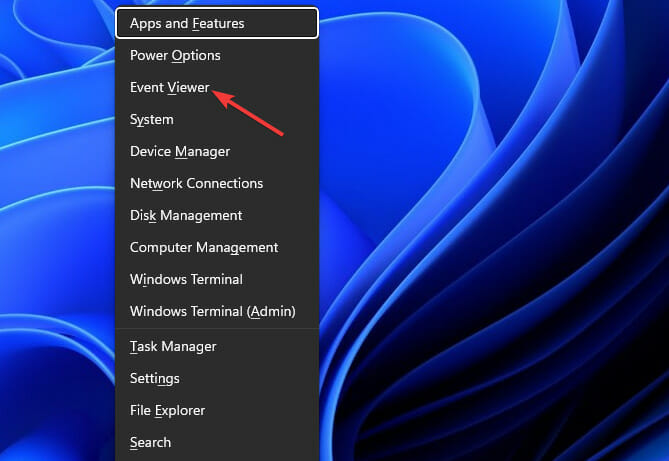
- Press Windows + X.
- Select Event Viewer.
- Open Applications and Services Logs.
- Go to Microsoft > Windows > BitLocker-API.
- Look for recent warnings or errors.
- Also check Windows Logs > System for disk or NTFS errors.
This can help determine whether the problem is actually BitLocker or an underlying storage issue.
6. Check if you recently resized the drive
If you resized or changed the BitLocker partition while decryption was running, that could be related to the problem.
- Press Windows + X.
- Select Disk Management.

- Find the affected drive.
- Check its current partition size.
- Think about whether you changed the partition before BitLocker became stuck.
Do not randomly resize or delete the partition. Back up your important files before making any partition changes.
What if BitLocker is stuck at 99%?
A 99% reading does not automatically mean the process has failed. First, check the status twice with some time between the checks. If the percentage never changes, try pause > resume and then check the drive for errors. TheWindowsClub recommends these steps before considering more drastic measures.
What if BitLocker is stuck after restarting Windows 11?
Restarting does not cancel an active BitLocker decryption process. Once Windows loads, open Terminal (Admin) and run:
manage-bde -status C:If it still shows decryption in progress, use:
manage-bde -pause C:Then resume it with:
manage-bde -resume C:What if you accidentally started BitLocker decryption?
If you accidentally selected Turn off BitLocker, don’t panic. Decryption is a process rather than an instant switch, so Windows may continue working for some time.
- Check the status first using the following command:
manage-bde -status C:
If you want to let the decryption finish, leave it running and monitor its progress. Microsoft documents manage-bde -off as the command that starts drive decryption and turns off BitLocker.
Should you force-stop BitLocker?
It is better to avoid repeatedly forcing the computer off while decryption is running. Check the status first, then use the supported pause and resume commands when appropriate. If the drive is showing repeated file-system or storage errors, back up your important data before attempting more advanced repairs.
Last resort: decrypt and encrypt the drive again
If BitLocker repeatedly stops at exactly the same point, the WindowsClub recommends a fresh encryption cycle as a last resort. Before doing this, back up your important files.
- Open Terminal (Admin).
- Check the drive status.
- If appropriate, start decryption with:
manage-bde -off C: - Wait until the drive is completely decrypted.
- Confirm the status with:
manage-bde -status C: - Only after decryption is complete should you consider enabling BitLocker again.
Microsoft notes that manage-bde -off decrypts the drive and removes its BitLocker key protectors when decryption finishes.
If you’re dealing with other BitLocker problems, we also have guides for fixing BitLocker decryption issues, handling ransomware decryption on Windows, resolving cases where BitLocker keys are stuck in a loading cycle, troubleshooting Preparing BitLocker Recovery, and fixing BitLocker errors in Windows 11.
FAQs related to BitLocker stuck in decrypting process
1. Why is BitLocker taking so long to decrypt?
The time can vary considerably depending on the drive, its capacity, storage speed, and the amount of data being processed. A slowly changing percentage usually means the process is still active.
2. Can I pause BitLocker decryption?
Yes. Windows 11 supports manage-bde -pause for pausing BitLocker encryption or decryption. You can later continue it with manage-bde -resume.
3. Will pausing BitLocker delete my files?
Pausing the BitLocker operation does not itself delete your files. It temporarily stops the encryption or decryption process.
4. Do I need my BitLocker recovery key?
Keep your recovery key available before making major BitLocker or Windows recovery changes. Microsoft says the recovery key is a 48-digit code used to regain access when Windows cannot automatically unlock the drive.
5. Should I turn BitLocker back on after decrypting?
That depends on why you started decrypting the drive. If you need encryption, you can enable BitLocker again after the drive has completely finished decrypting.

Read our disclosure page to find out how can you help Windows Report sustain the editorial team. Read more



Improve this guide




User forum
0 messages