
Lenovo Keyboard Not Working? Try These 7 Universal Fixes


 5 min. read
  Published on
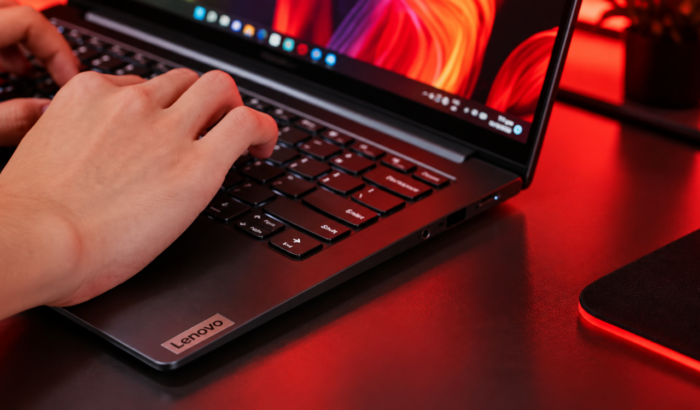
If your Lenovo keyboard suddenly stops responding, don’t panic or rush to replace it just yet. Whether you are using a ThinkPad, IdeaPad, Legion laptop, or a standalone Lenovo desktop keyboard, the culprit is usually a temporary software crash, a corrupted Windows driver, or a simple settings toggle. This universal troubleshooting guide walks you through fixing the issue step-by-step, starting with the fastest fixes.
What to do when a Lenovo keyboard isn’t working at all
1. Perform a full system restart
A simple reboot reinitializes hardware controllers and resets frozen background services that might be blocking key inputs.
- Save any open work.
- Click on the Start Menu > Power > Restart
- Once Windows restarts, test your keys in Notepad.
2. Bypass Windows to test for hardware issue
Booting into your system BIOS tests whether the physical keys work independently of Windows 10 or 11.
- Restart your PC.
- Repeatedly tap F1, F2, or Enter (depending on your Lenovo model) as soon as the Lenovo logo appears.
- If the keyboard works in BIOS, you should know that the hardware is fine. Instead, a Windows driver or software settings issue is causing the problem.
- If the keyboard fails in BIOS, you are likely dealing with a physical connection issue or hardware failure.
3. Enable the on-screen keyboard
If you are locked out or need to type passwords while troubleshooting, use the virtual keyboard.
- Windows 11: Go to Settings > Accessibility > Keyboard and toggle on On-Screen Keyboard.
- Windows 10: Go to Settings > Ease of Access > Keyboard and toggle on Use the On-Screen Keyboard.
4. Fix Function Key & Hotkey Locks
If primary typing works but the top-row keys act strangely, a lock setting is toggled on.
- Press Fn + Esc to toggle Fn Lock off or on.
- Open the Lenovo Vantage app (if installed) and navigate to Device > Input & Accessories.
- Ensure Hotkey Mode is set according to your preference (enabling standard F1 – F12 functions vs. special media controls).
5. Update or reinstall the keyboard driver
Device Manager lets you reset the connection between Windows and your hardware.
- Right-click Start and select Device Manager.
- Expand the Keyboards section.
- Right-click your keyboard (often listed as Standard PS/2 Keyboard or Lenovo Keyboard) and select Update driver > Search automatically for drivers.
- If no update is found, right-click the keyboard again and select Uninstall device.
- Restart your PC.
- Finally, Windows will automatically detect and reinstall a clean copy of the driver upon rebooting.
6. Run official Lenovo firmware updates (handy for specific keyboard models)
Lenovo frequently releases firmware patches for specific keyboard controller bugs.
- Visit the Lenovo Support Website and detect your serial number or select your model.
- Navigate to Drivers & Software.
- Check for pending BIOS, Embedded Controller Firmware, or Hotkey updates and install them.
7. Check physical connections & hardware
If software fixes fail, inspect the physical connection.
- For External Keyboards: Unplug the USB cable and reconnect it directly to a port on the PC (avoid using unpowered USB hubs).
- For Laptops: Check for stuck keys, crumbs, or liquid spills. Clean around unresponsive keys with compressed air.
- Test a Spare: Plug in a secondary USB keyboard. If the spare works fine while your primary deck fails across all apps, the physical Lenovo keyboard deck may need repair or replacement.
Summing Up
These universal fixes cover most Lenovo keyboard problems on Windows PCs. Start with connections and Fn Lock, then move toward drivers, updates, and hardware checks. If the keyboard still refuses to work after these steps, Lenovo Support can help identify model-specific drivers and repair options. As a reminder, we have also a separate guide to fix Lenovo IdeaPad 320 keyboard when it isn’t working.
FAQs related to Lenovo keyboard not working
1. Why is my Lenovo keyboard not working after an update?
A Windows, driver, firmware, or Lenovo software change can sometimes affect keyboard functionality. Check Windows Update, Lenovo’s support page, and Device Manager for newer drivers.
2. Why are only my Lenovo Function keys not working?
The keyboard may simply be using a different Fn Lock setting. Try Fn + Esc and test the F1 to F12 keys again. Some models instead require Hotkey Mode changes through BIOS or Lenovo Vantage.
3. Why is my external Lenovo keyboard not working?
Check the USB connection first, then try another USB port. For wireless models, reconnect the receiver or check the keyboard’s batteries and wireless connection.
4. What if only one or two keys in Lenovo keyboard stop working?
Test those keys outside the affected application. If they fail everywhere, inspect the keyboard for debris or physical damage. A hardware repair may be necessary if cleaning does not help.
5. When should you consider a hardware problem?
If the keyboard fails inside Windows and outside Windows, software may not be the main issue. Trying another keyboard can help confirm whether the problem comes from the Lenovo keyboard itself.
Article feature image source: Unsplash/@back2gaming

Read our disclosure page to find out how can you help Windows Report sustain the editorial team. Read more



Improve this guide


User forum
0 messages