
How to Open Onscreen Keyboard on Windows (Fast Methods)


 2 min. read
  Published on

You can access the onscreen keyboard on Windows using shortcuts and quick menu paths. These options help you keep working when your physical keyboard stops responding.
How to Open Onscreen Keyboard on Windows
Use the Run command
Follow these steps when you want the fastest launch method.
- Press Windows key + R.
- Type osk.

- Press Enter to open the onscreen keyboard.
You can learn more about the OSK process in this guide on osk.exe.
Use the Start menu search
This option helps when you want a simple search experience.
- Click Start.
- Type On Screen Keyboard.

- Select the app from the results.
Enable it from Settings
This method helps when you want the onscreen keyboard available more often.
- Press Windows key + I.
- Open Accessibility.

- Select Keyboard.
- Toggle On-screen keyboard to On.
You can fine-tune accessibility options through this guide on Ease of Access keyboard settings.
Launch from the Ease of Access Center
You can open the classic Control Panel layout when you prefer a familiar navigation style.
- Open Control Panel.
- Select Ease of Access.
- Click Ease of Access Center.
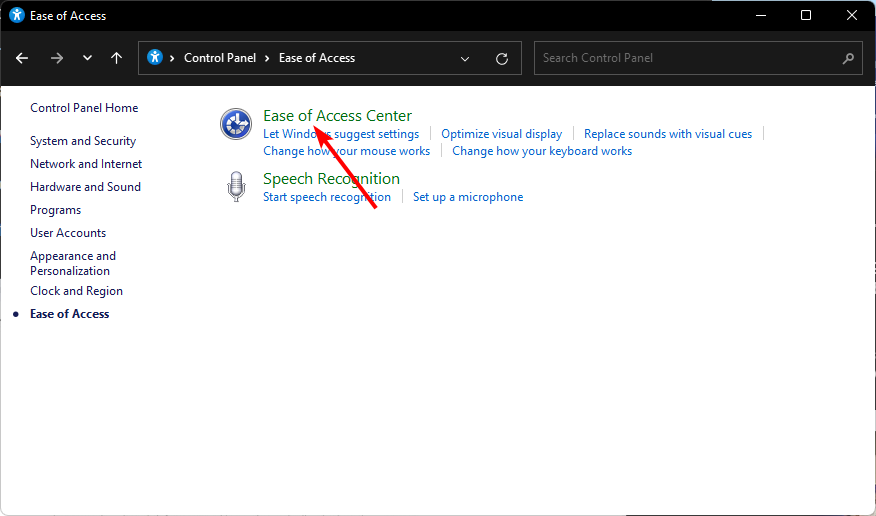
- Choose Start On-Screen Keyboard.
Use the Lock Screen options
You can access the onscreen keyboard before you sign in.
- Go to the sign-in screen.
- Click the Accessibility icon.
- Select On-Screen Keyboard.
If you prefer touch controls, review this guide on the Windows 11 touch keyboard shortcut.
FAQs
Use it when your hardware keyboard stops working or you need touch input.
Yes. You can use modifier keys such as Ctrl, Shift, and Alt.
Yes. Drag the corners to adjust size.
Yes. You can access it through the Ease of Access icon.
Windows gives you several quick ways to open the onscreen keyboard using shortcuts, settings menus, and accessibility features. These methods help you stay productive when your hardware keyboard fails or when you switch to touch-friendly input.

Read our disclosure page to find out how can you help Windows Report sustain the editorial team. Read more



Improve this guide



User forum
0 messages