
How to Scan Specific Folders With Windows Security (4 Easy Ways)


 3 min. read
  Updated on

Microsoft Defender gives your PC strong real-time protection, but you don’t always want a full system scan.
Sometimes, you only need to check one folder, perhaps a downloads directory, a USB drive, or a project folder that seems suspicious. Windows 11 and Windows 10 let you run quick, targeted scans directly from File Explorer or from the Windows Security app.
Table of contents
- 1. Scan a specific folder from File Explorer
- 2. Run a custom scan from Windows Security
- 3. Protect critical folders with ransomware protection
- 4. Exclude or whitelist a folder (if you trust its contents)
- What about scanning ZIP and compressed folders?
- Do VPN features in antivirus apps change how scans work?
- FAQs
1. Scan a specific folder from File Explorer
The fastest way to scan any location uses File Explorer.
- Open File Explorer.
- Go to the folder you want to check.
- Right-click the folder.
- Select Scan with Microsoft Defender.

- View the results in Windows Security.
This works on both Windows 10 and Windows 11.
2. Run a custom scan from Windows Security
A custom scan helps when you want full control over what Defender checks.
- Open Start and select Windows Security.
- Open Virus & threat protection.

- Select Scan options.
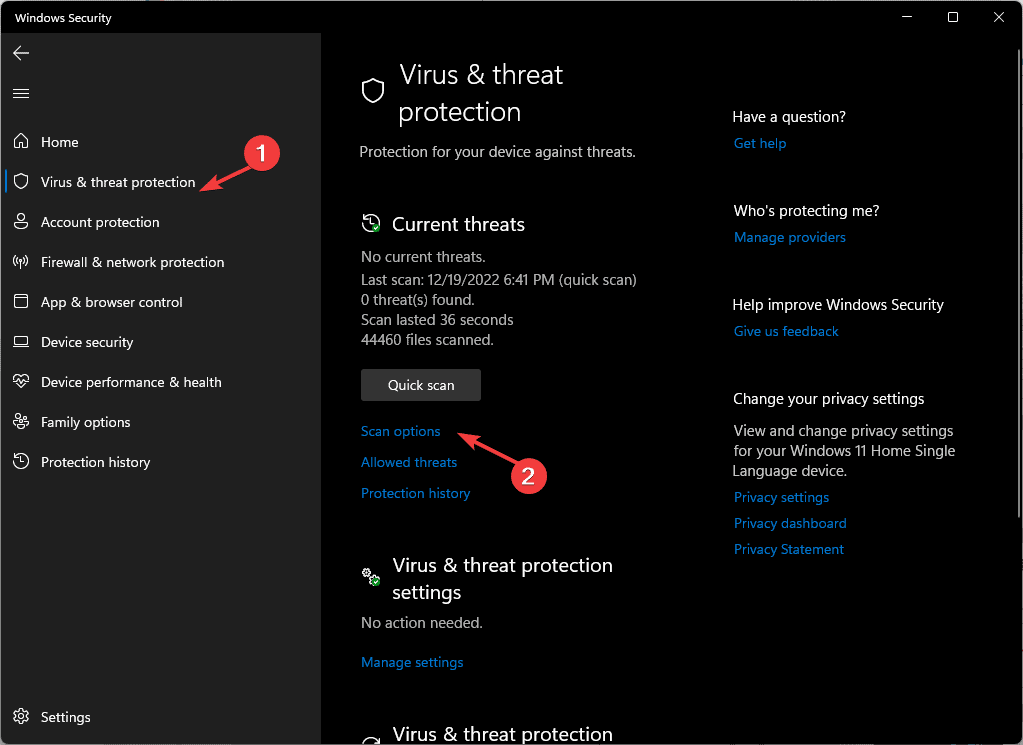
- Choose Custom scan.
- Click Scan now.

- Pick the folder you want to scan.
3. Protect critical folders with ransomware protection
You can lock important folders to block unauthorized changes.
- Open Windows Security.
- Go to Virus & threat protection.

- Select Manage ransomware protection.
- Enable Controlled folder access.
- Select Protected folders.
- Add the folders you want to secure.
4. Exclude or whitelist a folder (if you trust its contents)
Some folders contain large or sensitive files such as VMs or project assets. You can exclude them from scans if you trust their contents.
- Open Windows Security.
- Select Virus & threat protection.
- Select Manage settings under Virus & threat protection settings.
- Open Add or remove exclusions.

- Add your trusted folder.
Keep in mind that certain protected content, such as encrypted documents, behaves differently during scans. If you want a deeper understanding, see how antivirus tools handle encrypted files. This explains why some files may not scan normally.
What about scanning ZIP and compressed folders?
When you run a folder scan, Defender also checks archived content. If you want to understand the limits and behavior of scanning compressed archives, take a look at how antivirus tools scan ZIP files.
Do VPN features in antivirus apps change how scans work?
Some antivirus apps bundle extra tools such as a free VPN, which affects how they handle network traffic. This doesn’t change Microsoft Defender’s ability to scan your local folders, but it matters if you switch between Defender and a third-party suite.
FAQs
Yes. Use Custom scan and select a parent folder that contains the subfolders you want to check.
Yes. You can scan USB drives, SD cards, and external HDDs with both right-click scanning and Custom scan.
Most users don’t. Defender covers malware, phishing, and ransomware effectively.
A third-party antivirus may remove Defender’s context menu entry. Disable or remove it to restore the option.


Read our disclosure page to find out how can you help Windows Report sustain the editorial team. Read more



Improve this guide

User forum
0 messages