
How to Use Calculator on Windows 11 (Step-by-Step Guide)


 3 min. read
  Published on

The Calculator app in Windows 11 is more than a basic math tool. It can handle conversions, scientific calculations, and even date computations. Here’s a simple guide to help you use it effectively for everyday and advanced tasks.
Table of contents
How can I use the Calculator app on Windows 11?
Open the Calculator App
You can access the Calculator in several ways depending on your preference.
- Press Windows + S, type Calculator, and press Enter.

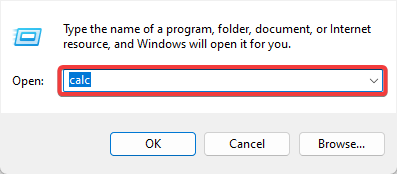
- Right-click the Start button and choose Run, then type calc and hit Enter.
- Ask Cortana or Windows Search by saying or typing “Open Calculator.”
- Pin it to the taskbar for faster future access by right-clicking the app and selecting Pin to taskbar.
If you ever encounter errors when opening the app, check this guide on Windows 11 Calculator not working.
Use Basic Calculator Functions
Once open, the Calculator defaults to Standard mode for everyday math.
- Use your keyboard or mouse to input numbers and operations.
- Press Enter to calculate or click =.
- To clear an entry, press Esc or click C.
- Click History (the clock icon) to see your recent calculations.

If you notice the Calculator app missing entirely, follow the steps in Windows 10 Calculator missing to restore it.
Switch Between Calculator Modes
Windows 11 Calculator supports multiple modes for different needs.
- Open the Menu (three-line icon at the top left).

- Select one of the available options:
- Standard – Basic arithmetic.
- Scientific – For trigonometry, logarithms, and exponents.
- Programmer – For binary, hexadecimal, and octal operations.
- Date Calculation – Find the difference between two dates.
- Converter – Convert currency, volume, length, temperature, and more.
Older versions of Windows have slightly different calculators. You can also learn how to use the Windows 7 Calculator on Windows 10.
Convert Units and Currency
The Converter is one of the Calculator’s most useful tools.
- Click the Menu and select Converter.
- Choose the category you need: Currency, Volume, Length, etc.

- Enter your value in the left box.
- Select the units to convert between, such as USD to EUR or Celsius to Fahrenheit.
- The result appears instantly on the right.
Tip: Make sure you’re online when converting currencies to get the latest rates.
Use the Date Calculator
You can quickly find how many days are between two dates.
- Click the Menu and choose Date Calculation.
- Select Difference between dates.
- Enter your Start date and End date.
- The result will show the number of days, weeks, and months in between.
Why Use the Windows 11 Calculator
- Combines multiple tools into one lightweight app.
- Works offline for math and unit conversions.
- Syncs theme with your Windows appearance (light or dark mode).
- Remembers previous results for quick reference.
FAQs
Right-click the Calculator in the Start menu and choose Pin to taskbar.
Yes, except for currency conversions, which need an internet connection.
Yes, you can type directly using number keys and operators.
Go to Settings > Apps > Installed Apps > Calculator > Advanced Options, then click Reset.
Conclusion
The Windows 11 Calculator is a powerful, built in productivity tool. Whether you need quick math, advanced calculations, or conversions, it is always just a click away. And if you run into issues, you can restore or fix it using the guides linked above for Windows versions and app errors.

Read our disclosure page to find out how can you help Windows Report sustain the editorial team. Read more



Improve this guide



User forum
0 messages