
How to Fix iSCSI Initiator Service Failed to Start in Windows 11


 4 min. read
 Published on
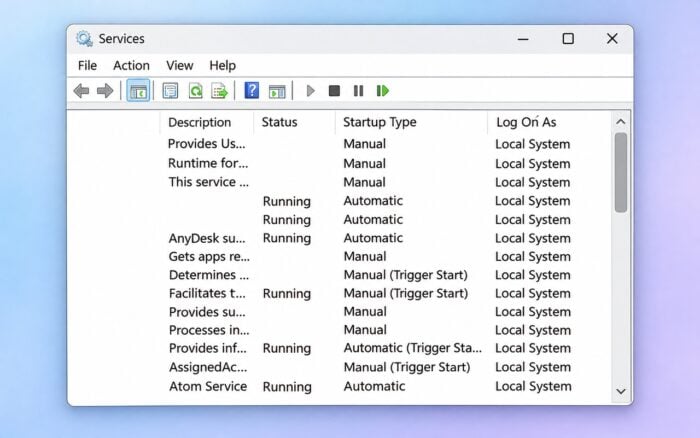
The iSCSI Initiator Service failed to start error usually occurs when Windows disables the Microsoft iSCSI Initiator Service (MSiSCSI), encounters a dependency problem, or detects corrupted system files.
Follow these fixes to restore the service and access your iSCSI storage devices.
What Can I Do If iSCSI Initiator Service Failed to Start in Windows 11?
1. Start the Microsoft iSCSI Initiator Service manually
First, check whether Windows has disabled the service.
- Press Windows + R, type services.msc, and press Enter.

- Locate Microsoft iSCSI Initiator Service.
- Double-click the service to open its properties.
- Change Startup type to Automatic if you need the service to start with Windows.

- Click Apply, then Start.
- Click OK and restart your computer if necessary.
If the service starts successfully, open iSCSI Initiator again.
Note: Windows normally uses Manual startup for this service. Choose Automatic when your storage configuration requires it to run at startup.
2. Start the iSCSI Initiator Service using PowerShell
If the service fails to start through Services, try PowerShell.
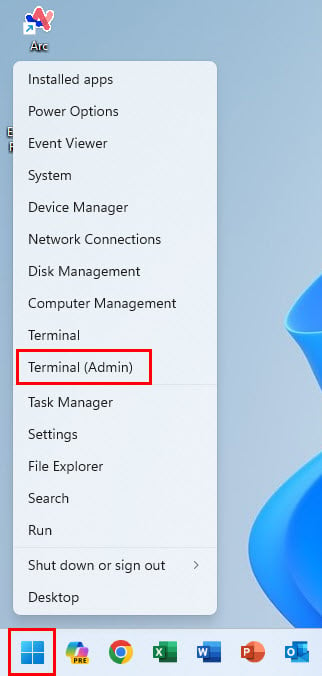
- Right-click Start and select Terminal (Admin).
- Run the following command to enable automatic startup:
Set-Service -Name MSiSCSI -StartupType Automatic - Start the service using:
Start-Service -Name MSiSCSI - Check its status:
Get-Service -Name MSiSCSI - Confirm that the status shows Running.
If PowerShell displays an error, record the message before proceeding.
3. Check the iSCSI service dependencies
Error 1068 indicates that a required service or dependency failed to start.
- Press Windows + R, type services.msc, and press Enter.
- Double-click Microsoft iSCSI Initiator Service.
- Open the Dependencies tab.
- Check which services and components it requires.
- Return to the Services window and verify that the listed services are available and running where applicable.
- Try starting Microsoft iSCSI Initiator Service again.
Do not disable or change the startup settings of core Windows services without identifying the cause.
4. Repair corrupted Windows system files
Damaged Windows files can prevent the iSCSI service from starting.
- Open Command Prompt as administrator.

- Run the following command:
DISM /Online /Cleanup-Image /RestoreHealth - Wait for DISM to complete.
- Run:
sfc /scannow - Restart your computer.
- Open services.msc and attempt to start the iSCSI service again.
5. Check Event Viewer for iSCSI startup errors
Windows Event Viewer can reveal the exact reason the service failed.
- Press Windows + R, type eventvwr.msc, and press Enter.
- Expand Windows Logs and select System.
- Locate errors from Service Control Manager that occurred when the iSCSI service failed.
- Check for Event IDs 7000, 7001, or 7023.
- Open the relevant event and review its error description.
Common errors include:
- Error 1058: Windows has disabled the service. Enable it through Services.
- Error 1068: A dependency failed to start. Check the Dependencies tab.
- Error 5: Access denied. Run the command with administrator privileges and check system policies.
6. Check the iSCSI service configuration
If the service still fails, inspect its configuration through Command Prompt.
- Open Command Prompt as administrator.
- Run:
sc.exe qc MSiSCSI - Review the START_TYPE, BINARY_PATH_NAME, and DEPENDENCIES entries.
- Make sure the service does not have a Disabled startup type.
- If necessary, restore automatic startup with:
sc.exe config MSiSCSI start= auto - Run the following command to start the service:
sc.exe start MSiSCSI
If Windows reports a missing service file or another configuration error, repair Windows system files before making further changes.
If the iSCSI Initiator Service failed to start, check its startup configuration and start it manually first. If the problem persists, follow the troubleshooting steps for the Windows could not start the service on local computer error.
You can also check how to fix NET HELPMSG 2186 if Windows reports that the service is not responding to control functions. For separate storage detection problems involving locally connected drives, see how to fix a USB 3.0 external drive not showing up.
FAQs
Why is the iSCSI Initiator Service not starting?
The service may have a disabled startup configuration, a missing dependency, corrupted Windows files, or insufficient permissions. Event Viewer can help identify the specific cause.
How do I enable the iSCSI Initiator Service in Windows 11?
Open services.msc, double-click Microsoft iSCSI Initiator Service, set the startup type to Manual or Automatic, and click Start.
What is error 1068 in the iSCSI Initiator Service?
Error 1068 means Windows cannot start the service because a required dependency failed. Check the service’s Dependencies tab and investigate the unavailable component.
Is it safe to restart the iSCSI Initiator Service?
Restarting the service can interrupt active iSCSI connections and access to remote storage. Avoid restarting it while applications, virtual machines, or other workloads use the connected disks.

Read our disclosure page to find out how can you help Windows Report sustain the editorial team. Read more


Improve this guide



User forum
0 messages